
How to Install a Spirion Agent to a Linux Machine
How to Create a Custom Installer for Linux
Spirion Endpoint for Linux is designed to be fully managed by the Spirion console.
This management includes: the application of policies, scheduling of tasks, reporting of results and logs, remediation, and collection of diagnostic information.
Additionally, the client can be executed via the command line and the results reviewed from the console when properly configured.
Requirements
To configure the Linux client to communicate with the console, it is first necessary to install a license file and a custom configuration XML file on each endpoint (Agent).
- Valid Spirion license file: identityfinder.lic with Client for Linux enabled
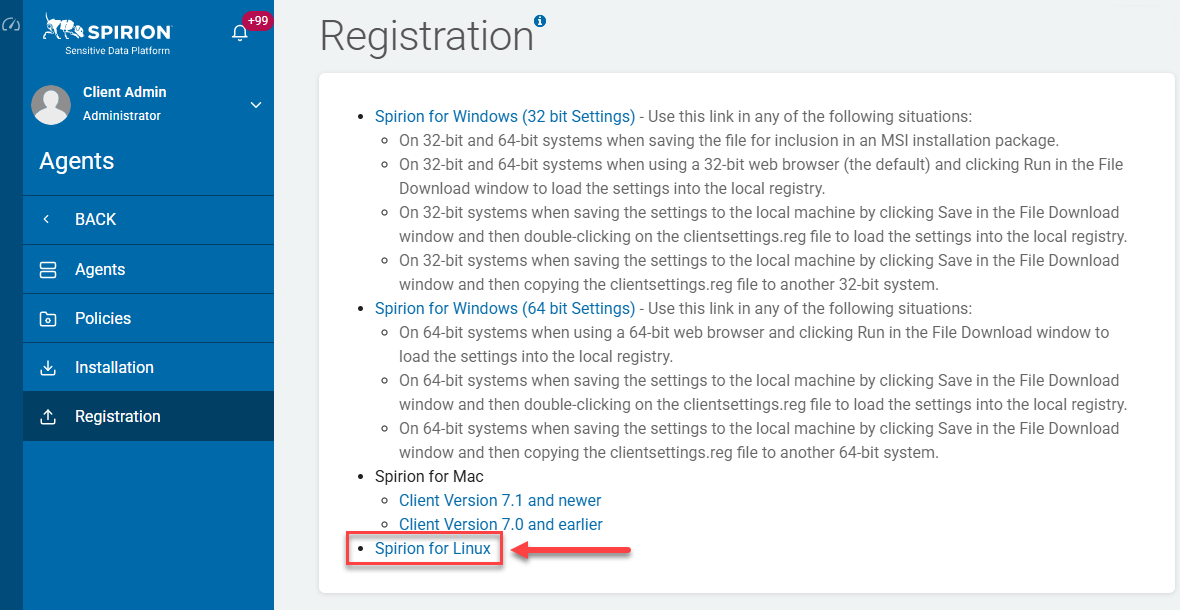
- Custom Configuration XML file: identityfindersettings.xml file from your console server Registration page, for example: https://<yourconsoleserver>.com/Agents/Registration
- Accessing this file contains the URL to locate your console, and should be accessible from every endpoint that the client is being installed on.
- Accessing this file contains the URL to locate your console, and should be accessible from every endpoint that the client is being installed on.
- Root or sudo access is required to install the client for Linux
What Versions of Linux are Supported?
- Only Red Hat Enterprise Linux (RHEL) installations of Linux are supported at this time
- Cento OS7 works, but is not certified
- No other version of Linux is supported
How to Obtain the Installation Files
Use the following steps to obtain the Spirion Agent Linux installation files:
- Download the build script and endpoint application files, SpirionSetup.tgz (legacy versions - IdentityFinderSetup.tgz), from the Customer Portal.
- Download your license file, identityfinder.lic, from the Customer Portal.
Important! Do not change the name of your license file! It must be named identityfinder.lic
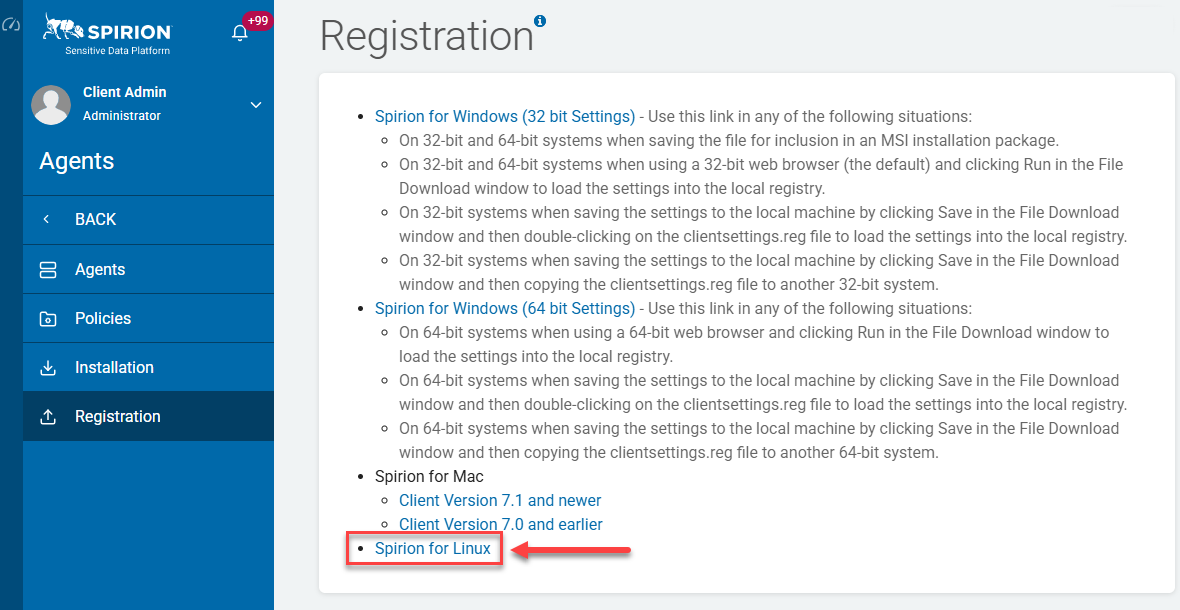
- Open a web browser, navigate to the Agents > Registration page: https://<consoleserver>.com/Agents/Registration where consoleserver is the name or IP address of the console
- Cick the appropriate link for Linux to save the file identityfindersettings.xml to the local client. See the screenshot below.
How to Build the Installer Package
Before executing the script to build the package, you must organize the files to include in the package.
Note: While it is not supported, the build script can create the package on any standard Unix system that contains a recent version of tar (that supports gzip) and a standard Bourne shell. It may also be possible to build the package using a Mac desktop and then copy it to Linux for installation.
- Create a temporary package directory, for example: /tmp/SpirionPackage:
mkdir /tmp/SpirionPackage
- Copy the SpirionSetup.tgz bundle from the location it was downloaded to in the section "Obtaining the Installation Files" to the temporary package directory.
- For example, if the file was downloaded to /home/user/Downloads, the following sample command would copy it to the example temporary folder: /tmp/SpirionPackage
cp /home/user/Downloads/SpirionSetup.tgz /tmp/SpirionPackage
- For example, if the file was downloaded to /home/user/Downloads, the following sample command would copy it to the example temporary folder: /tmp/SpirionPackage
- Switch the current working directory to the temporary package directory, for example:
cd /tmp/SpirionPackage
- Execute the following command to extract the bundle:
tar -zxvf SpirionSetup.tgz
- Copy the identityfindersettings.xml file to the temporary package directory.
- For example, if the XML file was downloaded to /home/user/Downloads, the following command would copy the file to the temporary folder /tmp/SpirionPackage:
cp /home/user/Downloads/identityfindersettings.xml /tmp/SpirionPackage
- For example, if the XML file was downloaded to /home/user/Downloads, the following command would copy the file to the temporary folder /tmp/SpirionPackage:
- Copy the license file identityfinder.lic to the temporary package directory into your temporary package directory.
- For example, if the file was downloaded to /home/userDownloads, the following sample command would copy the file to the example temporary folder /tmp/SpirionPackage:
cp /home/user/Downloads/identityfinder.lic /tmp/SpirionPackage
- For example, if the file was downloaded to /home/userDownloads, the following sample command would copy the file to the example temporary folder /tmp/SpirionPackage:
- SSL: When SSL is used for the Services application, the Linux client only requires certificate configuration if the server certificate is self-signed or from a private certification authority. All certificates from publicly trusted root certificate authorities such as GoDaddy, Verisign, Thawte, etc. are automatically be recognized.
- Certificate: If a self-signed or private certificate is used on the console server for SSL communications, follow these steps:
- Obtain the ca.pem file as described in the "Obtaining the server's SSL certificate" section of the following article: Enabling SSL communication between Linux Endpoints and the Console.
- Copy the file ca.pem into the temporary package directory
- Example: /tmp/SpirionPackage
- Edit the file identityfindersettings.xml to add the Console\caPath setting as described in the "Configuring the client to use the SSL certificate" section of the article noted above in step 7.1. The build script will copy the ca.pem to /var/lib/identityfinder, so the value for the Console\caPath setting should be:
/var/lib/identityfinder/ca.pem
- Note: When using SSL you also need to configure the following setting in a System Policy that will be applied to the endpoint. You can create an installer package (pkg) with the Default Tag feature so the endpoint will automatically be placed in a Tag when installed, and that System Policy will be applied to that Default Tag.
- Execute the following command to build the pkg:
sudo bash ./install.sh -c
- If you do not use the
-ccommand line switch then it will install without creating a pkg. - Once the package creation script is complete, the following file is created in the script directory, for example /tmp/SpirionPackage:
SpirionCustom.tgz
How to Test the Package
After the package is built, it should be tested on a Linux client as follows:
- Copy the compressed archive file SpirionCustom.tgz to the target system.
- Execute the following command to extract the installation files into the current working directory:
tar -zxvf SpirionCustom.tgz
- Verify that the license file, system settings, and certificate file, if necessary, were all extracted.
- For example:
- License file: identityfinder.lic
- System settings: identityfindersettings.xml
- Certificate file: ca.pem
- (if necessary - see the article Enabling SSL communication between Linux Endpoints and the Console for more details)
- Run the following command to change to the root user:
su - Run the following command as
suto install the package contents:bash ./install.sh
- As a result, the install produces text similar to the following:
[idf@identityfinder-test IdentityFinder]$ tar -zxvf SpirionSetup.tgz IdentityFinderCustom.tgz IdentityFinderCmd idfEndpoint eps version.txt identitydb.dat si GetCore.sh install.sh catdoc catppt xls2csv IDFLinuxUninstall.sh identityfindersettings.xml identityfinder.lic [idf@identityfinder-test IdentityFinder]$ sudo ./install.sh [sudo] password for idf: Identity Finder Linux installer... Prerequisite check successful found 5.9 x86_64 Checking for and killing any running versions of idfEndpoint Checking for and killing any running versions of IdentityFinderCmd Current dir is /home/idf/IdentityFinder Setting permissions on binaries Copying IdentityFinderCmd and idfEndpoint to /usr/local/bin/ Copying eps svcscript to /etc/init.d Copying identityfindersettings.xml to /var/lib/identityfinder Installing license to /usr/local/bin Installing local settings to /var/lib/identityfinder Installing identitydb.dat to /usr/local/bin Installing utils to /var/lib/.identityfinder/Application/{04964656e-7469-7479-2046-696e6465720}/util Linux install complete. Linux begin service configuration. Configuring for run level 5 /home/idf/IdentityFinder Adding service Configuring service for boot start Starting Service Starting Identity Finder Endpoint Service : [ OK ] Checking Service Status idfEndpoint (pid 30500) is running... Service Configured eps 0:off 1:off 2:on 3:on 4:on 5:on 6:off Identity Finder service startup complete [idf@identityfinder-test IdentityFinder]$
- Test the installed application to ensure that a search runs to completion and the results appear in the console.
How to Install the Package
After the package has been successfully built and tested, it can be copied to individual systems for installation as follows:
- Copy the file SpirionCustom.tgz to the target machine.
- Execute the following command to extract the installation files into the current working directory:
tar -zxvf SpirionCustom.tgz
- Verify that the license file, system settings, and certificate file, if necessary, were all extracted. For example:
- License file: identityfinder.lic
- System settings: identityfindersettings.xml
- Certificate file: ca.pem
- (If necessary - see the article Enabling SSL communication between Linux Endpoints and the Console for more details)
- Run the following command to change to the root user:
su - Run the following command as su to install the package contents:
bash ./install.sh
- Test the installed application to ensure that a search runs to completion and that the results appear in the console.
How to Upgrade an Agent from a Linux Machine
No special steps are required to upgrade the software on Linux.
- Build a new installer package.
- Copy it to the target endpoints (workstation, laptop, desktop, etc.).
- Run the install script as described above.
How to Uninstall an Agent from a Linux Machine
An uninstall can be performed automatically using the script IDFUninstall.sh found in the folder /var/lib/identityfinder, manually at a shell prompt on an endpoint, or using the script attached to this page.
- To uninstall using the IDFUninstall.sh script, locate the script in the directory: /var/lib/identityfinder/IDFUninstall.sh
- The script can be executed either interactively or quietly. The default is to execute interactively.
- To execute the script interactively use the following command:
sudo /var/lib/identityfinder/IDFUninstall.sh
- The script asks the user to confirm removal as follows:
You are about to completely uninstall Identity Finder and all associated files. Are you sure? [Y/n]
- Enter Y for yes, or N for no (case insensitive).
- yes - If yes is selected, the uninstall continues.
- no - If no is selected, the uninstall exits without making changes to the system.
- The script asks the user to confirm removal as follows:
- To execute the script silently and have the uninstall continue without prompting, use the following command:
sudo /var/lib/identityfindercd/IDFUninstall.sh -f Version
- To uninstall manually, you must perform the following steps:
- Stop the following running processes (e.g., using the 'kill' command):
- IdentityFinderCmd
- idfEndpoint
- Remove the following directories (for example, using the 'rm -rf' command):
- /var/lib/.identityfinder/
Install Script Command Line Reference
The install script (install.sh) accepts some advanced command line arguments.
The following arguments are accepted:
-b- Bypasses system requirements check-c- Makes a copy of your current install which can be used to install other systems with license, AnyFind definitions file, and local settings files.- Note: When making a copy to install on other systems, the EULA will be displayed and must be accepted before completion, thus requiring user interaction from the terminal.
-e- Installs and also creates the custom installation package IdentityFinderCustom.tgz-h- Displays the help
Application, License, Settings, and Log File Paths
Common Spirion Client for Linux files and the paths to those files are listed below:
- Endpoint Service logs: /var/lib/.identityfinder/Application//{04964656e-7469-7479-2046-696e6465720\}/Logs/EPS
- System search logs: var/lib/.identityfinder/(04964656e-7469-7479-2046-696e6465720}/Logs/SystemSearch
- Application: /usr/local/bin/spirion/IdentityFinderCmd Version
- License file: /usr/local/bin/spirion
- System settings: /var/lib/identityfindercd/identityfindersettings.xml
- Shared files: /mnt/hgfs/SharedFiles