How to Edit a User Role
Use the following steps to edit a user role:
- From the left side navigation menu select Settings > User Management.
- The "User Management" page appears.
- Select the USER ROLES tab.
- Locate the role you want to edit.
- Select Edit Role from the kebab menu.

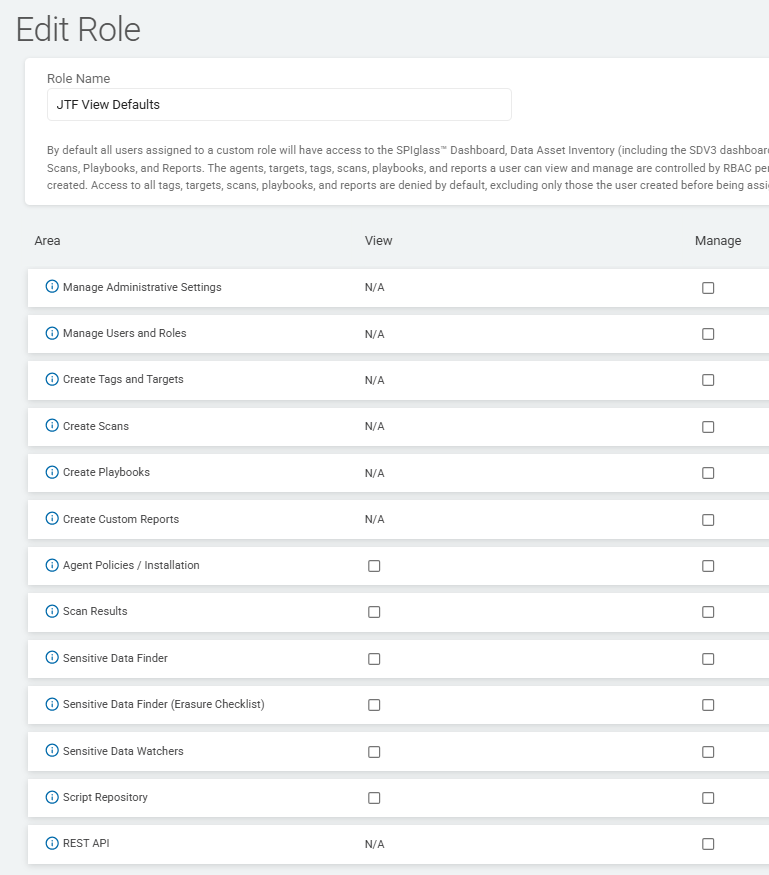
- The "Edit Role" page appears.
- Select the appropriate View and Manage settings for the role.
- Click the blue Review button at the bottom of the page.
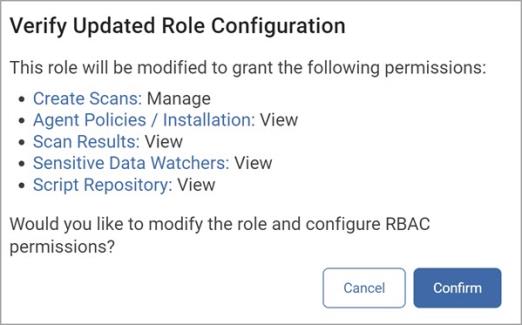
- In the Verify Updated Role Configuration pop-up window, click the Confirm button to save your selections or the Cancel button to discard.