How to Change a User's Target Permissions
Use the following steps to edit a user's permissions to Targets:
- From the left side navigation menu select Settings > User Management.
- The "User Management" page appears.
- Ensure you are on the USERS tab (default).
- In the table shown, locate the user whose permissions you wish to edit.
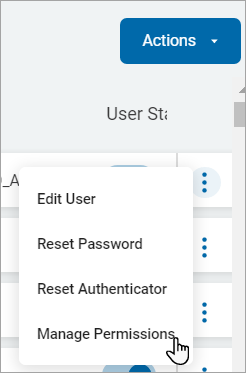
- Click the more options (3 dot ellipse menu) at the end of the row.
- Click Manage Permissions from the sub-menu that appears.
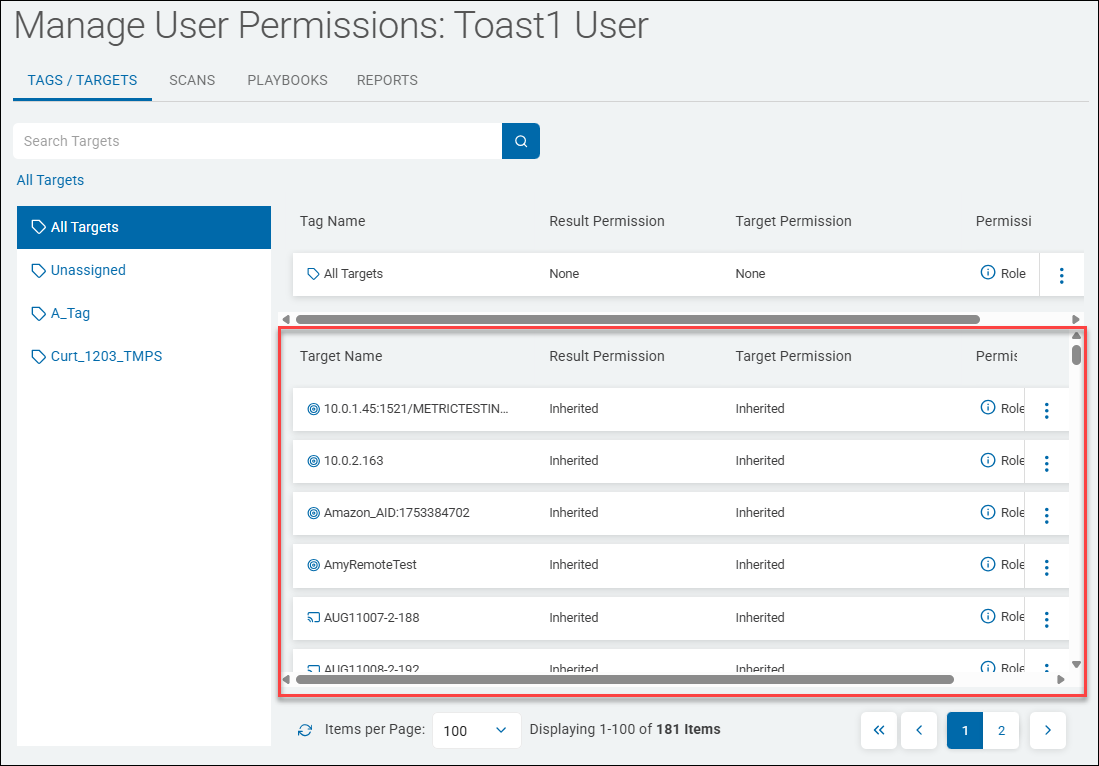
- The Manage User Permissions page opens.
- Ensure the TAGS / TARGETS tab is selected.
- Locate a Target in the bottom table to edit permissions for.
- On the far right of the target, click the more options menu.
- Click Edit Permissions from the sub-menu that appears.
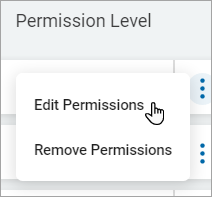
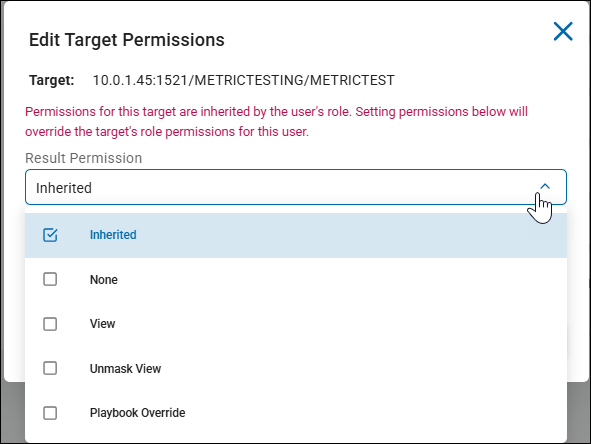
- The Edit Target Permissions pop-up window opens.
- Select any of the following options from the Result Permission drop-down list.
- Inherited
- None
- View
- Unmask view
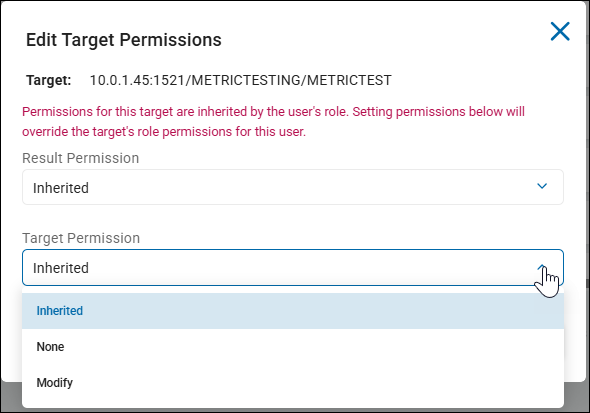
- Before making any changes note the warning on the pop-up window: "Permissions for this target are inherited by the user's role. Setting permissions below will override the target's role permissions for this user."
- Select any of the following options from the Target Permission drop-down list.
- Inherited
- None
- Modify
- Click the Confirm buton to save or the Cancel button to discard.
- A Target Permission might be inherited by the user role assigned to the user.
You can change the permission level to Individual by overriding role level result and target permissions. Also, you can change the permission level to Individual/Role by overriding either role level result or target permissions.