
How To Gather Data for a Spirion Sensitive Data Platform Agent
This article provides instructions on how to perform the Gather Data function on Spirion Sensitive Data Platform Agents
Before You Start
- If You Experience Communication Issues: If the Agent does not communicate with the Spirion console (Spirion Sensitive Data Platform), you will not be able to send the gather data command. In this case, follow the steps in the section below: "How to Gather Data from an Agent Not Communicating with the Console."
What Data is Collected by the Gather Data Function
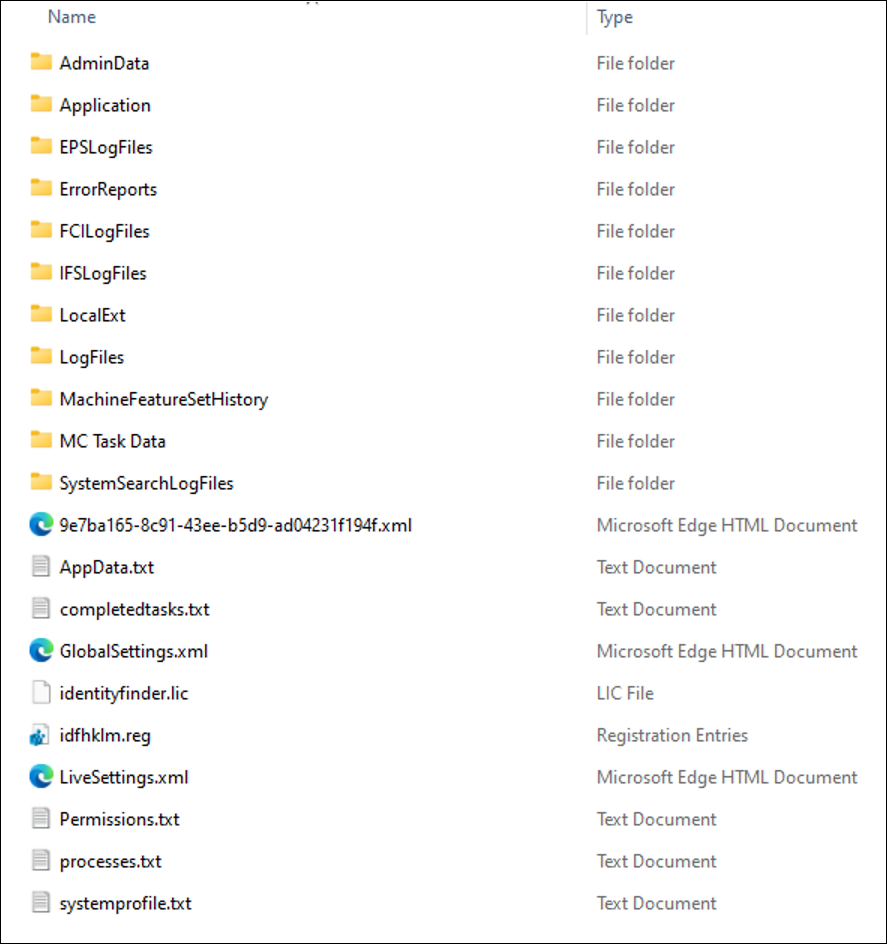
The Gather Data function gathers the following information from the machine the agent is running on:
- Logs and system information:
- EPS log files
- Error reports
- FCI log files
- IFS log files
- System search log files
- Processes actively running
- Permissions
- Registry values
How to Gather Data for an Endpoint using Spirion Sensitive Data Platform Console
To gather data you complete a two-step process: first, you request the data from the console, and then after it is generated, you download the ZIP file containing the gather data contents from the "Agents Logs" page.
Use the following steps to make a gather data request for an endpoint and download the zip file using Spirion Sensitive Data Platform:
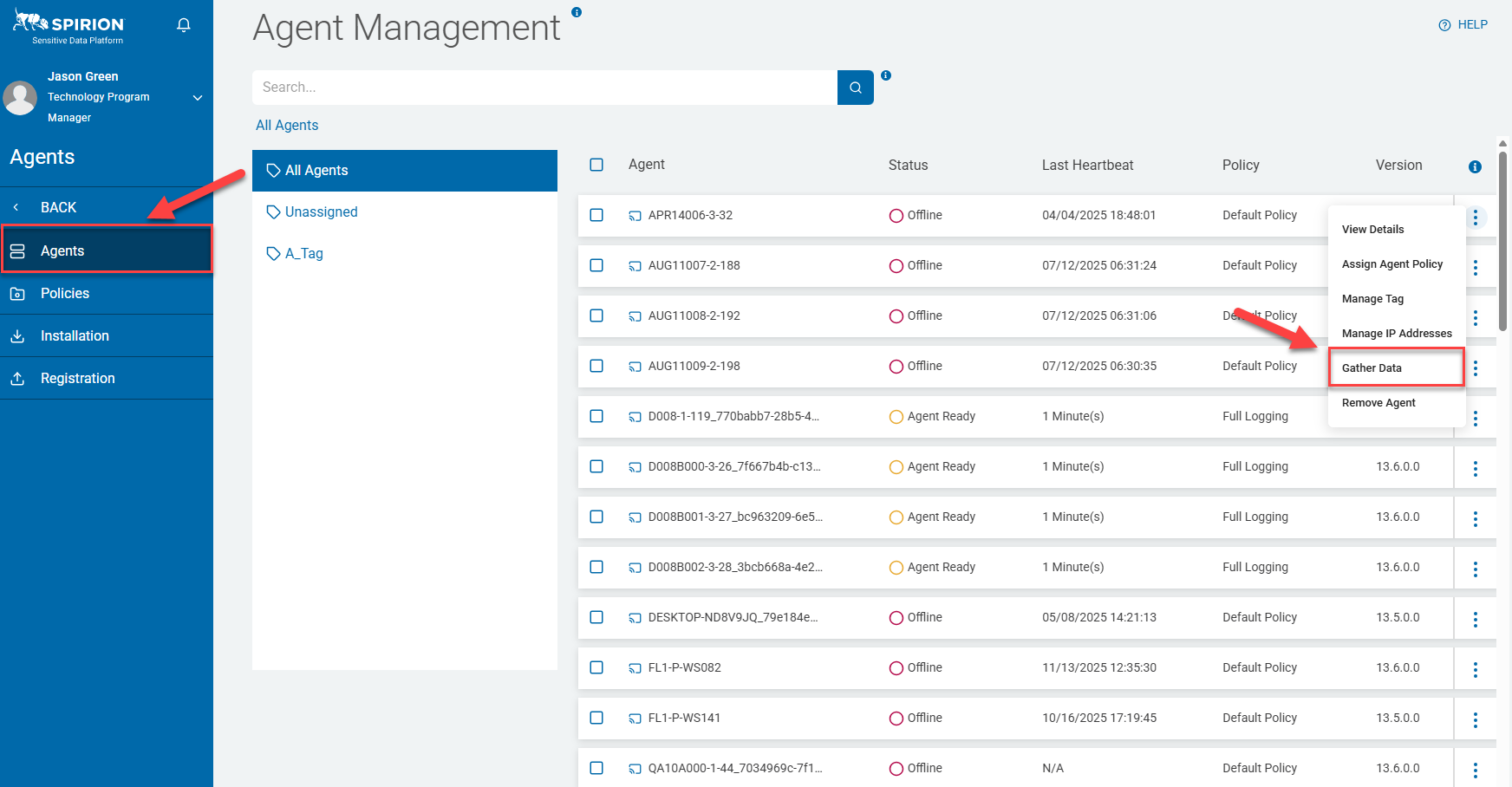
- From the left side navigation menu select Agents > Agent Management.
- In the table on the page, identify the Agent you want to gather data from.
- On the right side of the Agent's line, click the three ellipses (more options).
- From the drop-down menu, select Gather Data.
- The Gather Data request is now submitted. Next you retrieve the Gather Data ZIP file.
- From the left side navigation menu, click BACK, and then select Reports > Agent Logs.
- The gathered data appears under Agent Logs in the Reports section of the console.
- An example of the data contained in the gather data ZIP file is shown below:

How to Gather Data from an Agent Not Communicating with the Console
If your desired Agent is not responding to the console, you can manually gather data using the following steps:
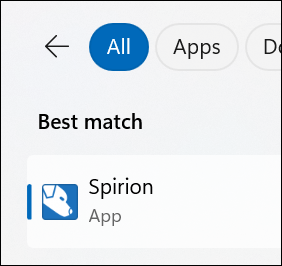
- From the Windows Start menu open the Spirion Agent GUI Application:
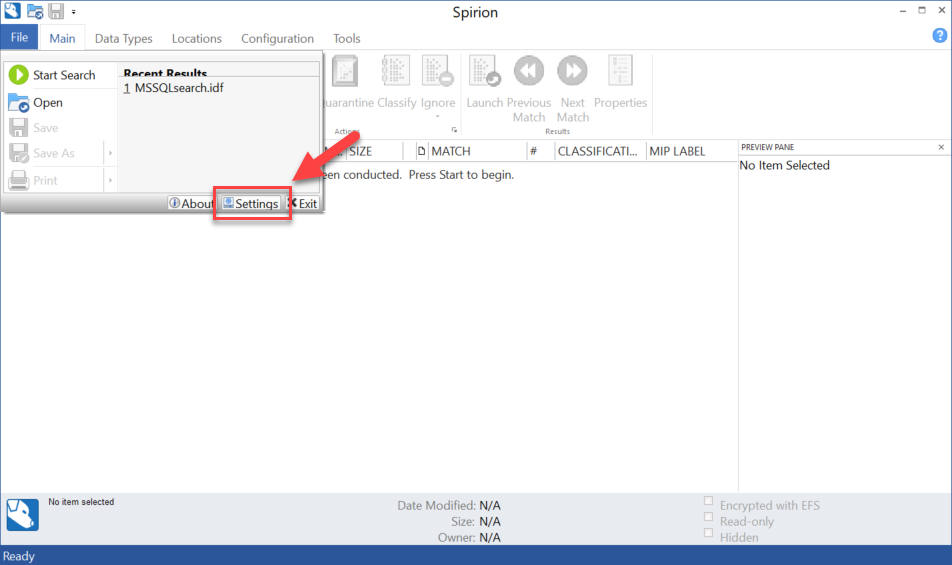
- Select File>Settings.
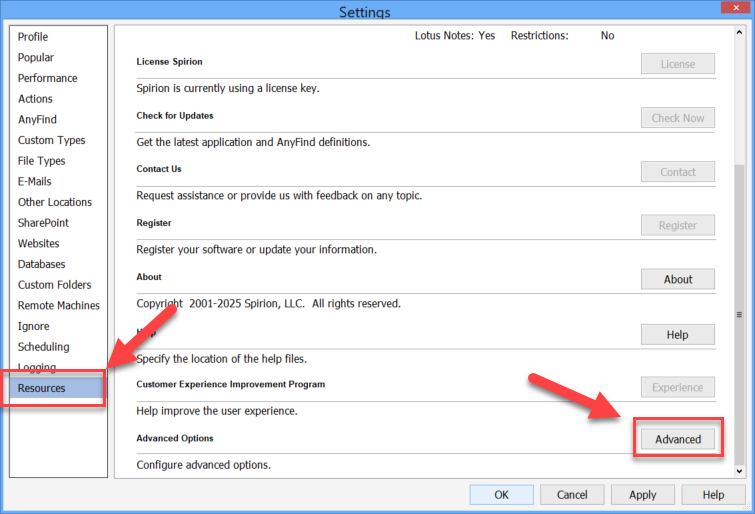
- Select Resources from the list on the left side. Scroll down to the "Advanced Options" section and click the Advanced button. See the screenshot below.
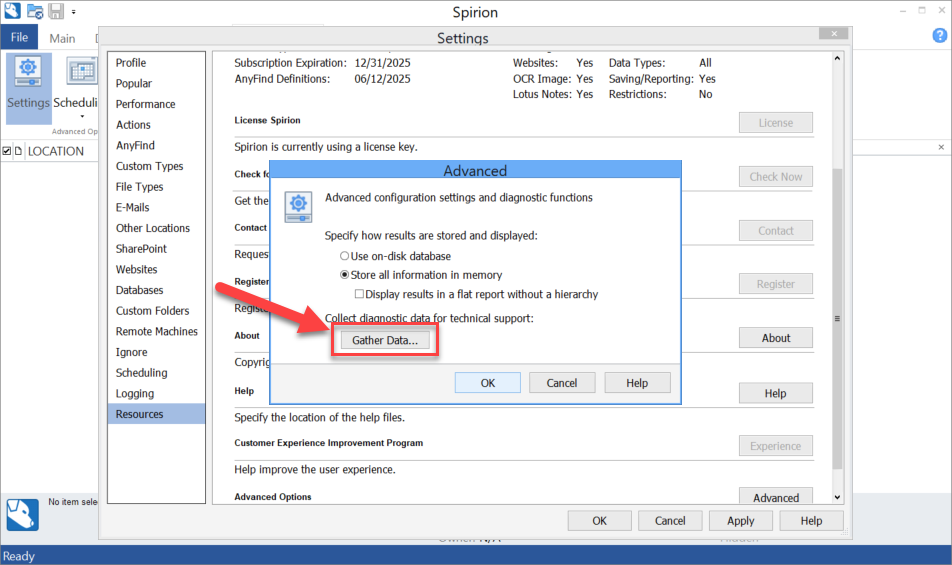
- Start Data Gathering: In the "Advanced" dialog that appears, click the Gather Data button.
- Save the Data: Once the data is collected, you are prompted to save the file to a location of your choosing. Choose a location and save the ZIP file.
- Submit the Data: Attach the saved ZIP file to an existing support ticket or create a new ticket and include the ZIP file as an attachment.
How to Gather Data using the Windows Command Prompt
To Gather Data via the Windows Command Prompt, use the following steps:
- Launch the Windows Command Prompt.
- Enter the following command (replace the code "
C:\path\to\where\you\want\zip\saved" with the location where you want the data to be saved:
C:\Program Files (x86)\Spirion>identityfindercmd /gatherdata gatherdatapath=C:\path\to\where\you\want\zip\saved