How to Use the Script Repository
The Script Repository page enables you to manage the scripts that are applied to search results for remediation.
Overview
- This topic describes how to access and view your script repository, add a new script, view and change script encoding, test your script, export a script and delete a script.
- See the topics below for more information.
How to Access and View Your Script Repository
Procedure:
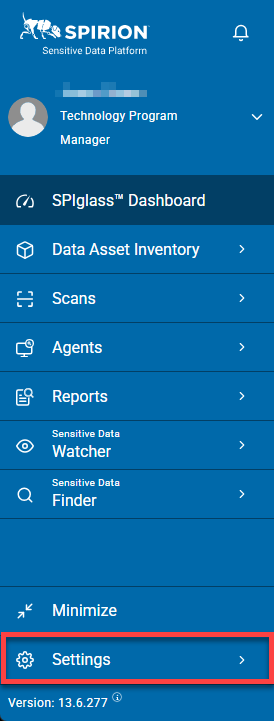
- From the left menu, click Settings.
- Click Script Repository.

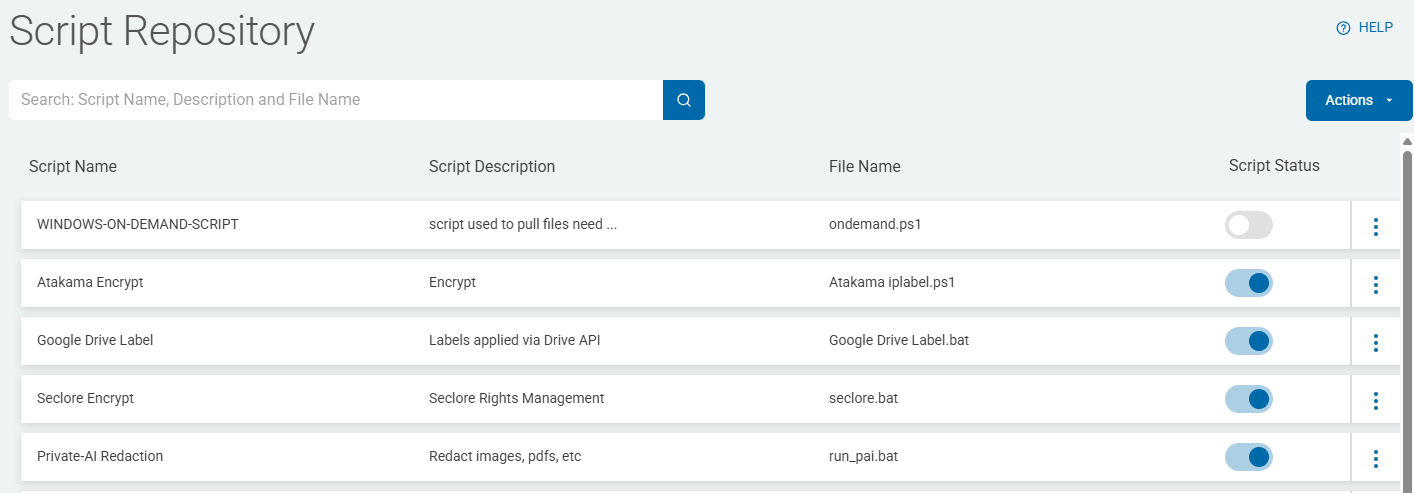
- Scripts are displayed in a list sorted by:
- Script Name
- Script Description
- File Name
- Script Status
- More options
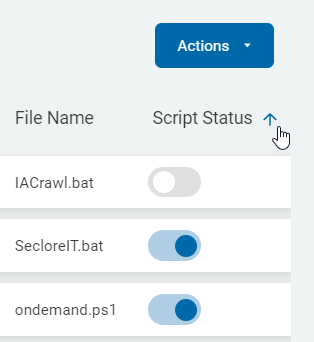
- Click a the Script Status column to sort ascending.
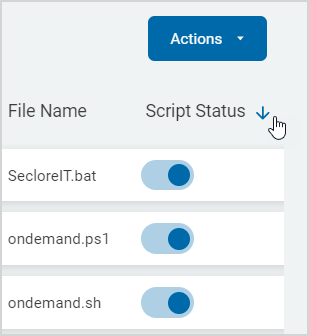
- Click the Script Status column again to sort descending.
- Search for a script
- Your can search for scripts by
- Name
- Description
- File Name
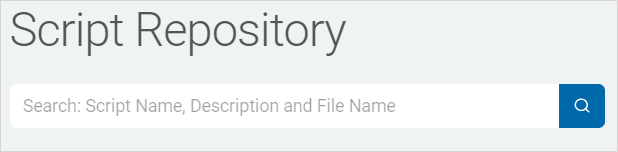
- Type the search query in the box and the results are sorted and displayed in the list below.
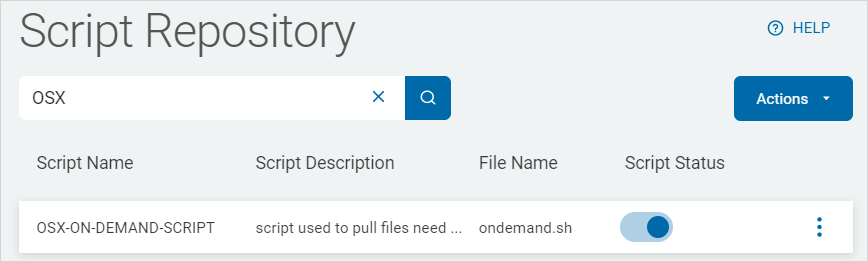
- Click the x to clear the search term.
How to Add a New Script
Script Encoding Requirements by Version
- Spirion Sensitive Data Platform version 13.5 and later requires scripts that are UTF-8 encoded
- Using scripts that are not UTF-8 encoded may result in errors
- Use the steps in the topics below to change the encoding of your non-compliant scripts to be compliant
How to View and Change Script Encoding
To view, and if necessary, change your script, use the steps below:
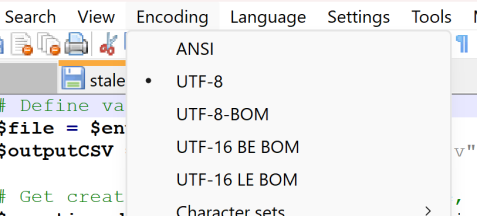
- Open any script in the application Notepad++.
- To view the encoding, select the Encoding menu from the top of the application.
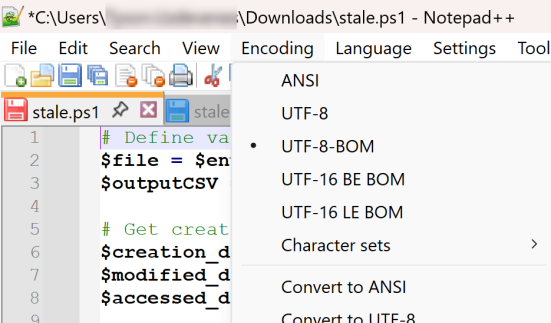
- If the encoding is not UTF-8, select UTF-8 from the menu options.
- Save the script.
How to Test Your Script
To test your script, use the steps below:
- Re-upload the updated script with UTF-8 encoding to the Script Repository.
- Use the updated script with UTF-8 encoding.
- Use the script in a Scan Playbook.
- The script should now work as expected.
How to Add and Use Your New Script
To add a new UTF-8 script use the following procedure:
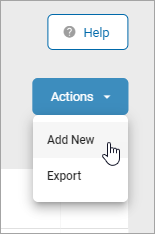
- In the top-right of the screen, click Actions.
- Click Create Playbook.
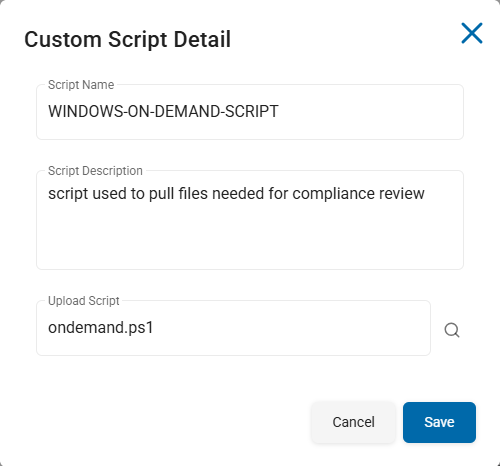
- In the Custom Script Detail pop-up window, fill in the following:
- Script Name: Type the name of the script.
- Script Description: Type the description of the script.
- Upload Script: Click the blue magnifying glass icon to upload a script file.
- Click Save to proceed or Cancel to discard.
How to Export a Script
Use the following steps to export a script from the Settings > Script Repository page:
- In the top right corner of the page click the blue Actions button.
- Click Export from the sub-menu.
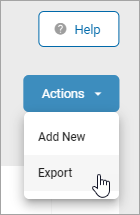
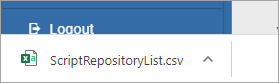
- A .csv format file is downloaded to you local computer.
How to View or Edit Script Details
Use the following steps to view or edit the details of a script from the Settings > Script Repository page:
- Locate the script you wish to view or edit in the Script Repository table.
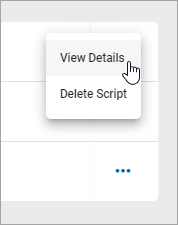
- In the far right column, click the more options menu (3 vertical dots).
- Click View Details from the sub-menu.
- The "Custom Script Details" pop-up window is displayed.
- Make changes as you desire to any of the following fields:
- Script Name: Type the script name.
- Script Description: Type the script description.
- Upload Script: Click the magnifying glass icon to upload a script file - for example, script.ps1 - from your local computer.
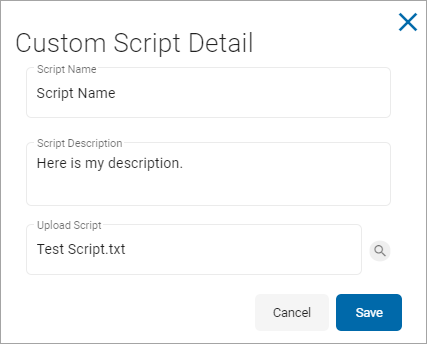
- Click Save to save changes or Cancel to discard your changes.
How to Delete a Script
Use the following steps to delete a script from the Settings > Script Repository page:
- Locate a script in the Script Repository table.
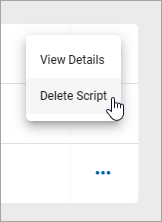
- In the far right column, click the more options menu (...).
- Click Delete Script.
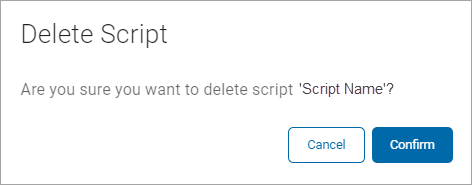
- Click the blue Confirm button to confirm deletion or Cancel to abort the action.