
Create New Scan Wizard - Select NoSQL Advanced Options
The "Select NoSQL advanced options" page is approximately the 8th screen in the Create New Scan (or Edit Scan) wizard.
This section and the settings in this section applies to NoSQL (non-relational) database Targets only.
Select NoSQL advanced options
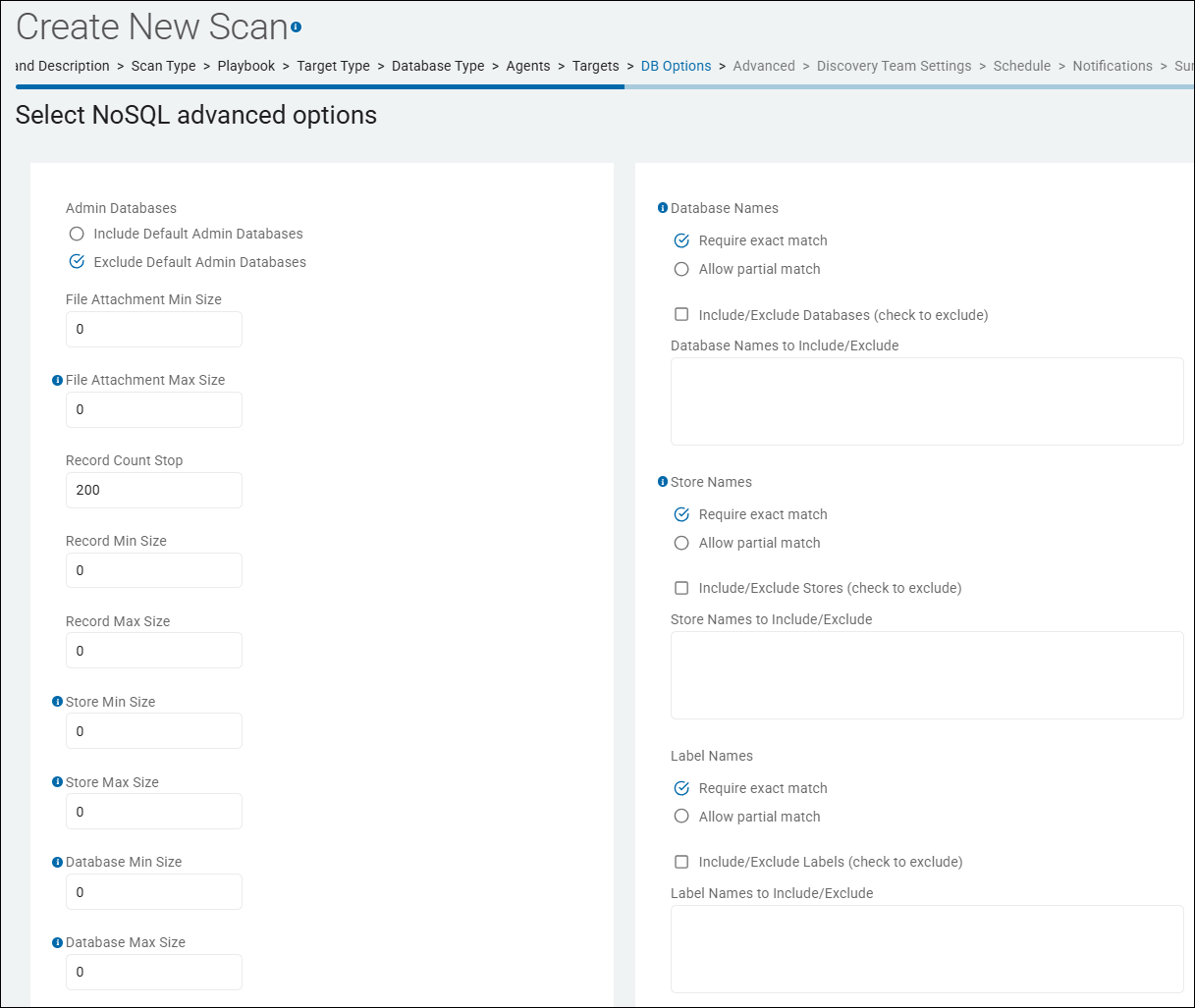
Admin Databases
The setting “Admin Databases” is a scope filter specifically for NoSQL environments like MongoDB.
What it does
- In most NoSQL architectures (like MongoDB), "Admin" or "System" databases (for example,
admin,local,config) store user credentials, roles, and cluster configurations, while "Business" databases store the actual sensitive application data.
This setting enables you to explicitly include or exclude these administrative databases from your sensitive data scan.
- Include Default Admin Databases: The Spirion Agent crawls the system-level collections. While these rarely contain "customer" data, they may contain sensitive technical data like usernames, connection strings, or audit logs that your security policy might require you to monitor.
- Exclude Default Admin Databases: Default. The Agent skips these system databases and focuses only on the "User" or "Application" databases where your business data resides.
Why it exists
- Noise Reduction: System databases often contain technical strings (IDs, hashes, hex codes) that can trigger "False Positives" if your search criteria are broad. Excluding them keeps your results clean.
- Permission Management: The service account used for the scan might have access to application data but might not have the high-level "root" permissions required to read the
admindatabase. This setting enables the scan to run successfully without triggering "Access Denied" errors on system tables. - Performance: Admin databases can be quite large (especially audit logs). Excluding them ensures the Agent doesn't waste time scanning thousands of lines of system telemetry.
How it works in the workflow
- Connection: The Agent connects to the NoSQL cluster (for example, MongoDB).
- Enumeration: The Agent asks the server for a list of all available databases.
- Filter Check: The agent compares the list against the “Admin Databases” (or "Database Names") configuration.
- Targeting: If the setting is configured to skip admin databases, the Agent ignores
admin,config, andlocal, and proceeds to scan only the application databases (for example,Customer_DB,Orders_DB).
Recommendations
- Best Practice: In most cases, you should exclude admin databases. They are unlikely to contain the PII or PCI data you are typically looking for, and scanning them increases the risk of performance impact on the database cluster.
- When to Enable: Only include these if you are performing a Security Hardening Audit or a Forensic Investigation where you specifically need to ensure that sensitive data hasn't been accidentally logged or "stashed" in system collections.
- Naming Note: Depending on your specific sub-version of v13.6, this field may be labeled as "Database Names". If it is a text box, you can usually provide a comma-separated list of the specific databases you want to include or exclude.
Summary
The “Admin Databases” setting is a System-Level Filter. it tells the Spirion agent whether it should limit its search to your business data or if it should also inspect the internal "plumbing" and configuration databases of your NoSQL environment.
File Attachment Min Size
The setting “File Attachment Min Size” is a performance and filtering threshold used when scanning NoSQL databases that store binary data or file attachments.
What it does
This setting defines a size floor (in kilobytes or megabytes) for binary objects or "File Attachments" stored within NoSQL collections (such as GridFS in MongoDB or Document attachments in Couchbase).
- Below the Threshold: If a binary object is smaller than this value, the Spirion agent will skip it and move to the next item.
- Above the Threshold: If the object meets or exceeds this size, the agent will attempt to extract the content, perform optical character recognition (OCR) if configured, and search for sensitive data.
Why it exists
- Noise Reduction: Small binary objects in NoSQL databases are frequently thumbnails, icons, UI elements, or system blobs. These almost never contain sensitive "document-style" data (like a PDF or Excel file) but can be numerous enough to slow down a scan significantly.
- Performance Optimization: Extracting and parsing binary data is the most resource-intensive part of a scan. By setting a "Minimum Size," you ensure the agent only spends CPU cycles on objects large enough to actually be meaningful documents (for example, a 2KB blob is likely an icon; a 50KB blob is likely a small document).
- Efficiency: It enables the scan to finish much faster by ignoring the "chaff" of tiny system-generated binary fragments.
How it works in the workflow
- Enumeration: The Agent connects to the NoSQL database and begins iterating through the documents/records.
- Metadata Check: For every binary field or attachment, the Agent checks the
lengthorsizemetadata provided by the database. - The Filter:
- If
Size < Min Size: The agent ignores the blob. - If
Size >= Min Size: The agent streams the binary data into its memory, applies any necessary file-type parsers, and searches for matches.
- If
Recommendations
- Typical Value: A common starting point is 5 KB or 10 KB. This is usually enough to filter out most small UI icons and empty placeholder blobs.
- When to set it to 0: If you are scanning a database specifically designed to store very small text snippets as attachments (like tiny
.txtconfig files), set this to 0 to ensure nothing is missed. - When to raise it: If you know your sensitive data only exists in large reports (PDFs, TIFFs), you can raise this to 100 KB to drastically increase scan speed.
- Important Note: This setting does not affect standard text fields in the NoSQL document. It only applies to fields recognized by the agent as "Binary" or "Attachment" types.
Summary
The “File Attachment Min Size” setting is a Binary Filter. It ensures that the Spirion agent ignores the "noise" of tiny system blobs and focuses its heavy-duty parsing resources on the larger file-like objects most likely to contain sensitive documents.
File Attachment Max Size
The setting “File Attachment Max Size” on the Select NoSQL advanced options page is a safety and resource-management threshold used when scanning binary data (BLOBs) stored in NoSQL databases like MongoDB.
While the "Min Size" filters out small system "noise," the "Max Size" prevents the agent from being overwhelmed by massive files.
What it does
This setting defines a size ceiling (in kilobytes or megabytes) for binary objects or file attachments (for example, GridFS files in MongoDB) for the Agent to process.
- Below the Threshold: If a binary object is smaller than this value (and larger than the "Min Size"), the Agent downloads, extracts, and scans its contents for sensitive data.
- Above the Threshold: If a binary object exceeds this size, the agent skips the content inspection of that specific file. It may still log that the file was skipped due to size restrictions in the scan history.
Why it exists
- Memory Management: To scan a file, the Spirion Agent must often "buffer" or extract the text from that file into its local memory. Attempting to parse a 2GB video file or a 500MB encrypted backup archive stored in a NoSQL database could cause the Agent process to run out of memory (OOM) and crash.
- Scan Window Stability: Extremely large files can take hours to process (especially if they require complex OCR or deep archive expansion). One "monster" file could cause a scan that normally takes 10 minutes to take 10 hours, potentially missing its scheduled completion window.
- Prioritization: In most environments, sensitive data is found in documents (PDFs, Excel, Word) which are typically under 50MB. Files significantly larger than that are often media files, database backups, or disk images—items that are either unlikely to contain "scannable" text or should be handled by a different discovery process.
How it works in the workflow
- Discovery: The agent identifies a binary attachment in the NoSQL collection.
- Size Check: The agent queries the database metadata for the
lengthorsizeof that attachment. - The Decision:
- If
Size <= Max Size: The agent proceeds with the scan. - If
Size > Max Size: The agent records a "Skipped" status for that item and immediately moves to the next document in the collection.
- If
Recommendations
- Standard Value: A safe and common default is 50 MB or 100 MB. Most sensitive documents fall well below this range.
- When to Increase: If your users frequently store very large CAD drawings, massive Excel spreadsheets (100k+ rows), or large PDF legal bundles in NoSQL, you may need to raise this to 250 MB.
- When to Decrease: If you are running scans on lightweight virtual machines with limited RAM, lower this to 20 MB to ensure the agent never risks a memory-related crash.
- Important Caveat: Remember that if a file is skipped because it is too large, you have a blind spot. Always review the "Skipped Files" report in the console after a scan to see if any large files were bypassed.
Summary
The “File Attachment Max Size” setting is a Resource Guard. It protects the stability of the Spirion agent and the NoSQL database by ensuring the agent doesn't attempt to ingest and process massive binary objects that could impact performance or system stability.
Record Court Stop
The setting “Record Count Stop” on the Select NoSQL advanced options page is a scan-limiting threshold used to control the duration and depth of a search within NoSQL collections (like those in MongoDB).
What it does
This setting defines a maximum number of records (documents) the Agent processes before it automatically stops scanning a specific collection or database.
- When set to 0 (Default): The agent will scan all records in the target collection until it reaches the end.
- When set to a specific number (for example, 5,000): The Agent starts at the beginning of the collection and scan exactly 5,000 documents. Once it hits that count, it stops and moves on to the next collection or else finishes the scan task entirely.
Why it exists
- Sampling and Auditing: If you have a massive production database with 500 million records, scanning every single one can take days. If you only need to verify if sensitive data exists (a "smoke test"), you can set this to 10,000 to get a statistically significant sample in minutes.
- Performance Protection: In high-traffic NoSQL environments, a full table scan can impact the performance of the database cluster. By limiting the record count, you can perform a "check-up" without putting sustained heavy load on the server.
- Proof of Concept: During the initial setup of a new playbook, you might use this to verify that your RegEx patterns are working on real data without waiting for a massive scan to complete.
How it works in the workflow
- Connection: The agent connects to the NoSQL database and targets a specific collection.
- Iteration: The agent begins fetching documents one by one.
- The Counter: An internal counter tracks every document processed.
- The Stop:
- If
Current Count < Record Count Stop: The agent continues to the next document. - If
Current Count == Record Count Stop: The agent closes the cursor to that collection and moves to the next task.
- If
Recommendations
- Standard Scans: Leave this at 0 for your production "Compliance" or "Remediation" scans. If you stop at 5,000 records, you might miss a social security number located at record 5,001, leaving you with a false sense of security.
- Discovery/Audit Phase: Use a value like 1,000 or 5,000 when you are first exploring a database to see what kind of data it contains.
- Consistency Note: NoSQL databases do not always return records in a perfectly predictable order unless an index is used. This means that if you run two "Record Count Stop" scans on the same collection, you might see slightly different records each time depending on how the database engine handles the query.
- Difference from "Match Max": Do not confuse this with a match limit. "Record Count Stop" stops based on the number of documents read, regardless of whether they contain sensitive data or not.
Summary
The “Record Count Stop” setting is a Sampling Limit. It enables an administrator to truncate a potentially massive NoSQL scan into a manageable, time-limited "snapshot" of the data for auditing or testing purposes.
Record Min Size
The setting “Record Min Size” on the Select NoSQL advanced options page is a performance-tuning filter used to skip small, non-sensitive documents within a NoSQL collection (like MongoDB or Couchbase).
What it does
This setting defines a minimum size (in bytes or kilobytes) for an individual NoSQL document (record).
- Below the Threshold: If a document's total size is smaller than this value, the Spirion Agent skips the document entirely and move to the next one in the collection.
- Above the Threshold: If the document meets or exceeds this size, the Agent parses the fields and searches for sensitive data according to your Scan Playbook.
Why it exists
- Filtering System Noise: NoSQL databases often contain millions of "tiny" records used for status flags, counters, session tokens, or simple "Yes/No" metadata. These records are structurally too small to contain a Social Security Number, Credit Card Number, or meaningful PII.
- Scan Speed (IOPS Reduction): In a database with 100 million records, if 40% of them are tiny metadata stubs, skipping them based on size is significantly faster than opening and parsing each one. This reduces the "Input/Output Operations" (IOPS) on the database server.
- Efficiency: It enables the Agent to focus its "thinking time" on the larger documents (user profiles, order histories, chat logs) that are statistically much more likely to contain the sensitive data you are hunting for.
How it works in the workflow
- Enumeration: The agent starts a cursor to read a NoSQL collection.
- Metadata Inspection: As the agent encounters each document, it checks the document's size (the BSON size in MongoDB, for example).
- The Decision:
- If
Document Size < Record Min Size: The agent drops the document from its buffer and moves to the next. - If
Document Size >= Record Min Size: The agent proceeds to inspect the fields for matches.
- If
Recommendations
- Safe Starting Point: A very conservative setting is 16 to 32 bytes. Almost any record containing an actual name and an SSN/CC will be larger than 32 bytes.
- When to leave at 0 (Default): If you are performing a strict compliance audit (for example, PCI-DSS), leave this at 0. Even a small record could theoretically contain a single sensitive token, and you don't want to risk a "Blind Spot" in a regulated environment.
- When to increase it: If you know your database is 90% "heartbeat" records (for example,
{ "id": 123, "status": "online" }) and only 10% "user data," setting aRecord Min Sizeof 100 bytes can make your scan finish 10x faster. - Difference from "File Attachment Min Size": This setting applies to the entire NoSQL document (JSON/BSON record), whereas the "File Attachment" setting only applies to binary blobs (like PDFs or Images) stored inside or alongside that record.
Summary
The “Record Min Size” setting is a Structural Filter. It tells the Spirion Agent to ignore "tiny" data fragments that are too small to hold sensitive information which enables the scan to prioritize high-value, document-heavy records.
Record Max Size
The setting “Record Max Size” on the Select NoSQL advanced options page is a resource-protection threshold used to prevent the Agent from attempting to process excessively large NoSQL documents (records).
What it does
This setting defines a maximum size (in kilobytes or megabytes) for an individual JSON or BSON document within a NoSQL collection (for example, MongoDB, Couchbase).
- Below the Threshold: If a document's total size is less than or equal to this value, the Spirion Agent parses all its fields and searches for sensitive data.
- Above the Threshold: If the document exceeds this size, the Agent skips the content inspection of that specific record and moves to the next one in the collection.
Why it exists
- Memory Stability: To scan a NoSQL document, the agent must "materialize" or load the document into its local memory to traverse the fields and apply Regular Expressions. In NoSQL environments, documents can occasionally grow to massive sizes (for example, a single MongoDB document can be up to 16MB by default, but some patterns use "bucket" documents that are very dense). Attempting to scan a "monster" document can lead to high RAM usage or an Out-of-Memory (OOM) crash of the agent.
- Scan Performance: Large documents with deeply nested arrays or thousands of fields take a disproportionately long time to "flatten" and scan. One outlier record could stall an entire scan task for several minutes.
- Preventing "Infinite Loops": In some misconfigured NoSQL databases, circular references or massive log-dump records can be created. The "Max Size" acts as a circuit breaker to ensure the agent doesn't get stuck on these anomalies.
How it works in the workflow
- Enumeration: The Agent fetches a document from the NoSQL collection.
- Size Validation: The Agent checks the document's metadata or BSON/JSON byte length.
- The Decision:
- If
Document Size <= Record Max Size: The agent proceeds with the scan. - If
Document Size > Record Max Size: The agent logs the record as "Skipped due to size" and immediately requests the next record from the database cursor.
- If
Recommendations
- Standard Setting: For MongoDB, a value of 16 MB is a common choice because it matches MongoDB's default maximum BSON document size. This ensures you scan everything the database allows.
- Performance Tuning: If your agent is running on a low-memory machine (for example, 2GB of RAM), you may want to lower this to 4 MB or 8 MB to ensure the Agent remains stable.
- Reviewing Skips: Always check the "Scan History" or "Skipped Files/Items" report. If you see many records being skipped because they are "Too Large," you may be missing critical data and need to either increase the limit or investigate why those records are so large.
- Difference from "File Attachment Max Size": This setting applies to the JSON/BSON data structure itself (the text and fields). The "File Attachment" setting applies specifically to binary blobs (like GridFS files) stored within the database.
Summary
The “Record Max Size” setting is a Safety Valve. It protects the Spirion agent from being overwhelmed by unusually large NoSQL documents, ensuring that a single "outlier" record doesn't crash the scanning process or cause it to hang indefinitely.
Store Min Size
The setting “Store Min Size” on the Select NoSQL advanced options page is a high-level filtering threshold used to skip entire NoSQL "stores" (databases or large-scale containers) that do not meet a specific data volume requirement.
What it does
While settings like "Record Min Size" focus on individual documents, “Store Min Size” looks at the aggregate size of the entire database or data store before the Agent begins scanning.
- Below the Threshold: If the total size of the targeted NoSQL database is smaller than this value, the Agent skips the entire database and reports it as skipped in the scan results.
- Above the Threshold: If the database size meets or exceeds this value, the Agent proceeds to enumerate collections and scan records.
Why it exists
- Excluding Empty or Test Environments: In large enterprise NoSQL clusters, there are often hundreds of small "scratchpad" databases or empty containers created by automated tests or developer sandboxes. Scanning these adds overhead and creates "clutter" in your reports.
- Focusing on Production Assets: This setting helps ensure that your compliance scans are targeting meaningful data repositories. By setting a minimum store size, you ensure the Agent only spends time on databases that actually contain a significant amount of data.
- Performance Optimization: Checking the aggregate size of a store is a very fast operation (usually a single metadata call to the cluster). If a database is only 100 bytes, it's virtually impossible for it to contain a meaningful volume of PII; skipping it at the "store" level is more efficient than opening it to check for records.
How it works in the workflow
- Discovery: The agent connects to the NoSQL cluster and retrieves a list of all databases.
- Size Check: For each database found, the agent queries the "Size on Disk" or "Total Data Size" metadata.
- The Filter:
- If
Store Total Size < Store Min Size: The agent ignores the entire database. - If
Store Total Size >= Store Min Size: The agent begins scanning the individual collections within that database.
- If
Recommendations
- Standard Practice: For most environments, a small value like 1 MB is a good "cleanup" filter to ignore empty or near-empty databases without risking the loss of real data.
- When to use 0: Always set this to 0 if you are performing a comprehensive forensic audit where you must prove that every database was checked, regardless of its size.
- Caution: Be careful with this setting if your database uses heavy compression or thin provisioning. A database might have millions of small text records but a very small footprint on disk; setting this value too high could cause you to skip valid data.
- Difference from other Min Size settings:
- Store Min Size: Filters the entire Database.
- Record Min Size: Filters individual JSON/BSON Documents.
- File Attachment Min Size: Filters Binary BLOBs within a document.
Summary
The “Store Min Size” setting is a Database-Level Filter. It acts as a "Gatekeeper" that enables the Spirion Agent to quickly bypass empty or irrelevant NoSQL databases, keeping your scan focused on substantial data repositories.
Store Max Size
The setting “Store Max Size” on the Select NoSQL advanced options page is a high-level safety and governance threshold used to bypass massive NoSQL databases (stores) that exceed a specific data volume.
- Supported by Windows Agents only
What it does
This setting defines a maximum aggregate size (usually in MB or GB) for an entire NoSQL database or data store.
- Below the Threshold: If the total size of the targeted NoSQL database is less than or equal to this value, the Agent proceeds to scan all collections and documents within it.
- Above the Threshold: If the database's total footprint on disk exceeds this size, the Agent skips the entire database and moves to the next one in the cluster.
Why it exists
- Preventing "Infinite" Scans: In NoSQL environments (like MongoDB clusters), a single "Store" can grow to several terabytes. Scanning a multi-terabyte database with a single agent can take weeks. This setting prevents an agent from accidentally starting a task that it cannot realistically finish within a reasonable maintenance window.
- Resource Preservation: Scanning a massive database consumes significant CPU, Memory, and Network I/O. If you have a shared production cluster, you may want to skip the "Big Data" stores during a standard discovery scan to avoid impacting database performance for end-users.
- Cost Management: If you are using a cloud-hosted NoSQL provider where you are charged per read/request, setting a "Store Max Size" ensures you don't trigger a massive bill by accidentally scanning an enormous archive or logging database.
How it works in the workflow
- Discovery: The Agent connects to the NoSQL cluster and lists all available databases.
- Metadata Check: The Agent queries the database engine for the
totalSizeorsizeOnDiskof each store. - The Filter:
- If
Store Total Size <= Store Max Size: The agent begins scanning. - If
Store Total Size > Store Max Size: The agent logs the store as "Skipped: Exceeds Max Size" and moves to the next database in the list.
- If
Recommendations
- Standard Setting: For many organizations, a value like 100 GB or 500 GB is a common "safety rail."
- When to use 0 (Default): Setting this to 0 tells the Agent there is no limit, meaning it attempts to scan every database regardless of size. This is the required setting for full compliance audits.
- Warning: If you skip a store because it is too large, you are creating a significant security blind spot. Large databases are often the most critical assets. If you hit this limit, the best practice is to break the scan into smaller, targeted tasks (for example, scanning specific collections) rather than just ignoring the data.
- Hierarchical Comparison:
- Store Max Size: Filters the entire Database.
- Record Max Size: Filters individual JSON/BSON Records.
- File Attachment Max Size: Filters Binary BLOBs within a record.
Summary
The “Store Max Size” setting is a Capacity Guard. it protects your environment and your Spirion Agents from being overwhelmed by "Big Data" repositories, ensuring that your scanning infrastructure remains stable and predictable.
Database Min Size
The setting “Database Min Size” on the Select NoSQL advanced options page is a high-level filter used to skip entire NoSQL databases within a cluster that do not meet a specific data volume.
What it does
In NoSQL environments (like MongoDB or Couchbase), a single connection or cluster can contain dozens or hundreds of individual databases. This setting defines a minimum aggregate size (usually in kilobytes or megabytes) for a database.
- Below the Threshold: If a specific database within the NoSQL cluster is smaller than this value, the Spirion Agent skips the entire database and all the collections inside it.
- Above the Threshold: If the database size meets or exceeds this value, the Agent proceeds to enumerate the collections and scan the individual records.
Why it exists
- Excluding Empty/Test Databases: In large NoSQL clusters, developers often create "test," "temp," or "demo" databases that contain only a few KB of structural metadata but no actual data. Scanning these adds unnecessary "noise" to your reports and slows down the overall scan process.
- Focusing on Production Assets: By setting a minimum size (for example, 1 MB), you ensure the Agent spends time only on databases that are large enough to actually hold a meaningful amount of user or application data.
- Scan Efficiency: Checking the total size of a database is a very fast metadata call. It is much more efficient to skip an entire 10KB "test" database at the start than to have the Agent open it, list its collections, and find they are all empty.
How it works in the workflow
- Discovery: The Agent connects to the NoSQL cluster and asks for a list of all databases.
- Size Check: For every database in the list, the Agent queries the "Size on Disk" or "Data Size" metadata from the server.
- The Filter:
- If
Database Size < Database Min Size: The Agent ignores the database and moves to the next one. - If
Database Size >= Database Min Size: The Agent begins scanning the collections within that database.
- If
Recommendations
- Standard Practice: A value of 1 MB is a common "cleanup" filter. It effectively hides the empty "scratchpad" databases that clutter many NoSQL environments.
- When to use 0 (Default): Leave this at 0 if you are performing a Full Compliance Audit (for example, PCI or HIPAA). Even a very small database could theoretically contain a single sensitive configuration string or an admin credential that you need to find.
- Difference from "Store Min Size": In most Spirion NoSQL configurations, "Database Min Size" and "Store Min Size" refer to the same logical level (the database container). Depending on the specific NoSQL plugin being used, one may be more prominent in the UI than the other.
- Hierarchical Context:
- Database Min Size: Filters the entire Database.
- Record Min Size: Filters individual JSON/BSON Documents.
- File Attachment Min Size: Filters Binary BLOBs within a record.
Summary
The “Database Min Size” setting is a Database-Level Gatekeeper. It enables the Spirion Agent to quickly bypass small, irrelevant, or empty NoSQL databases, keeping your sensitive data discovery focused on your primary data repositories.
Database Max Size
The setting “Database Max Size” on the Select NoSQL advanced options page is a high-level safety threshold used to skip exceptionally large NoSQL databases that exceed a specific data volume.
What it does
In NoSQL clusters (like MongoDB), a single connection can host many individual databases. This setting defines a maximum aggregate size (typically in MB or GB) for any single database within that cluster.
- Below the Threshold: If the database's total size is less than or equal to this value, the Spirion Agent proceeds to scan all collections and records within it.
- Above the Threshold: If the database's total footprint on disk exceeds this size, the Agent skips the entire database and moves to the next one in the cluster.
Why it exists
- Preventing "Runaway" Scans: NoSQL databases can grow to massive sizes (terabytes). Scanning a multi-terabyte database with a single Agent can take days or weeks. This setting prevents an Agent from accidentally starting a task that it cannot realistically finish within its scheduled window.
- Resource Preservation: Scanning a massive database consumes significant CPU, Memory, and Network I/O. If you are scanning a shared production cluster, you may want to skip the "Big Data" archives during a standard discovery scan to avoid impacting database performance for end-users.
- SLA Compliance: If you have a 4-hour maintenance window for scanning, you can set a "Max Size" to ensure the Agent tackles only databases it can reasonably finish in that timeframe.
How it works in the workflow
- Discovery: The Agent connects to the NoSQL cluster and retrieves a list of all databases.
- Size Check: The Agent queries the database engine (for example, MongoDB's
dbStats) for thetotalSizeorsizeOnDiskof each database. - The Filter:
- If
Database Total Size <= Database Max Size: The Agent begins scanning. - If
Database Total Size > Database Max Size: The Agent logs the database as "Skipped: Exceeds Max Size" and moves to the next one.
- If
Recommendations
- Standard Setting: For many organizations, a value like 100 GB or 500 GB is a common "safety rail."
- When to use 0 (Default): Setting this to 0 typically tells the agent there is no limit, meaning it will attempt to scan every database regardless of size. This is the required setting for full compliance audits.
- Caution: If you skip a database because it is too large, you are creating a security blind spot. Large databases are often the most critical assets. If you hit this limit, the best practice is to break the scan into smaller, targeted tasks (for example, scanning specific collections) rather than just ignoring the data.
- Terminology Note: In some versions of the UI, "Database Max Size" and "Store Max Size" are used interchangeably depending on the specific NoSQL connector (MongoDB vs. others). They both target the same logical level (the database container).
Summary
The “Database Max Size” setting is a Capacity Guard. It protects your environment and your Spirion Agents from being overwhelmed by massive "Big Data" repositories, ensuring that your scanning infrastructure remains stable and predictable.
Database Names
The “Require exact match” option is a Filter Sensitivity Toggle. It allows you to choose between "Laser-Focused" targeting (Exact Match) and "Broad-Brush" discovery (Partial Match) when defining the scope of your NoSQL scan.
- Require exact match - A string-matching toggle that determines how the Agent interprets the database names you have provided.
- This setting controls the "strictness" of the filter applied to the database names in your NoSQL cluster (for example, MongoDB, Couchbase).
- Checked (Enabled) - The Agent scans a database only if its name is an exact, character-for-character match with one of the names in your “Databases Names to Include/Exclude” list. It scans a database only if its name is a 100% character-for-character match with what you typed.
- Example: You enter
User_Dataand check "Require exact match," so the Agent skips a databases namedUser_Data_ArchiveorUser_data.
- Example: You enter
- Why Use it
- Precision for Compliance: If you are in a highly regulated environment where you must prove exactly which assets were scanned, checking "Require exact match" prevents the Agent from "wandering" into other databases that might share a similar name but aren't part of the audit scope.
- Execution: The Agent builds a "Target List" based on the results of that comparison and begins scanning only those matches.
- Case Sensitivity: Most NoSQL engines are case-sensitive. Even if "Require exact match" is unchecked, entering
usermight not matchUser_Datadepending on the specific NoSQL connector's implementation. Always match the casing of the database engine. - Best Practice for Production: Generally, it is safer to Check "Require exact match" for production remediation scans to ensure predictable behavior and avoid scanning massive, unintended archives.
- Best Practice for Discovery: Disable (uncheck) it if you are looking for "shadow data" (for example, searching for any database with
test,temp, orbackupin the name).
- Allow partial match - A search-pattern toggle that determines how the Agent matches the strings you've entered in the “Databases Names to Include/Exclude” field against the actual databases found in the cluster. It gives the administrator the flexibility to broaden the scan scope to include dynamically named or related databases without having to know their full, exact names in advance.
- This setting controls whether the Agent looks for an identical name or a "contains" relationship.
- Checked (Enabled): The Agent treats each entry in your "Databases Names" list as a substring. Any database in the NoSQL cluster that contains that string as part of its name will be included in the scan.
- Example: If you enter
Financein the names field and check "Allow partial match," the agent will scanFinance_2023,Global_Finance, andFinance_Archive.
- Example: If you enter
- Why Use it
- Catching Versioned Databases: Many NoSQL applications (like those using MongoDB) create new databases for different versions or time periods (for example,
App_v1,App_v2). By using a partial match forApp, you ensure that as new versions are deployed, the Spirion Agent automatically includes them in the next scan without manual reconfiguration. - Shadow Data Discovery: If you suspect developers are creating unauthorized copies of sensitive data, you can set a partial match for
Backup,Copy, orTemp. This forces the Agent to find and scan any database that has those words in its title, even if you don't know the full name. - Efficiency in Multi-Tenant Environments: In clusters where databases are prefixed by client IDs (for example,
ClientA_Users,ClientB_Users), you can simply enterUserswith a partial match to scan all user databases across the entire cluster in one task.
- Catching Versioned Databases: Many NoSQL applications (like those using MongoDB) create new databases for different versions or time periods (for example,
- Recommendations
- Case Sensitivity: Most NoSQL engines are case-sensitive. Even with "Allow partial match" enabled, searching for
financemay not findFinance_Prod. Always match the casing used by the database administrators. - Avoid "Over-Matching": Be careful with very short partial match strings. For example, using
aas a partial match would cause the Agent to attempt to scan almost every database in the cluster, which could crash the agent or overwhelm the database server. - Audit Trails: If you are performing a strict regulatory audit (like PCI-DSS), it is usually better to Uncheck this and use exact names so you can prove exactly which assets were inspected.
- Case Sensitivity: Most NoSQL engines are case-sensitive. Even with "Allow partial match" enabled, searching for
Include/Exclude Databases (check to exclude)
The setting “Include/Exclude Databases (check to exclude)” is a logic toggle that determines how the Agent interprets the list of names you have entered in the “Database Names to Include/Exclude” field.
What it does
This setting switches the "mode" of the database filter from an "Allow List" to a "Block List."
- When Unchecked (Default - Include Mode): The Agent operates in Include mode. It scans only the databases listed in the "Databases Names" field. Everything else in the NoSQL cluster is ignored.
- Use Case: "I only want to scan the
HR_RecordsandPayrolldatabases."
- Use Case: "I only want to scan the
- When Checked (Exclude Mode): The agent operates in Exclude mode. It will scan every accessible database in the cluster except for the ones you have listed in the "Databases Names" field.
- Use Case: "Scan the entire cluster, but skip the
System_LogsandPublic_Wikidatabases because I know they don't have PII."
- Use Case: "Scan the entire cluster, but skip the
Why it exists
- Efficiency in Large Clusters: In a NoSQL cluster with 100 databases, it is much easier to "Exclude" the 5 databases you know are empty than it is to manually enter the names of the 95 databases you want to scan.
- Safety and Compliance: Using "Exclude" mode ensures that if a developer creates a new database tomorrow (for example,
New_Customer_Leads), the Spirion agent will automatically include it in the next scan because it isn't on the "Exclude" list. This prevents "Shadow Data" from slipping through the cracks. - Targeted Performance Tuning: Some NoSQL databases are purely operational (like the
localorconfigdatabases in MongoDB). You can use "Exclude" mode to permanently hide these from your scan results to keep your reports clean.
Recommendations
- The "Safety First" Approach: For most organizations, it is better to use Exclude Mode (check the box). This ensures that you have "Maximum Coverage" across the cluster. If you use "Include" mode, you risk missing new databases created after the scan task was built.
- Combining with Partial Match: If you check the box to Exclude and also enable Allow partial match, you can exclude entire groups of databases.
- For example, entering
_TESTwould excludeApp1_TEST,App2_TEST, etc.
- For example, entering
- Admin Databases: This setting is often used alongside the "Admin Databases" toggle.
- If you already have "Admin Databases" set to Exclude, you don't need to manually list
adminorlocalin this field.
- If you already have "Admin Databases" set to Exclude, you don't need to manually list
Summary
The “Include/Exclude Databases (check to exclude)” setting is a Logic Switch. It enables you to decide whether your database list is a "Target List" (Include) or a "Skip List" (Exclude), giving you total control over the scope and safety of your NoSQL scans.
Database Names to Include/Exclude
The setting “Database Names to Include/Exclude” is a multi-functional filter that defines the specific scope of your NoSQL scan.
Depending on the specific NoSQL connector being used (for example, MongoDB, Cassandra, or Couchbase), this field works in tandem with the Include/Exclude toggle checkbox to control which databases the Agent scans.
What it does
This text field accepts a comma-separated list of database names. Its behavior changes based on the "mode" you select:
- In "Include" Mode (Default): The agent scans only the databases you enter in this box. It ignores every other database in the cluster.
- Example: You enter
HR_Prod, Finance_Prod; the Agent scans these databases and skips all other databases.
- Example: You enter
- In "Exclude" Mode (Checkbox enabled): The Agent scans every database it finds in the cluster except for the ones you listed here.
- Example: You enter
System_Logs, Test_Data; the Agent scans all databases but these.
- Example: You enter
Why it exists
- Precision Targeting: In large NoSQL environments, there may be hundreds of databases. You often only care about the ones housing sensitive user data. This field allows you to point the agent exactly where the "crown jewels" are.
- Resource Management: Scanning a massive NoSQL cluster can be resource-intensive. By excluding known "junk" databases (like logging or temporary scratchpads), you reduce the load on both the database server and the Spirion agent.
- Permission Management: If the service account used by the agent only has "Read" permissions for specific databases, listing them here prevents the agent from attempting to access unauthorized databases and triggering security alerts or scan errors.
Recommendations
- Case Sensitivity: Most NoSQL engines (like MongoDB) are strictly case-sensitive. Ensure the names you type match the database engine exactly (
Productionis not the same asproduction). - Syntax: Use a comma to separate multiple names. Do not use spaces unless the database name itself contains a space (for example,
DB1,DB2,Audit Logs). - Combine with Partial Match: If the UI provides an "Allow partial match" option, you can use it with this field. For instance, in Exclude mode, entering
_testwith partial match enabled would excludeApp1_test,App2_test, andUser_test_data. - The "Safety" Strategy: If you are worried about "Shadow Data" (new databases being created without your knowledge), use Exclude mode. This ensures that any new database created in the future is automatically included in the scan by default.
Summary
The “Database Names to Include/Exclude” setting is your primary Scope Definition Tool. It enables you to transform a broad cluster-wide scan into a surgically targeted operation, ensuring the agent focuses only on the data stores that matter most to your compliance goals.
Store Names
The setting “Store Names” is a manual inclusion/exclusion filter used to define the specific scope of a NoSQL scan at the highest organizational level.
In NoSQL terminology (depending on the specific connector like MongoDB, Cassandra, or Couchbase), a "Store" typically refers to a Database or a Keyspace.
*Supported by Windows Agents only
- Require exact match - A string-matching toggle that determines how strictly the Agent interprets the names you have provided for NoSQL databases (stores).
- This setting controls the "strictness" of the filter applied to the stores in your NoSQL cluster (for example, MongoDB, Cassandra, Couchbase).
- When Checked (Enabled): The agent will only scan a store if its name is an identical, character-for-character match with one of the names in your "Store Names" list.
- Example: You enter
Customer_Recordsand "Require exact match" is enabled (checked); the Agent skips stores named eitherCustomer_Records_Backuporcustomer_records.
- Example: You enter
- When Unchecked (Disabled): The Agent treats the entries in your "Store Names" list as substrings or patterns.
- Example: You enter
Customer_Recordsand "Require exact match" is disabled (unchecked); the Agent scans any store that contains those characters, such asProd_Customer_Records,Customer_Records_2024, orArchive_Customer_Records.
- Example: You enter
- Why it exists
- Precision for Compliance: In highly regulated environments (like a PCI-DSS audit), you must prove exactly which assets were scanned. Checking "Require exact match" ensures the Agent stays strictly within the defined scope and doesn't "drift" into other similar-sounding databases.
- Safety in Shared Clusters: If you have a store named
Systemand another namedSystem_Auth_Credentials, unchecking this box and enteringSystemwould cause the agent to scan both. If you only wanted the general system data, checking "Require exact match" ensures the sensitive credentials store is ignored. - Preventing Over-Scanning: In large clusters, many databases may share common naming conventions. Exact matching prevents the Agent from accidentally initiating scans on dozens of unintended, related databases, which saves time and processing power.
- Recommendations
- Case Sensitivity: Most NoSQL engines are case-sensitive. Even if "Require exact match" is unchecked, entering
customermight not matchCustomer_Records. Always match the casing used in the database engine. - Best Practice for Production: It is generally safer to Check "Require exact match" for production remediation scans to ensure predictable behavior.
- Best Practice for Discovery: Uncheck it if you are searching for "shadow data" or unknown backups (for example, searching for any store with
test,temp, orbkpin the name). - Terminology Note: "Store" and "Database" are often used interchangeably in the Spirion UI depending on the specific NoSQL plugin. This setting applies to the top-level container of your data.
- Case Sensitivity: Most NoSQL engines are case-sensitive. Even if "Require exact match" is unchecked, entering
- Allow partial match - This determines how the Agent matches the names you have entered in the “Store Names to Include/Exclude” field against the actual data stores found in the cluster.
- This setting controls whether the Agent looks for an identical name or a "contains" relationship for your NoSQL databases (stores).
- When Checked (Enabled): The Agent treats each entry in your "Store Names" list as a substring. Any store in the NoSQL cluster that contains that string as part of its name is included in the scan.
- Example: You enter
Userin the Store Names field and enable (check) "Allow partial match." The agent scansUser_Profiles,Global_Users, andTemp_User_Data.
- Example: You enter
- When Unchecked (Disabled): The Agent performs a strict equality check. It scans a store only if its name is a 100% character-for-character match with what you typed.
- Example: If you enter
Userand leave this option unchecked, the Agent skipsUser_Profilesand scans only databases named exactlyUser.
- Example: If you enter
- Why it exists
- Catching Versioned Stores: Many NoSQL applications (like those using MongoDB or Cassandra) create new databases for different versions or time periods (for example,
App_v1,App_v2). By using a partial match forApp, you ensure that as new versions are deployed, the Spirion agent automatically includes them in the next scan without manual reconfiguration. - Shadow Data Discovery: If you suspect developers are creating unauthorized copies of sensitive data, you can set a partial match for
Backup,Copy, orTemp. This will force the agent to find and scan any store that has those words in its title, even if you don't know the full name. - Efficiency in Multi-Tenant Environments: In clusters where databases are prefixed by client IDs or environment tags (for example,
Prod_Billing,Dev_Billing), you can simply enterBillingwith a partial match to scan all billing stores across the entire cluster in one task.
- Catching Versioned Stores: Many NoSQL applications (like those using MongoDB or Cassandra) create new databases for different versions or time periods (for example,
- Recommendations
- Case Sensitivity: Most NoSQL engines are case-sensitive.
- Even with "Allow partial match" enabled, searching for
financemay not findFinance_Prod. Always match the casing used by the database administrators.
- Even with "Allow partial match" enabled, searching for
- Avoid "Over-Matching": Be careful with very short partial match strings.
- For example, using the letter
aas a partial match would cause the agent to attempt to scan almost every store in the cluster, which could significantly impact performance.
- For example, using the letter
- Audit Trails: For formal compliance audits (PCI, HIPAA), it is usually better to Uncheck this and use exact names so you can provide a precise list of audited assets.
- Settings Summary
- “Require exact match” is a Filter Sensitivity Toggle. It enables you to choose between "Surgical" targeting (Exact Match) and "Broad" discovery (Partial Match) when defining the scope of your NoSQL scan.
- “Allow partial match” is a Pattern Matching Toggle. It gives the administrator the flexibility to broaden the scan scope to include dynamically named or related stores without having to know their full, exact names in advance.
Summary
The “Store Names” setting is a Manual Scope Filter. It gives the administrator direct, surgical control over the scan path, allowing you to narrow the agent's focus to specific high-value data stores while ignoring the rest of the NoSQL environment.
Include/Exclude Stores (check to exclude)
The setting “Include/Exclude Stores (check to exclude)” is a logic toggle that determines how the Agent interprets the list of names you have entered in the “Store Names” field.
In NoSQL contexts (like MongoDB, Cassandra, or Couchbase), a "Store" refers to the top-level data container, such as a Database or a Keyspace.
What it does
This setting switches the "mode" of the store filter from an "Allow List" to a "Block List."
- When Unchecked (Default - Include Mode): The Agent operates in Include mode. It scans only the stores explicitly listed in the "Store Names" field. Every other store in the NoSQL cluster is ignored.
- Example: You enter
User_Profiles; the Agent scans this store only.
- Example: You enter
- When Checked (Exclude Mode): The Agent operates in Exclude mode. It scans every accessible store in the cluster except for the ones you have listed in the "Store Names" field.
- Example: You enter
System_Logs; the Agent scans everything in the cluster except the system logs.
- Example: You enter
Why it exists
- Comprehensive Coverage (Safety): In a dynamic NoSQL environment where developers frequently add new databases, using Exclude mode is safer. It ensures that any new database created after you set up the scan is automatically included in the next audit because it isn't on your "skip" list.
- Efficiency in Large Clusters: If a cluster has 50 databases and you only want to skip 2 of them (for example,
Public_WikiandTemp_Storage), it is much faster to "Exclude" those 2 than to manually type the names of the other 48. - Noise Reduction: You can use "Exclude" mode to permanently hide operational or metadata stores from your results, ensuring your sensitive data reports aren't cluttered with irrelevant information.
Recommendations
- The "Shadow Data" Strategy: For the highest level of security, Check the box (Exclude Mode). This "Scan by Default" approach prevents sensitive data from hiding in newly created or renamed databases.
- Combine with Pattern Matching: If you check the box to Exclude and also enable Allow partial match, you can exclude entire groups of stores.
- For example, entering the term
_DEVexcludes all of the following terms:App1_DEV,App2_DEV, andTest_DEV.
- For example, entering the term
- Admin Databases: This setting is often used in tandem with the "Admin Databases" toggle. If "Admin Databases" is already set to Exclude, you don't need to manually list system-level stores (like
adminorlocalin MongoDB) in this field.
Summary
The “Include/Exclude Stores (check to exclude)” setting is a Logic Switch. It enables you to define whether your list of store names is a "Target List" (Include) or a "Skip List" (Exclude), providing flexibility in how you manage the scope and security of your NoSQL environment.
Store Names to Include/Exclude
The setting “Store Names to Include/Exclude” is a high-level filter used to define the specific scope of a NoSQL scan.
In NoSQL terminology (depending on the specific connector like MongoDB, Cassandra, or Couchbase), a "Store" refers to the top-level container, such as a Database or a Keyspace.
What it does
This text field accepts a comma-separated list of store names. Its behavior is dictated by the Include/Exclude toggle (the "check to exclude" checkbox) located nearby:
- In "Include" Mode (Checkbox Unchecked): The Agent scans only the stores you explicitly enter in this box. It ignores all other databases in the cluster.
- Example: If you enter
HR_Prod, Finance_Vault, the agent will skip all other databases.
- Example: If you enter
- In "Exclude" Mode (Checkbox Checked): The Agent scans every accessible store in the cluster except for the ones you list here.
- Example: If you enter
System_Logs, Test_Data, the agent will scan the entire cluster but skip those two specific stores.
- Example: If you enter
Why it exists
- Precision Targeting: Large NoSQL environments often contain hundreds of databases. This field enables you to point the Spirion agent exactly where your sensitive data lives, avoiding irrelevant technical or logging databases.
- Resource Management: Scanning a massive NoSQL cluster can be resource-intensive. By excluding known "junk" or "archive" stores, you reduce the processing load on both the database server and the Spirion Agent.
- Permission Safety: If the service account used by the Agent has permissions only for specific databases, listing them here prevents the Agent from attempting to access unauthorized stores, which could trigger security alerts or scan errors.
How it works in the workflow
- Connection: The Agent connects to the NoSQL cluster (for example, the MongoDB URI or Cassandra Seed Provider).
- Discovery: The Agent requests a list of all available stores (databases/keyspaces) from the server.
- Filtering Logic:
- The Agent compares the names in the “Store Names to Include/Exclude” field against the list it just retrieved.
- It applies the Include/Exclude logic based on the checkbox state.
- Targeting: The Agent builds a final "Work List" and begins enumerating collections or tables only within the allowed stores.
Recommendations
- Case Sensitivity: Most NoSQL engines (like MongoDB) are strictly case-sensitive. Ensure the names in this field match the database engine exactly (
PROD_DBis not the same asprod_db). - Syntax: Use a comma to separate multiple names. Do not use spaces unless the store name itself contains a space (for example,
DB1,DB2,Audit Logs). - The "Safety" Strategy: For the most secure posture, use Exclude mode. This ensures that if a developer creates a new database tomorrow, Spirion automatically includes it in the next scan because it isn't on the "Exclude" list.
- Terminology Note: In the Spirion UI, you may see "Store Names" and "Database Names" used interchangeably depending on which specific NoSQL plugin is active. They perform the same function: filtering at the top-level container level.
Summary
The “Store Names to Include/Exclude” setting is your primary Scope Definition Tool for NoSQL. It enables you to transform a broad, cluster-wide scan into a surgically targeted operation, ensuring the Agent focuses only on the data stores that are relevant to your compliance goals.
Label Names
The setting “Label Names” on the Select NoSQL advanced options page is a metadata-based filter used specifically for NoSQL environments that support tagging or labeling of data structures (such as Couchbase or specialized document-store implementations).
What it does
This field enables you to target or exclude data based on administrative labels or tags rather than just the structural name of the store or collection.
- In Include Mode: The Agent scans only collections or documents that have been tagged with the specific labels you enter here.
- In Exclude Mode: The Agent scans the entire Target environment but skips any collections or documents that carry the labels listed in this field.
Why it exists
- Tag-Based Governance: Many modern NoSQL deployments use labels to identify data sensitivity or ownership (for example,
PII,PCI-Scope,Public). Instead of manually identifying every database name, you can simply tell Spirion to "Scan everything labeledPII." - Environment Segregation: If you have a shared cluster where "Test" and "Production" data coexist, you can use Label Names to exclude anything tagged as
DevorSandbox, ensuring your audit results only reflect production-grade data. - Dynamic Scoping: As new collections are created, as long as they are labeled correctly by the database administrators, they are automatically included (or excluded) from the Spirion scan without requiring you to update the scan configuration.
How it works in the workflow
- Metadata Retrieval: The Agent connects to the NoSQL cluster and queries the metadata for available stores and collections, specifically looking for label/tag attributes.
- Filter Application: The Agent compares the retrieved labels against the list you provided in the “Label Names” field.
- Targeting: It filters the "Work List" based on your Include/Exclude preference and proceeds only with the data structures that match your label criteria.
Recommendations
- Comma-Separated List: Enter multiple labels separated by commas (for example,
Sensitive,CustomerData,Europe). - Case Sensitivity: Labels are typically case-sensitive in NoSQL engines. Ensure your entries in the Spirion UI exactly match the tags used in the database.
- Check Connector Support: Not all NoSQL connectors support label-based filtering. If the underlying NoSQL engine (like a specific version of MongoDB) does not support a "Label" attribute, this field is ignored by the Agent.
- Combine with Store Names: You can use "Label Names" in conjunction with "Store Names." For example, you can target the
Financestore but further narrow the scan to only collections within that store labeledHigh-Risk.
Summary
The “Label Names” setting is a Metadata Filter. It enables a more modern, attribute-based approach to scanning and enables you to align your Spirion discovery tasks with the internal tagging and data governance policies already in place within your NoSQL environment.
Include/Exclude Labels (check to exclude)
the setting “Include/Exclude Labels (check to exclude)” on the Select NoSQL advanced options page is a logic toggle that determines how the agent applies the filter defined in the “Label Names” field.
This setting is used for NoSQL environments (like Couchbase or certain document stores) that support administrative tagging or metadata labeling of data structures.
What it does
This checkbox switches the "mode" of the label filter between an Allow List and a Block List.
- When Unchecked (Default - Include Mode): The Agent operates in Include mode. It scans only collections or data structures tagged with the specific labels you provided in the "Label Names" box. Any data without those labels is ignored.
- Example: If you enter
PCI_Scope, the Agent scans only data explicitly tagged for PCI compliance.
- Example: If you enter
- When Checked (Exclude Mode): The Agent operates in Exclude mode. It scans the entire NoSQL target except for any collections or data structures that carry the labels you listed.
- Example: If you enter
Public_DataorTest_Environment, the agent will scan everything in the cluster except for the data marked with those labels.
- Example: If you enter
Why it exists
- Tag-Based Security Governance: Many organizations use a "Tagging Policy" where developers must label data by its sensitivity. This toggle enables you to align scans with those internal policies (for example, "Scan everything except what is labeled
Non-Sensitive"). - Simplified Management of Shared Clusters: In a multi-tenant NoSQL cluster where different departments share resources, you can easily skip a specific department's data by excluding their unique label (for example,
Marketing_Dept). - Dynamic Environment Handling: Using Exclude mode is often safer for compliance. If a new, unlabeled collection is created, the agent will include it in the scan by default because it hasn't been added to the "Exclude" list yet.
Recommendations
- Match the DB Engine: Ensure that your NoSQL database actually supports labeling/tagging at the level you are trying to scan. If the database engine doesn't support labels, this setting will have no effect.
- Case Sensitivity: Labels in NoSQL are almost always case-sensitive. Ensure
Internal_Usein the Spirion UI matches the database tag exactly. - Combine with Store Filters: You can use this in tandem with "Store Names." For example, you can target a specific Store (Database) and then use Exclude Labels to skip specific "Archive" collections within that store.
Summary
The “Include/Exclude Labels (check to exclude)” setting is a Logic Switch for Metadata Filtering. it gives you the flexibility to use existing database tags to either surgically target specific data or broadly exclude "safe" data from your sensitive data discovery process.
Label Names to Include/Exclude
The setting “Label Names to Include/Exclude” on the Select NoSQL advanced options page is a filter used to scope your scan based on administrative metadata (tags or labels) assigned to data structures within a NoSQL cluster.
While "Store Names" filters by the actual name of the database, "Label Names" filters by the "tags" that administrators have attached to those databases or collections.
What it does
This text field accepts a comma-separated list of labels. The field's behavior depends on the Include/Exclude toggle (the "check to exclude" checkbox) located next to it:
- In "Include" Mode (Checkbox Unchecked): The Agent scans only data structures tagged with the labels you enter in this box.
- Example: You enter
PII_Sensitive, Finance; the Agent searches only areas marked with those specific tags.
- Example: You enter
- In "Exclude" Mode (Checkbox Checked): The Agent scans the entire cluster except for any areas tagged with the labels you provided.
- Example: You enter
Public, Sandbox; the Agent skips those areas and scans everything else.
- Example: You enter
Why it exists
- Alignment with Data Governance: Many modern NoSQL environments (like Couchbase or specialized MongoDB deployments) use labels to manage data lifecycles. This field enables Spirion to "hook into" your existing tagging strategy rather than forcing you to maintain a list of hundreds of individual database names.
- Simplified Scope Management: In dynamic environments where databases are created and deleted daily, names change constantly. However, if your automated provisioning process always tags production data as
PROD, simply configure your scan to "Include Label:PROD" and the scan stays up-to-date automatically. - Risk-Based Exclusion: You can use this field to exclude low-risk data, such as
System_InternalorAnonymized_Data, to ensure the Agent doesn't waste time and resources scanning data that is already known to be safe.
How it works in the workflow
- Metadata Query: The Agent connects to the NoSQL cluster and retrieves the metadata for all available stores and collections, specifically looking for "label" or "tag" attributes.
- Filtering: The Agent compares the retrieved labels against the list you provided in the “Label Names to Include/Exclude” field.
- Targeting:
- If a match is found and you are in Include mode, the item is added to the scan queue.
- If a match is found and you are in Exclude mode, the item is skipped.
- Execution: The Agent performs the sensitive data search on the resulting list of Targets.
Recommendations
- Case Sensitivity: Labels in NoSQL databases are typically case-sensitive. Ensure
customer_datain Spirion matches the tag in the database exactly. - Verify Connector Support: Note that not all NoSQL engines or Spirion connectors support label-based filtering. If the database engine does not have a concept of "labels," this field will be ignored.
- Comma Separation: Use commas to separate multiple labels. Do not use extra spaces unless the label itself contains a space (for example,
Sensitive,Internal Use). - Combine Filters: You can use this in combination with "Store Names." For example, you can target a specific Store by name, but then use Labels to only scan specific collections within that store.
Summary
The “Label Names to Include/Exclude” setting is an Attribute-Based Filter. It enables a more flexible and automated way to define scan boundaries by relying on the metadata tags which already exist in your NoSQL environment.