How to Manage Data Types for a Specific Scan Playbook
You can override the Global Data Types for a specific scan playbook from the scan playbook itself.
Global Data Types which include Spirion data types (AnyFinds) - Social Security number, Credit Card number, etc. - as well as any custom data types - IMEI, ePHI, ABN, etc. - are used by all pages and screens. Global Data Types are located under Settings > Global Data Types.
You can override the Global Data Types for a specific scan playbook from the scan playbook itself.
How to Override Data Types for a Specific Scan Playbook
Use the following steps to modify a Spirion or custom data type (such as Social Security number, credit card number, password, etc.) for use by a specific playbook:
- From the left side navigation menu, select Scans > Scan Playbooks.
- From the table shown, select Manage Playbook from the more options menu for the desired playbook.
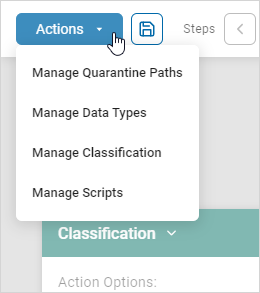
- Select the Actions button in the top left corner of the playbook and then select Manage Data Types.
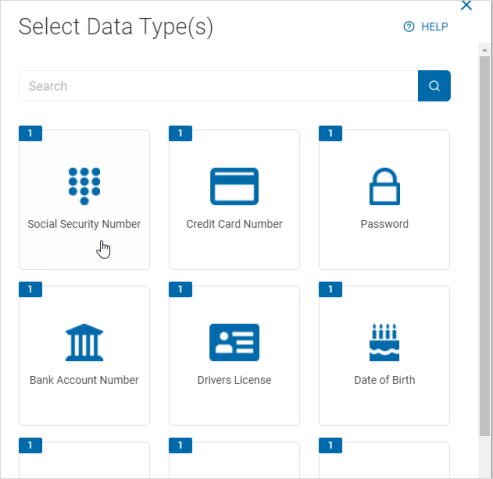
- The Select Data Types pop-up window opens. This window lists all the existing data types and actions you can take.
- Do one of the following:
- Select a data type tile.
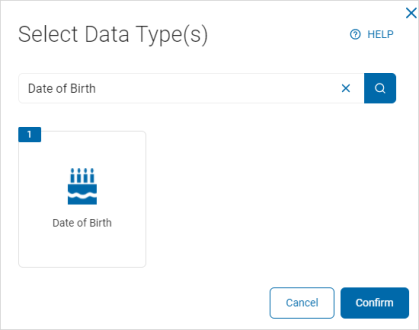
- Type a data type in the search box and select the tile.
- Select a data type tile.
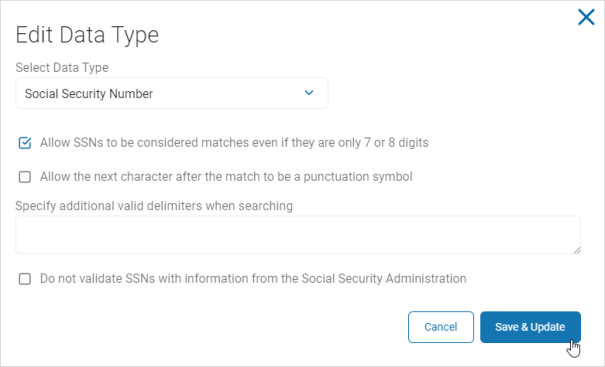
- The Edit Data Type window opens.
- In the Edit Data Type window, make changes as desired.
Note: Specify additional valid delimiters when searching - In this box enter any additional valid delimiters Sensitive Data Platform encounter when scanning for the specified data type in your environment. A delimiter is a character or sequence of characters that marks the boundary between different parts of data, like a comma in CSV files, a tab, or a space. Delimiters help separate individual items or fields in text or data streams, enabling applications to parse and understand the data's structure - Click the Save & Update button to save your changes or the Cancel button to discard.
- At the bottom of the Select Data Type(s) window click the Confirm button to select this data type or the Cancel button to discard.