
Why would an Agent/Target not be searched in over a month?
This article lists the various possible reasons why an Agent or Target would not be searched (scanned) in over a month.
Overview
- From the left side navigation menu select Agents.
- The Agent Management page opens.
- Select the "Older than 1 month" Tag from the list of Agent Tags on the left (see Search Date/Time Conditional Tags) to identify any Agents that have not scanned their Targets in over a month.
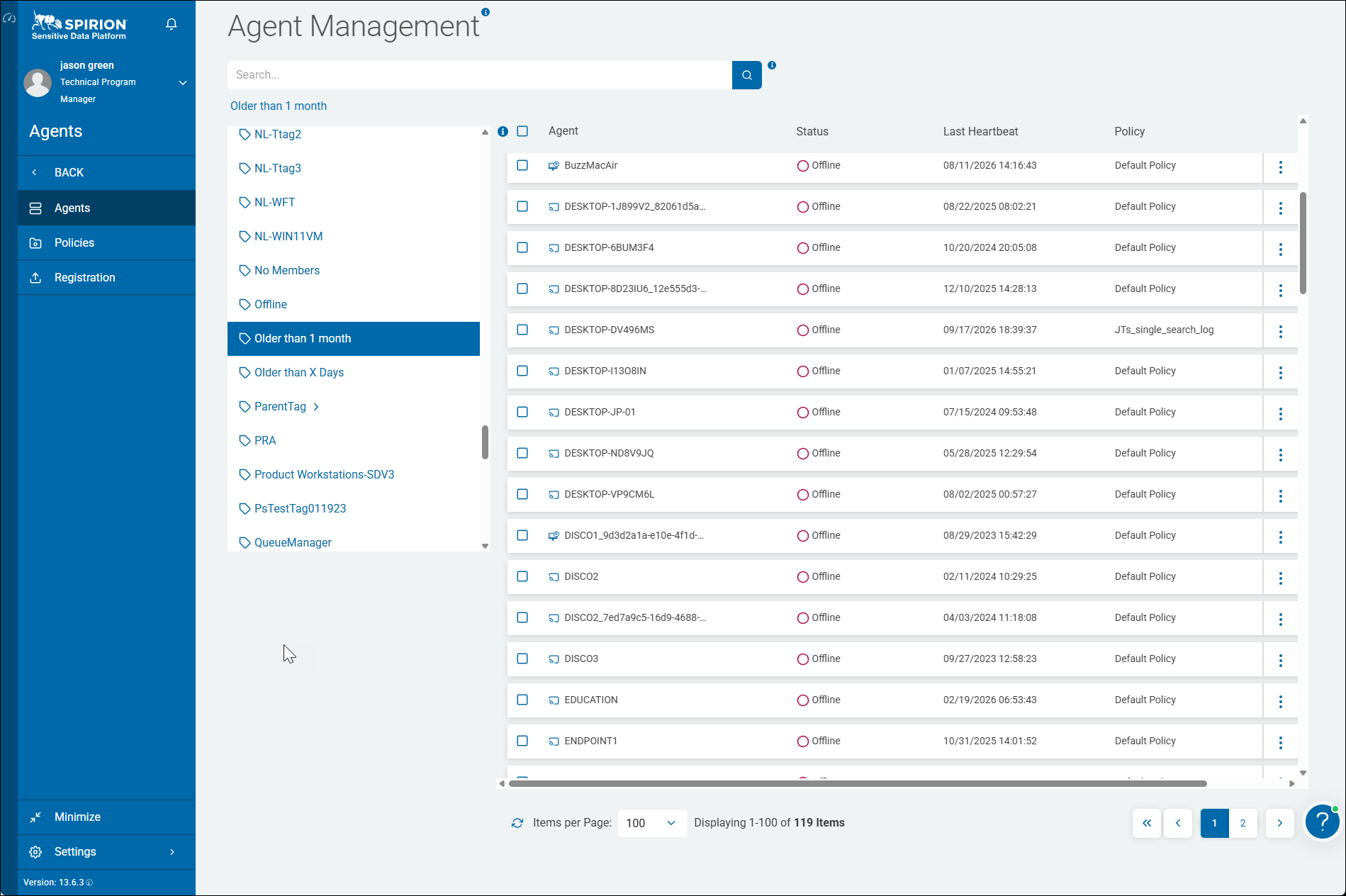
When an Agent or Target has not been searched or scanned in over a month, the root cause typically falls into one of five categories:
1. Agent Availability & Host-Level Issues
- Agent Machine Offline or Decommissioned: The host machine (laptop, VM, or physical server) may be powered off, suspended, decommissioned, or not connecting to the corporate network/VPN.
- Agent Service Stopped or Unhealthy: The local Agent service may have stopped, hung, or failed after a reboot, OS update, or version upgrade.
- Agent Disassociated or Unassigned: The Agent may have been removed from an active Agent pool or distributed search team, leaving it without assigned scan jobs.
- Job Queue / Shipper Pipeline Bottlenecks: If the local Job Queue or Shipper Queue encounters a database/service connection fault, the Agent cannot pull new search work or post scan completion updates.
2. Authentication & Credential Failures
- Expired or Rotated Credentials: Service accounts used for remote scanning (SMB/UNC shares, databases, SharePoint) may have had their passwords rotated, expired, or locked out.
- Revoked Cloud / SaaS Tokens: Cloud Targets (Microsoft 365, OneDrive, Box, Google Drive, AWS S3) may have invalid OAuth tokens, expired application secrets, or broken PAM/Vault mappings.
- Insufficient Privileges: Changes to ACLs, tenant policies, or local group memberships may prevent the Agent from accessing target locations.
3. Target Reachability & Infrastructure Changes
- Network & Firewall Restrictions: Firewall rules, VPN route changes, or network segmentation (such as blocking ports 445 for SMB or required REST API ports) may prevent the Agent from reaching the Target.
- Target Moved, Renamed, or Removed: The specified UNC path, storage bucket, or database instance may no longer exist at the configured address or URL.
- Dynamic IP / DNS Changes: Network endpoints assigned dynamic IP addresses that changed without updating the Target definition.
4. Policy, Scheduling & Playbook Configurations
- Scan Not Scheduled or Paused: The Target may only be configured for manual ("Run Once") scans, or the recurring schedule was disabled, paused, or set to a cadence longer than 30 days (for example, quarterly/annual).
- Target Excluded from Scan Scope: Target paths or subfolders may have been added to an exclusion list or excluded by path/file-type filter rules in the configuration.
- Playbook / Data Type Mismatch: If a Sensitive Data scan configuration has no valid playbook or has incompatible search rules, scan creation or execution may be rejected.
NOTE: When you modify a scan playbook it is iterated in the Spirion backend: you must change the scan playbook name or else multiple versions of the scan playbook are all tied to the same name. You must also add the scan playbook back to any scan that is configured to use it!
5. Communication & Ingress Reporting Issues
- Ingress / Shipper Delivery Failures: The Agent may have executed the scan locally, but outbound TLS, proxy, or API gateway rules prevented the Shipper process from delivering results back to the service.
- Hanging / Incomplete Scans: A scan may be stuck indefinitely on a large, locked, or corrupt file/archive without timing out, which prevents the scan state from ever closing and recording a completed search date.
Recommended Verification Checklist
- Console Status: Check whether the Agent is listed as Online / Ready in the Console.
- Scan History: Review the last execution log for the Target to see if the scan failed with authentication, timeout, or unreachable endpoint errors.
- Agent Logs: Inspect the local Agent log (
search.log/shipper.log) on the host for connection or credential exceptions. See How to Use Agent Logs. - Target Settings: Validate that the target path and stored credentials test successfully.