
How to Bulk Assign a Policy
How to Bulk Assign a Policy to Multiple Agents or Targets
Use the following step to assign a policy to more than one Agent/Target at once:
- On the Agent Management screen, select the Agents/Targets you want to assign policy to.
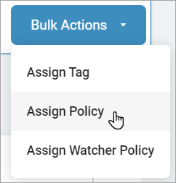
- In the top right of the screen, click Bulk Actions.
- Click Assign Policy.
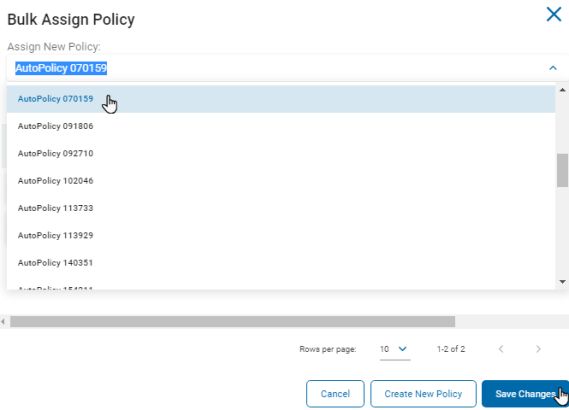
- In the Bulk Policy pop-up window, select the policy you want to assign to the Target(s) listed.
- Click the Save Changes button to assign the policy or Cancel button to discard.
- A confirmation alert appears in the bottom left of your screen.