How to Change a User's Scan Permissions
This topic describes how to change a user's access (permissions) to one or more scans.
Use the following steps to edit a user's permissions to one or more Scans:
- From the left side navigation menu navigate to the User Management page (Settings > User Management).
- The User Management page opens.
- Ensure you are on the USERS tab.
- In the table shown locate the user whose Scan permissions you wish to change.
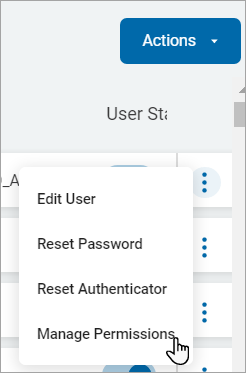
- For the desired user, click the more options menu (3 veritcal dots) at the end of the row.
- Click Manage Permissions from the sub-menu that appears.
- The Manage User Permissions: <User First Name Last Name> page opens.
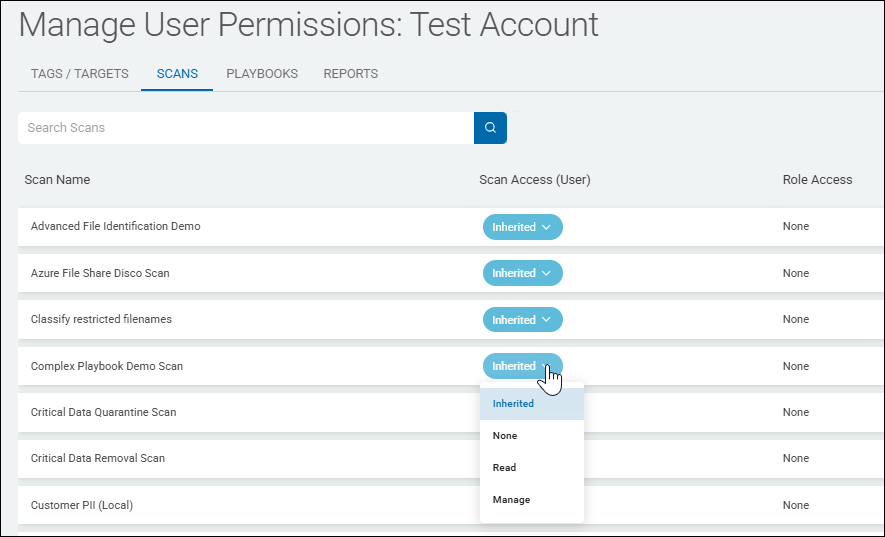
- Click the SCANS tab from the top of the page.
- A table of scans, user scan access and role access to the scans shown.
- By default, the Scans Access (user) column shows "Inherited" indicating the user inherits permission to the scans shown from the role the user is a member of (such as Admin, General User, Compliance User, etc.). The user's role access to each scan is shown in the far right column under "Role Access."
- If you change a user's access to a specific scan, this overrides the permission inherited from the user's role (for that scan).
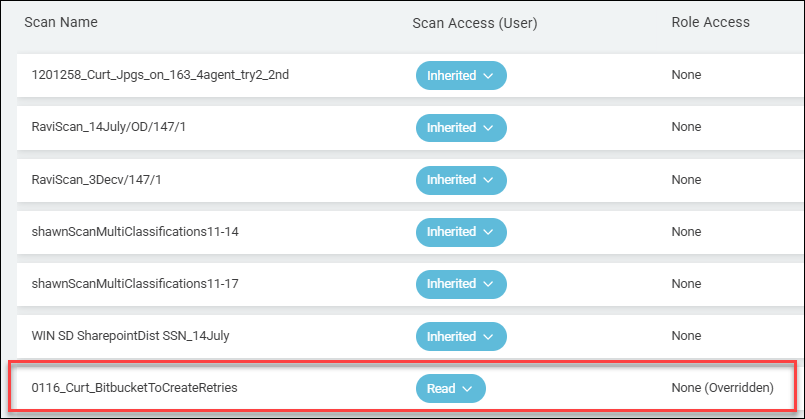
- In the example below note the user access to a scan is changed from "Inherited" to "Read" for a single scan. Access to all other scans is unaffected. The Role Access column displays the role permissions have been overridden (from Inherited to Read) for the highlighted scan.
- In the example below note the user access to a scan is changed from "Inherited" to "Read" for a single scan. Access to all other scans is unaffected. The Role Access column displays the role permissions have been overridden (from Inherited to Read) for the highlighted scan.
- Locate a scan to edit permissions for.
- For the desired scan, select any of the following options from the "Scan Access (User)" column:
- Inherited - Access rights are inhertied from the Role the user is a member of
- None - No access to the scan, including view access (user will not see the scan at all)
- Read - Read-only access to the scan
- Manage - Full permissions to the scan. Read, Write, Modify, etc.
- Changes apply to the user account the moment the change is made.
- Note that changes to a scan overrides the access set by the user's role for that scan and the Role Access column displays the text "(Overridden)" to indicate this.