
How to Add a New User
To add a new user use the following steps:
- From the left side navigation menu navigate to the User Management page (Settings > User Management).
- Ensure you are on the USERS tab.
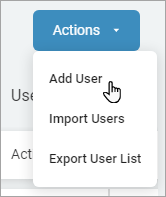
- In the top right of the screen, click the blue Actions button.
- Click Add User from the sub-menu that appears.
- In the Add User pop-up window, enter the following:
- Required:
- First Name
- Last Name
- Username
- Role: Click an option from the drop-down list. (Note: If you need to create a new Role, see How to Manage User Roles.)
- Position
Optional:
- Location
- Phone
- Department
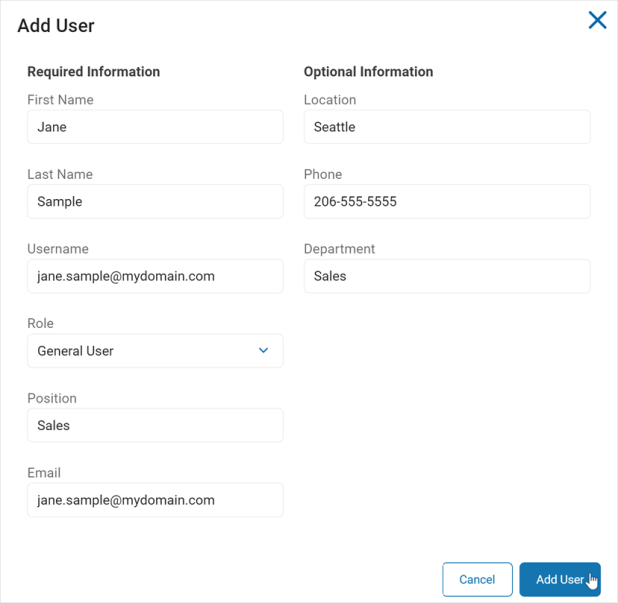
- Click the blue Add User button at the bottom of the page to save and add the user or Cancel to discard your changes.