How to Create a Scan Playbook that Searches for a Single Data Type
Use these steps to create a playbook in Spirion Sensitive Data Platform that searches for a single data type such as a social security number (SSN).
Overview
Recall that Scan Playbooks are a kind of decision tree which instruct Spirion Sensitive Data Platform on what to do during scans, such as quarantine, shred, or redact sensitive data. For more information about Scan Playbooks, see How to Add a New Scan Playbook.
Use the following steps to create a single playbook that searches for a single data type:
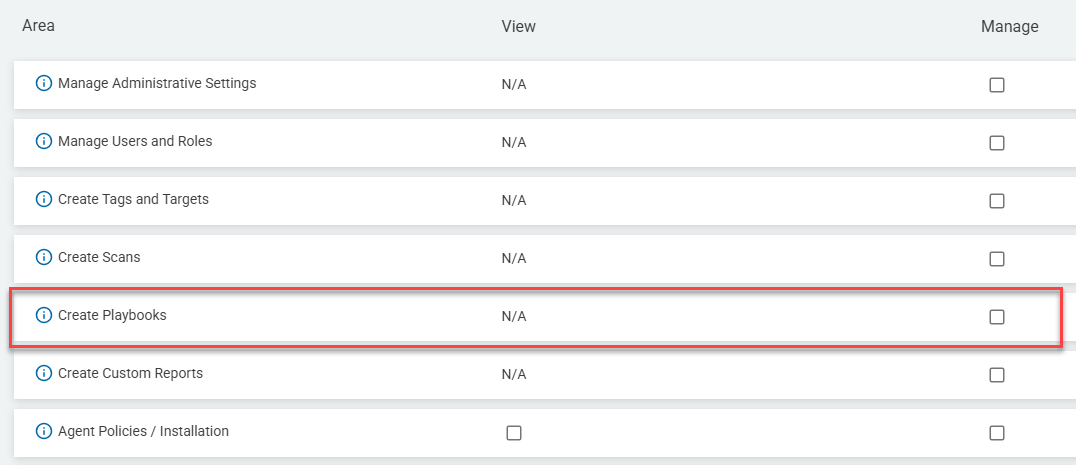
- Log in to Spirion Sensitive Data Platform with a user account that is a member of a role which contains the permission "Create Playbooks" (see How to Add a New Role for info about creating a new user role):
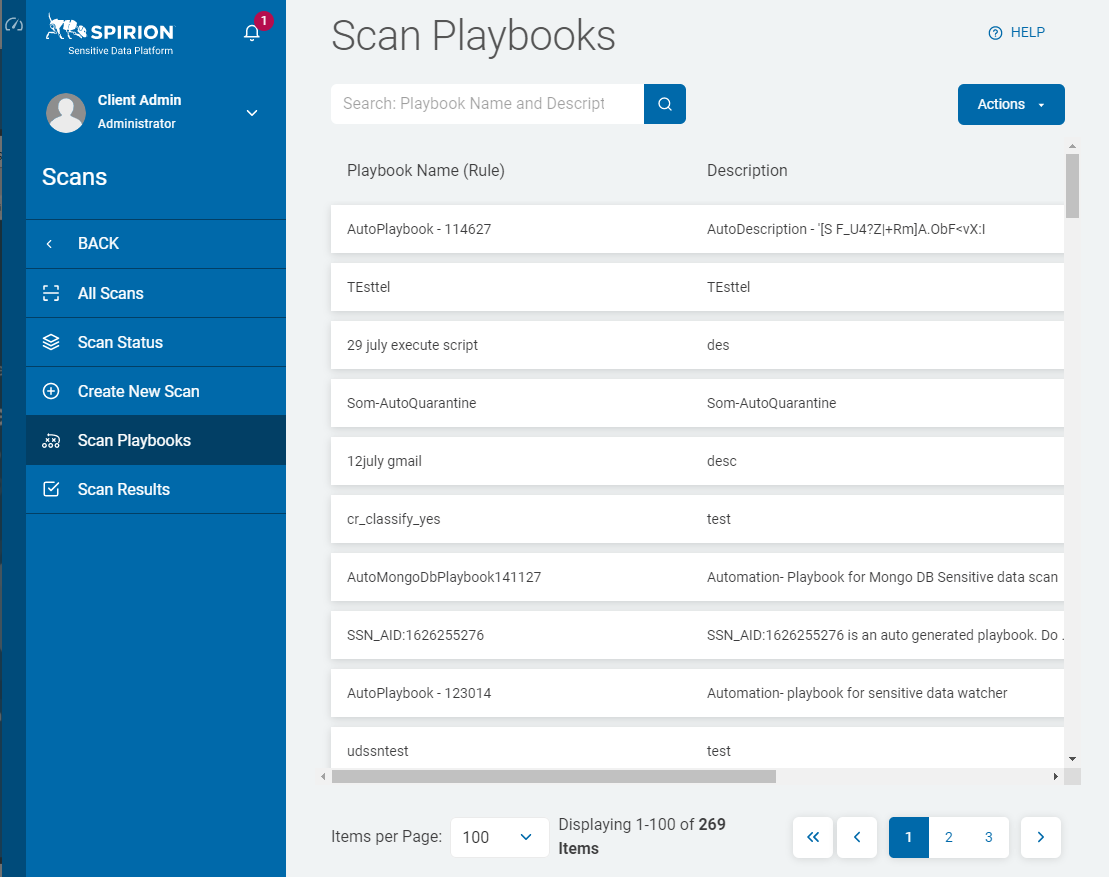
- From the left-side navigation menu, navigate to the Scan Playbooks page (select Scans > Scan Playbooks).
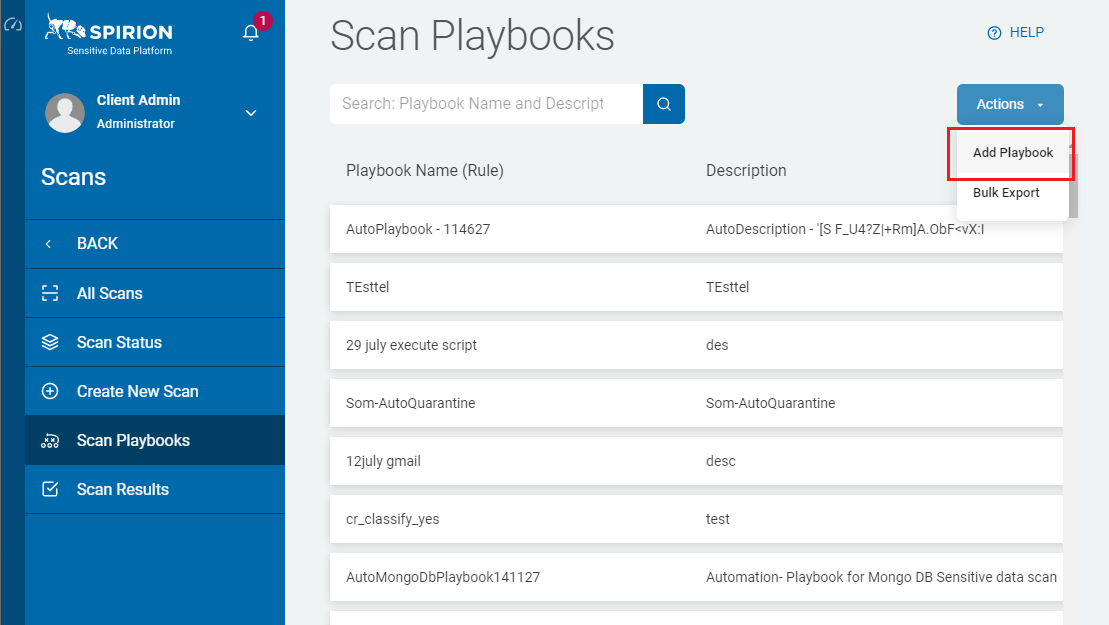
- Select the blue "Actions" button in the top right corner and click Add Playbook from the sub-menu that appears.
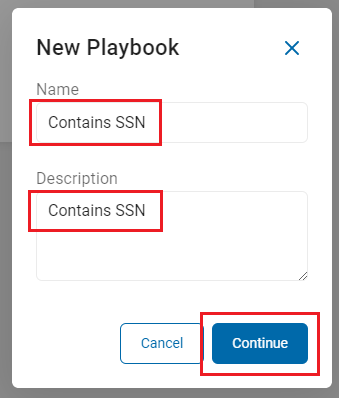
- The New Playbook dialog appears. Enter a Name and Description for the new playbook and select the blue Continue button.
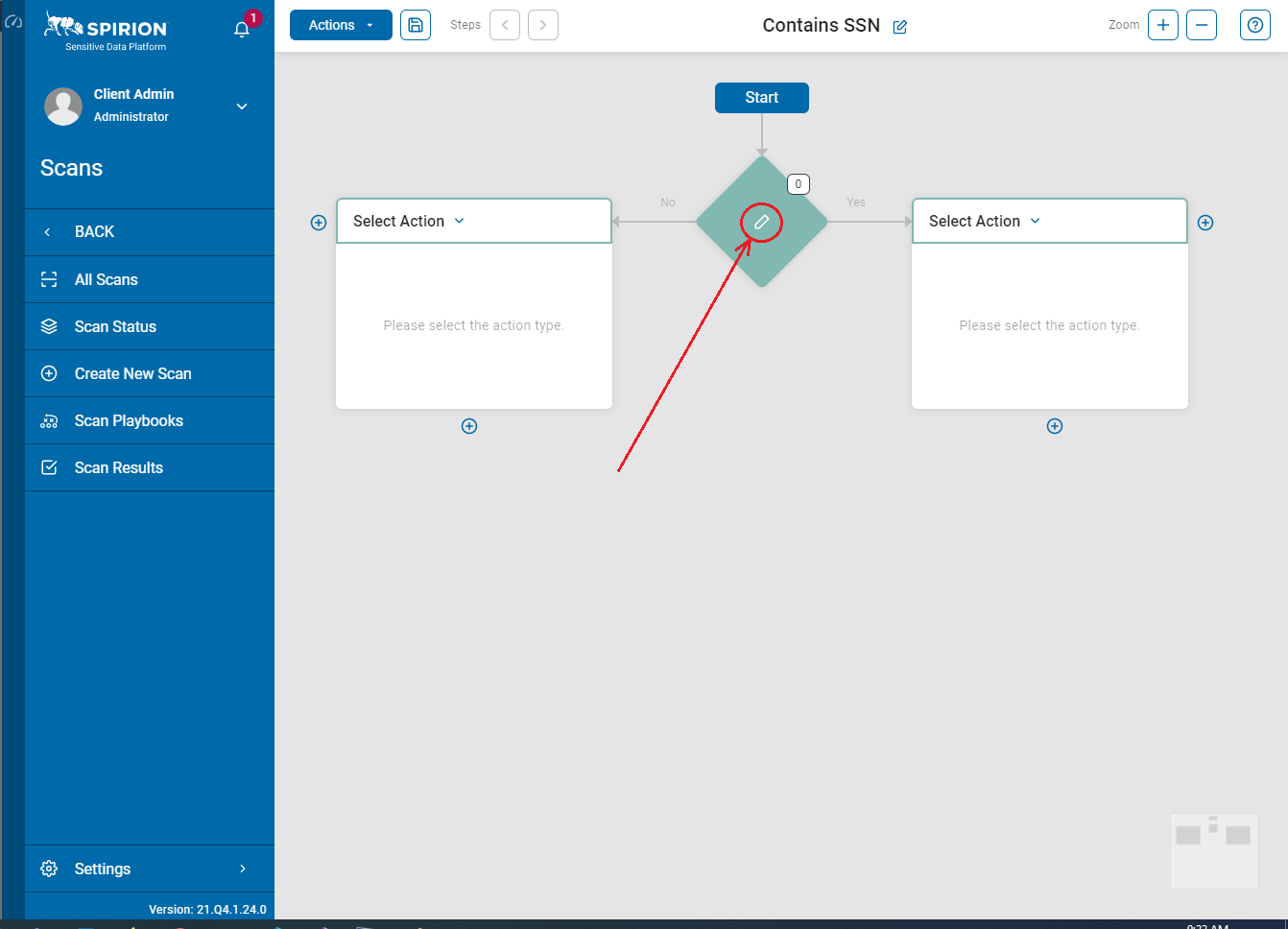
- Select the pencil icon in the diamond-shaped decision point below the "Start" rectangle.
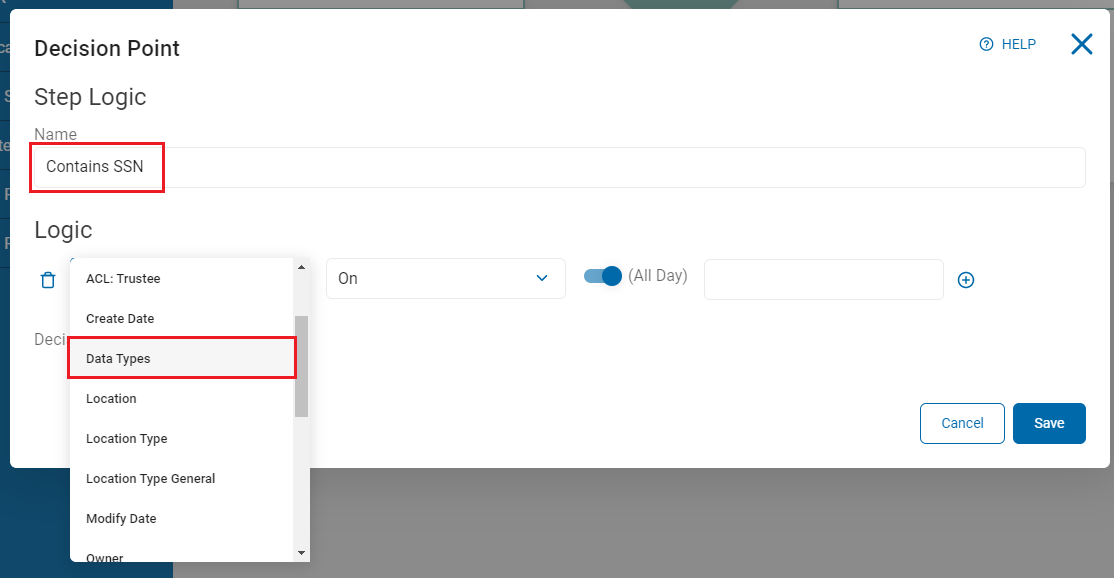
- On the Decision Point dialog, enter a descriptive name for this decision point, such as "Contains SSN," and select Data Types in the drop-down menu.
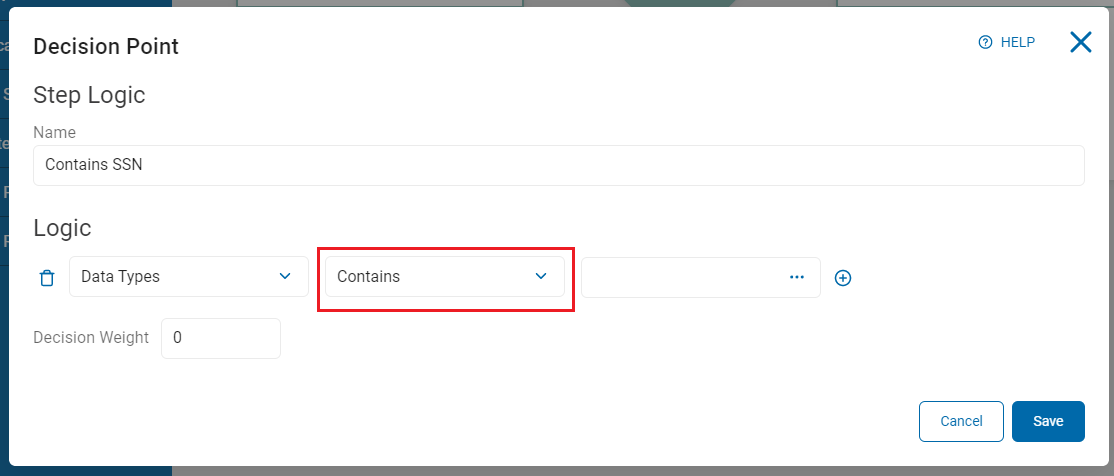
- Verify that the second drop-down menu is set to Contains.
- Select the ellipsis button (three dots) next to the following field.

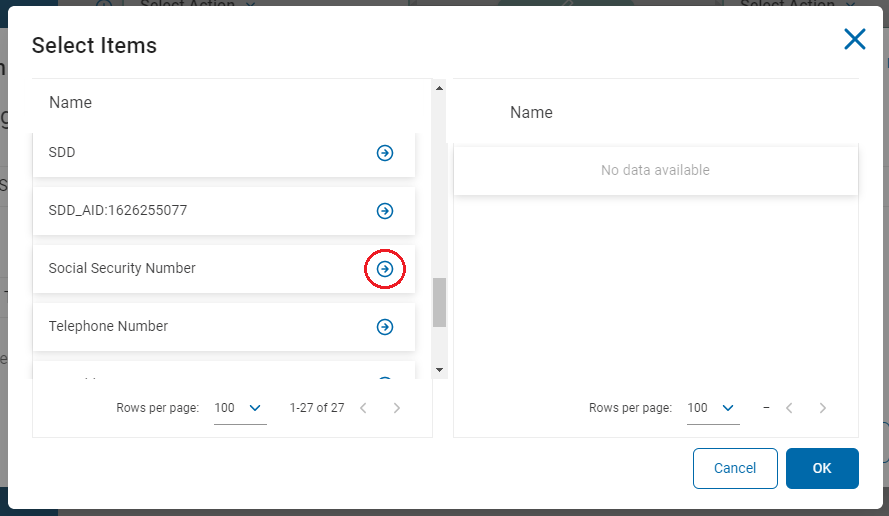
- Navigate to your desired data type and select the right-arrow icon.
- Data Type examples:
- Date of Birth
- Credit Card Number
- Email Address
- File Hash
- IMEI
- Keyword
- Password
- Personal Address
- Telephone Number
- Regular Expression
- Social Security Number
- Click the OK button on the bottom of the window.

- Click the blue "Save" button at the bottom of the window.
 Note: At least one "Classification" or "Shred" action must be set in a playbook (on either the "Yes" or "No" path).
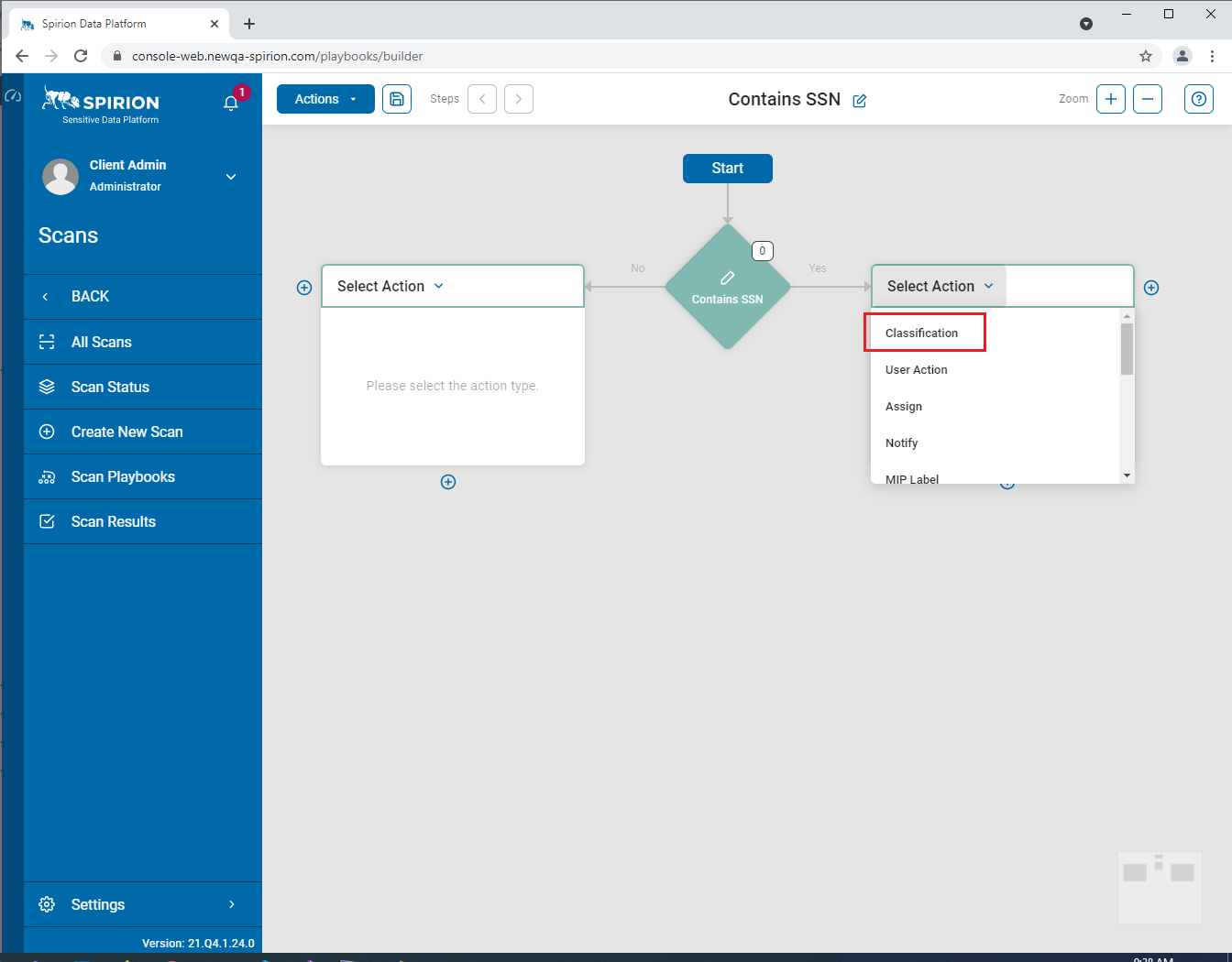
 - On the Yes branch, click the Select Action drop-down menu and choose Classification from the list of options.
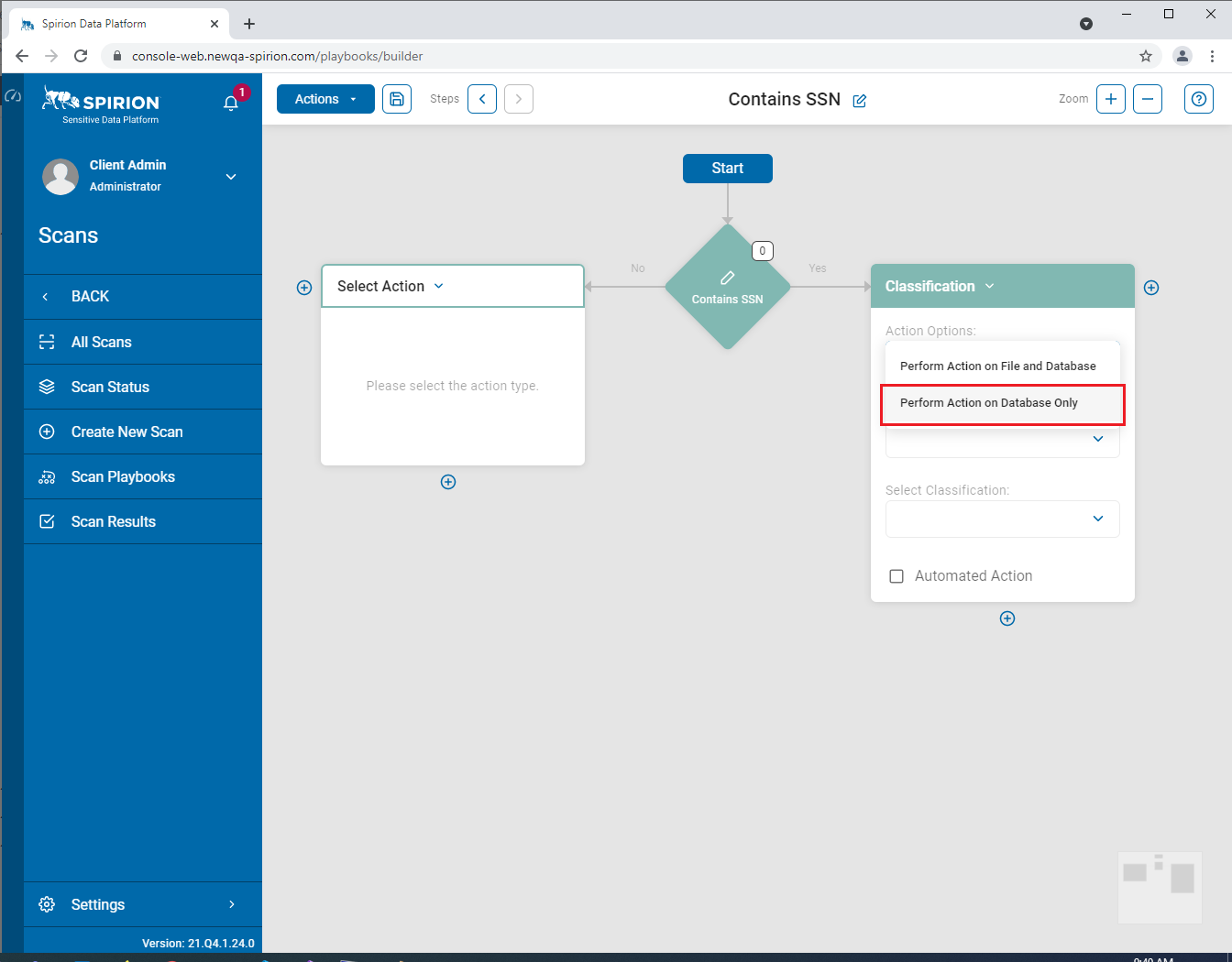
- In Action Options, select Perform Action on Database Only. This option ensures that when the playbook runs, the classification is applied solely to the database (classification.db) used by the Agent rather than modifying file metadata or the file itself. Essentially, the action updates only the internal database records and does not alter the original file on disk.
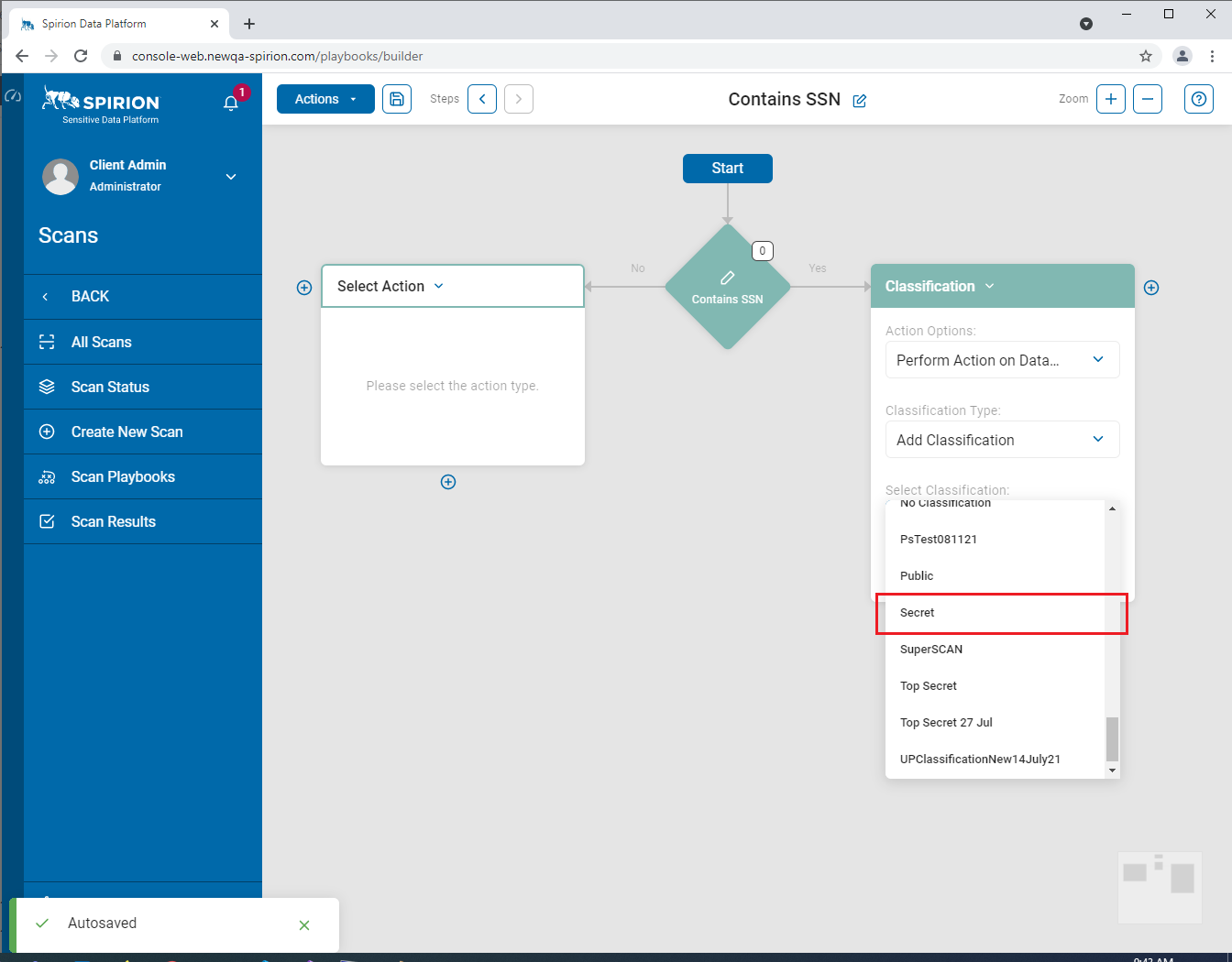
- In Classification Type, select Add Classification from the drop-down menu.

- In Select Classification, choose your desired classification (for example, Secret).
- The Classification options shown in this menu are sourced in the Global Classifications section of Spirion Sensitive Data Platform (Settings > Global Classifications). If the classification you seek does not appear in the "Select Classification" drop-down menu, you can create your own custom classification on the Global Classifications page (this requires your user account is a member of the Admin role).
- The Classification options shown in this menu are sourced in the Global Classifications section of Spirion Sensitive Data Platform (Settings > Global Classifications). If the classification you seek does not appear in the "Select Classification" drop-down menu, you can create your own custom classification on the Global Classifications page (this requires your user account is a member of the Admin role).
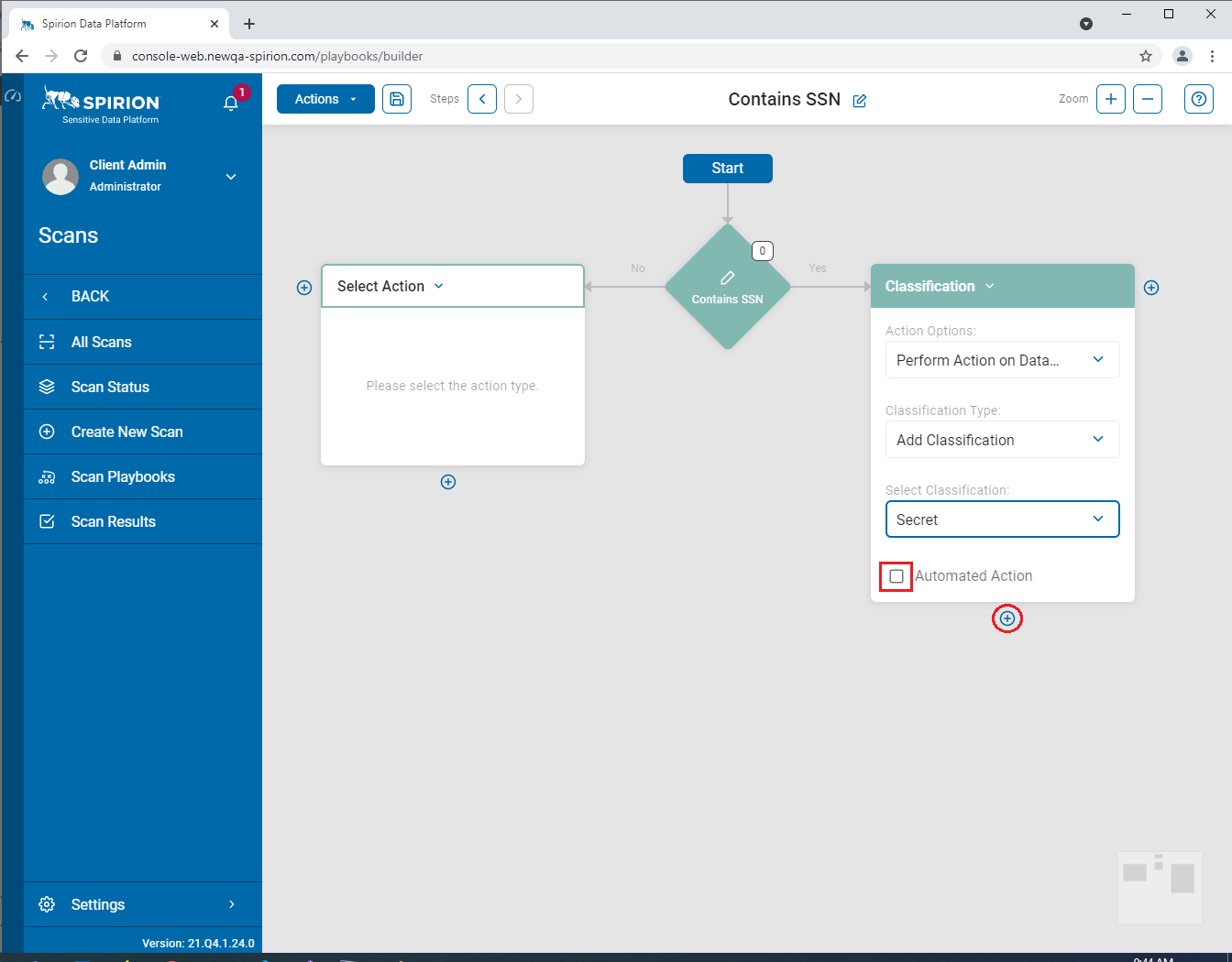
- Check the Automate Action checkbox.
- Click the circular plus ( + ) icon below the Classification rectangle to open the available options of what to do next: Terminate this (Yes) branch as Completed after classfication or create another step (Decision option).
- Select the Completed option.

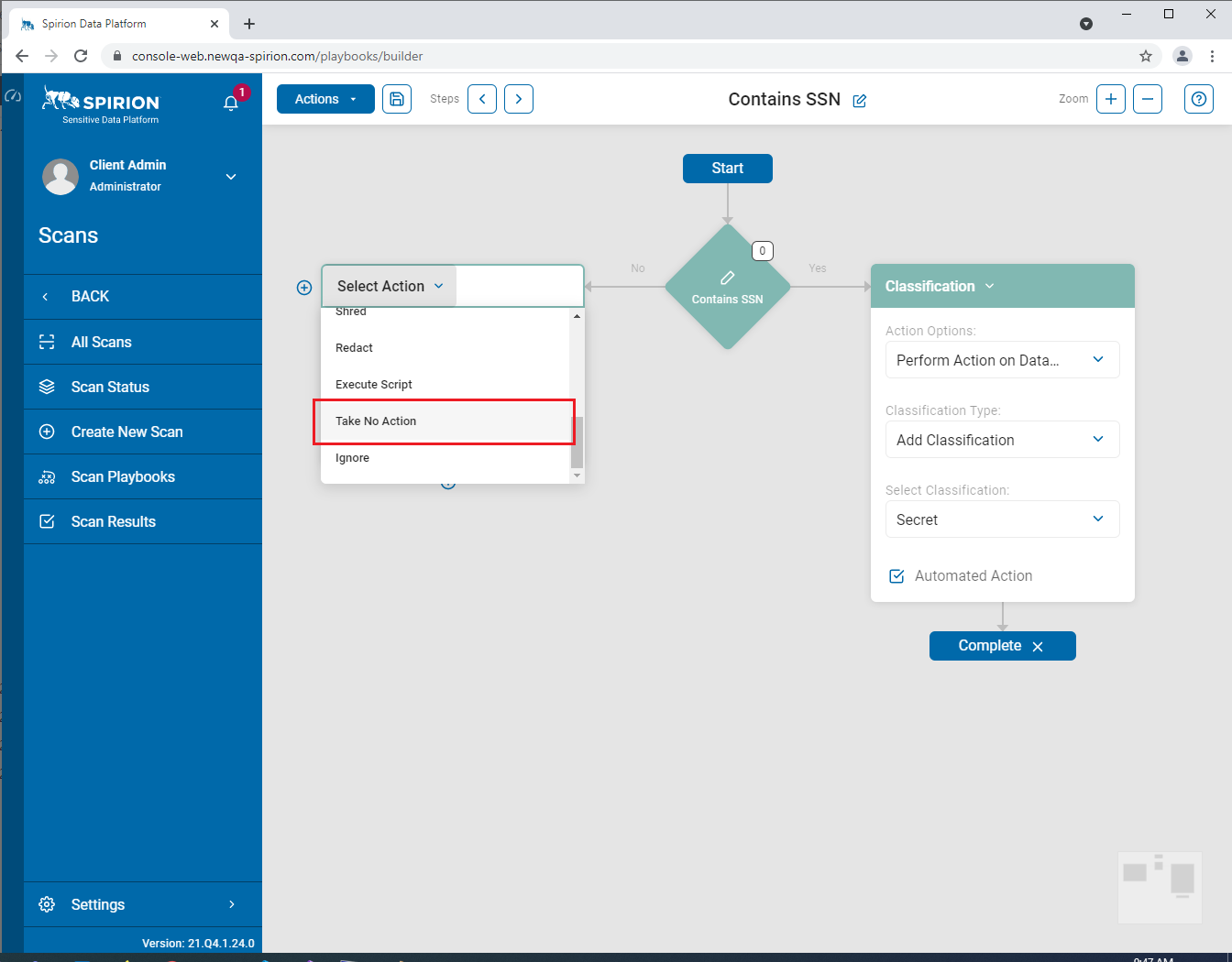
- On the No branch, click the Select Action drop-down menu and choose Take No Action from the list of options.
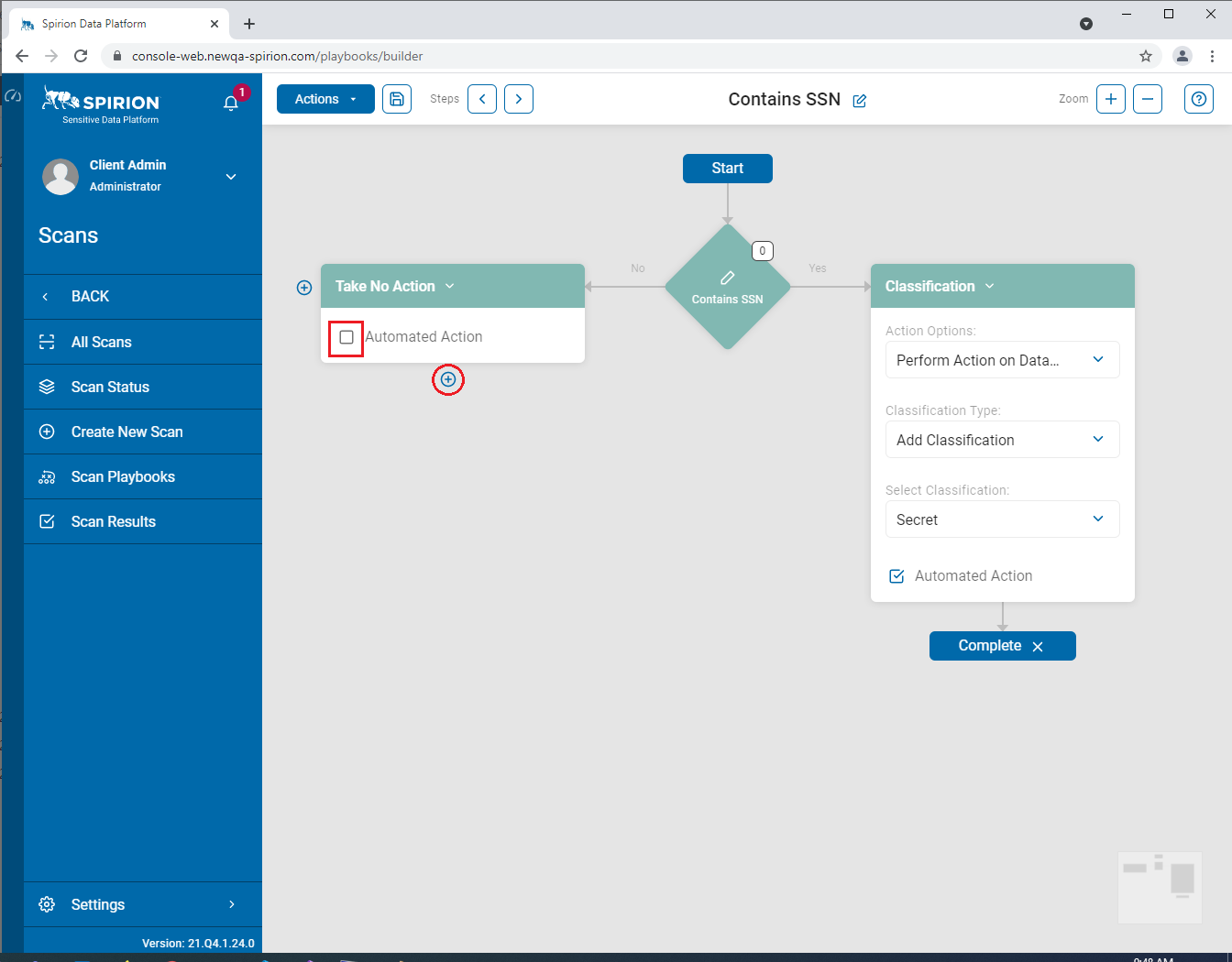
- Check the Automate Action checkbox and click the plus (+) icon.
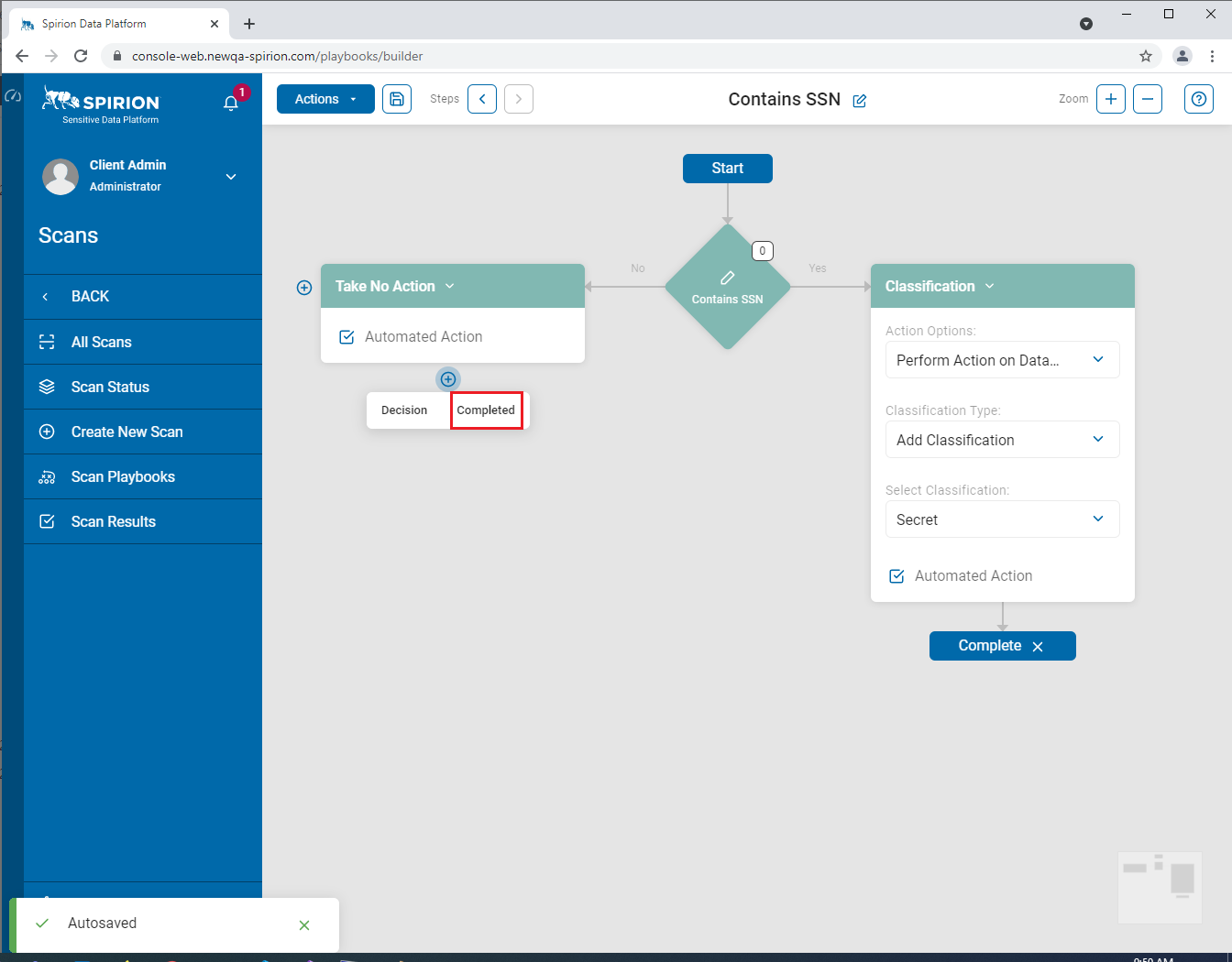
- Select Completed to terminate the branch.
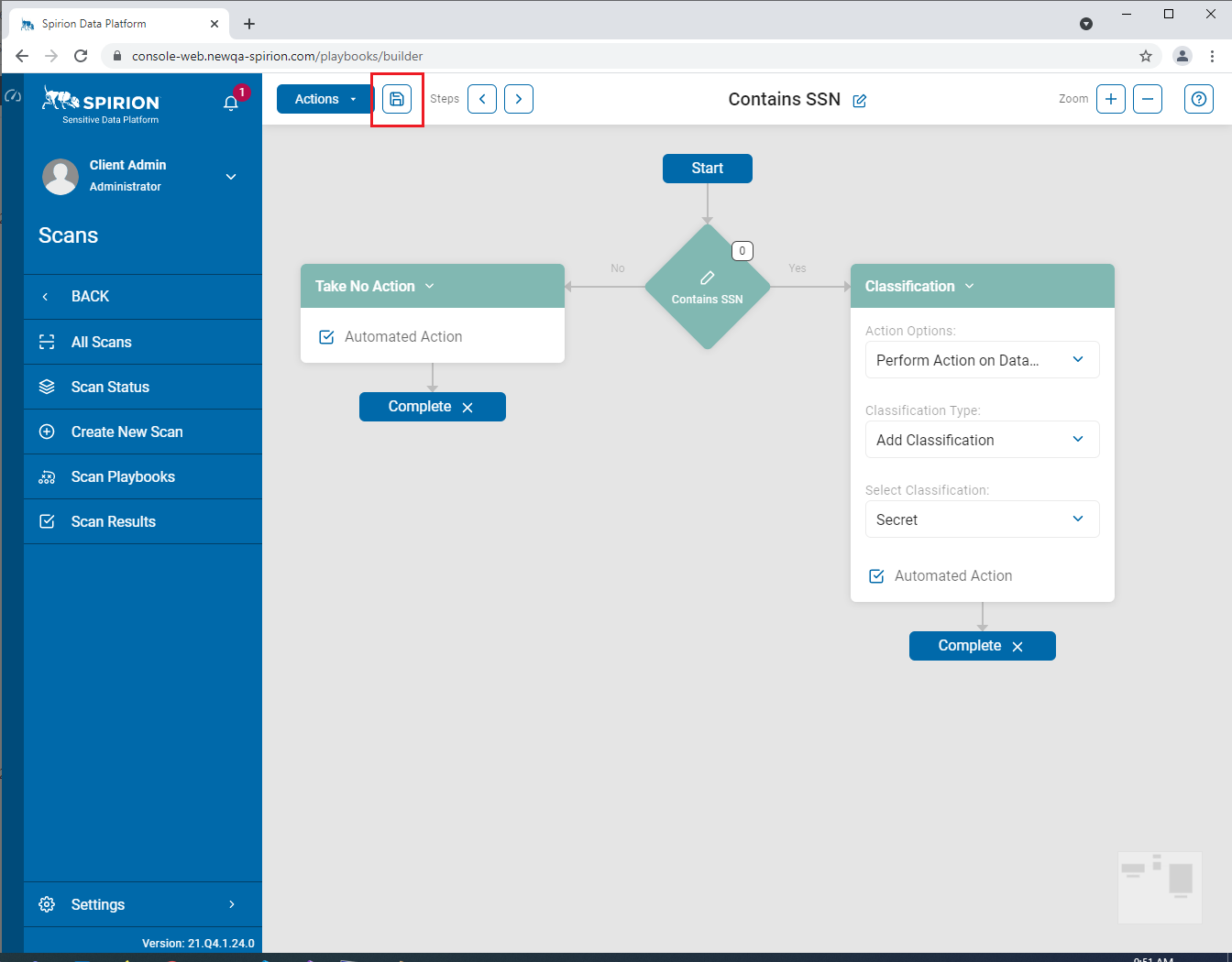
- Save by clicking the Save icon at the top of the page next to the blue "Actions" button.
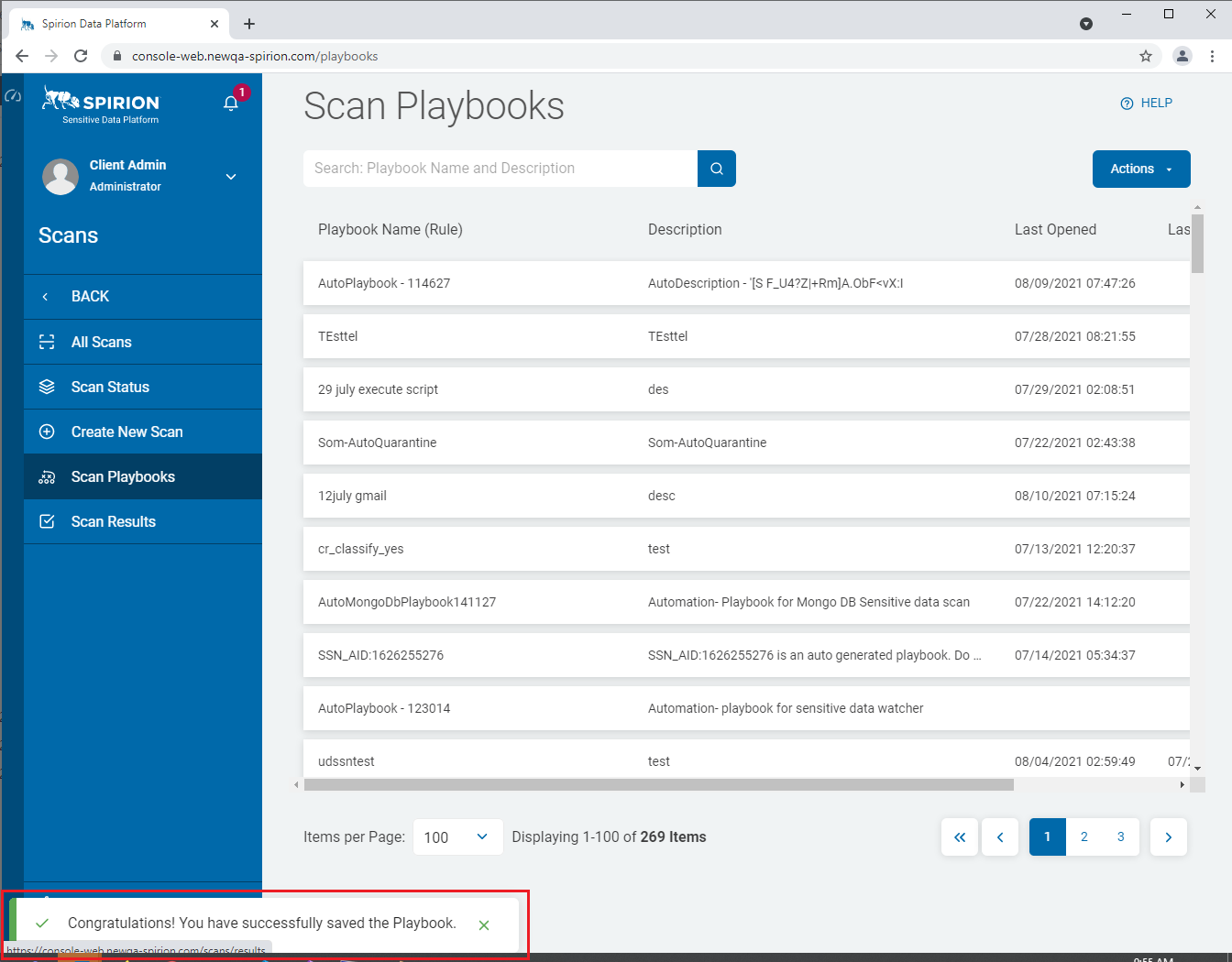
- A message appears in the bottom left corner of the page stating that the playbook has been successfully saved.
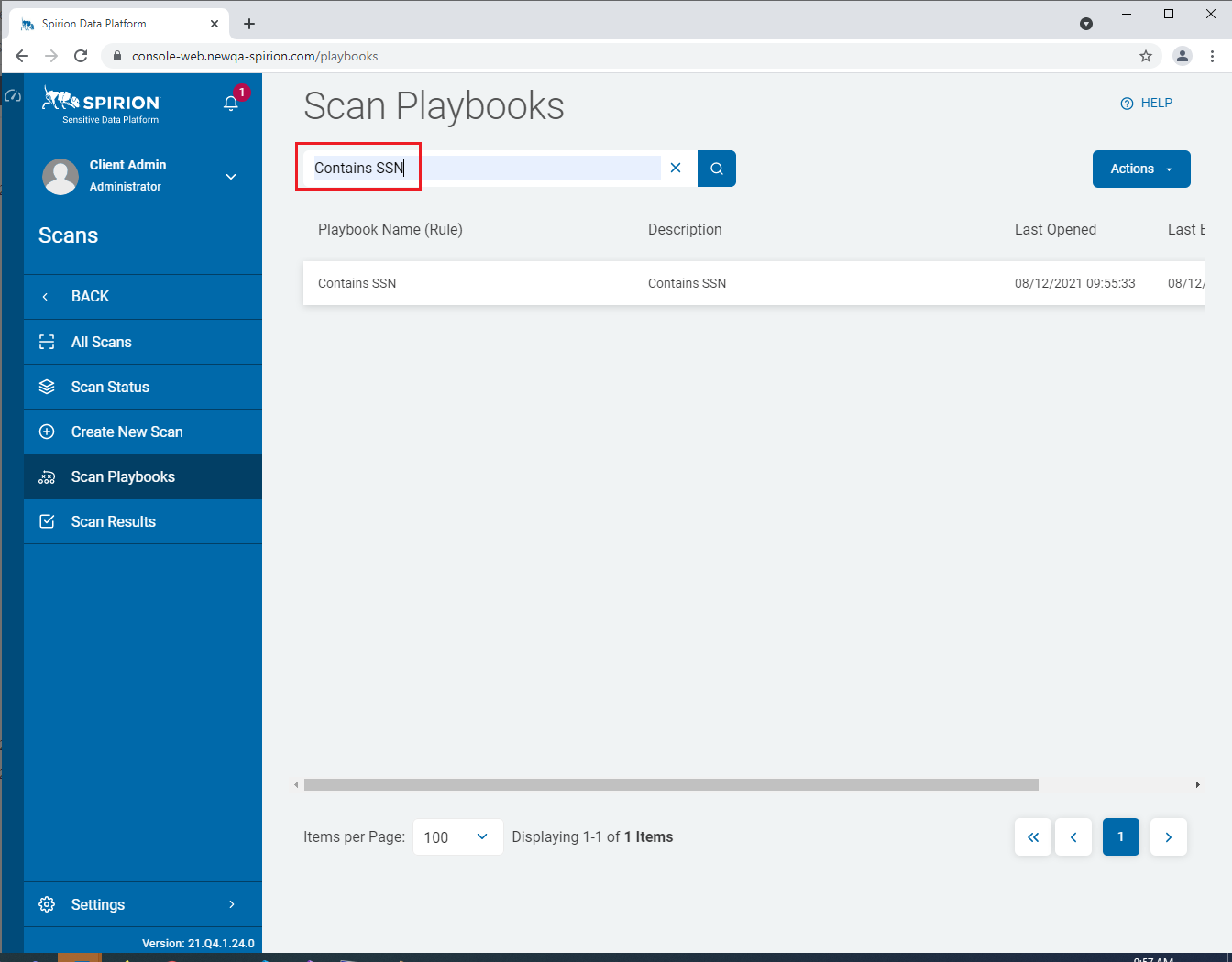
- To find your playbook, enter its name in the Search box on the Scan Playbooks page.