
Data Asset Inventory Settings
Purpose and Overview
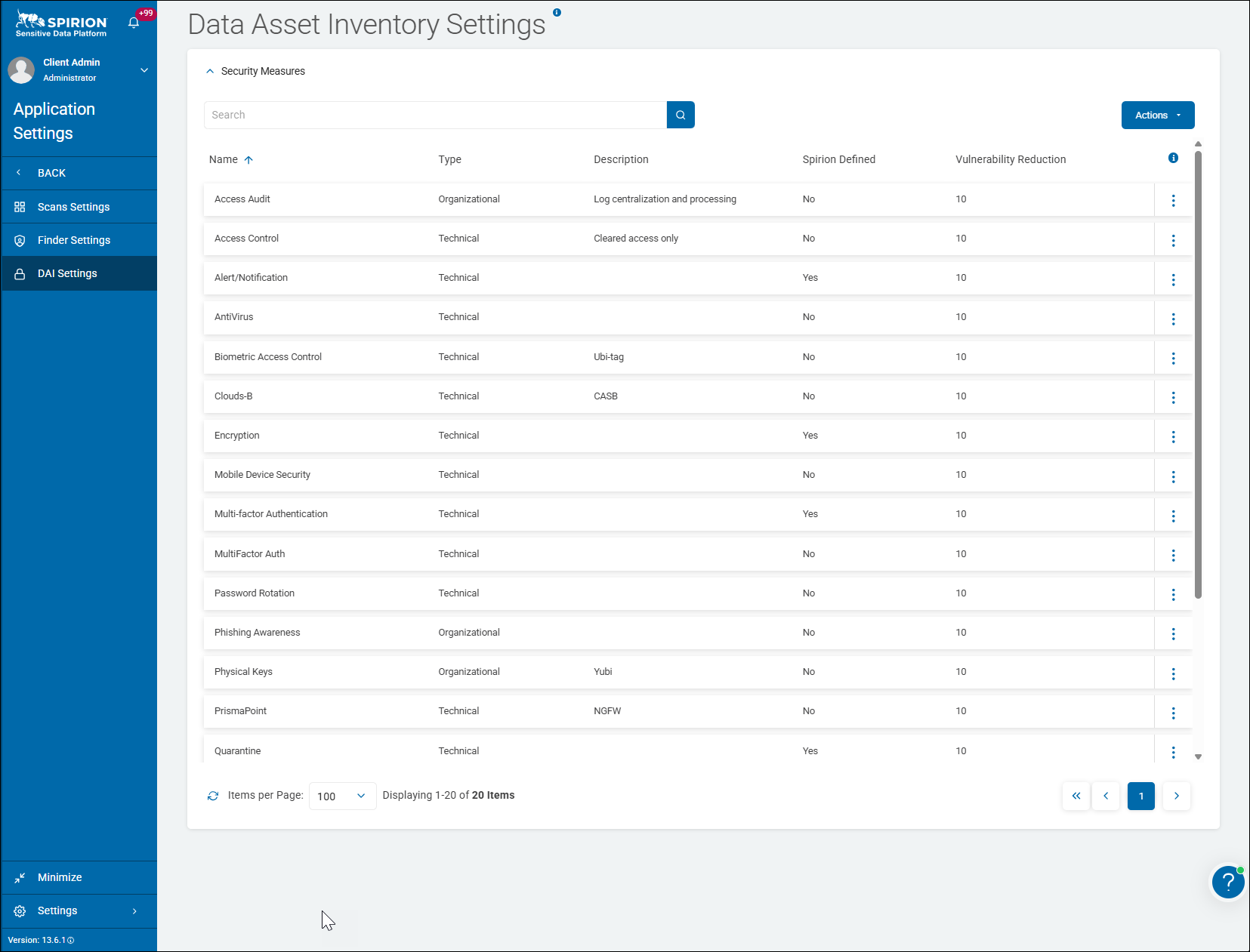
The Data Asset Inventory Settings page is the administrative configuration hub for defining and managing Security Measures — the catalogue of protective controls that can be associated with data assets across the organization.
It gives administrators the ability to build, customize, and maintain the library of security measures that feed into the platform's Data Asset Inventory (DAI) framework, enabling structured risk quantification and compliance reporting at the asset level.
Core Functions and Value
1. Security Measures Catalogue
The page maintains a master list of all security measures available within the platform displayed across a single page. Each security measure represents a specific protective control that can be applied to or associated with a data asset, enabling organizations to document what safeguards are in place for sensitive data stores.
2. Two Classification Dimensions per Measure
Each entry is characterized along two important axes:
- Type — categorizes the nature of the security control:
This distinction is significant for compliance frameworks (for example, ISO 27001, NIST, GDPR) that separately assess technical vs. organizational controls. - Technical — technology-enforced controls such as Encryption, Multi-factor Authentication, Quarantine, Redact, Roles Based Access, Shred, and Alert/Notification. These are system-level protections.
- Organizational — process- or policy-based controls (e.g., governance policies, procedural safeguards), as seen with entries like
new1and theOrgSecurityName_*entries.
- Description — a free-text field allowing administrators to annotate custom measures with contextual detail, visible on entries like
new1("test") andnew2("test"). Spirion-defined measures leave this blank as their purpose is implied.
3. Spirion-Defined vs. Custom Measures
The Spirion Defined column (Yes/No) clearly distinguishes between:
- Platform-native measures (Yes) — pre-built controls provided out-of-the-box by Spirion, such as Alert/Notification, Encryption, MFA, Quarantine, Redact, Roles Based Access, and Shred. These carry authoritative definitions and are locked from modification.
- Customer-defined measures (No) — custom controls created by the organization's administrators to reflect their own internal policies, procedures, or named security programs. Examples include the entries
Encryption,Multi-factor Authentication,Quarantine, andRedact.
This distinction preserves the integrity of Spirion's standard control library while giving organizations the flexibility to extend it with their own control vocabulary.
4. Vulnerability Reduction Scoring
The Vulnerability Reduction column is one of the most analytically significant features on this page. Each security measure carries a numeric score indicating how much it reduces the vulnerability exposure of a data asset when applied.
Scores from the example screenshot above range from 0 to 7:
Security Measure | Score |
|---|---|
Alert/Notification | 7 |
Multi-factor Authentication | 7 |
Quarantine | 7 |
Encryption | 2 |
new1 (Organizational) | 5 |
new2 (Technical) | 4 |
Redact | 0 |
Roles Based Access | 0 |
Shred | 0 |
These scores feed directly into the DAI's risk scoring engine, allowing the platform to calculate a net vulnerability score for each data asset based on what security measures are actively applied to it.
Recall an Asset is a location - local, or remote (such as cloud-based) - that contains Targets.
- Some Security Measures are Spirion-defined (indicated by the Spirion Defined column)
- These Security Measures cannot be modified with the exception of the Vulnerability Reduction score.
- The Vulnerability Reduction score (range: 1 (lowest) to 10 (highest)) is a measure of how much vulnerability in your organization is reduced by this security measure.
Assets with high-scoring measures in place will reflect lower residual risk, while assets with no or low-scoring measures will surface as higher priority for remediation.
This quantification is essential for risk-ranked asset reporting and executive dashboards.
5. Actions Menu and Management Capabilities
The Actions button (top right) and the per-row kebab menu (⋮) provide administrative CRUD operations — enabling administrators to:
- Create new custom security measures
- Edit existing custom measure definitions, types, descriptions, and scores
- Delete measures no longer in use
The Search bar at the top allows rapid lookup within the catalogue, which becomes increasingly important as the custom measure library grows.
6. Navigation Context
The left navigation confirms that DAI Settings sits alongside Scans Settings within Application Settings, indicating that the Data Asset Inventory is a first-class configuration domain within the platform — not a sub-feature of scanning, but a parallel operational pillar focused on asset-level risk governance rather than scan execution.
Summary Value Proposition
The DAI Settings page provides the definitional foundation for the platform's risk quantification model. By curating a library of typed, scored, and categorized security measures, administrators enable the platform to move beyond simple "data found / not found" reporting into risk-adjusted asset intelligence — answering not just where sensitive data exists, but how well protected it is, and what residual vulnerability remains. This directly supports regulatory compliance documentation, internal audit responses, and executive risk reporting.
How to Access and View Data Asset Inventory Settings
Use the following steps to access the Data Asset Inventory Settings screen:
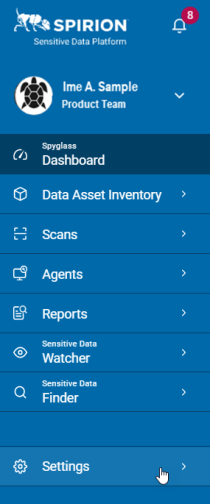
- From the left side navigation menu, click Settings at the bottom of the menu.
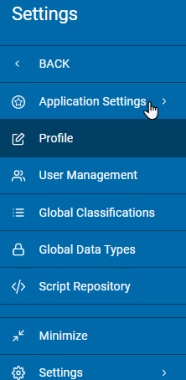
- Click Application Settings.
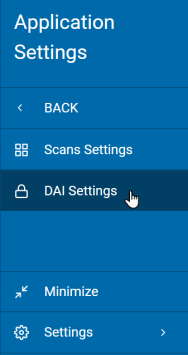
- Click DAI Settings. The Security Measures section displays.
How to Create an Organizational Security Measure
Use the following steps to create a new Organizational Security Measure:
- Navigate to the "Data Asset Inventory Settings" page.
- In the upper-right corner, click the Actions button.
- Click +New Organizational Security Measure from the sub-menu that appears.
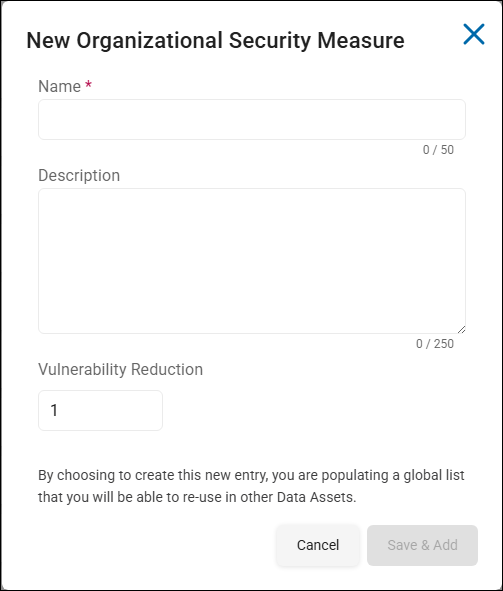
- On the "New Organizational Security Measure" pop-up window, fill in the following information:
- Name: Type the security measure name.
- Description: Type the description for the security measure.
- Vulnerability Reduction: Type the vulnerability score between 1 to 10. This is a measure of how much vulnerability in your organization is reduced by this security measure.
- For example, the security measure "password rotation" may be given a value of 10, while Alert/Notification may be given a score of 5.
- Click the Save & Add button at the bottom of the dialog.
How to Create a Technical Security Measure
Use the following steps to to create a new Technical Security Measure:
- On the upper-right corner, click the Actions button.
- Click +New Technical Security Measure from the sub-menu that appears.
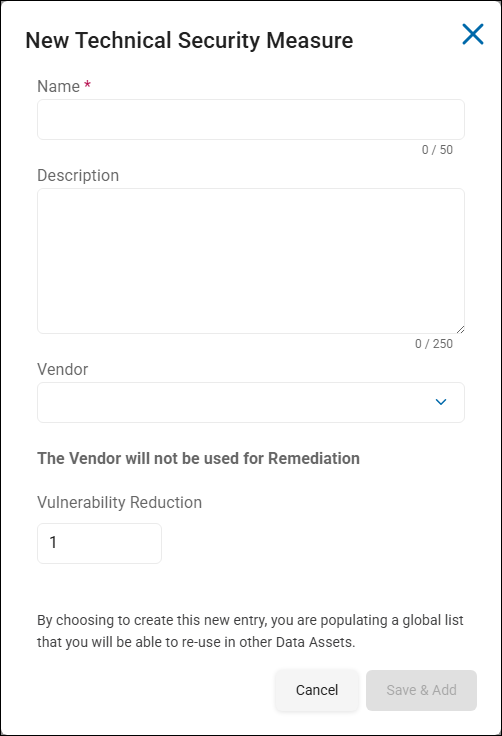
- The "New Technical Security Measure" window appears.
- Enter following information:
- Name: Enter the security measure name.
- Description: Enter the description for the security measure.
- Vendor: Select the vendor who is providing the security measure from the drop-down menu.
- Vulnerability Reduction: Enter the vulnerability score between 1 to 10. This is a measure of how much vulnerability in your organization is reduced by this security measure.
- For example, the security measure "password rotation" may be given a value of 10, while Alert/Notification may be given a score of 5.
- Click the Save & Add button at the bottom of the dialog.
How to Manage Security Measures
Note: Any edit to a security measure appears on all assets where it is used.
Use the following steps to manage Security Measures:
- Locate the security measure from the list that you want to edit.
- On the far right of the row, click the more options menu.
- Click Manage Security Measure from the sub-menu that appears.
- The "Edit Organizational Security Measure" pop-up window appears.
- Enter the following information:
- Name: Type the security measure name.
- Description: Type the description for the security measure.
- Vulnerability Reduction: Type the vulnerability score between 1 to 10. This is a measure of how much vulnerability in your organization is reduced by this security measure.
- For example, the security measure "password rotation" may be given a value of 10, while Alert/Notification may be given a score of 5.
How to Delete Security Measures
Note: A security measure cannot be deleted if it is used in an asset.
Use the following steps to delete Security Measures:
- Locate the security measure from the list that you want to delete.
- On the far right of the row, click the more options menu.
- Click Delete Security Measure from the sub-menu that appears.
- Click the Confirm button. NOTE: THIS ACTION CANNOT BE UNDONE.