Custom Data Types: How to Use the Exact Match Data Type
This article describes how to use the "Exact Match" data type. This is a custom data type, which only users with Administrator rights can create.
Procedure:
- From the left-side navigation menu navigate to Settings > Global Data Types.
- Select the CUSTOM DATA TYPES tab at the top of the page.
- From the top right corner click the blue Actions button and select "Add Custom Data Type" from the drop-down menu.
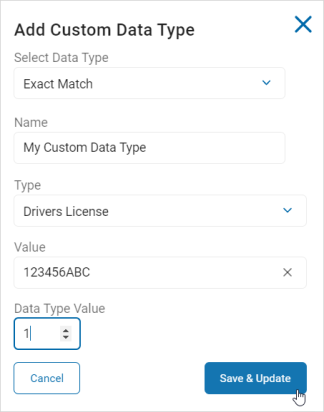
- The "Add Custom Data Type" pop-up window appears.
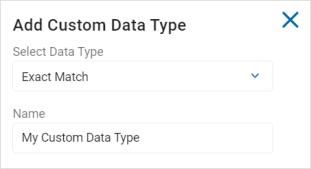
- Select Data Type: Select "Exact Match" from the drop-down menu.
- Name: Type the name of the Custom Data Type.
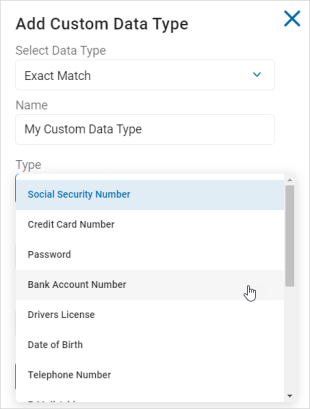
- Type: Select an option from the drop-down list.
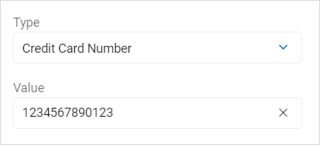
- Value: Enter the value the corresponds to the type selected. The hint text will describe the required format, if applicable.
- Data Type Value: Use the numeric up-down control to set the value.
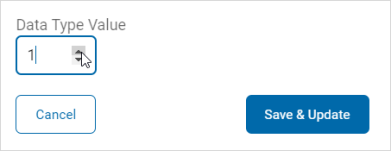
- Click Save & Update to create the new Data Type or Cancel to discard.