Tag Management - Overview
Tags Overview
- Tags are useful for purposes such as organizing Targets/Assets for reporting, policy management, Role-Based Access Control, and other operations within the console.
- Bulk actions can be performed on Assets which are grouped within a single Tag.
- See "Data Assets and Targets - Bulk Actions"
Note: An Asset can be both an Asset and a Target. For example, a single workstation acts as both an Asset and a Target (the workstation is scanned for sensitive data by Spirion Sensitive Data Platform).
Tag Management Page Overview
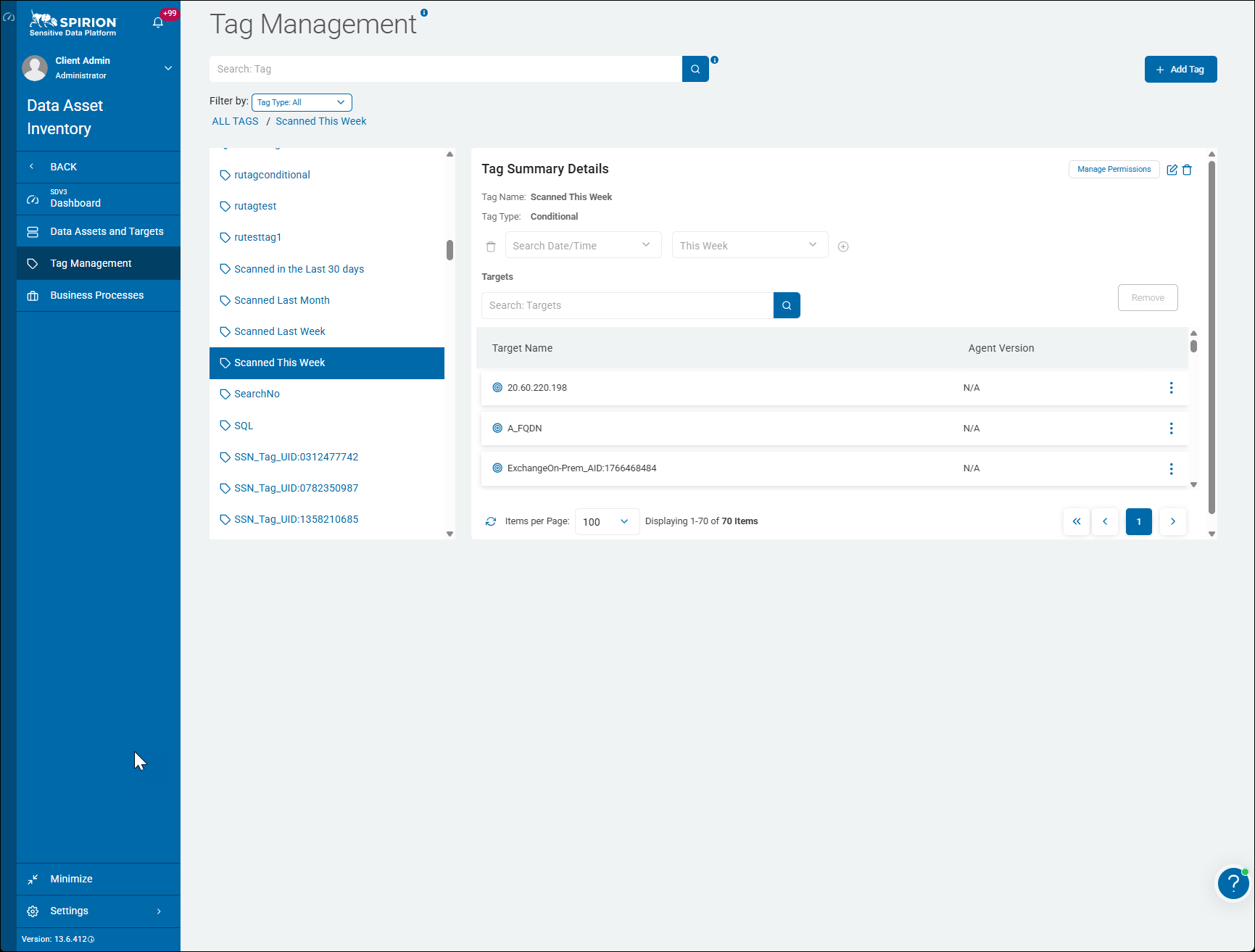
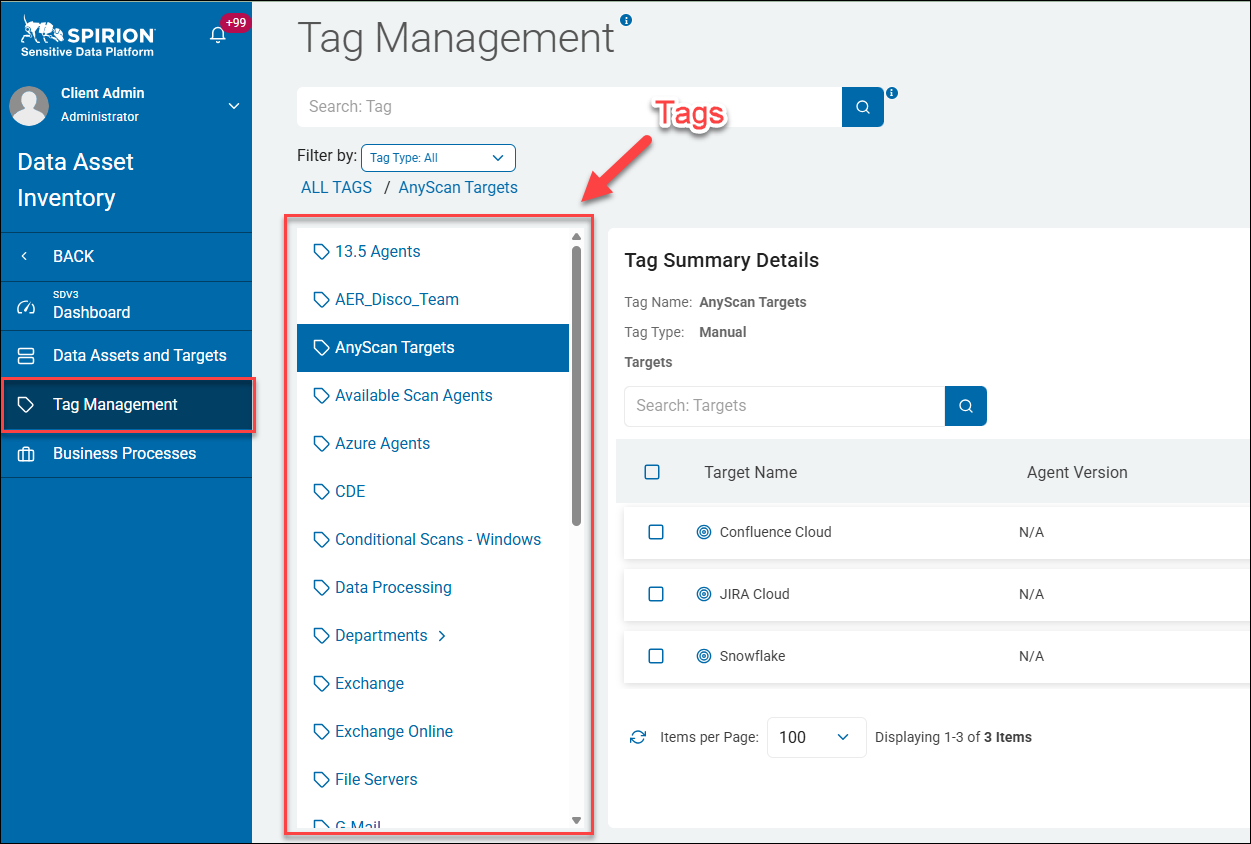
The Tag Management page sits within the Data Asset Inventory module (alongside Data Assets and Targets, and Business Processes).
It is a registry and configuration interface for managing Tags — metadata labels that are applied to data assets, scan Targets (workstations, servers, laptops, databases, etc), and discovery results to enable classification, filtering, and governance workflows.
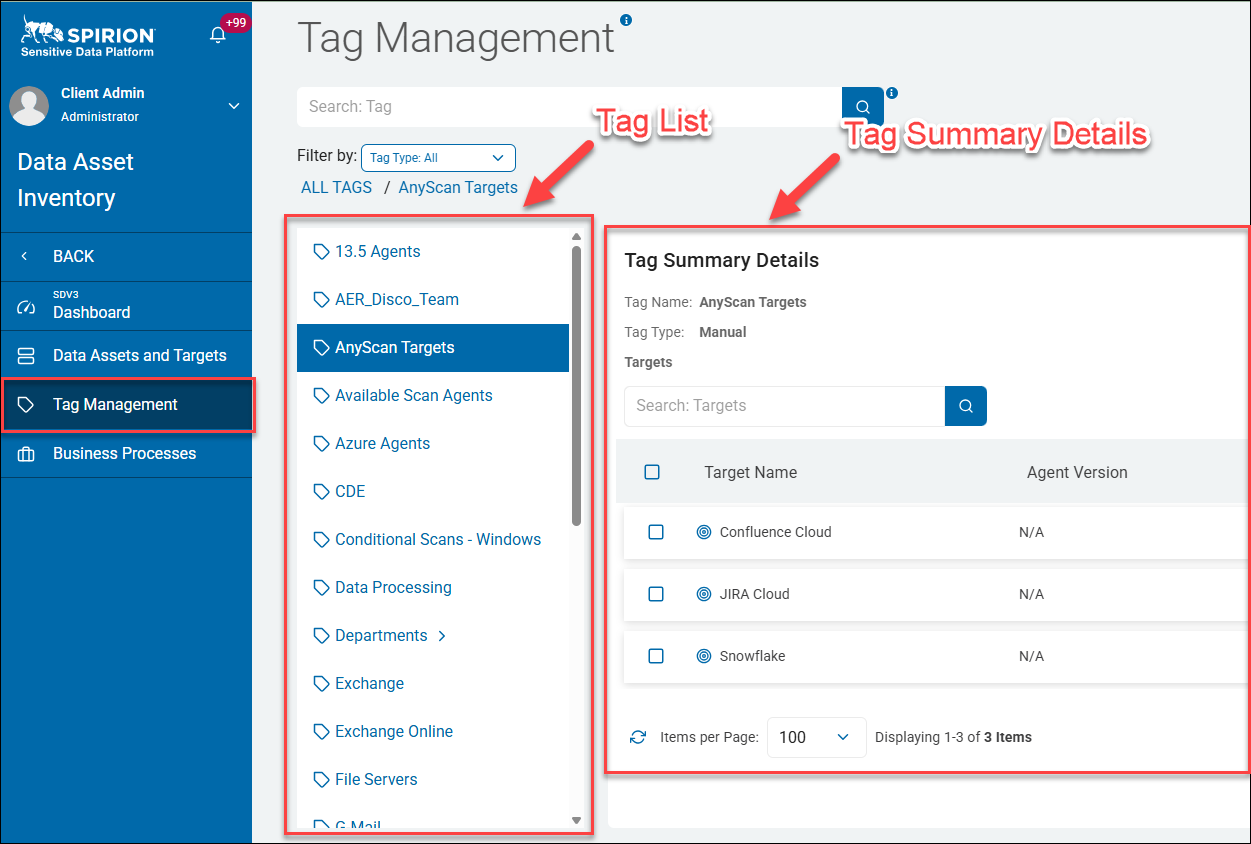
The interface is split into two panels:
Left panel — Tag List:
- A searchable, scrollable list of all defined tags, filterable by Tag Type (for example, All, Conditional)
- Tags typically created by users include the following:
- Time-based Tags (
Scanned This Week,Scanned Last Week,Scanned Last Month,Scanned in the Last 30 days) - Test Tags (
server_conditional,dougstagtest,admintesttag1) - Data-type Tags (
SQL,SSN_Tag_UID:...,SearchNo) - Integration Tags (
Google Drive Label)
- Time-based Tags (
Right panel — Tag Summary Details:
Displays the full configuration of the selected Tag:
- Tag Name (top left corner) — The label identifier (for example, Scanned This Week)
- Tag Type (top left corner) — The classification of the Tag (for example, Conditional)
- Date/Time condition — Time-based filter logic for conditional tags (for example, This Week)
- Target Name — The scan Targets (endpoints/Agents) to which the Tag is applied, identified by criteria such as IP address, FQDN, or Exchange connection string, along with the Agent Version installed on each Target
- Manage Permissions (top right corner) — Access control for who can use or modify the Tag
- Actions (top right corner) include edit (✏️), delete (🗑️), and Target Remove
New Tags are created via the + Add Tag button in the top right.
Who uses the Tag Management page?
Tag Management is accessed under Data Asset Inventory by the Client Admin/Administrator role.
Primary users include the following:
- Platform Administrators — Create and maintain the Tag taxonomy, assign Tags to scan Targets, and manage Tag-level permissions
- Data Governance / Privacy Teams — Use Tags to logically group and classify data assets by type, recency, sensitivity, or business context
- Security Analysts — Leverage conditional Tags (time-based, data-type-based) to scope scans and filter discovery results
- Compliance Officers — Rely on consistently applied tags to demonstrate data inventory coverage across systems and time periods
What value does the Tag Management page provide?
Value | Description |
|---|---|
Flexible data classification | Tags enable you to group data assets and scan results by any meaningful attribute — data type (Social Security number), recency (Scanned This Week), source system (Exchange, Google Drive), or custom criteria |
Conditional/dynamic tagging | Time-based conditional tags (for example, Scanned in the Last 30 days) automatically scope results without manual curation, reducing administrative overhead |
Targeted scanning | Tags are bound to specific Targets (identified by IP, FQDN, or connection string), enabling scan jobs to be precisely scoped to relevant endpoints |
Permission governance | The Manage Permissions control on each Tag enables role-based access, ensuring only authorised users can view, apply, or modify sensitive tag configurations |
Audit and compliance support | A consistent, searchable Tag registry underpins audit reporting by making it straightforward to answer "what was scanned, when, and where" |
Scalable inventory management | With dozens of Tags in use, the paginated, filterable interface on the "Tag Management" page ensures the taxonomy remains navigable as the inventory grows |
In summary, "Tag Management" is the metadata and classification backbone of the Spirion Sensitive Data Platform Data Asset Inventory — it gives administrators fine-grained control over how data discovery results are organised, filtered, and governed across the entire platform.
What Pages/Locations in Spirion Sensitive Data Platform Use Tags?
1. Scans (Scan Configuration)
Tags are directly associated with scan definitions.
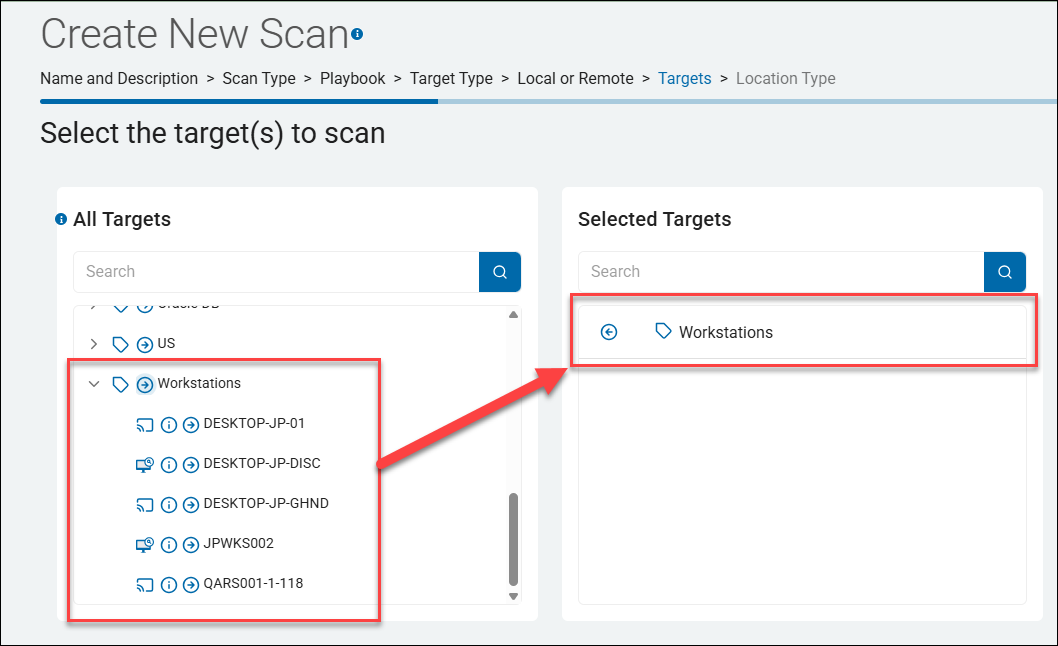
- When configuring a scan, you assign Targets and Tags to define the scope of what gets scanned.
- The Targets column on the "Select the target(s) to scans" page in the scan wizard reflects which Tags, (and their bound Targets) are included in each scan job.
- Tags essentially act as a grouping mechanism so you can say "scan everything tagged X" rather than listing individual targets.
- In the example screenshot below all Targets with the "Workstations" Tag are selected to be scanned.
2. Targets (Data Asset Inventory → Targets)
Individual scan Targets (endpoints, file shares, Exchange servers, databases) can have one or more Tags applied to them.
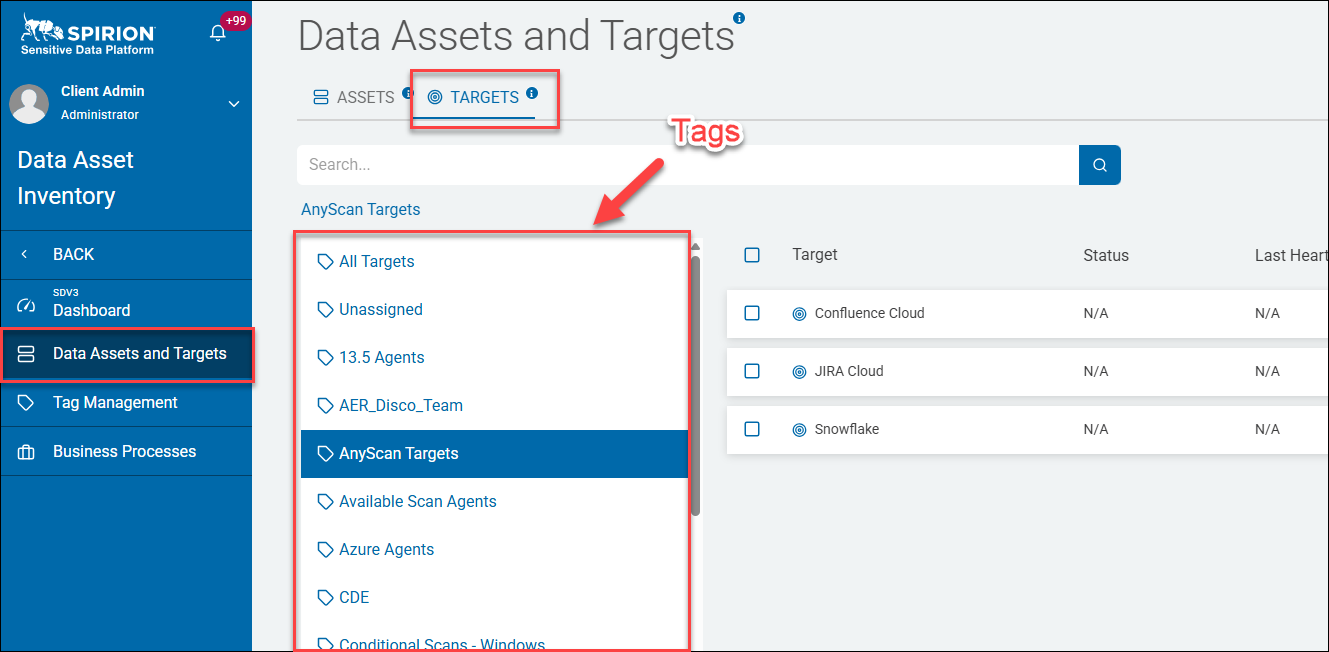
This is the assignment side — in the Tag Management page the Targets panel on the left shows which Targets carry a given Tag (by IP, FQDN, connection string, etc.).
3. Search Results / Findings
After scans complete, results can be filtered and organised using Tags.
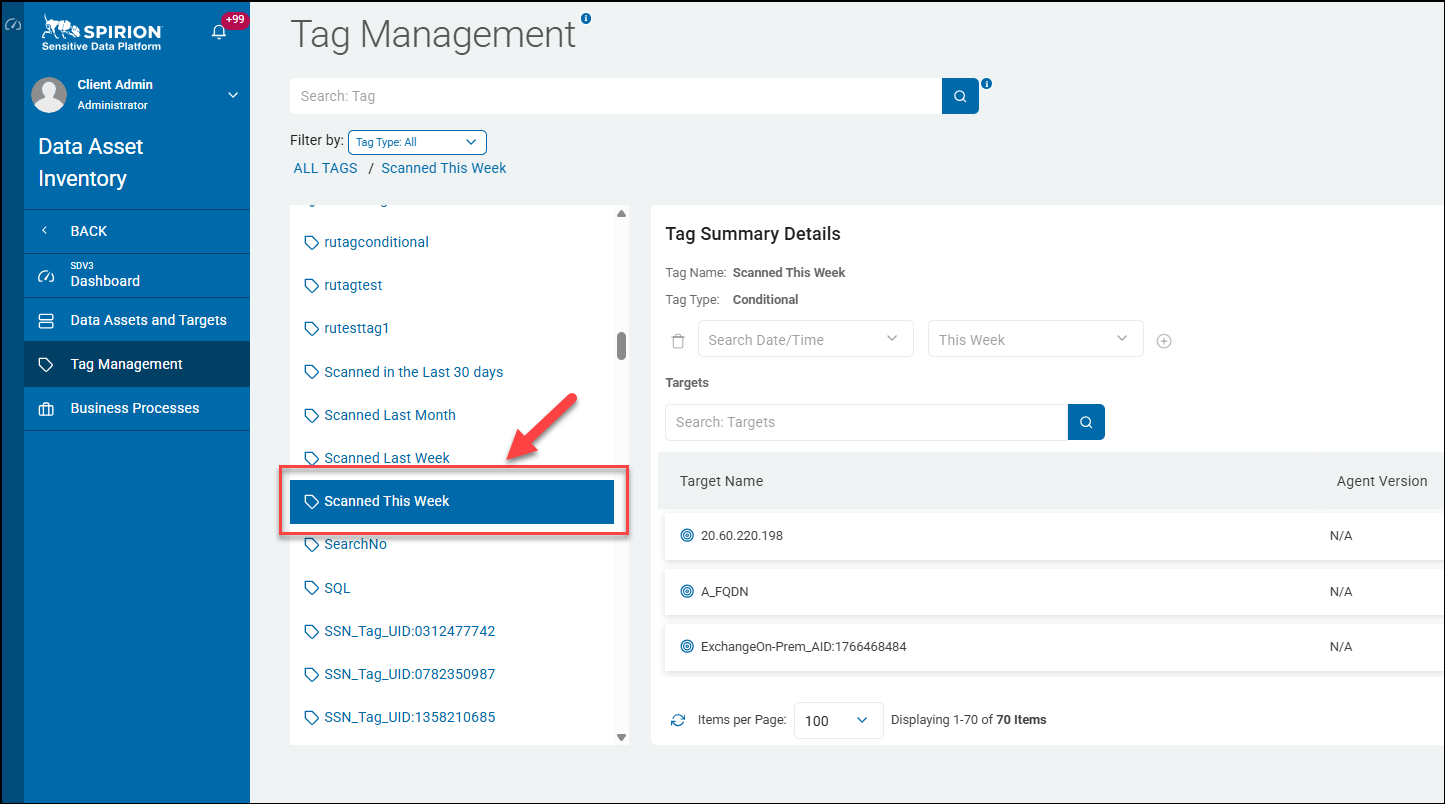
- Conditional/time-based Tags (for example, Scanned This Week, Scanned in the Last 30 days) dynamically scope which results are surfaced in the results view without requiring manual curation. See the example screenshot below.
4. Reports and Dashboards
Tags serve as filter dimensions in reporting.
Administrators can generate reports scoped to specific tags — enabling questions like "show me all findings from Targets tagged Production Servers" or "what was discovered on assets tagged PCI Scope."
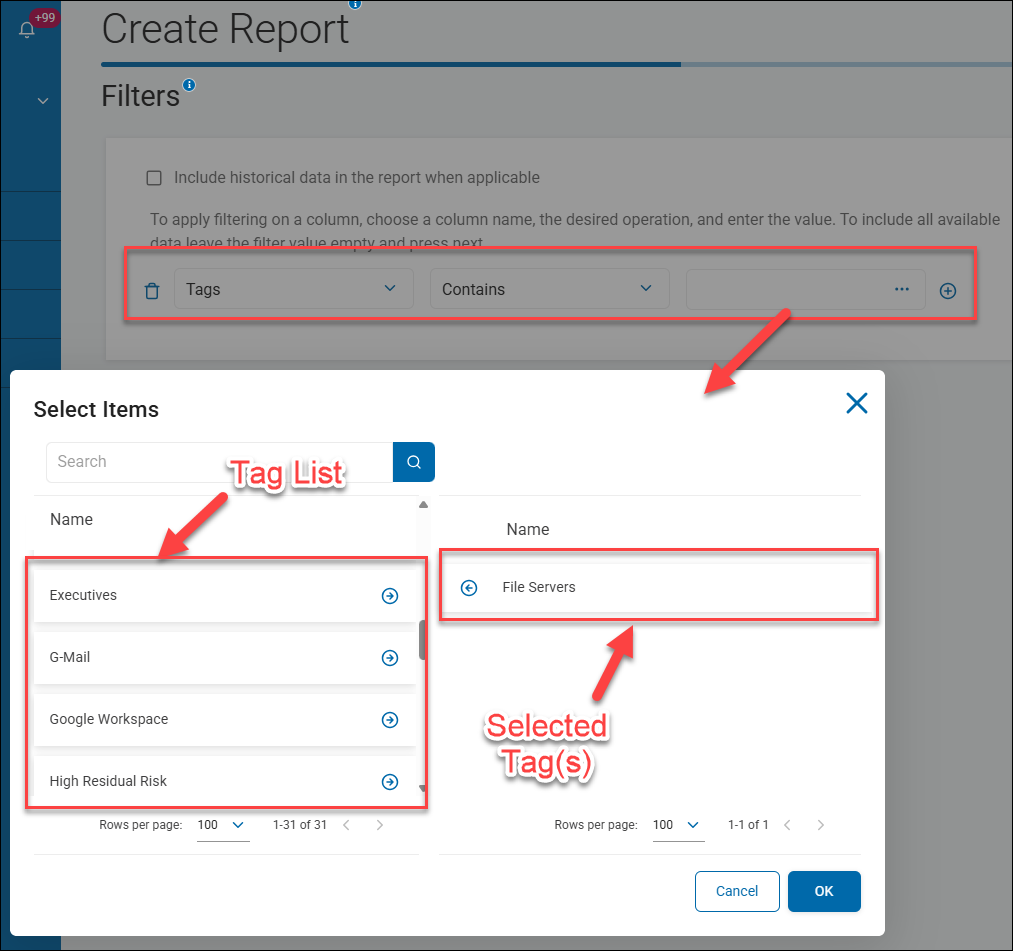
In the example report below report results are configured to be shown filtered by only those Targets contained in the "File Servers" Tag.
Summary
Tags in Spirion Sensitive Data Platform are not confined to the "Tag Management" page — they are a cross-cutting metadata layer that threads through the entire scan lifecycle:
Define tags (Tag Management) → Assign to targets (Targets) → Scope scans (Scans) → Filter results (Search Results) → Drive reporting (Dashboards/Reports) → Enforce externally (DLP integrations)
This makes them one of the most versatile governance primitives in the platform.
Tag Types
- IP Range: Includes Agents and Targets based on an IP range.
- Manual: Includes Agents and Targets manually added to your tag.
- Conditional: Includes Agents and Targets captured by a set of user-defined parameters.
Tag Examples
- The Tag Marketing Laptops is a IP Range type Tag that includes a hundred employee laptops (associated machines)
- The Tag HR Databases is a manual type Tag that includes databases used by the HR department.
- For example: Oracle_holiday, SQL1, and MayDay2025
- The Tag Cloud Sources is a manual type Tag that includes targets in the cloud.
- For example: Box2021, S3_dev1, and GitHub2025
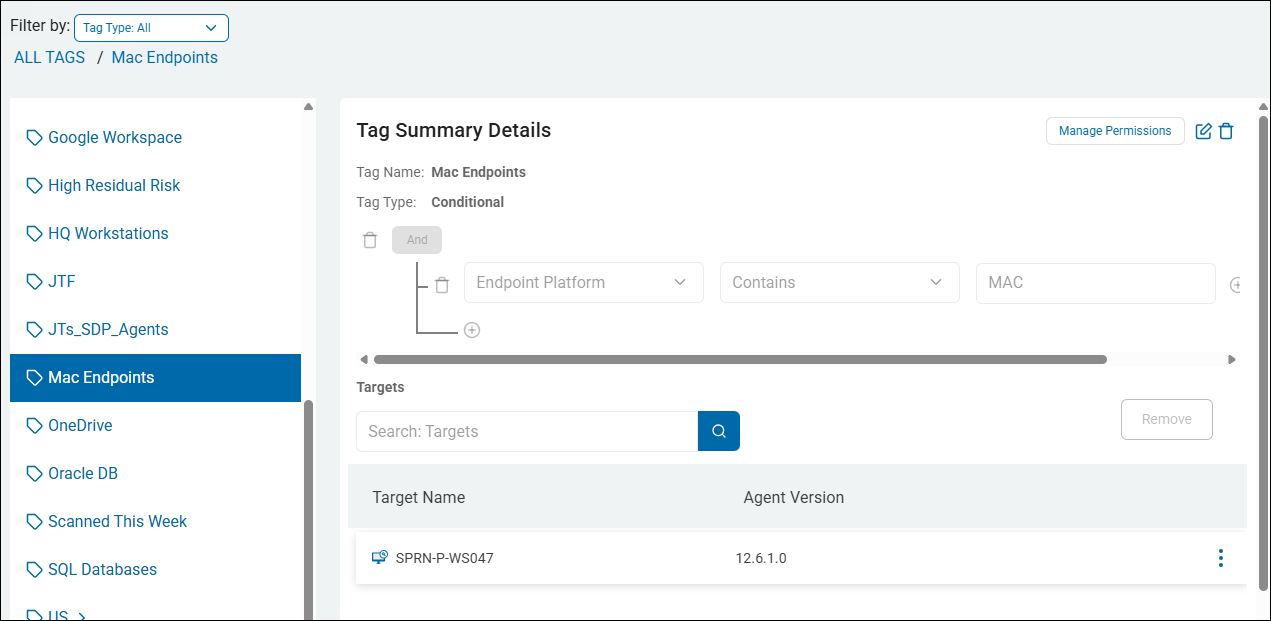
- The Tag "macOS" is a Conditional type Tag that captures targets (desktops, laptops, etc.) using the macOS operating system. See the image below:
How to Access the Tag Management Screen
To access the Tag Management page use the following steps:
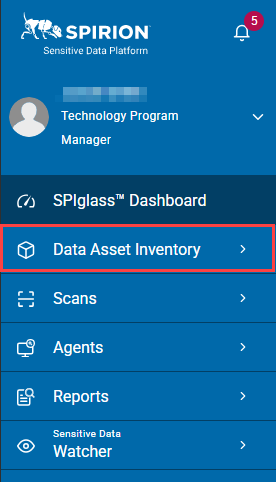
- From the left menu, click Data Asset Inventory.
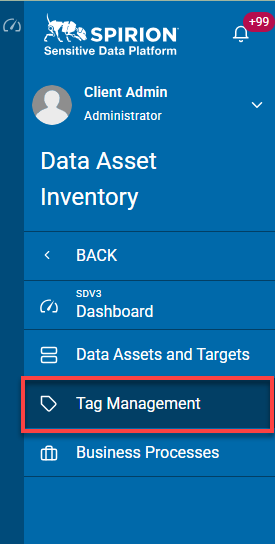
- Click Tag Management.
- The Tag Management page opens.