
How to Sanitize Agents
Sanitize agents when Policies are not sent to the agent or when a scan is stuck in a failing state.
Before You Start
Users may want to sanitize agents when:
- Policies are not arriving to the agent
- When a scan is stuck in a failing state
How to Sanitize an Agent using PowerShell
- The easiest way to sanitize an agent is via a PowerShell script
- Run this script from the Windows PowerShell ISE
How to Manually Sanitize Agents
When running a PowerShell script is not an option, the steps here describe how to manually sanitize an agent:
- Navigate to the local agent machine.
- Open the Task Manager.
- Go the Processes tab.
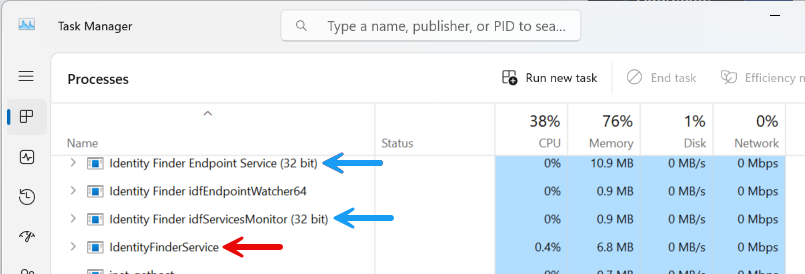
- KILL the following processes by selecting each process and then pressing the Delete key on the keyboard:
- Identity Finder Endpoint Service (blue arrows in the screenshot below)
- Identity Finder idfServicesMonitor (blue arrows in the screenshot below)
- If it is running, Identity Finder Command Line process
- If there were previous Shipper or RMQ connection issues, KILL the process IdentityFinderService (red arrow in the screenshot above) as well
- Open Windows File Explorer.
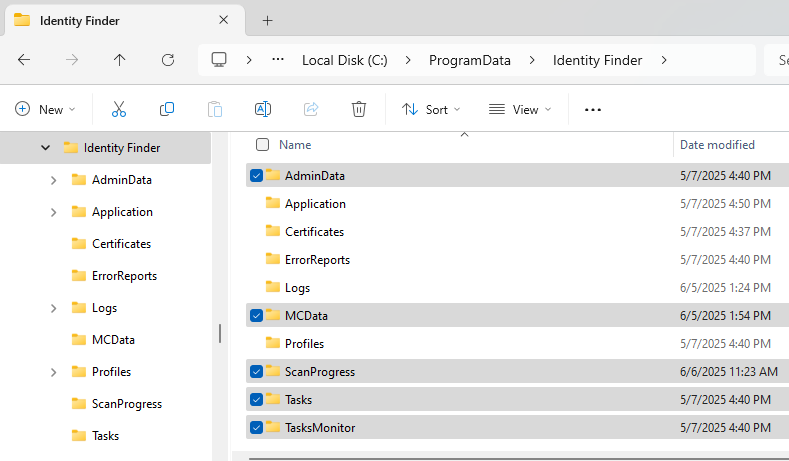
- Navigate to the directory C:\ProgramData\Identity Finder
- DELETE all files in the following directories:
- Tasks
- TasksMonitor
- ScanProgress
- MCData
- AdminData
- Navigate to the directory C:\ProgramData\Identity Finder\Application\LocalSearch
- Delete the file jobQueueLocal.db.
- Navigate to C:\ProgramData\Identity Finder\Application\Console\DistributedSearchInfo
- Delete the file DistributedSearchInfo.db.
- Go back to the Task Manager.
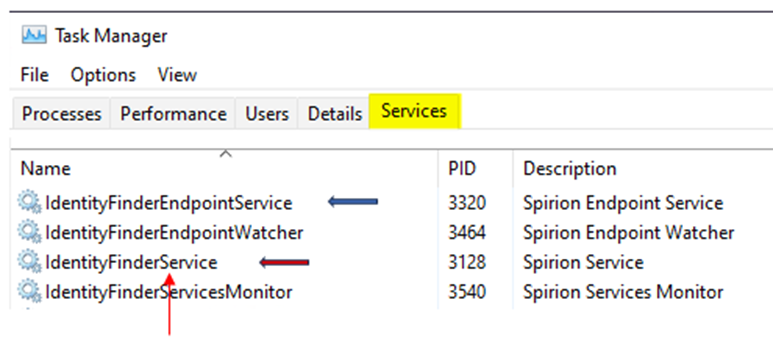
- Select the "Services" tab.
- START the service IdentityFinderEndpointService.
- Identity Finder idfServicesMonitor service will start automatically
- IF the IdentityFinderService was previously stopped, this service must be restarted manually
- Identity Finder idfServicesMonitor service will start automatically
- Any directories or deleted databases are automatically recreated/regenerated when the service IdentityFinderEndpointService restarts.
*** Unless there are issues shredding temp files, or the directory is full and consuming a lot of memory, there is no need to delete the the directory IDFTmpDir or anything in it, and there is no need to delete anything in the directory boost_interprocess***