How to Manage the Quarantine Path for a Scan Playbook
For the scan playbooks you create in Spirion Sensitive Data Playbook the Manage Quarantine Paths feature can be used to set a quarantine path specific to a playbook. This quarantine path overrides the global quarantine settings (quarantine file path) located in Settings > Application Settings > Scans Settings, Remedation section.
Multiple quarantine paths separated by a comma can be entered for each environment (Amazon S3, Google Drive, OneDrive, SharePoint, etc.).
Note: UNC paths are supported for workstations and remote file servers, and standard file systems.
User Permissions Required to Use Manage Quarantine Paths
A user must have the following permissions or be a member of a role that has the permssions:
- Each user has full permissions to the playbooks they create ("owner" rights)
- Administrator users have full permissions to all playbooks
- Non-admin users (who did not create the playbook) require the "Manage" permission. This can be set at the User or Role level.
- User Level:
- Navigate to Settings > User Management, USERS tab
- For a specific user select more options at the far right of the table row, select "Manage permssions" from the drop-down menu
- Select the PLAYBOOKS tab.
- Under the Playbook Access (User) column for the specific playbook, select "Manage" from the drop-down menu.
- See "How to Change a User's Playbook Permissions"
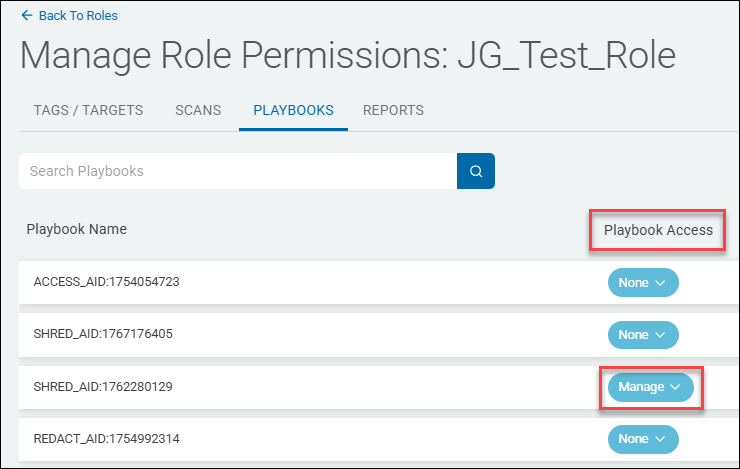
- Below is an example screenshot for a user Role (as with Users, the PLAYBOOKS tab contains the permissions for each scan playbook). Changing the access for a specific playbook here affects all users who are members of this role.
How to Manage the Quarantine Path for a Scan Playbook
To manage the quarantine path for a scan playbook perform the following steps:
- From the left side navigation menu navigate select Scans > Scan Playbooks.
- The "Scan Playbooks" page opens.
- Locate a playbook in the table.
- In the far right column for the playbook, click the ellipse menu.
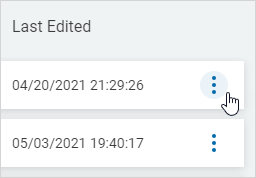
- Click Manage Playbook from the sub-menu.
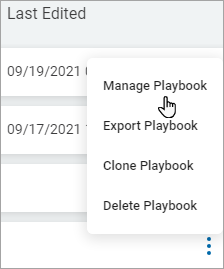
- The Playbook view opens.
- Click the blue Actions button in the top left corner and select Manage Quarantine Paths
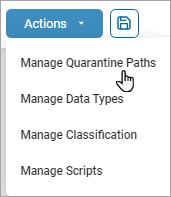
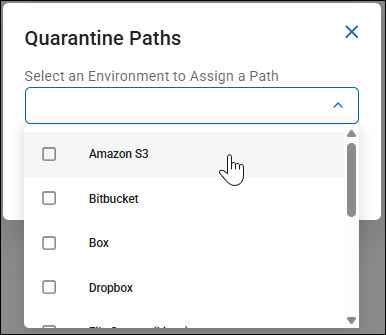
- In the Quarantine Paths dialog, select one or more environments, such as Amazon S3, Bitbucket, Box, Dropbox, etc.
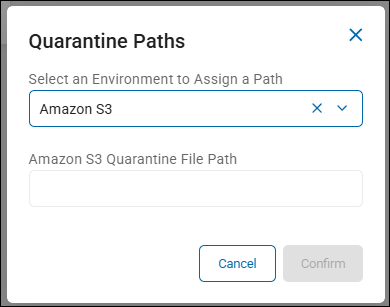
- Enter the desired quarantine file path for each selected environment.
Note: Playbook quarantine locations override the global quarantine configuration (found in Settings > Application Settings > Scans Settings > Remediation section).
Multiple quarantine paths separated by a comma can be entered per environment.
Note: UNC paths are supported for workstations and remote file servers, and standard file systems.
Single environment quarantine path
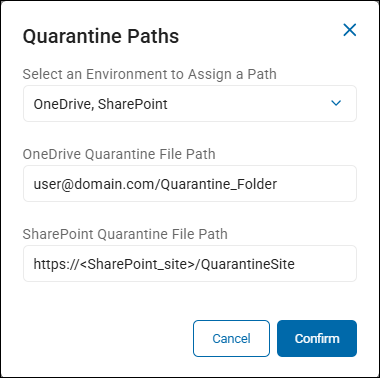
Multiple environment quarantine paths - Cloud Targets can also quarantine to cloud locations.
- For example, with a Google Cloud Target the following are valid path formats:
- C:\Quarantine_Folder - This entry would cause all files on this target to be quarantined to a folder on the agent host system performing the scan.
- \\RemoteServer\Quarantine_Folder - This entry would cause all files to be quarantined to a remote folder.
- Google Drive: user@account.com/Quarantine_Folder - This entry would cause all files on this cloud provider to be quarantined to a specified Google Drive folder.
Note: To quarantine files to Microsoft OneDrive, the entire location path must be written in lowercase.
- For example, OneDrive paths must be formatted exactly as follows:
- Microsoft OneDrive: user@domain.com/quarantinefolder
- Click the Confirm button.