
How to Add a Custom Data Type
Detailed information about specific native and custom data types is available in the article Spirion AnyFind and Common Custom Data Types Defined. Also see A Comparison of All Data Types. To see examples and detailed explanation of all available types of custom data types, see Types of Custom Data Types and Examples.
To add a custom Data Type use the following steps:
- From the left-side navigation menu select Settings > Global Data Types.
- The Data Types page opens.
- Select the CUSTOM DATA TYPES tab at the top of the page.
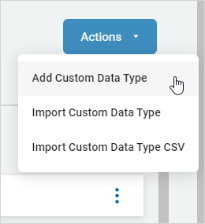
- From the top right corner of the page click the blue Actions button.
- Click "Add Custom Data Type." (Admins only)
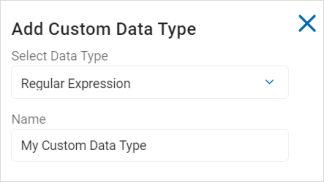
- In the Add Custom Data Type pop-up window, select a Data Type from the "Select Data Type" drop-down list.
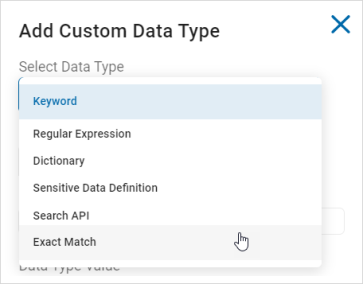
- Each data type presents different options, explained below.
Keyword Data Type
Procedure:
- Name: Type the name of your Data Type.
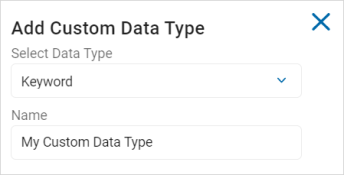
- Keyword: Type the keyword you want to use.
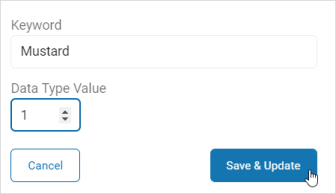
- Data Type Value: Use the numeric up-down control to set a value.
Note: Data Type Value is the number you assign to the Data Type to give it weight. - For example:
- Assign a Data Type Value of '1'.
- Run the scan and find five instances of that value.
- The sum total, or weight, is '5'.
- This enable you to add emphasis to certain Data Types to gain insight into your data.
- Click Save & Update to save the new Data Type or Cancel to discard.
Regular Expression Data Type
Procedure:
- Name: Enter the name of your Data Type.
- Regular Expression: Enter the expression in the text box.
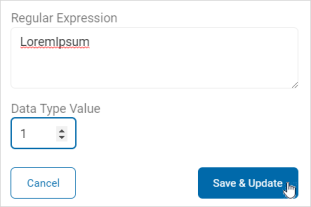
- Data Type Value: Use the numeric up-down control to set a value.
- Click Save & Update to save the new Data Type or Cancel to discard.
Dictionary Data Type
Procedure:
- Click the folded paper icon to upload a Dictionary file (.dic) from your local computer.
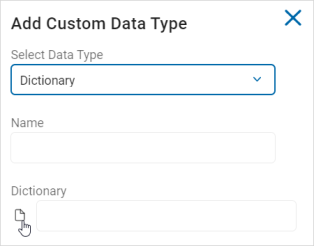
- Name: This field is filled automatically from the file.
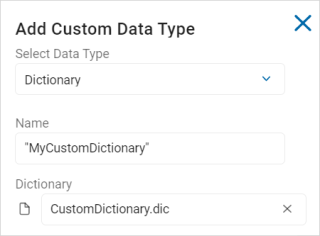
- Data Type Value: Use the numeric up-down control set a value.
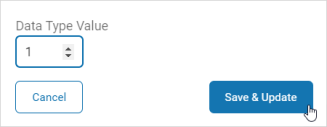
- Click Save & Update to save the new Data Type or Cancel to discard.
Note: Dictionary files must be in the following format and saved with a file extension of type .dic.
[Header]
Name="Dictionary_Name"
[Words]
Word_1
Word_2
Word_3
Word_4
For example:
[Header]
Name="My New Dictionary"
[Words]
Black
Blue
Canary
Indigo
Magenta
Orange
Red
Sensitive Data Definition (SDD) Data Type
Procedure:
- Name: Enter the name of your Data Type.
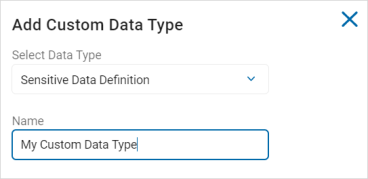
- In the Definition section, fill in the following:
- Left criteria drop-down list:
- Click the more options menu.

- Click the more options menu.
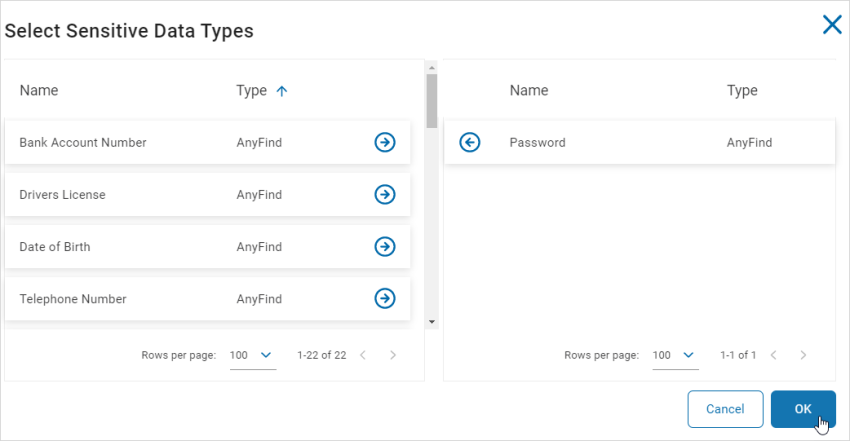
- In the Select Sensitive Data Types pop-up window, click a tile with a right arrow to move it the available data types column.
- For example: Social Security number
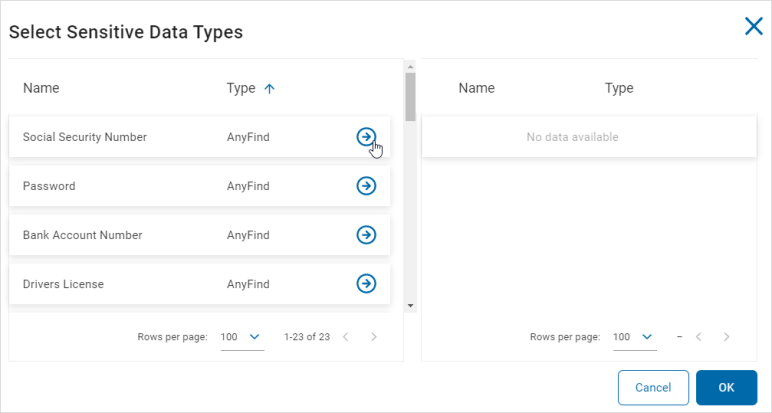
- For example: Social Security number
- To remove an available Sensitive Data Type, click a tiles with a left arrow.
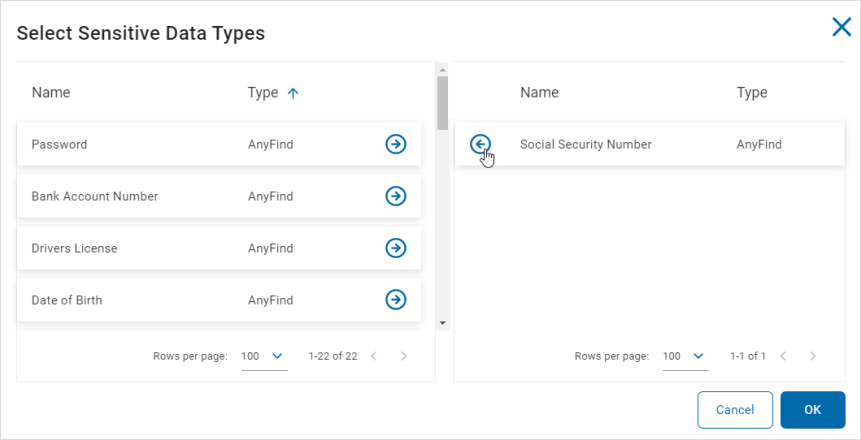
- Click OK to save or Cancel to discard.
- Center criteria drop-down list: Select an option from the drop-down list.

- Right criteria: Click the more options menu and select an option from the drop-down list.

- For example: Near with Distance | Bank Account Number | 2.

- For example: Less Than| 100 | Unique Matches.

- For example: Near with Distance | Bank Account Number | 2.
Sensitive Data Definitions
A Sensitive Data Definition generally consists of three fields. Though in some cases, based on the operator selected, a fourth field displays. These fields are described in the table below:
Field | Description |
|---|---|
Sensitive Data Type | The Sensitive Data Type specifies the type of data that you are filtering for.
|
Operator | The Operator defines how results are found based upon the Data Type.
|
Value field | The Value Field specifies the value used to qualify the data.
|
Operator Types
Filters are used to capture instances of sensitive data types (such as Social Security and Credit Card numbers) based on rules/conditions set by you, the user. For example, you may wish to capture social security numbers, but only those which come after a user's email address, or within 50 characters of the user's address.
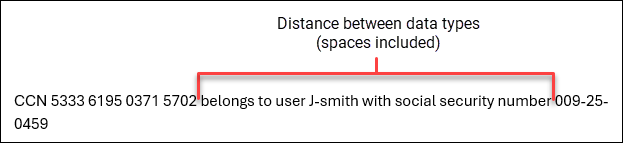
To create a filter for a sensitive data definition, you first select a Sensitive Data Type and then you select an operator. There are 22 types of operators available:
Operator | Description | Value |
|---|---|---|
Near | Tests whether sensitive data types are within 50 characters of each other. This distance includes blank spaces.
Near Example
| |
Near with Distance | Tests whether sensitive data types are within a specified distance of each other. This distance includes blank spaces.
Near with Distance Example
| Enter the distance (in characters). This is the maximum number of characters allowed between data types |
Near Before | Tests whether specified sensitive data types are within 50 characters of each other with the requirement the first sensitive data type (A) appears before the second specified data type (B). This distance includes blank spaces.
Near Before Example
| |
Near Before with Distance | Tests whether sensitive data types are within a specified distance of each other with the requirement the first sensitive data type (A) set appears before the second specified data type (B) set. This distance includes blank spaces.
Near Before with Distance Example
| Enter the distance (in characters). This is the maximum number of characters allowed between data types |
Near After | Tests whether sensitive data types are within 50 characters, or less of each other with the requirement the first specified sensitive data type (A) appears after the second specified data type (B). This distance includes blank spaces.
Near After Example
| |
Near After with Distance | Tests whether sensitive data types are no more than a specified distance of each other with the requirement the first sensitive data type (A) appear after the second specified data type (B). This distance includes blank spaces.
Near After with Distance Example
| Enter the distance (in characters). This is the maximum number of characters allowed between data types |
Far | Tests whether sensitive data types are at least 50 characters (or more) away from each other. This distance includes blank spaces.
Far Example
The distance between data matches is 73, greater than the 50 character minimum, so the rule is satisfied. | |
Far with Distance | Tests whether sensitive data types are at least a specified distance away from each other. This distance includes blank spaces.
Far with Distance Example
| Enter the distance (in characters). This is the minimum number of characters allowed between data types |
Far Before | Tests whether sensitive data types are at least 50 characters away from each other with the requirement the first specified sensitive data type (A) appears before the second specified data type (B). This distance includes blank spaces.
By using the Far operator and configuring the distance in a policy, it allows you to use the same distance value for all filters using the Far operator without the need to specify the distance each time you use it in a sensitive data definition. Far Before Example
The distance between data matches is 73, greater than the 50 character minimum, so the rule is satisfied. | |
Far Before with Distance | Tests whether sensitive data types are at least a specified distance away from each other with the requirement the first specified sensitive data type (A) appears before the second specified data type (B). This distance includes blank spaces.
By using the Far operator and configuring the distance in a policy, it enables you to use the same distance value for all filters using the Far operator without the need to specify the distance each time you use it in a sensitive data definition. Far Before with Distance Example
If the value set (minimum distance between characters) is 5, the distance between data type characters (6) is greater than the value specified (5). The first specified data type (SSN) appears before the second specified data type set (CCN), as required. This rule is satisfied. | Enter the distance (in characters). This is the minimum number of characters allowed between data types |
Far After | Tests whether the first specified data type (A) appears in files/emails after the second specified data type (B) by a distance of at least 50 characters. This distance includes blank spaces.
Far After Example
If the value set (minimum distance between characters) is 25, the distance between data type characters (30) is greater than the value specified (25). The first specified data type (SSN) appears after the second specified data type set (CCN), as required. This rule is satisfied. | |
Far After with Distance | Tests whether the first specified data type (A) appears in files/emails after the second specified data type (B) by the specified distance. This distance includes blank spaces.
Far After with Distance Example
If the value set (minimum distance between characters) is 25, the distance between data type characters (30) is greater than the value specified (25). The first specified data type (SSN) appears after the second specified data type set (CCN), as required. This rule is satisfied. | Enter the distance (in characters). This is the minimum number of characters allowed between data types |
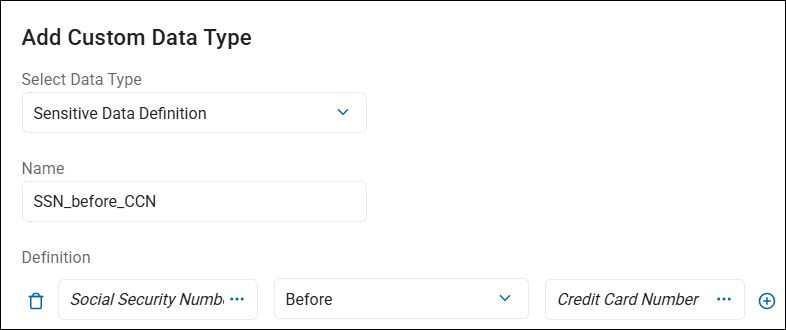
Before | Tests that one sensitive data type (such as Social Security number) appears before another (such as Credit Card number). | Enter the distance (in characters) |
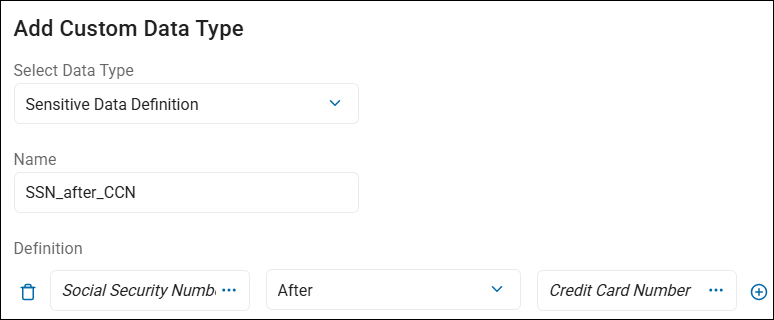
After | Tests that one sensitive data type appears after another. | Enter the distance (in characters) |
Equals | Used to compare the unique count of a type. | Enter the distance (in characters) |
Does Not Equal | Used to compare the unique count of a type. | Enter the distance (in characters) |
Less Than | Used to compare the unique count of a type. | Enter the distance (in characters) |
Less Than or Equals | Used to compare the unique count of a type. | Enter the distance (in characters) |
Greater Than | Used to compare the unique count of a type. | Enter the distance (in characters) |
Greater Than or Equals | Used to compare the unique count of a type. | Enter the distance (in characters) |
Require | Tests that a minimum number of sensitive data types are present.
| Enter the distance (in characters) |
Allow | Tests that a maximum number of sensitive data types are present.
| Enter the distance (in characters) |
Note: Each of the operators that specify a match count (Equals, Does Not Equal, Less Than, Less Than or Equals, Greater Than, Greater Than or Equals) are for unique match counts. When creating a sensitive data definition and selecting a Keyword as the Sensitive Data Type, the Value must be 0 or 1 as locations can only contain a single, unique instance of a specific Keyword. The result for a keyword is always only the keyword, meaning that you can only ever have one unique match for a keyword as opposed to a Regular Expression or Dictionary which can have many unique matches.
- For example, if you create a sensitive data definition saying "Keyword > 3", it is never True as you cannot have 3 unique instances of the same keyword in one location.
- If you create a sensitive data definition saying "Keyword <= 1", then it is possible for this definition to be True.
- A Regular Expression on the other hand can have multiple unique match counts per definition as a Regular Expression does not specify a specific identity.
- The following is a list of operators and their valid numerical values when the Data Type = Keyword:
Field | Description |
|---|---|
Equals 0 | Returns True only if there are no keyword matches found. |
Equals 1 | Returns True if there is one unique instance of a specific keyword. |
Does Not Equal 0 | Returns True if there is one unique instance of a specific keyword. |
Does Not Equal 1 | Returns True only if there are no keyword matches found. |
Less Than 1 | Returns True only if there are no keyword matches found. |
Less Than or Equals 1 | Returns True if there are no matches or there is one unique instance of a specific keyword. |
Greater Than 0 | Returns True if there is one unique instance of a specific keyword. |
Greater Than or Equals 0 | Returns True if there are no matches or there is one unique instance of a specific keyword. |
Note: For database searches, the "Near," "Far," "Near with Distance" and "Far with Distance" operators are relevant only to data within a cell, not across cells.
- For files, it is per file.
- For email, it is the content of the email.