How to Use Global Classifications
The Global Classifications page is where you manage your data Classifications. These classifications control the labels (Top Secret, Secret, Regulatory, Legacy, etc.) applied to your sensitive data files. This step is critical as users often employ DLP tools which require accurate, persistent file classifications.
Overview
Data classification gives organizations the internal visibility to detect and mitigate threats before data is exposed. Organizations can prevent sensitive data from being stored insecurely, shared externally, or moved to unauthorized devices if sensitive data is properly and persistently classified.
Further data loss prevention (DLP) tools such as Cyberhaven and Zscaler require accurate, persistent file classifications to perform effectively.
- More information, including Case Studies
- Also see: Top 7 Data Classification Best Practices
- Classification Persistence
The Global Classifications page in Spirion Sensitive Data Platform is where you manage your data classifications.
- Classifications are of a defined type and can include colors and/or icons.
- The Global Classifications page displays a searchable list of existing Classifications, both built-in and custom.
You can perform the following actions:
- Create a new Classification
- Edit a Classification
- Import Classifications
- Export Classification
- Delete a Classification
Note: Classifications for files that are MPIP-protected do not show in Microsoft Windows File Explorer.
Note: Classification duration (persistence) can vary by file type. For more information see Classification Persistence.
Which Users Can Access Global Classifications
- Not all users can view and manage Global Classifications.
- To view Global Classifications a user must be a member of a role that contains the permission "Manage Administrative Settings." See the screenshot below.
- By default, the Admin role contains this permission.

How to Access Global Classifications
To access the Global Classification page, use the following procedure:
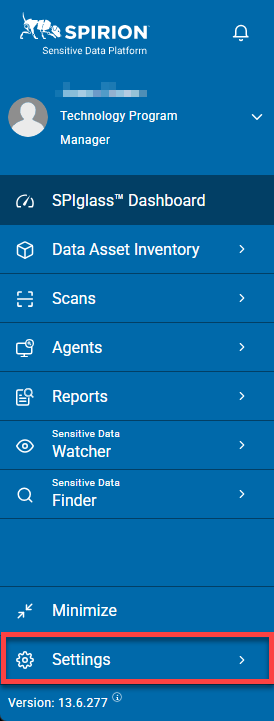
- From the left side navigation menu, click Settings.
- Click Global Classifications.
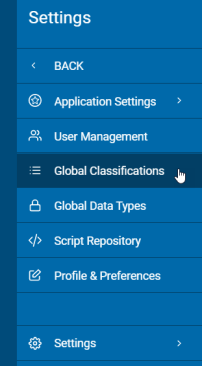
- The Classifications page opens.
- Classifications are displayed in a list sorted by columns (for examples, see Classification Type Examples below):
- Assigned Icon - Identifying icon assigned to the Classification
- Optional, unless SENS is selected, which requires Icon or Color.
- Classification - Classification name
- Type - Custom type or Spirion type. Treat this as a type of category to organize your classifications.
Example uses: - LEGA - Legacy
- Legacy classification type in a database setting
- Used in scenarios involving data import and export processes, particularly in relation to classifications within a system
- Includes native types: Classified, Secret, Top Secret
- PREF - Preference
- Third party access restrictions of PII (No 3rd party Sell)
- Protected Health Information
- PROC - Process
- HR processing PII of candidates and employees
- Marketing team processing PII of potential and existing customer
- PII for order processing
- PURP - Purpose
- Departments such as HR, Finance, IT Mgmt, etc.
- Can also contain RegEx such as: ABA RegEx, CCN RegEx, IPV4 RegEx, etc.
- PII for data analytics
- PII bought or sold to third parties
- PII associated with research
- REG - Regulatory
- PCIDSS: PCI DSS data
- GDPR data
- HIPPA data
- SENS - Sensitivity
- Social security numbers (SSN), Credit card numbers (CCN), etc.
- SENS-Confidential
- SENS-Public
- SENS-Top Secret
- SENS-None
- CUSTOM
- User-defined classifications
- Priority - Assigned priority (number) of Classification
- Description - Description of Classification
- UUID/GUID - Universally Unique Identifier or Globally Unique Identifier
- More options - Edit and Delete actions available