
How to Bulk Import Targets
Overview
When you need to scan more than one Target Spirion recommends you bulk import multiple Targets of a given Target Type (Amazon S3, Exchange, Database, SharePoint, etc.) at once, to save time.
- Bulk importing Targets saves time, but note that it requires precision in the CSV file that you import.
- To import Targets in bulk, you upload a CSV file which contains all of the necessary details about your Targets. Spirion provides a CSV template file for each Target Type (Amazon S3, Exchange, SharePoint, Gmail, etc.), which you download from Spirion Sensitive Data Platform itself. Instructions for this process are given below.
Before You Start
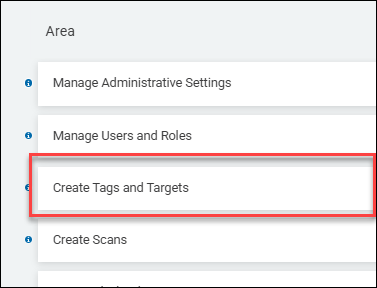
- To bulk import Targets a user (or their user role) must have the "Create Tags and Targets" permission. Members of the Admin role have this permission by default.
- For more information see "How to Use Access Controls"
- For more information see "How to Use Access Controls"
- The Bulk Import of Targets feature supports importing 0-1,000+ Targets of multiple types (one time at a time) from an imported .csv file or Excel template
- After importing, the Spirion Console checks for errors and generates a new target for each one included in the template
- If errors are detected, no import occurs, and the errors are displayed in the console for the user to work with, if applicable
- CSV files must be comma delimited
- Sometimes the use of Excel can impact the final CSV output especially with special characters and leading zeros. Support recommends that you use a special tool for CSVs like Modern CSV
CSV Template Examples
Below is a sample of CSV templates that can be downloaded from Data Assets and Targets page in Spirion Sensitive Data Platform. Complete instructions for downloading these templates and re-are given in the topic "How to Bulk Import Targets into Spirion Sensitive Data Platform" below.
Amazon S3 Target CSV Example
The screenshot below shows an example Amazon S3 Target CSV file with a Target name, account name, access key ID, and service access key.

Bitbucket Target CSV Example
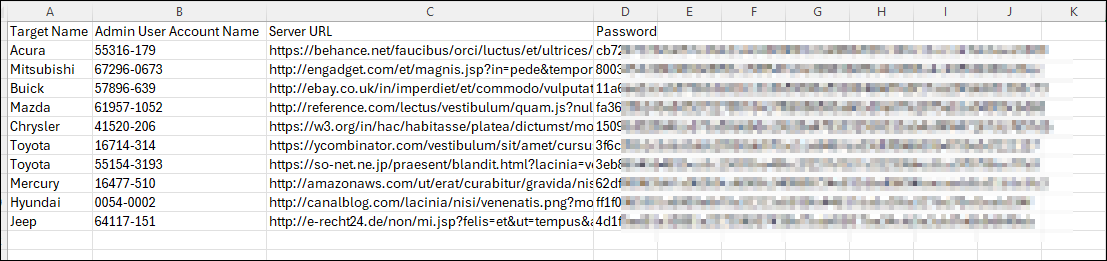
The screenshot below shows an example Bitbucket Target CSV file with Target names, admin user account names, server URLs, and passwords.
Database Target CSV Example
The screenshot below shows an example Database Target CSV file with Target names, database types, connection strings, AD users, AD passwords, and AD domains.

Exchange Target CSV Example
The screenshot below shows an example Exchange Target CSV file with a Target name, username, password, exchange EWS host URL, AD host, host version, and LDAP query.

Google Drive Target CSV Example
The screenshot below for shows an example Google Drive Target CSV file with a Target name, address, admin user account name, service account, key data file, key data file password, private key ID, and project ID.
- Google Drive Target CSV fles must be imported within a .zip file which also contains each Target's .p12 file (for example, "GoogleAuthToken.p12")

Gmail CSV Target Example
The screenshot below for shows an example Gmail Target CSV file with a Target name, address, admin user account name, service account, key data file, key data file password, private key ID, and project ID.
- Gmail Target CSV fles must be imported within a .zip file which also contains each Target's .p12 file (for example, "GoogleAuthToken.p12")

SharePoint Target CSV Example
The screenshot below for shows an example SharePoint Target CSV file with SharePoint Target names, addresses, domains, usernames, passwords, Identity Provider IDs, security tokens, service, SSL, TLS10, TLS12, TLS13, tenant, and certificate file name.
- SharePoint Targets that use tenant/certificate authentication, the completed CSV file must be embedded in a zip file along with each Target's .pfx file.
- SharePoint Targets that do not use tenant/certificate authentication, upload only the CSV file

Remote Target CSV Example
The screenshot below for shows an example Remote Target CSV file with a Remote Target's name, addresses type, addresses, username, password, and mode.

Website Target CSV Example
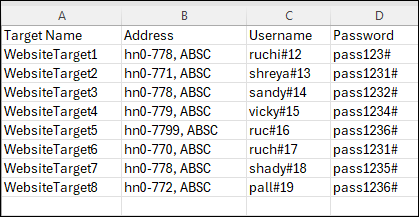
The screenshot below for shows an example Website Target CSV file with Website Target names, addresses, usernames, and passwords.
How to Bulk Import Targets into Spirion Sensitive Data Platform
Use the following steps to import multiple Targets into Spirion Sensitive Data Platform:
- From the left side navigation menu select Data Asset Inventory > Data Assets and Targets.
- The "Data Assets and Targets" page opens.
- Select the TARGETS tab at the top left of the page.
- In the top, right of the screen, click the blue Actions button.
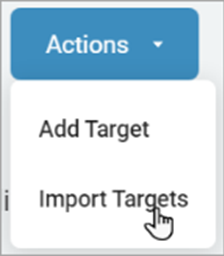
- Click Import Targets from the sub-menu that appears.
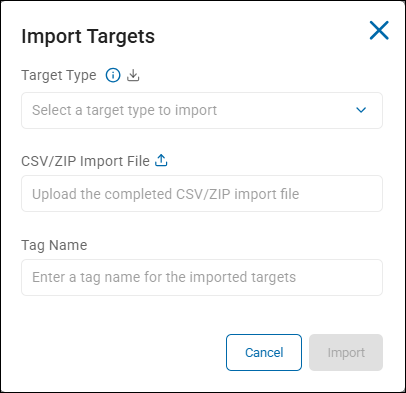
- The Import Targets pop-up window appears.
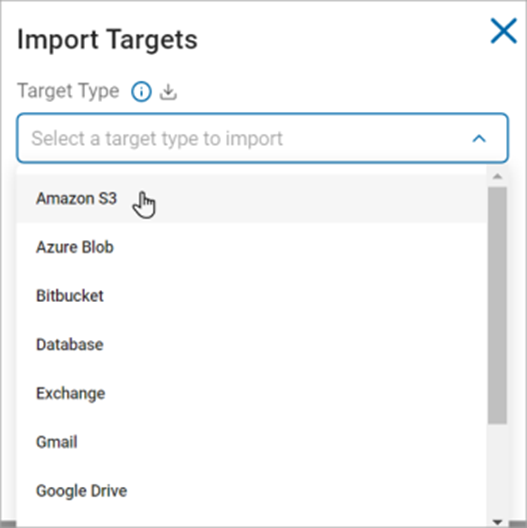
- Select the type of Target to import (Amazon S3, Exchange, Gmail, etc.) from the Target Type drop-down list.
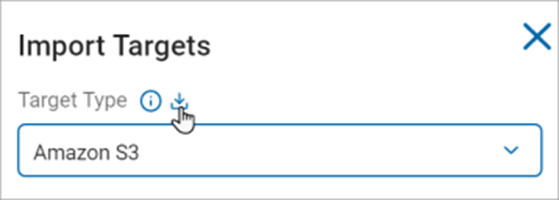
- Click the download icon to download a csv/zip file template for the selected Target Type. You can also import a file with multiple Target Types.
- Leave the "Import Tagets" pop-up window open.
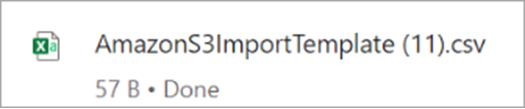
- The Downloaded csv/zip template file is displayed in your browser at the top right of the screen.
- Select the type of Target to import (Amazon S3, Exchange, Gmail, etc.) from the Target Type drop-down list.
- Populate the CSV file with the required information. To see which fields are required, see the table "Target Bulk Import Target CSV Column Names and Required Values" below.
- Save your CSV file (comma-delimited format).
- Back in the "Import Targets" window click the upload icon next to "CSV/ZIP Import File," and select your CSV or ZIP file.
- To import Gmail and Google Drive Targets, the completed CSV must be embedded within a .zip file along with each Target's p12 file
- To import SharePoint Targets that use tenant/certificate authentication, the completed CSV must be embedded in a .zip file along with each Target's pfx file.
- Enter a tag name in the "Tag Name" field.
- Click the "Import" button at the bottom of the window.
- After a successful import, all imported Targets are assigned to a new or existing system tag with the name you provided.
Target Bulk Import Target CSV Column Names and Required Values
The table below lists the different Target type templates.
Included in the table are the Target types, column names (Target attributes such as Target name, account name, Access Key ID, server URL, database type, username, password, TLS version, etc.) and any important notes about which column values are mandatory and which are not.
Target Type | Column Names | Important Notes |
|---|---|---|
Amazon S3 |
| All column values are required |
Bitbucket |
| All column values are required |
Database |
| All column values are required |
Exchange |
| All column values are required except for the columns "AD Host" and "LDAP Query" |
Gmail |
| All column values are required except for the columns "Private Key ID" and "Project ID" |
Google Drive |
| All column values are required except for the columns "Private Key ID" and "Project ID" |
Remote Target |
| All the column values are required. For Address Type enter the integer in line with the type you are using:
For Mode enter the integer in line with the authentication type:
|
SharePoint |
| All the column values are mandatory except the following columns:
|
Website |
| All the column values are mandatory |