
How to Use User Profiles
This article describes how to view and edit User Profiles in Spirion Sensitive Data Platform v13.5+.
The User Profile page enables you to manage user profile settings.
- How to View User Profile
- How to Edit a User Profile
How to View a User Profile
To view a user profile use the following steps.
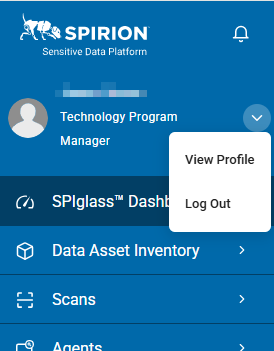
- From the left side blue navigation menu do either of the following:
- Click the down arrow next to the user name and select View Profile from the sub-menu that appears.
- Click Settings at the bottom of the menu.
- Select Profile from the left side navigation menu if it is not already selected (it is selected by default).
- Click the down arrow next to the user name and select View Profile from the sub-menu that appears.
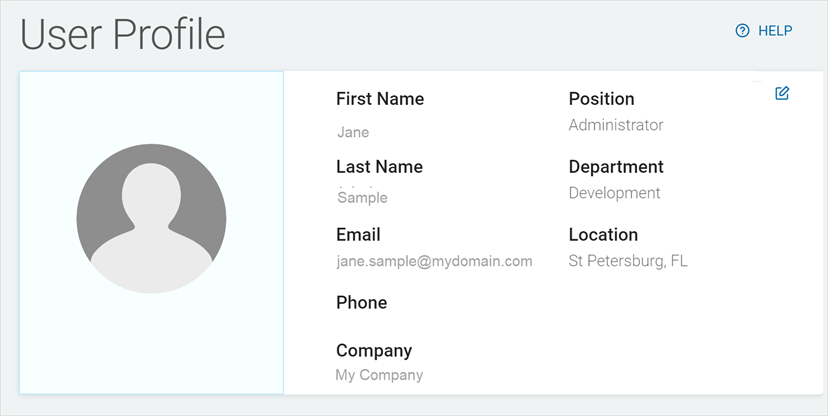
- The User Profile screen appears and displays the following information:
- Image
- First name
- Last Name
- Phone
- Company
- Position
- Department
- Location
How to Edit a User Profile
Use the following steps to edit a user profile:
- From the left side blue navigation menu do either of the following:
- Click the down arrow next to the user name and select View Profile from the sub-menu that appears.
- Click Settings at the bottom of the menu.
- Select Profile from the left side navigation menu if it is not already selected (it is selected by default).
- Click the down arrow next to the user name and select View Profile from the sub-menu that appears.
- The User Profile screen appears.
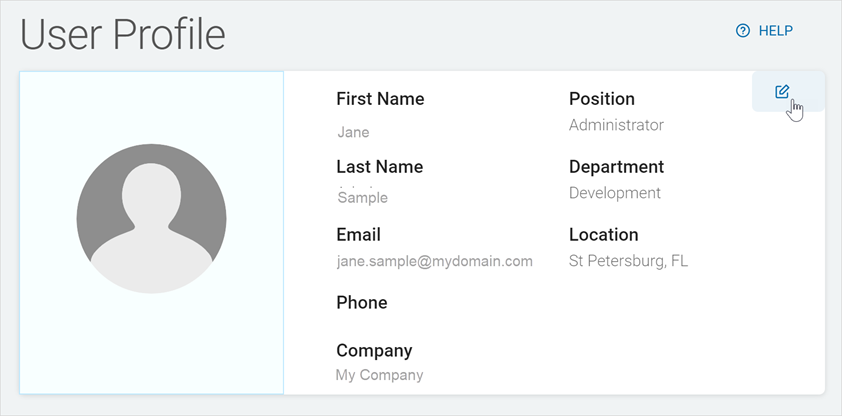
- Click the Edit icon in the top right corner.
- In the Edit Profile screen, make changes to any of the following:
- First Name: Type the first name.
- Last Name: Type the last name.
- Email: Type the email address.
- Phone: Type the telephone number.
- Position: Type the role in the organization.
- Department: Type the department name.
- Location: Type the location name.
- Click Save Changes to save or Cancel to discard.