
How to Use Scans Settings - Notifications Section
Overview
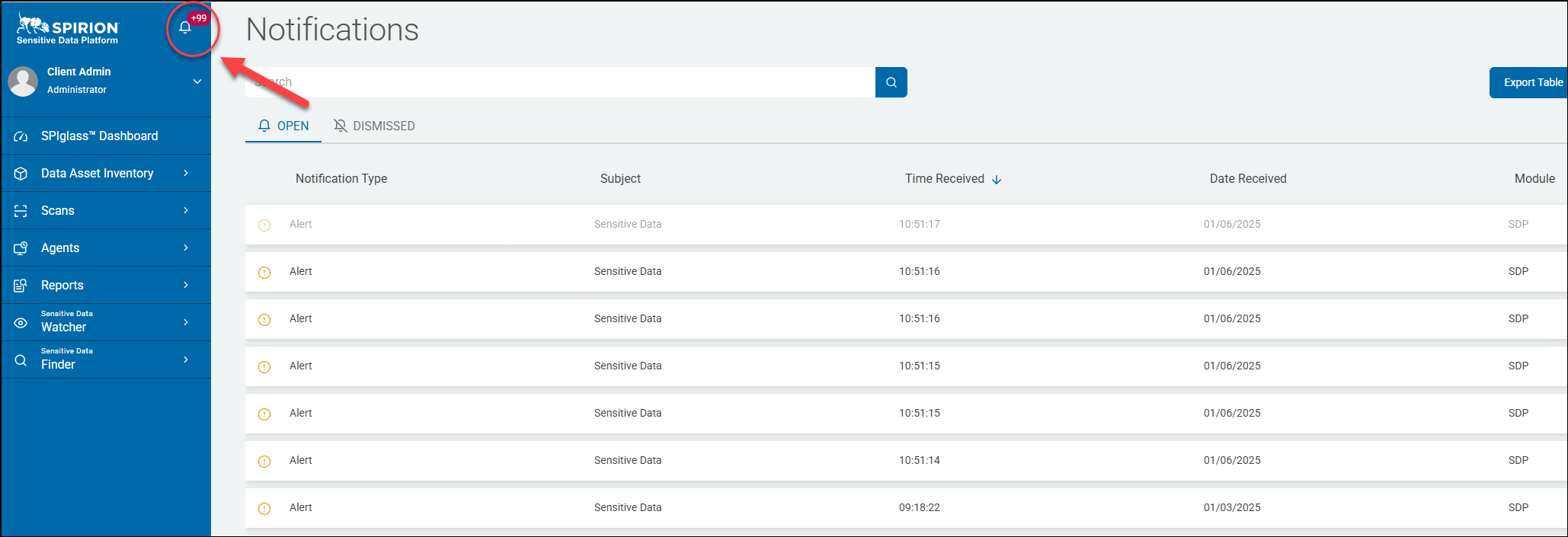
- Users are alerted to notifications by the bell icon in the blue navigation menu at left.
- The number of new notifications is shown in a red circle next to the bell icon:
- Clicking the bell icon opens the Notifications page, shown below.
- Notification Settings are located within Spirion Sensitive Data Platform under Settings > Scans Settings > Notifications section.

How to Use Notification Settings
Use the following steps to modify Notifications settings:
- From the left side navigation menu, click Settings > Application Settings > Scans Settings.
- The Scans Settings page opens.
- Click the down arrow next to the "Notifications" section to expand the section.
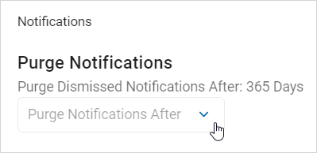
- In the Purge Notifications section, select an option from the "Purge Dismissed Notification After" drop-down list.
- Select one of the following options: 365 days, 180 days, 90 days, 60 days, 30 days
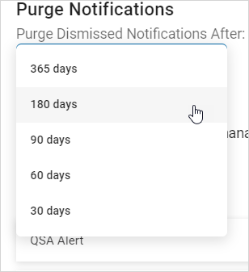
- Select one of the following options: 365 days, 180 days, 90 days, 60 days, 30 days
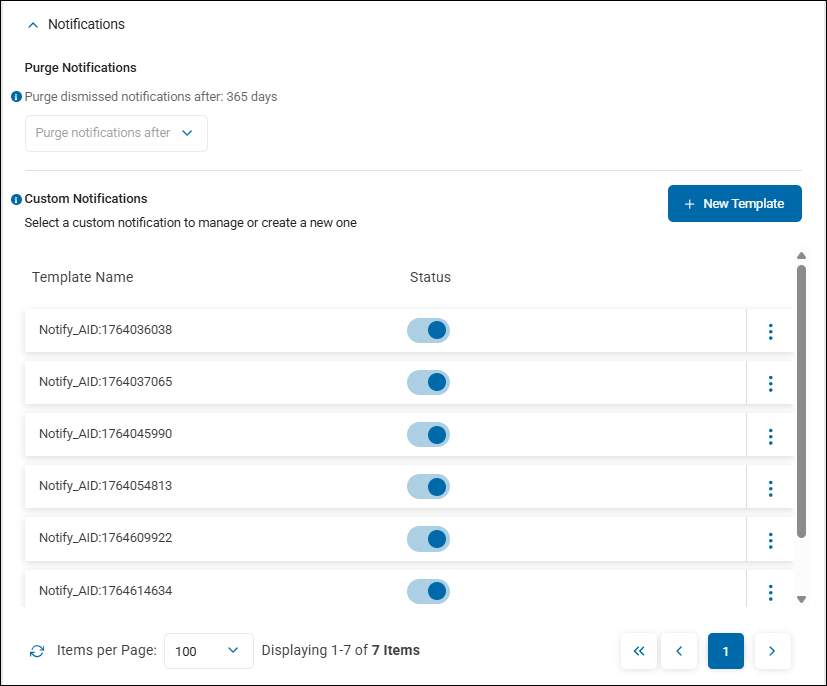
- In the Custom Notification section, you can manage existing custom notifications or create new ones.
How to Modify or Delete a Custom Notification Template
To manage custom notifications, use the following steps:
- Locate a template in the list.
- Use the toggle to change the deployed status.
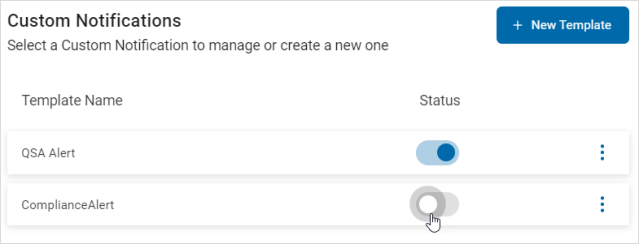
- To manage a template, click the more options menu.
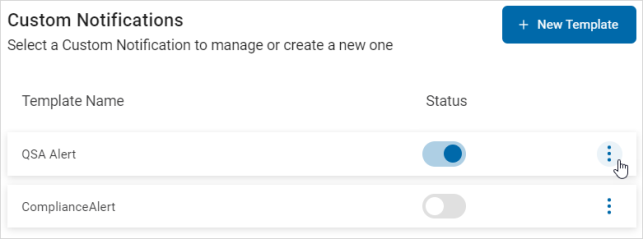
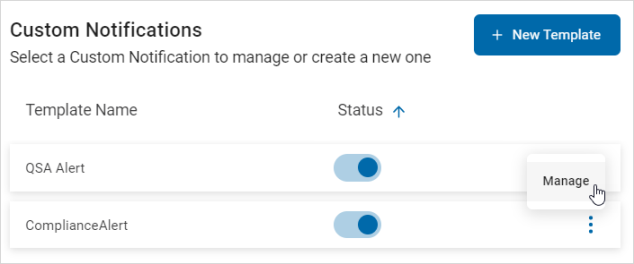
- Click Manage from the menu.
- The Manage Custom Notification pop-up window appears.
- Make any updates in this window.
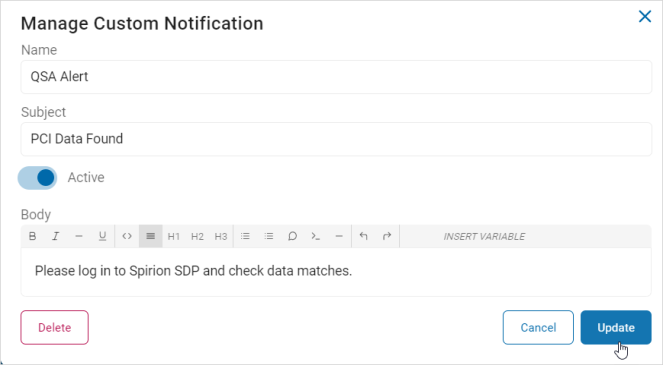
- Click the Update button to save updates, Cancel to discard updates, or Delete to delete the template.
Note: If you click the Delete button, it immediately deletes the template. There is no undo feature.
How to Create a New Custom Notification Template
Use the following steps to create a new custom notification template:
- In the Custom Notifications section, click the blue "+ New Template" button.

- In the Create Custom Notification pop-up window, fill in the following:
- Name: Enter the template name.
- Subject: Enter a description of the template subject.
- Active: Use the toggle to change the Active status.
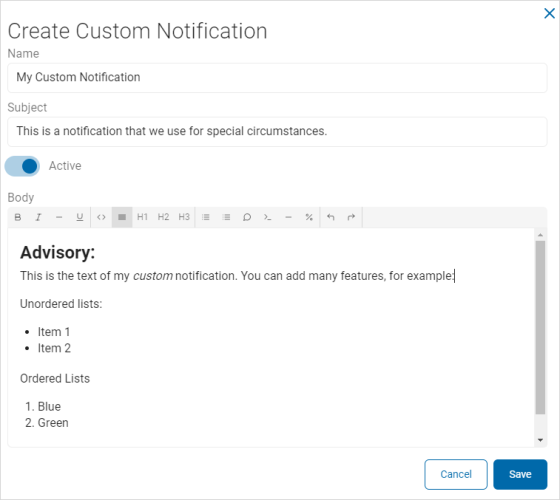
- Body: Use the text editor to compose the body of the template.
- Use the toolbar to format the text and paragraphs
- Insert code and variables as desired.
- Available variables include: Classifications, Data Type, Endpoint, File Owner, Location, Playbook Name, Playbook Status, and Scan Name
- Click Save to save the template or Cancel to discard.
Spirion Sensitive Data Platform Variable | What It Returns |
|---|---|
| Classification applied by the playbook (displays "None" if not used) |
| Resolves to the specific sensitive data type detected: for example, Social Security Number, Credit Card Number) |
| The endpoint being scanned |
| Owner of the file containing the match |
| Full path/location where the match was found |
| Name of the playbook that triggered the notification |
| Current status of the playbook execution |
| Resolves to the name of the scan definition that triggered the playbook |
Target Audience
The desired audience for Custom Notifications depends on how the Playbook's Notify action is configured. For end users it is the people who own or use the machines being scanned.
How Audience Targeting Works
When configuring a Notify action in a Playbook, the administrator selects who receives the notification.
Available recipient/audience options:
Recipient/Audience | Who They Are | Typical Role |
|---|---|---|
File Owner | The OS-level owner of the file where sensitive data was found | End user |
Endpoint User | The user associated with the scanned endpoint | End user |
Custom Email Address | A manually entered email address or distribution list | Could be anyone — IT, compliance, manager, etc. |
Console User / Admin | An SDP console user with appropriate role permissions | Administrator / IT / Compliance |
How to Word your Email
The language in your template should make the intended audience clear.
End Users
Language for end users:
- "…on a computer you have used in the past or recently" — speaks directly to the person who used the machine
- "This data is not permitted to reside on local machines" — assumes the reader is a non-technical user who stores files locally
- "strongly recommended to be removed as soon as possible" — asks the recipient to self-remediate
Admin Users
Language for admin users:
- "Spirion Sensitive Data Alert....." — tells the admin there is a serious problem to be addressed.
- "A playbook match has been detected and requires review." — this presumes the admin knows what a playbook is and what this means.
- "Please review this finding in the SDP console and take appropriate remediation action if the end user does not self-remediate within the required timeframe." — instructs the admin to follow-up and take action.
Common Pattern: Multiple Notify Actions
Many organizations configure two Notify actions in the same Playbook — one for each audience:
- End user notification (like yours) — sent to the File Owner or Endpoint User, written in plain language, asking them to remove the data
- Admin/compliance notification — sent to a custom email address (for example,
dlp-alerts@spirion.com), written with technical detail, used for tracking and audit purposes
This dual-notification pattern ensures the end user is aware and empowered to act, while the security or compliance team maintains visibility.
Example Custom Notification Template for end users
In the example below a Custom Notification template designed to alert an end user that sensitive data was found on their machine during a Spirion scan.
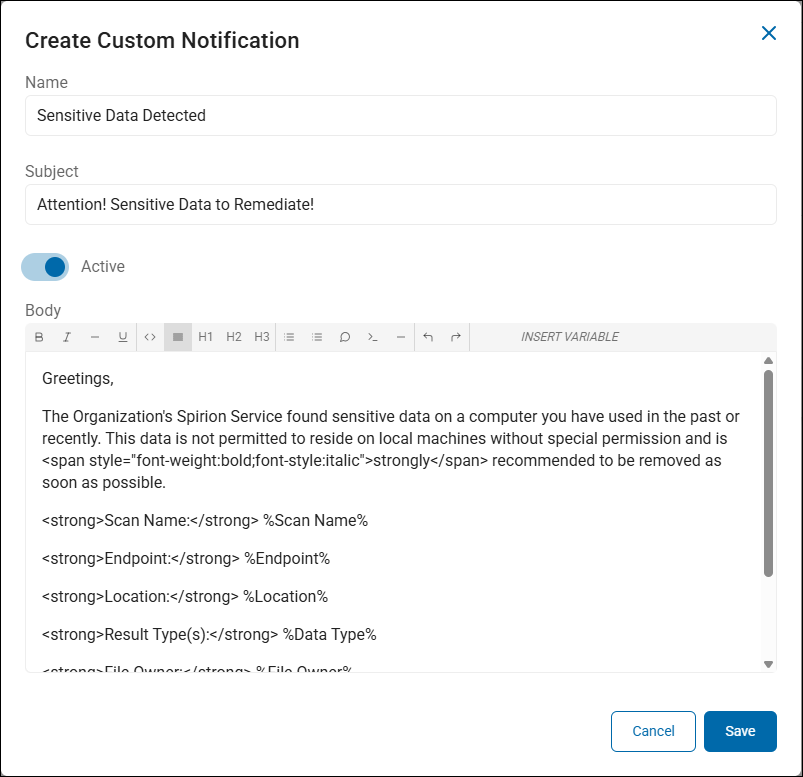
Here's what it does:
Purpose
- The email serves as an end-user remediation notice
- It informs the person associated with a scanned endpoint that sensitive data was discovered on a local machine
- It tells the user to take action to remove the sensitive data.
- This is a user-facing remediation notice, not an administrative alert.
- The tone is formal and compliance-oriented, making it suitable for organization-wide policy enforcement.
- An administrator-facing notification would typically include more technical detail (endpoint name, scan ID, match counts, playbook status) and link to the console for centralized remediation rather than asking the recipient to act on their own.
How the Variables Populate at Runtime
When a Playbook "Notify" action fires using this template, the variables are replaced with actual scan result data.
See the example of the rendered email below.
Rendered Email of the Custom Template for end users
Greetings,
The Organization's Spirion Service found sensitive data on a computer you have used in the past or recently. This data is not permitted to reside on local machines without special permission and is strongly recommended to be removed as soon as possible.Scan Name: Weekly PII Scan - Workstations
Endpoint: DESKTOP-JG4782
Location: C:\Users\jgreen\Documents\HR\employee_roster_2025.xlsx
Result Type(s): Social Security Number
File Owner: J Smith
Classification: Confidential
Playbook: PII Detection and Notify
Example Custom Notification Template for admin users
Here's an admin-facing companion template using supported Spirion Sensitive Data Platform variables:
Admin/Compliance Notification Template
<strong>*** Spirion Sensitive Data Alert ***</strong>

A playbook match has been detected and requires review.

<strong>Playbook:</strong> %Playbook Name%
<strong>Playbook Status:</strong> %Playbook Status%
<strong>Scan Name:</strong> %Scan Name%
<strong>Endpoint:</strong> %Endpoint%
<strong>File Owner:</strong> %File Owner%
<strong>Location:</strong> %Location%
<strong>Data Type:</strong> %Data Type%
<strong>Classification:</strong> %Classification%

Please review this finding in the SDP console and take appropriate remediation action if the end user does not self-remediate within the required timeframe.
Rendered Email of the Custom Template for admin users
*** Spirion Sensitive Data Alert ***
A playbook match has been detected and requires review.
Playbook: PII Detection and Notify
Playbook Status: Match Found
Scan Name: Weekly PII Scan - Workstations
Endpoint: DESKTOP-JG4782
File Owner: Jay Smith
Location: C:\Users\jsmith\Documents\HR\employee_roster_2025.xlsx
Data Type: Social Security Number
Classification: ConfidentialPlease review this finding in the Spirion Sensitive Data Platform console and take appropriate remediation action if the end user does not self-remediate within the required timeframe.
Key Differences between Admin and End-User Template
End-User Template | Admin Template | |
|---|---|---|
Tone | Conversational, policy reminder | Direct, operational |
Action expected | Self-remediate (delete/move the file) | Review in console, escalate if needed |
Includes Playbook Status | No | Yes — so the admin knows the current state |
Includes Classification | No | Yes — for compliance tracking |
Recipient | File Owner / Endpoint User | Custom email (for example, |
Playbook Configuration
To use both templates together, configure two Notify actions in your playbook's YES branch:
- Notify → File Owner → using the corrected end-user template
- Notify → Custom Email →
dlp-alerts@spirion.com(or your security team's distribution list) → using this admin template
Remember that each notification fires per match location, so the admin inbox will receive one email per finding.
- IMPORTANT! Consider routing admin notifications to a dedicated mailbox or ticketing system rather than individual inboxes to avoid alert fatigue.
Custom Notification Template Best Practices
- Start with Playbook-driven notifications rather than scan-level notifications — playbook notifications are more reliable and give you Data Type–level control over when notifications fire.
- Use HTML formatting in the body to make notification emails readable and structured, especially if they will be parsed by external systems.
- One variable per line in the template body is the safest formatting approach.
- For external integrations (ServiceNow, ticketing systems): create a dedicated system user in User Organization with the ticketing system's email address, then select that user as the notification recipient. This enables a zero-touch workflow from scan → notification → ticket creation.
- Multiple templates can be created for different use cases — for example, one for internal security alerts, one formatted for ServiceNow ticket parsing, one for end-user remediation instructions.