FAQ: How do I avoid being prompted to re-login to the Spirion console?
How do I avoid being prompted to re-login to the Spirion console frequently during the day?
The two tips in the topics below help you to avoid being prompted to re-login to the Spirion console.
Adjust the Login Timeout in the Console Administrator Tool (CAT) on the console server
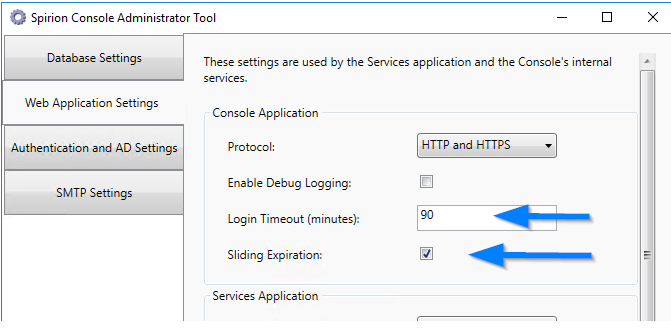
Use the following steps to adjust the login timeout in the console administrator tool on the console server:
- Open the Spirion Console Administrator Tool
- Select the Web Application Settings tab
- Adjust the Login Timeout (minutes) value (it is in minutes)
- Make sure the Sliding Window checkbox is checked.
- If the issue persists, use the procedure below.
Adjust the Auto Refresh Interval on the Personal Settings tab in the Spirion console (web interface)
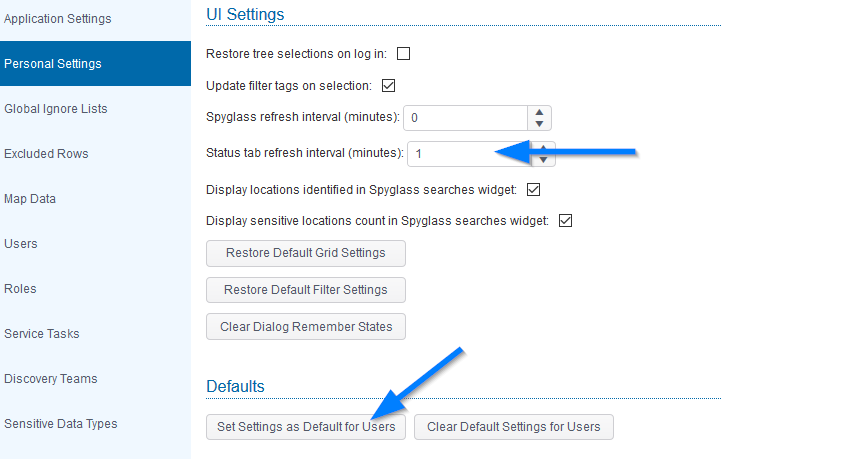
The real purpose of this setting is to auto-refresh the Status tab every minute so you don’t need to keep clicking the Refresh button as you are watching a search run.
A side-effect of the setting’s behavior is it doesn’t log you off if you are sitting on the Status tab in the Spirion console. (This can be used with or independently of the setting above).
Procedure:
- Select the Admin tab in the Spirion console
- Select the Personal Settings tab
- Scroll down to the UI Settings
- Change the value for Status tab refresh interval (minutes): to 1
- Scroll down to Defaults
- Click Set Settings as Default for Users button to save this setting.
NOTE: A yellow bar now appears across the bottom of the screen reminding you that you will not be logged-out while viewing the Status tab. - Click X to dismiss the message.
- Auto Refresh Enabled: Auto Refresh is enabled for the Status tab.
- The Console session may not automatically log out when viewing the Status tab.