How to Search Dropbox
This guide takes you through authentication, policy building, and troubleshooting so that you can set up and search Dropbox successfully.
Searching Dropbox can seem confusing.
This guide takes you through the authentication, policy building, and troubleshooting steps so that you can set up and search Dropbox successfully.
In This Article
- What to Know Before Getting Started
- Authenticating Drop Box
What to Know Before Getting Started
- We recommend making a service account to search Dropbox.
- You will need to grant Team Admin rights to the service account.
- It is possible to have the service account be of a different domain so long as the domain shares the same Dropbox account.
- If they do not share the same Dropbox account, you must search one domain at a time, switching authentication between searches.
- You may have networking issues that force you to authenticate Dropbox from the Console server. You have this issue if you receive a loop back error when authenticating from somewhere other than the Console Server.
- If your Dropbox is behind a single sign-on (SSO) it is possible to authenticate a Dropbox account however, you will not be able to search Dropbox until you move Dropbox out from behind the single sign-on.
- A service account will need to be created in Dropbox and have Team Administrator permissions.
- Leaving the account blank will not search all Dropbox accounts.
- Dropbox accounts must be enumerated.
- You can bulk import Dropbox accounts using a comma delimited CSV.
- The CSV can be uploaded in the Scan Creation screen.
Authenticating Dropbox
To authenticate Dropbox perform the following steps:
- Log in to the Sensitive Data Platform console.
- Click Data Asset Inventory.
- Click Data Assets and Targets.
- Click Targets.
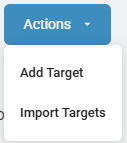
- Click the Actions menu and select +Add Target from the top right (embedded help window may cover this).
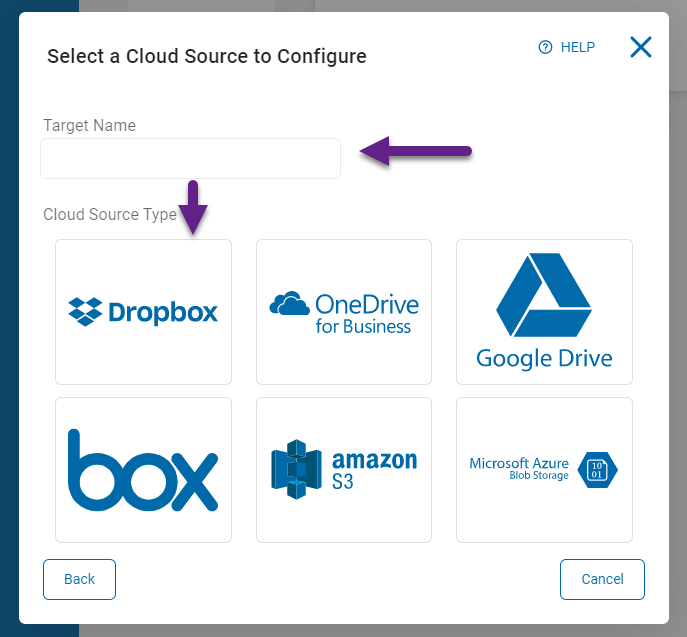
- Click Cloud Sources.
- Enter a name for the Target in the Target Name box.
- Click Dropbox.
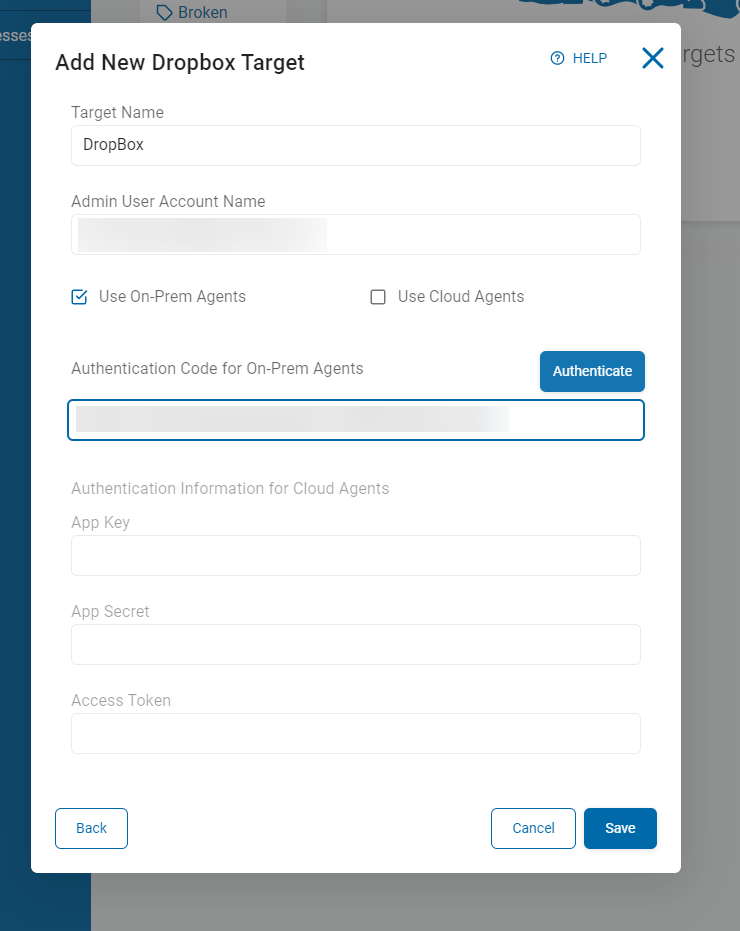
- Fill in the box below:
- Admin User Account Name - Enter a name into the box here for the admin user to be used to authenticate the Dropbox search.
- Check the box "Use On-Prem Agents"
- Authentication Code for On-Prem Agents:
- Click the blue Authenticate button
- Enter in the Admin User Account name from the Add New Dropbox target screen into the Email box.
- Sign in.
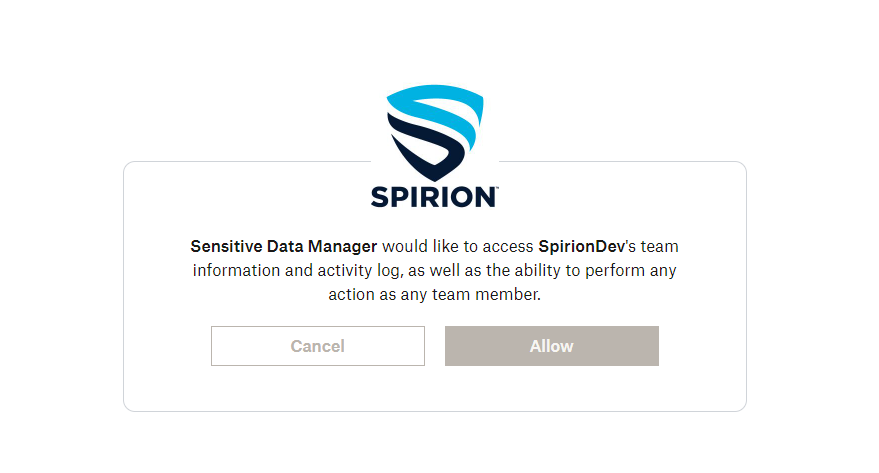
- Click Allow on the permissions screen.
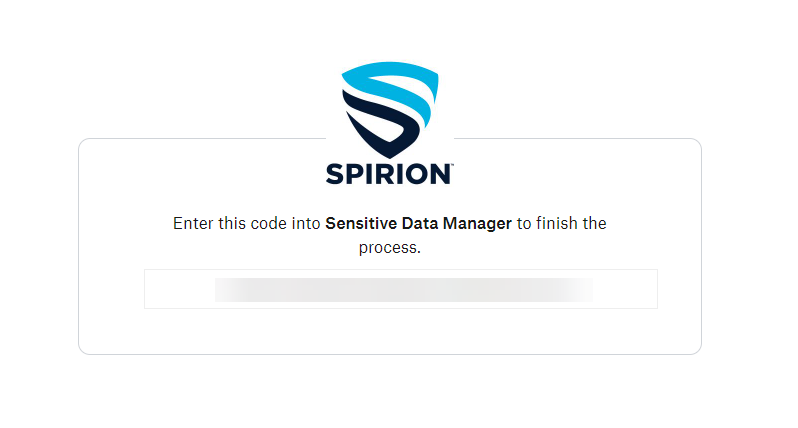
- Copy and Paste the code in the box on this screen into the field Authentication Code for On-Prem Agents.
- Click Save.
- This Target can now be used in a search.
- For more information on how to create a search please see this article here.