How to Use Scans Settings - Global Ignore Lists Section
Spirion Sensitive Data Platform version 13.6 introduces the Global Ignore List feature.
NOTE: The Global Ignore Lists section under Settings > Application Settings > Scans Settings appears only for users who are members of the Admin user role. All other user roles cannot view or use this feature.
When to Use Ignore Versus Exclude
Before using the Global Ignore List feature consider whether you want to Ignore or Exclude the sensitive data you are scanning for in your environment.
- Ignore - Global Ignore List: The sensitive data matches (credit card numbers, social security numbers, personal addresses, etc.) that are entered into the Global Ignore List are scanned by Spirion Agents, along with all sensitive data, but the Agent is instructed to ignore the data.
- Data marked "Ignored" does not appear in scan results, reports, or any Sensitive Data Platform dashboards
- Note that the Ignore setting available from Scan Playbooks differs from the Ignore action performed by the Global Ignore List
- Exclude: Sensitive data matches that should be skipped (not scanned by Spirion Agents), must be set to Exclude.
- No identification or action of any kind can be applied to the data as it is identified and skipped by Spirion agents during the scanning process.
- The sensitive data to exclude is defined when you set up the scan (within the Sensitive Data Platform UI, Scans > All Scans > + Add Scan). See How to Work with Scans.
- To see information about excluding files or folders, see Files & Folders in How to Create a New Sensitive Data Scan
What is the Global Ignore List?
Sensitive Data Matches such as social security numbers, or credit card numbers, etc., can be included in a Global Ignore List. Scans performed by Spirion Agents capture the sensitive data matches, but ignore them. The Sensitive data matches are not sent to the Sensitive Data Platform console and therefore are not visible in scan results, reporting, or dashboards.
This feature is useful to eliminate false positives - sensitive data matches which exist, but are considered invalid, because they are provided for context, examples, samples, training, or other means:
- Example birth dates
- Sample social security numbers
- Fictitious credit card numbers
Example of Data to Add to Global Ignore List
A sample piece of data provided on a form, such as a date of birth, which is always scanned, should be included in a Global Ignore List so that it does not register as a valid sensitive data match.
How to Use Global Ignore Lists
When you create a Global Ignore List with sensitive data matches, when Spirion Agents scan your data sources (Targets) any sensitive data discovered that matches an item in your Global Ignore List is ignored. The sensitive data match does not appear in reports, dashboards, or scan results.
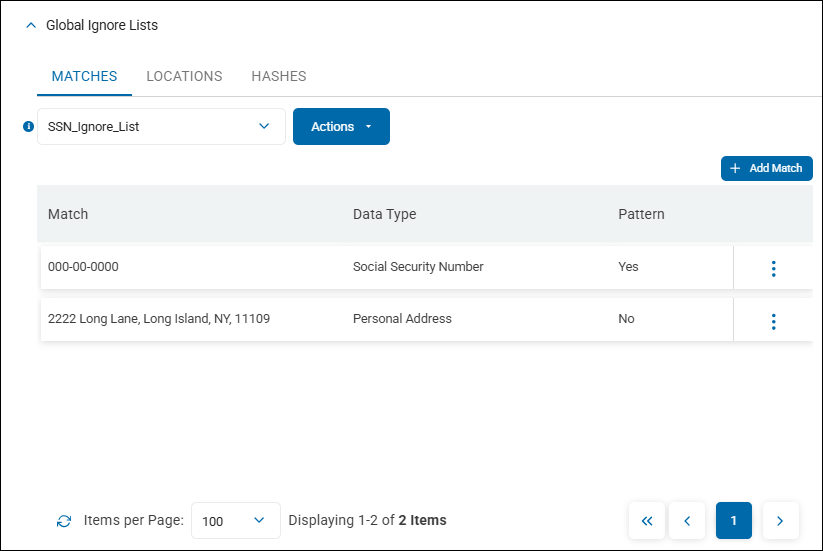
- A Global Ignore List can contain either singular instances of unique data types or multiple instances of a data type captured using pattern-matching.
- For example, you may wish to ignore the social security number 000-00-0000 as it is an invalid number.
Types of Global Ignore Lists
The setting is typically organized into 3 "tabs" or categories:
Matches (Data Patterns):
- What it does: Ignores specific strings of text or patterns that match a sensitive data type but are known to be non-sensitive.
- Example: A specific test credit card number used by your QA team or a default system password that triggers a "Password" match.
- Pattern Matching: You can use free text or pattern matching (regex) to define these ignores.
Locations (Paths):
- What it does: Tells the Agent to skip specific file paths, folders, or registry keys entirely.
- Example: System directories (like
C:\Windows\Temp), backup folders, or specific application directories that are known to contain only system files. - Benefit: This significantly speeds up scans by preventing the Agent from wasting resources on locations that will never contain relevant sensitive data.
File Hashes:
- What it does: Ignores specific files based on their unique digital fingerprint (SHA-256 hash).
- Example: A standard corporate PDF manual or a specific system DLL that contains a string of numbers that looks like an ID.
- Benefit: Even if the file is moved or renamed, the Agent recognizes the hash and skips it, provided the content of the file has not changed.
When and How to Use Pattern Matching
- Pattern matching is used to identify all sensitive data matches which meet the pattern criteria you set.
- Includes the AnyFind, Sensitive Data Definitions (SDD), and Search API identity types as options.
- Enabling the Pattern checkbox enables you to use a Regular Expression to match search results rather than matching a specific value.
- Example: In your environment, you have sample forms on your computer that use many different placeholders for completing Social Security forms, but they all begin with the number sequence 123-12. Enter the pattern ^123\-12 in the Match field and select Social Security Number as the Data Type to prevent the placeholder numerals from being displayed in search Spirion Sensitive Data Platform scan results, reports, or dashboards.
Ignore by Location (Location Matching)
- Location matching is performed under the LOCATIONS tab.
- Location matching is used to identify all sensitive data matches which meet the location criteria you set.
- Locations in Spirion Sensitive Data Platform are full path to files, such as c:\Passwords\SensitivePasswords.txt.
- Available Locations include files from cloud, email, database, collaboration tools such as SharePoint, and web types. See below:
- Cloud e-mail attachment
- Exchange Online
- Gmail
- Cloud e-mail message
- Cloud storage
- Database table
- FileFirefox Browser Data
- Internet Explorer Browser Data
- MBOX Attachment
- MBOX File E-mail Message
- Microsoft Exchange Attachment
- Microsoft Exchange E-mail Message
- NoSQL Document
- Outlook Attachment
- Outlook E-mail Message
- SharePoint
- Thunderbird Attachment
- Thunderbird E-mail Message
- Web Page
- Windows Mail or Outlook Express Attachment
- Windows Mail or Outlook Express E-Mail Message
- Windows Registry
- Example:
- In your environment, you have sample forms on your computer that use many different placeholders for completing Social Security forms, but they all begin with the number sequence "123-12."
- Enter the pattern "^123\-12" in the Match field
- Select Social Security Number as the Data Type to prevent the placeholder numerals from being displayed in search results, reports, or dashboards.
Ignore by Hash (Hash Matching)
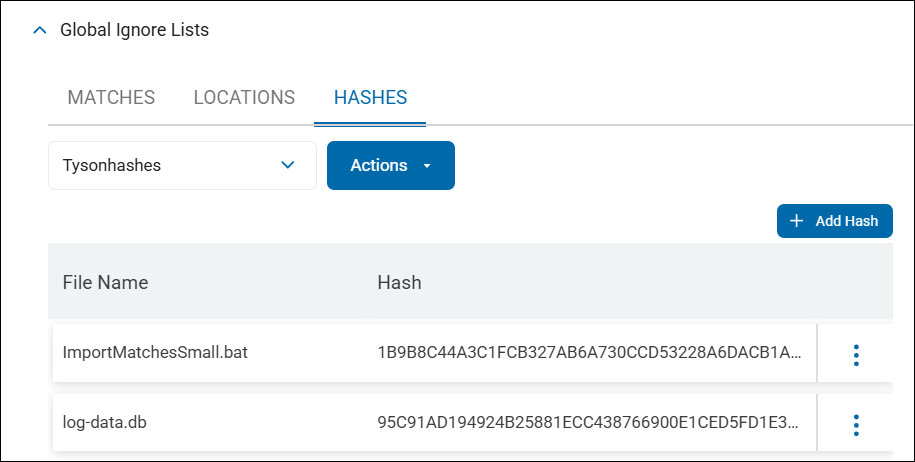
- Hash matching is performed under the HASHES tab.
- For every uploaded file the file name and hash for the file is displayed
- Files uploaded for hashing are NOT saved anywhere on the server side either during or after hash generation
- Hash matching is used to identify all sensitive data which matches the hash (specific version of a file) you upload.
- Example:
- In your environment, you have a file of a specific date and version on a machine which can always be ignored by Spirion Agents during scanning.
- Upload the file to generate a hash identifying this specific file to prevent it from ever being displayed in Spirion Scan Results, Reports, or Dashboards.
Hash Text Generation
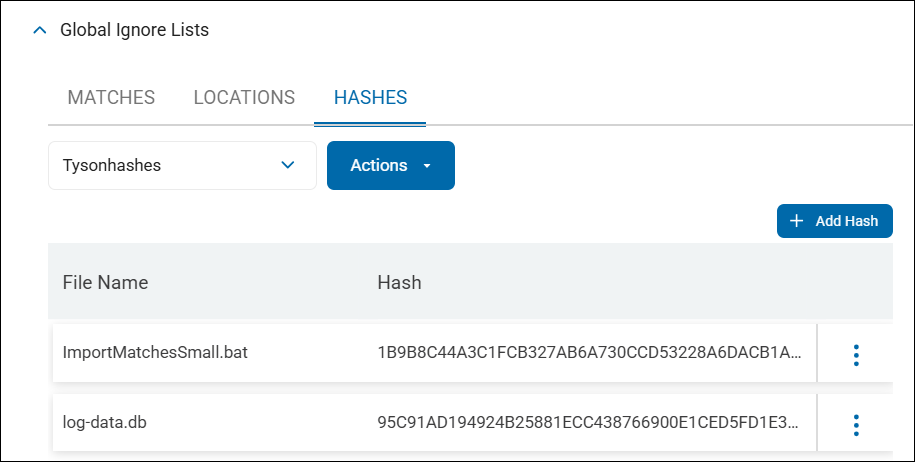
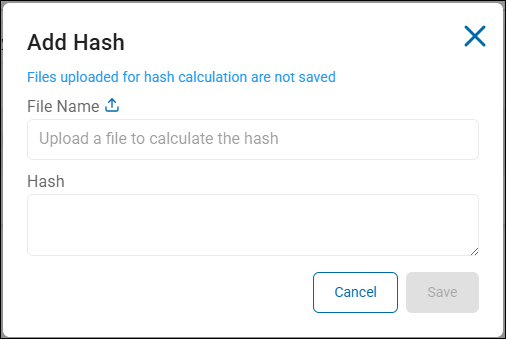
- To generate a hash click the "+ Add Hash" button.
- In the Add Hash dialog box upload a file using the "File Name" link above this field.
- When the file is uploaded the Hash is automatically generated and shown in the "Hash" field.
- Click the Save button to save your changes or the Cancel button to discard them.
How to Edit a Hash File
To edit an uploaded hash file, use the following steps:
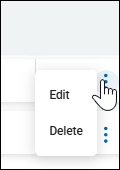
- Select the vertical 3 dot more options menu and select Edit from the drop-down menu that appears.
- The "Edit Hash" dialog appears.
- Click the upload icon to upload a different version of the file (which is used by Spirion Sensitive Data Platform to generate a different hash).
How to Add a Global Ignore List
The following procedure can be used for all types of Global Ignore Lists - Matches, Locations, and Hashes.
Use the following steps to create a new Global Ignore List:
- Select the appropriate tab where you want to create your list - MATCHES, LOCATIONS, or HASHES.
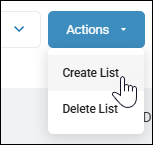
- Click the blue Actions button, and select "Create List" from the drop-down menu.
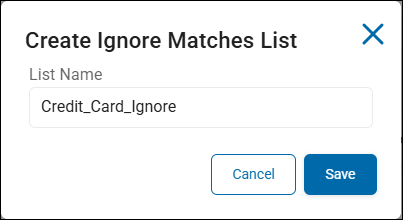
- The "Create Ignore Matches/Locations/Hashes List" dialog appears.
- In the "List Name" field enter a descriptive name for the Ignore list that indicates what the list will contain.
- Click the blue Save button.
- Add Matches, Locations, or Hashes to your list.
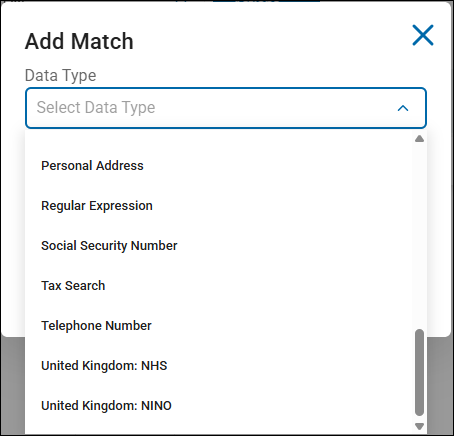
- Add Match - To add a match by data type, click the Add Match button.
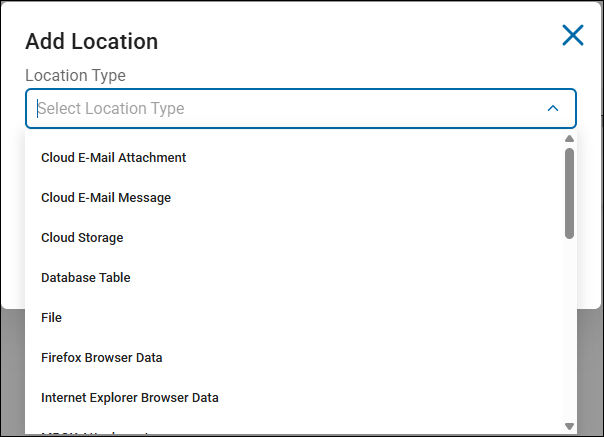
- Add Location - To add a location by location type, click the Add Location button.
- Add Hash - To add a Hash, click the Add Hash button.
- Select from the following:
- Match Data Type, such as personal address, telephone number, etc. to scan for (and set to ignore) from the drop-down menu
- Options include: AnyFinds, Sensitive Data Definitions (SDD), and Search API identity types
- Location Type
- Options include: AnyFinds, Sensitive Data Definitions (SDD), and Search API identity types
- Hash
- Options include: Hash files of: AnyFinds, Sensitive Data Definitions (SDD), and Search API identity types
- Options include: Hash files of: AnyFinds, Sensitive Data Definitions (SDD), and Search API identity types
- In the Match or Location field enter the specific data for Spirion Sensitive Data Platform Agents to scan for and match. If adding a Hash, upload a file to calculate the Hash.
Note: Files uploaded for hash calculation are not saved. - The text entered in this field must be perfectly accurate.
- IMPORTANT! This field is free text. This field does not validate its contents as a Match corresponding to the selected Data Type. It does not detect if the Pattern checkbox is checked.
- The length of the match is unlimited. For example, this matches what services and the database allow.
- Note: Different Global Ignore Lists can have the same matches.
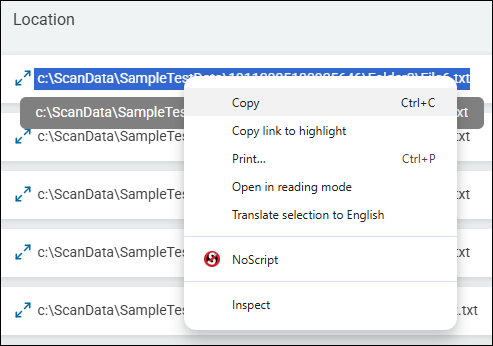
- Tip! Spirion recommends you copy the location you wish to add to this field from the Scan Results page.
- Select Scans from the left-side navigation on the homepage
- Select Scan Results
- Click the button "Find Scan Results"
- The Scan Results page opens with scan results shown in a table
- Find the Location entry you want from under the "Location" column in the table
- Triple-click the entry to select it
- Copy the selection
- Optionally, paste the location into a notepad document as a short-term safeguard
- Navigate to the Global Ignore Lists section.
- Select the LOCATIONS tab
- Select the appropriate Location list
- Click the Add Location button
- Select the Location Type from the drop-down menu
- Paste the copied Location into the "Location" field
- Matches only:
- The Pattern checkbox enables you to use a Regular Expression to match search results rather than matching a specific value. See "When and How to Use Pattern Matching" above.
- If the data you entered in the Match field represents a pattern for Spirion agents to scan for, check the Pattern box.
- Click the Save button.
- When scans are performed Spirion Sensitive Data Platform Agents will scan for and match the sensitive data, sensitive data pattern, location, and/or hash and ignore the data.
How to Delete a Global Ignore List
Use the steps below to delete a Global Ignore List:
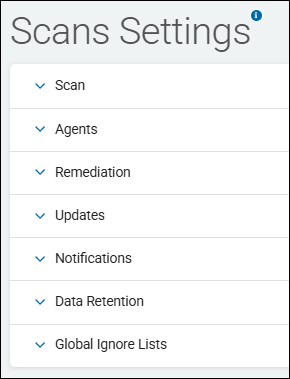
- Navigate to the Settings > Scans Settings page.
- Expand the section Global Ignore Lists.
- Find the Global Ignore List you wish to delete.
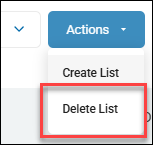
- Next to the list, select the blue Actions button, and then select Delete List from the sub-menu.
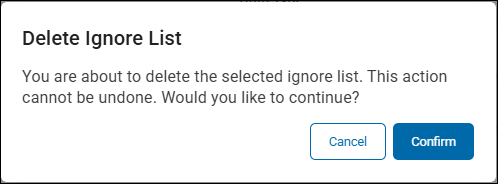
- Click the blue Confirm button to delete the list.
How to Delete a Sensitive Data Match from a Global Ignore List
To delete a Global Ignore List, use the following steps:
- Navigate to the Settings > Scans Settings page.
- Expand the section Global Ignore Lists.
- Find the Global Ignore List with the match you wish to delete.
- Next to the match select the more options menu with 3 vertical dots and select Delete.
- Click the blue Confirm button at the bottom of the dialog to delete the match from the list. The Delete Match pop-up dialog specifies that by deleting this sensitive data match, it can be discovered and recorded in futures scans.
User Role Permissions Required to View and Use Global Ignore Lists
The Global Ignore Lists section appears on the Scans Settings page only for users who are members of the "Admin" role.
- Users who are not members of the Admin user role cannot see the Global Ignore Lists section and cannot access it or use it.
- To add users to the Admin user role from the left side navigation menu select Settings > User Management > Users & Roles > USERS tab.
- The Global Ignore Lists section does not show the matches content (or data) for other user roles
- The API for loading ignored matches data is also restricted to users who are members of the Admin user role.
How to Use a Global Ignore List in a Scan
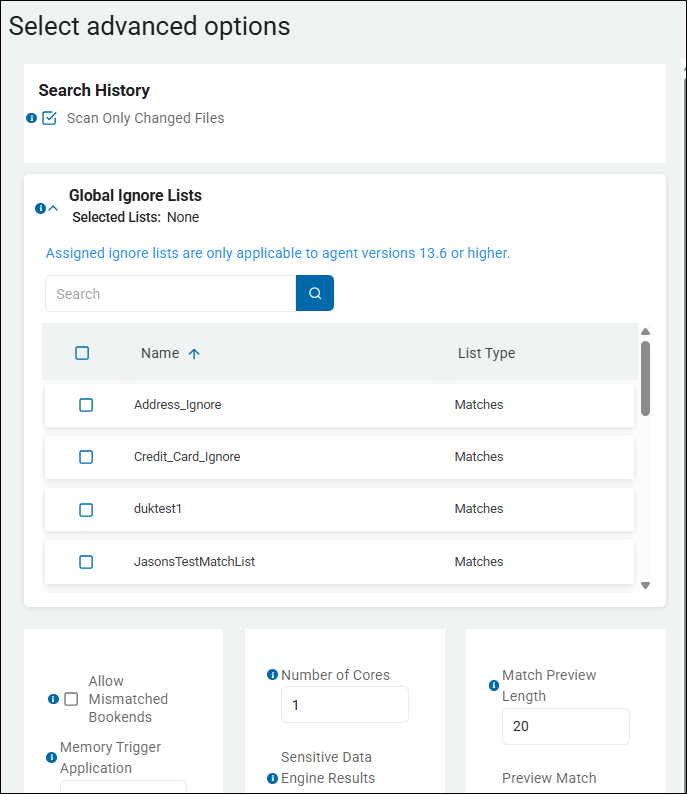
- Note that any user who is creating or editing a Sensitive Data scan (using the "Create New Scan" wizard, for example) can view and select any of the available Global Ignore Lists shown on the "Select advanced options" page.
- Global Ignore Lists are available to be added to any scan.
- They do not apply to all scans, by default.
- The "Select advanced options" page is approximately the 11th step in creating a new sensitive data scan, just before the "Select the scan schedule" page
- To select a Global Ignore List for your scan to use (to ignore specific sensitive data matches or data match types), expand the Global Ignore List section and check the checkbox next to the appropriate Global Ignore List.
- Search for the Global Ignore List or scroll down to find it, if necessary
- Search for the Global Ignore List or scroll down to find it, if necessary