
How to Search Google Workspace: Gmail, Drive
This article provides instructions on how to configure and authenticate Google Workspace including Gmail and Google Drive (via API), as well as scan these sources using Spirion Sensitive Data Platform
Note: Google Workspace was previously known as "G Suite."
In This Article
- Prerequisites
Google Workspace Setup
- Step 1: Create a Project in Google Cloud Platform
- Step 2: Create a Service Account
- Step 3: Generate a P12 Key
- Step 4: Record OAuth 2 Client ID
- Step 5: Enable Domain-Wide Delegation in Google Admin Console
- Step 6: Enable Required APIs
- Step 7: Configure OAuth Consent Screen
- Step 8: Add Scopes to the OAuth Consent Screen
- Step 9: Verify Configuration
Configure Google Target in Sensitive Data Platform
- Step 1: Open the Target Configuration UI
- Step 2: Enter Basic Target Info
- Step 3: Choose Cloud / Google Drive as Source
- Step 4: Provide Google Drive Service Account Details
- Step 5: Save the Target
Prerequisites
- You must be signed in to Google Cloud Platform (GCP) as a Super Administrator.
- If this is your first time using Google Cloud Platform, you must accept Google’s Terms of Service.
- Access to your organization’s Google Workspace Admin Console is required.
Google Workspace Setup
Step 1: Create a Project in Google Cloud Platform
- Navigate to your Google Cloud Platform (GCP) console.
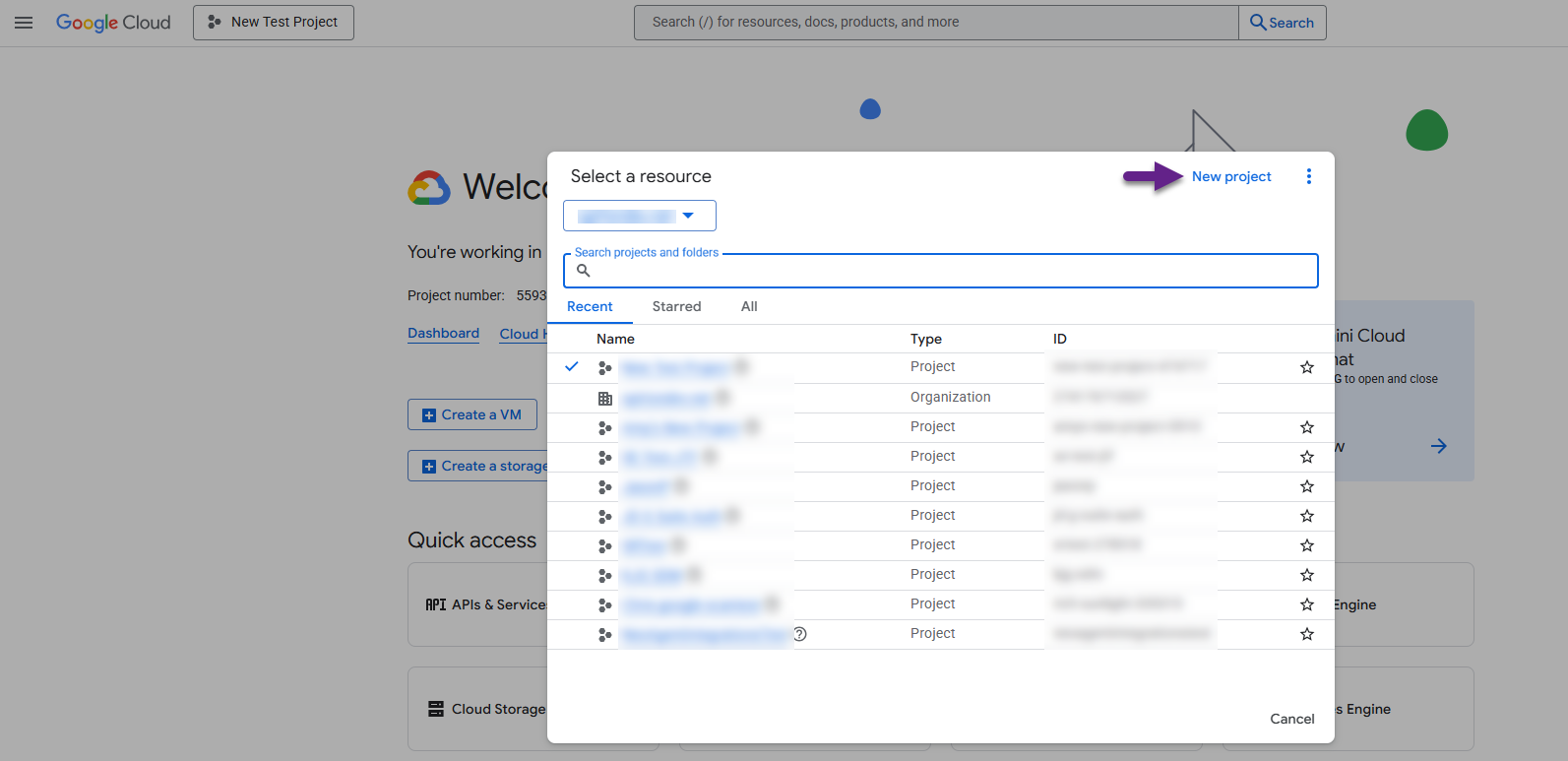
- Select the Google domain you would like to scan.
- Select “New Project” in the top right-hand corner of the box.
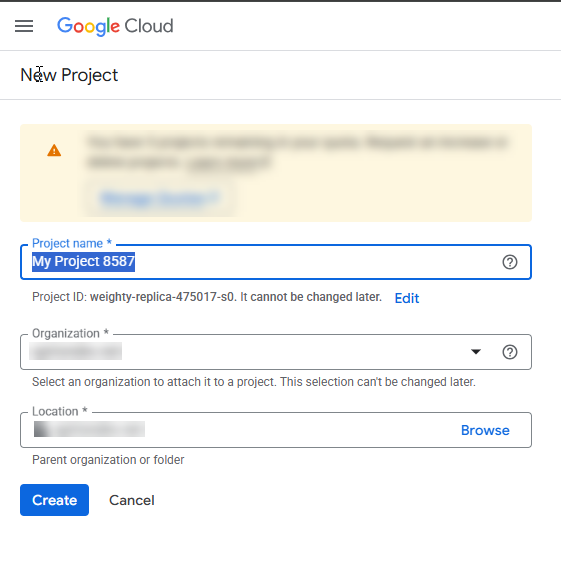
- Enter a project name and confirm that the organization is correct.
- Click Create.
- Once the project is created, click Select Project.

Step 2: Create a Service Account
To successfully search your Google Workspace, you must create a service account to authenticate in Google Workspace.
To create a service account, do the following steps:
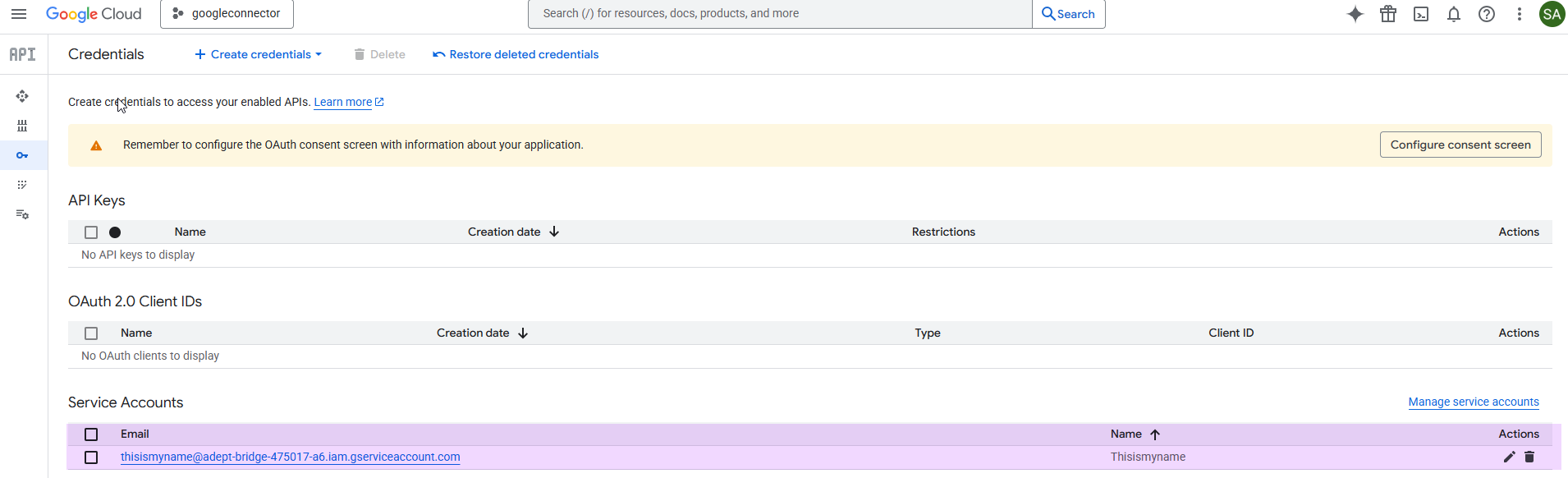
- Under your project (“Spirion”), from the left side navigation menu, go to APIs & Services → Credentials.

- From the Credentials page, at the top, click Create Credentials → Service Account.

- Enter a name for the service account and an optional description.
- Example:
spirionsvc@spirion-438117.iam.gserviceaccount.com
- Example:
- Click Done (no additional access setup is required on the next two screens).
Step 3: Generate a P12 Key
Procedure:
- From the Credentials screen, click your newly created service account.
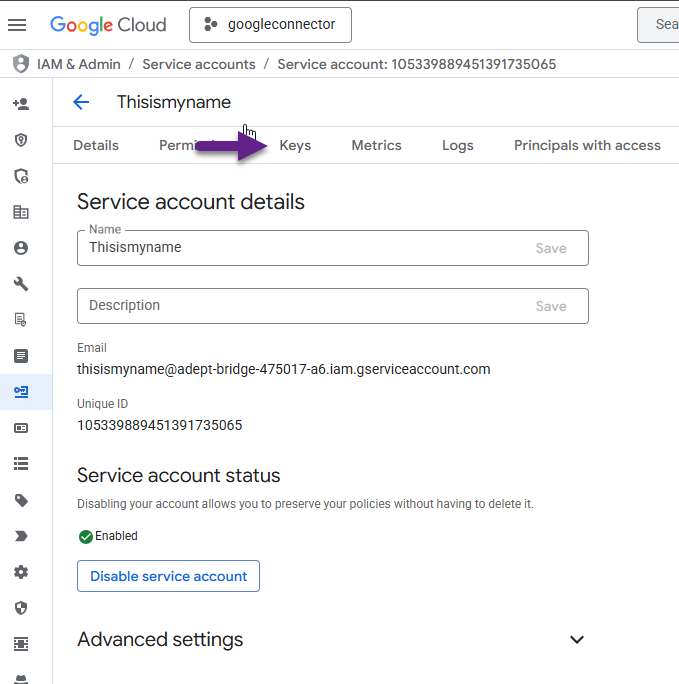
- Select the Keys tab at the top.
- Click Add Key → Create New Key.
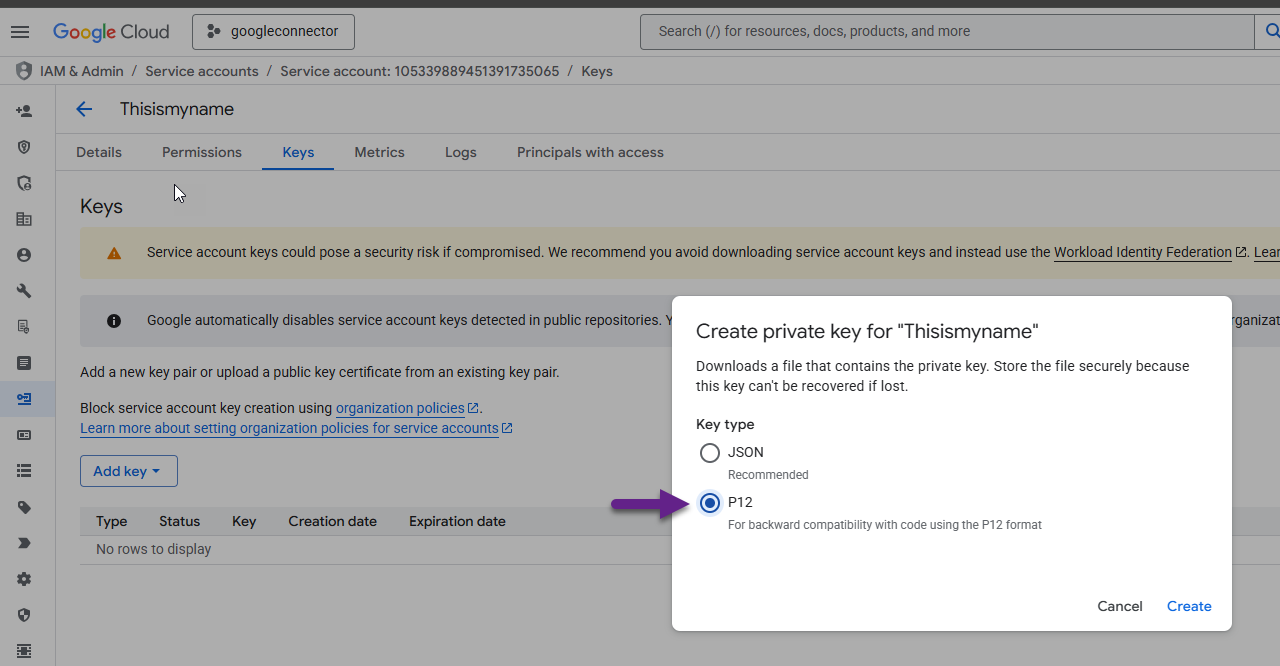
- In the pop-up window "Create private key for <service account name>," choose P12 as the Key type.
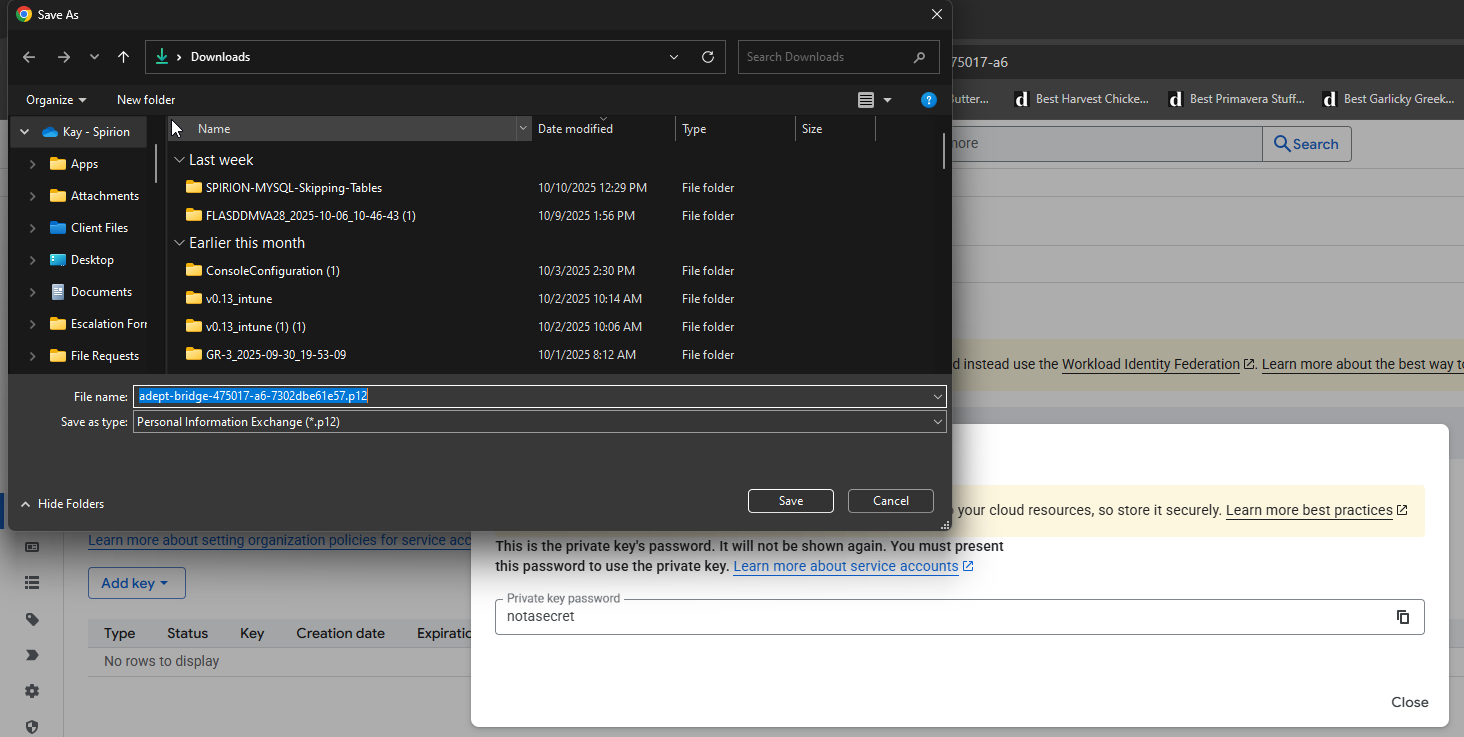
- Download the P12 key file and note the private key password.
- You need both later when configuring your Google Drive Target in the Sensitive Data Platform console.
Step 4: Record OAuth 2 Client ID
Procedure:
- Back in Credentials, click Manage Service Accounts.
- Locate your service account and make note of the OAuth 2 Client ID.
- You’ll use this ID later when setting up API access.

Step 5: Enable Domain-Wide Delegation in Google Admin Console
Procedure:
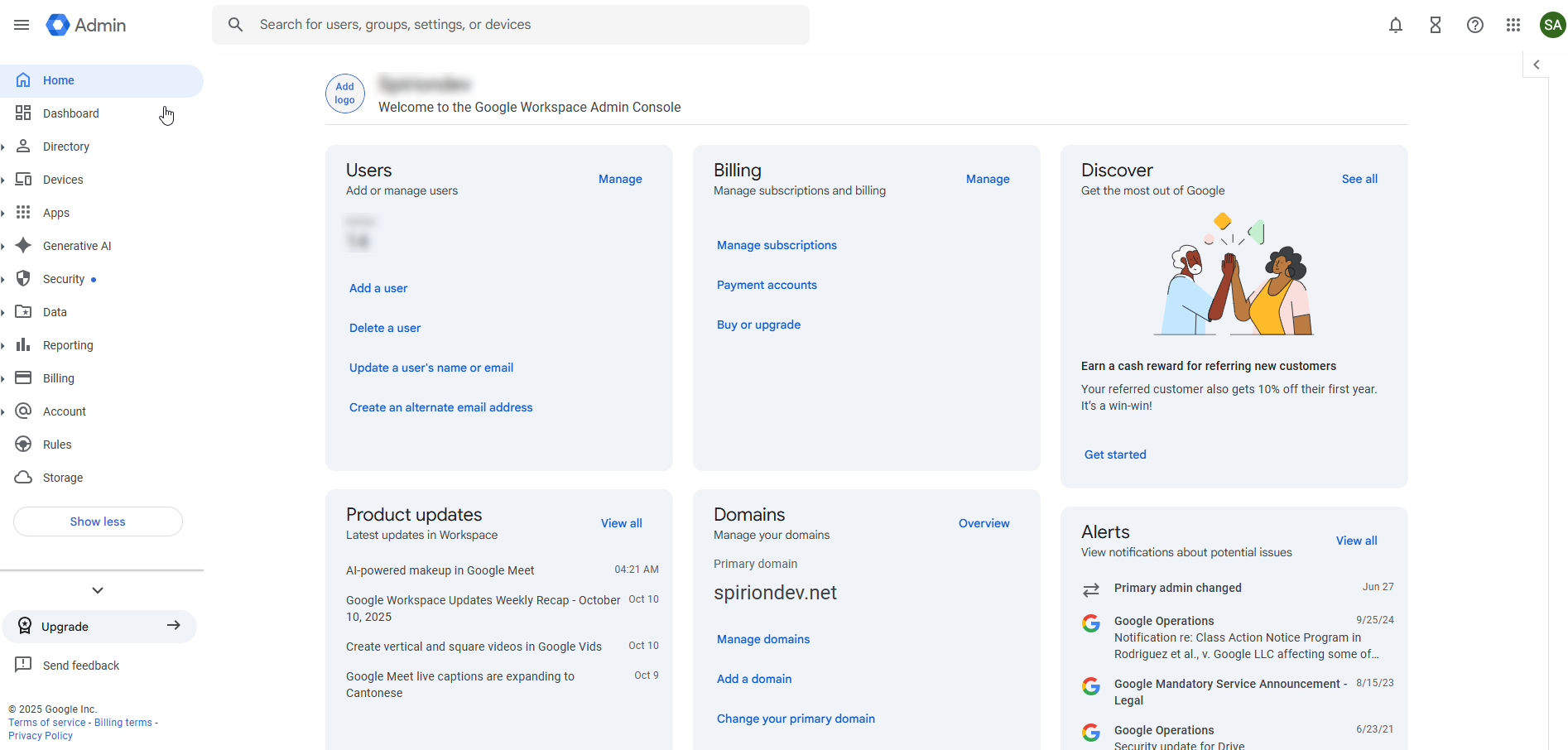
- Log in to the Google Workspace Admin Console.
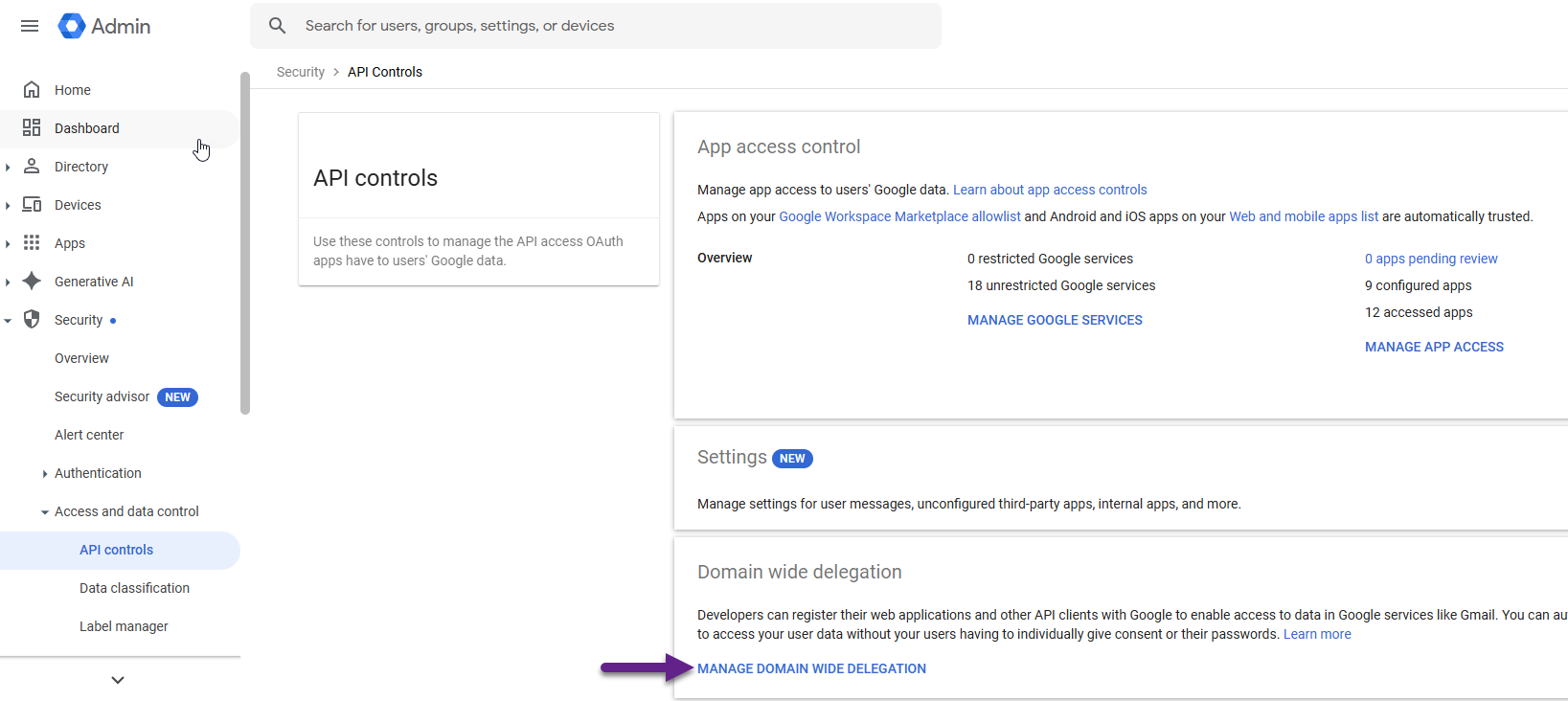
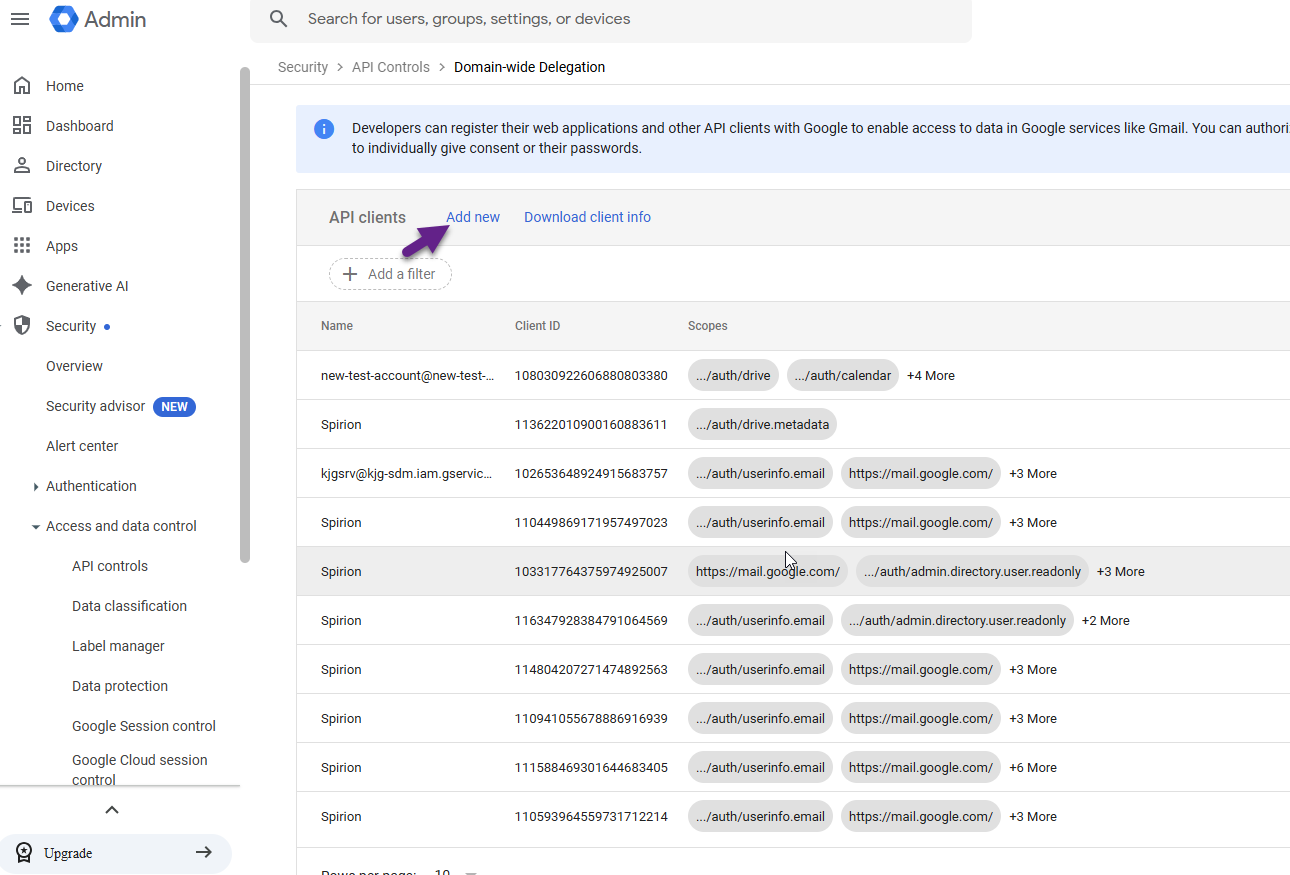
- Go to Access and Data Control → API Controls (under Security).
- Select Manage Domain-Wide Delegation.
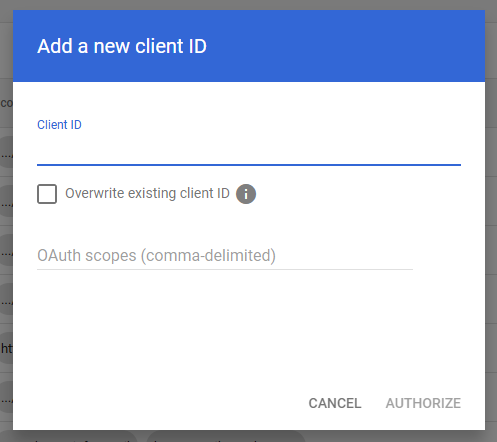
- Click Add New to create a new API client.
- Enter the OAuth Client ID you recorded earlier.
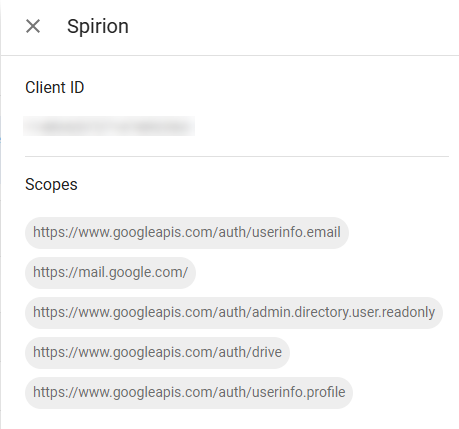
- In the OAuth Scopes section, add the following scopes (one per line):
https://www.googleapis.com/auth/userinfo.email
https://mail.google.com
https://www.googleapis.com/auth/admin.directory.user.readonly
https://www.googleapis.com/auth/drive
https://www.googleapis.com/auth/userinfo.profile - Click AUTHORIZE. Save your changes.
- Click Edit on the new API client to verify that the scopes were added correctly.
Step 6: Enable Required APIs
Procedure:
- In Google Cloud, go to APIs & Services → Library.
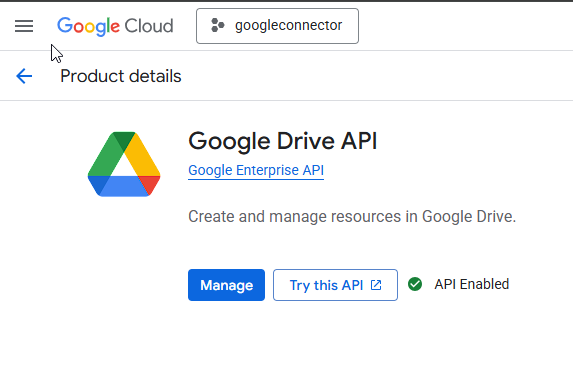
- Search for and enable the following APIs:
- Admin SDK API
- Google Drive API
- Gmail API
- Each API should show a status of Enabled once complete.

Step 7: Configure OAuth Consent Screen
Procedure:
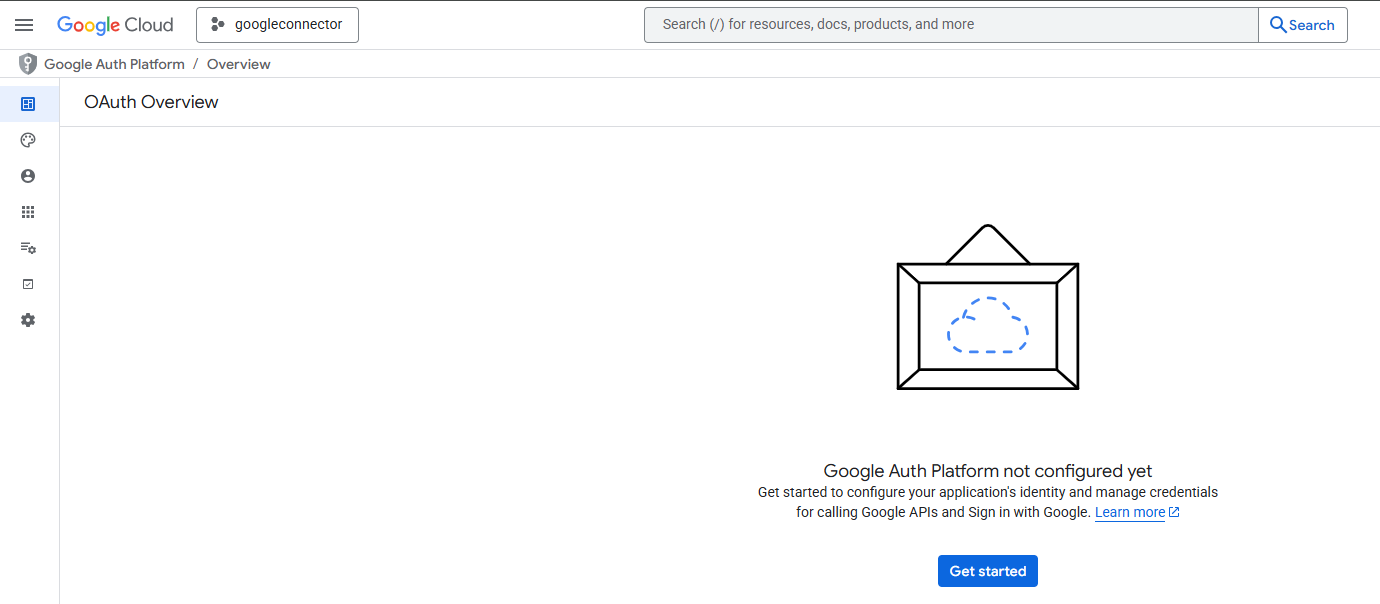
- Under the project (“Spirion”) navigate to APIs & Services -> OAuth consent. Note: If you have not set up the Google Auth Platform you will be redirected to set it up.
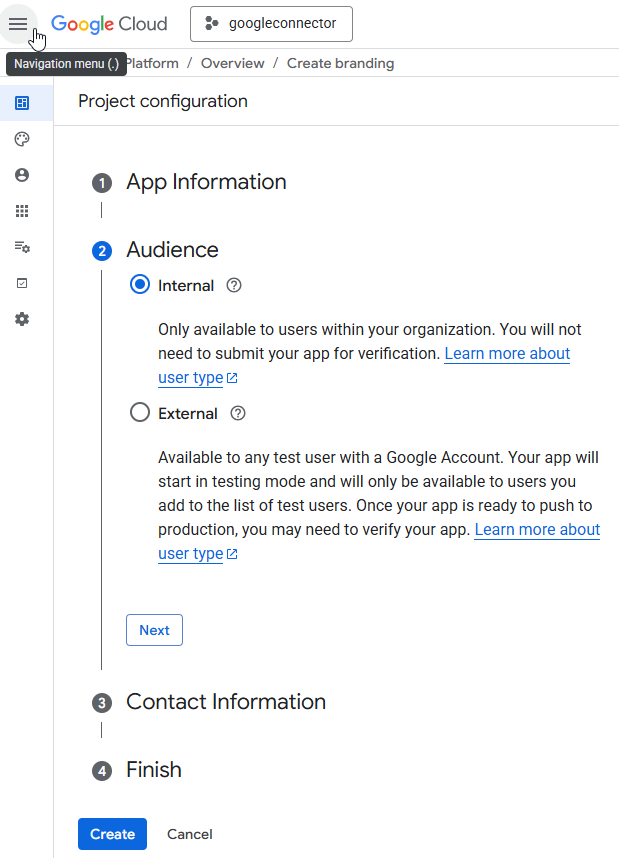
- Select Internal as the user type.
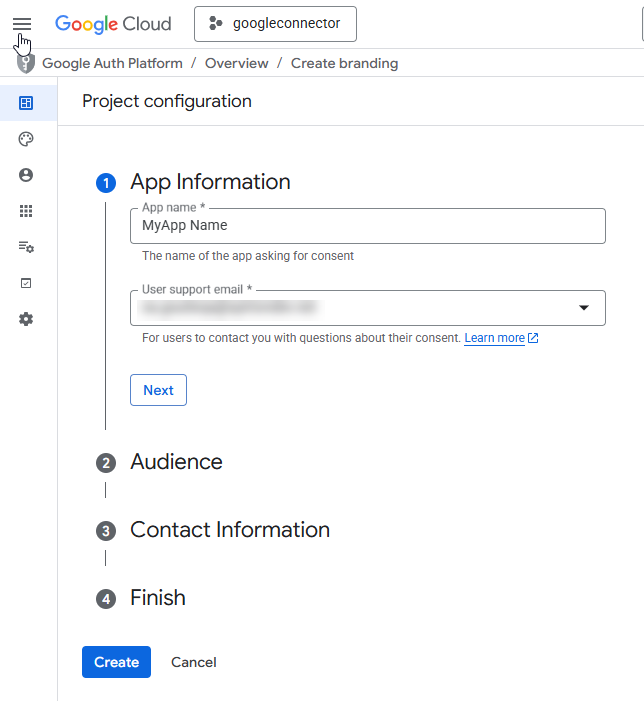
- Fill in the following fields:
- App Name
- Support Email
- Ensure the correct Authorized Domain is listed.
- Add Developer Contact Information.
- Click Save and Continue.
Step 8: Add Scopes to the OAuth Consent Screen
Procedure:
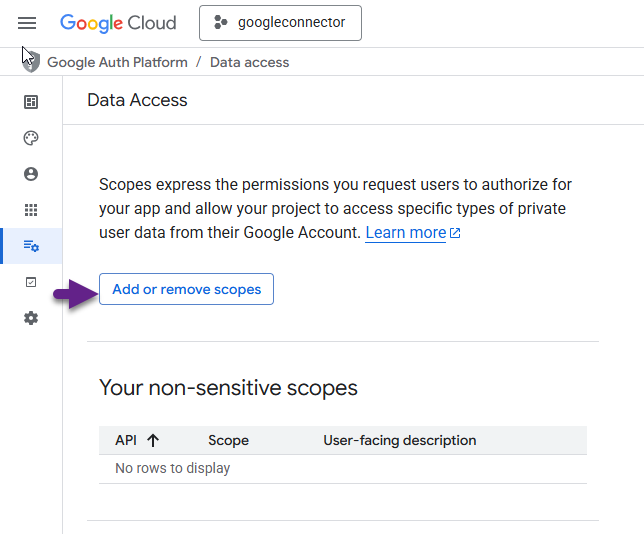
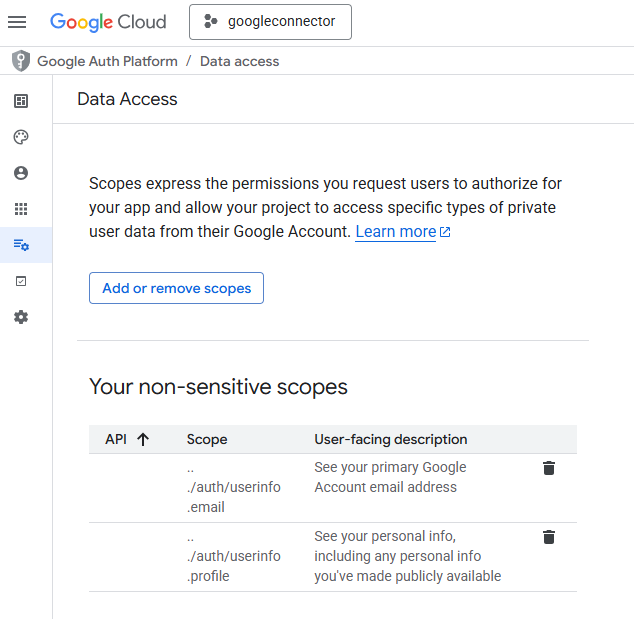
- Click Add or Remove Scopes and add the following( you will want to enter these into the manual field):
https://www.googleapis.com/auth/userinfo.emailhttps://www.googleapis.com/auth/userinfo.profilehttps://www.googleapis.com/auth/admin.directory.user.readonlyhttps://www.googleapis.com/auth/drivehttps://mail.google.com - Save your changes.
Step 9: Verify Configuration
- Your configuration should now display all added scopes and enabled APIs.
- Once verified, your setup is complete — you can now connect Spirion to your Google Drive or Gmail target. ✅
Configure Google Target in Sensitive Data Platform
Before searching Google Drive, you must create a Google Drive Target in Sensitive Data Platform.
To create the target, complete the steps below:
- Login to Spirion Sensitive Data Platform.
- Select “Data Asset Inventory” from the left side navigation menu.
- Select “Data Assets and Targets” from the left side navigation menu.
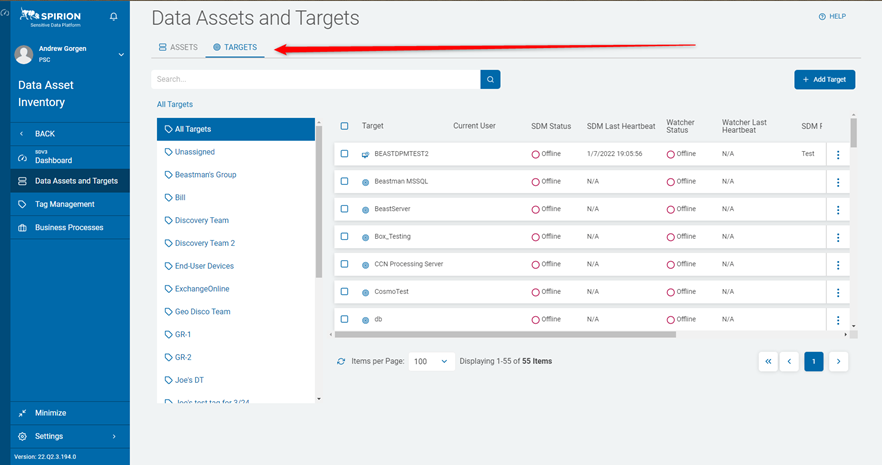
- Select the “Targets” tab under the ‘Data Assets and Targets’ header at top:
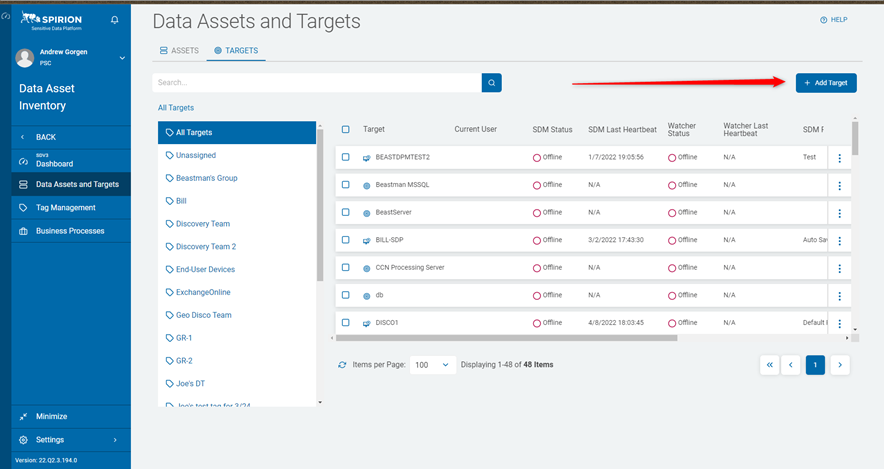
- Select the blue “Add Target” button in the top right corner:
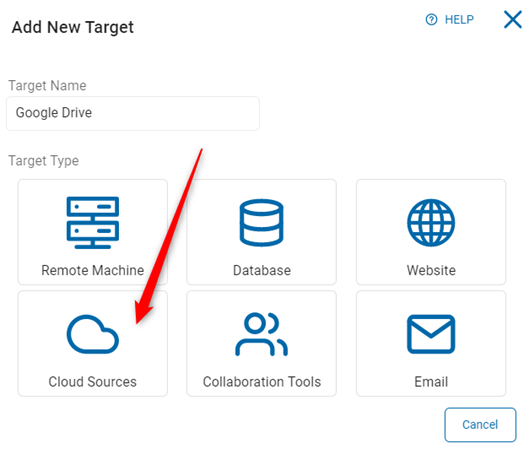
- Select the “Cloud Source” tile from the "Add New Target" dialog and name the Target accordingly:
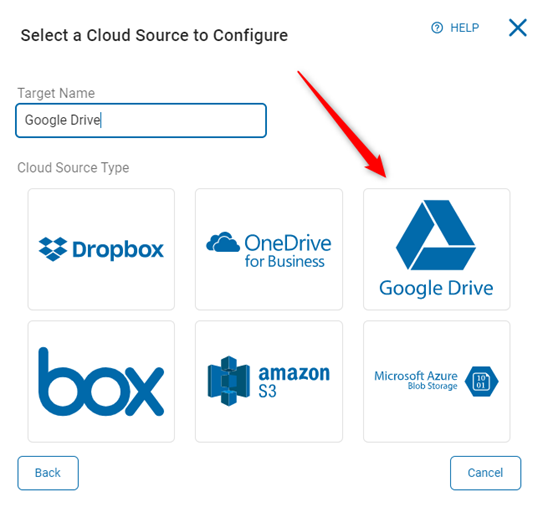
- Select the “Google Drive” tile from the "Select a Cloud Source to Configure" dialog:
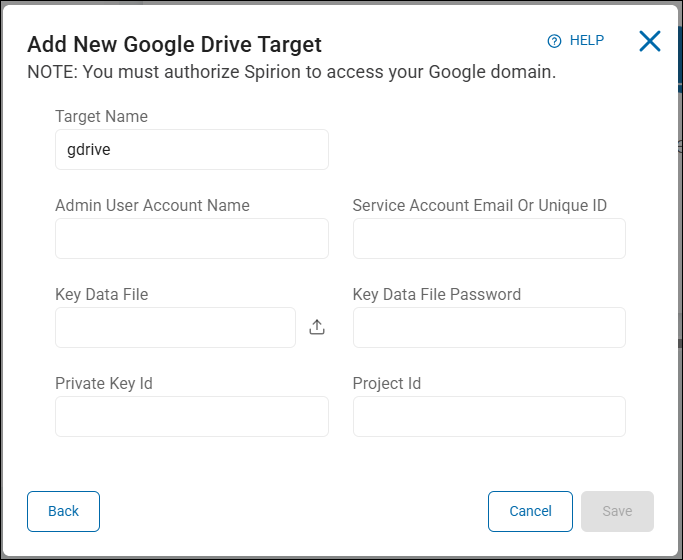
- Fill in the following fields:
- Admin User Account Name – Enter your Google User (often a G Suite/Google Workspace admin) account (it can be the same as the Super Administrator used in the Google Workspace Setup, above)
- Service Account Email or Unique ID – The email address of your service account.
- Example:
my-service@project.iam.gserviceaccount.com. - If you cannot find it or have closed out of it on accident, go back Google Workspace and navigate to “Managed Service Accounts” to recover it.
- Example:
- Key Data File – Load the file .p12 key file that was saved in in the Google Workspace Setup, above.
- Key Data File Password – The password that was generated/shown when you created the
.p12key. - Private Key ID – See step 24 of “G Suite Side Authentication” section above
- Project ID – See step 7 of “G Suite Side Authentication” section above
- Once entered select the “Save” button below to complete the authentication.
- If issues arise in completing this authentication, an error is thrown.
- Please document the error received and contact Spirion Support (or Professional Services, if currently engaged).
Create a Scan to Search Google Drive
After the Admin Account is authenticated during the creation of the Google Drive “target”, you then need to create a scan to initialize the search:
- Log-in to Spirion Sensitive Data Platform.
- Select “Scans” from the left side vertical menu.
- Select "All Scans" from the left side vertical menu.
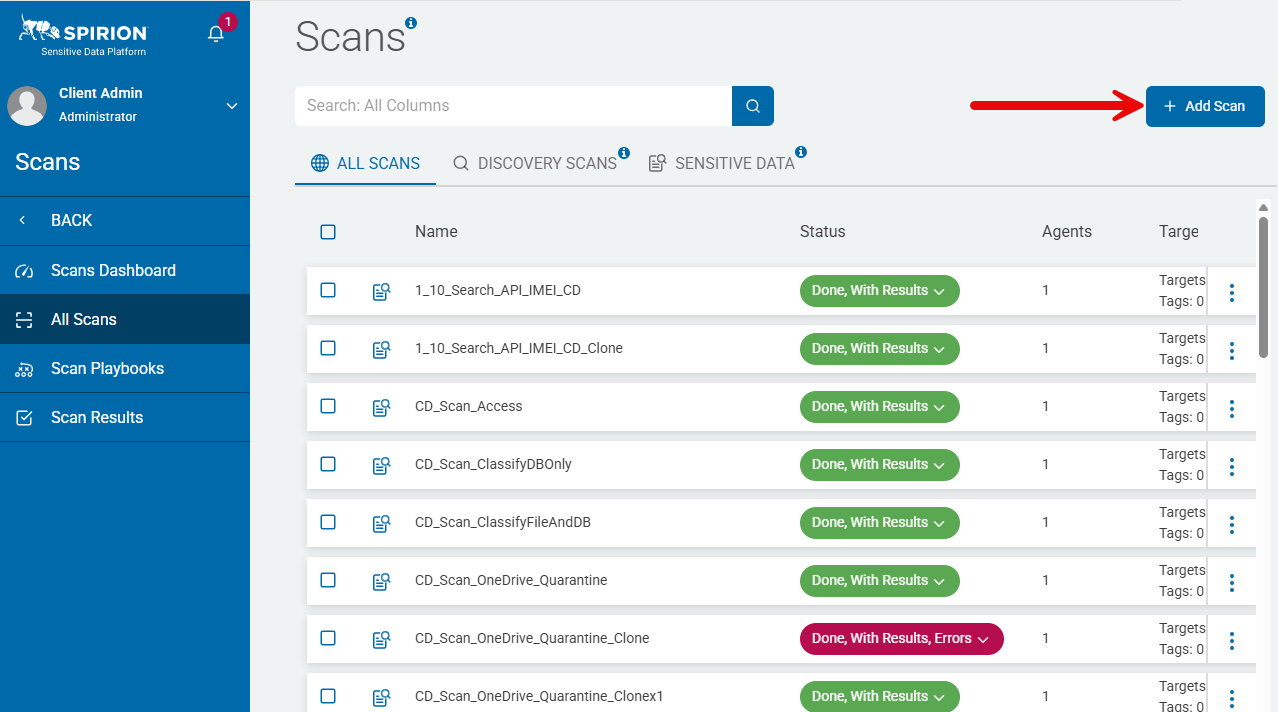
- Select the blue “Add Scan” button in the top right-hand corner:
- Provide a Title to the scan (for example, Google Drive) and select “Next”.
- Select “Sensitive Data Scan”.
- Select an existing playbook, or create a new playbook
(Note: This requires repeating steps 1-4 after creation) - Select “Next”.
- Select the “Cloud” option.
- Select the “Google Drive” option.
- Select the agent type you would like to facilitate the search of Google Drive (On-premise or cloud), in addition to the specific agents pertinent to the type.
- Select “Next” to proceed to the next screen.
- Select the Google Drive target you created during the “Creation of a Google Drive Target”, and select the “Next” button to proceed to the next screen
- Specify the user accounts you would like to search or upload a CSV containing such a list.
Note: When no User Accounts are specified for a target, all User Accounts are scanned. - Continue to fill out the additional options in the screens following the account designation to tailor or adjust any of the default behavior.
- The default options suffice.
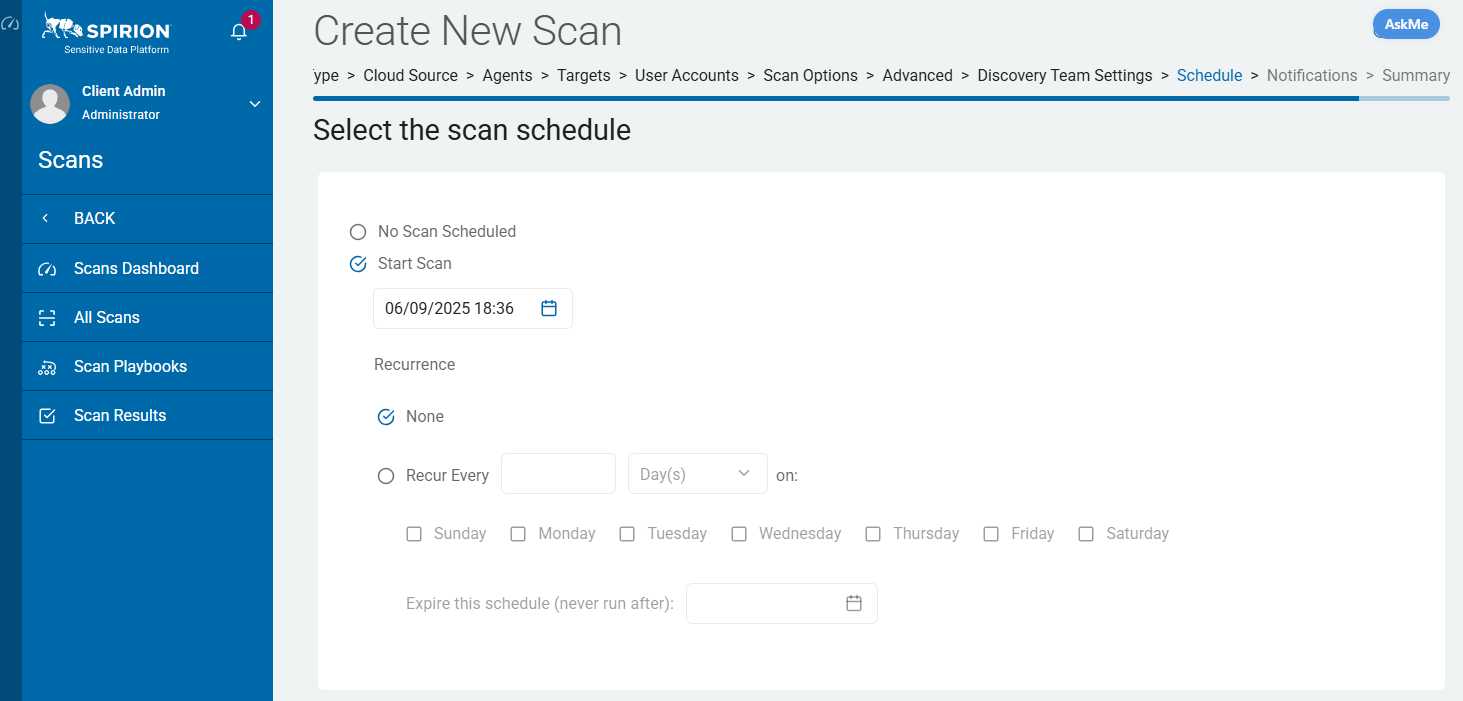
- Select the “Finish and Save” button to save and initiate the Google Drive scan, per the schedule dictated on the “Schedule” tab”:
Note about Google Mail Trash Folder
- Note that when Spirion Sensitive Data Platform scans Google mail folders this includes the Trash folder.
- The Trash folder cannot be excluded.