How to Manage Business Processes
Overview
The "Business Processes" page in Spirion Sensitive Data Platform is where you view and manage your business processes.
It's important to remember Business Processes contain the following:
- The Business Process purpose
- Who is owns the Business Process
- How the Business Process is defined
- How the data is controlled in the Business Process
- How the data flows throughout the Business Process
What are Business Processes?
Business Processes are used for tracking how sensitive data flows from Sources to Destinations (Data Assets), who is responsible, and the related regulations. Business Processes aid you in preventing sensitive data from being exposed. More information
Business Processes contain:
- The Process purpose
- Who is the owner of the Process
- How is the Business Process defined
- How the Business Process data is controlled
- How the Business Process data flows
What is the Business Process page?
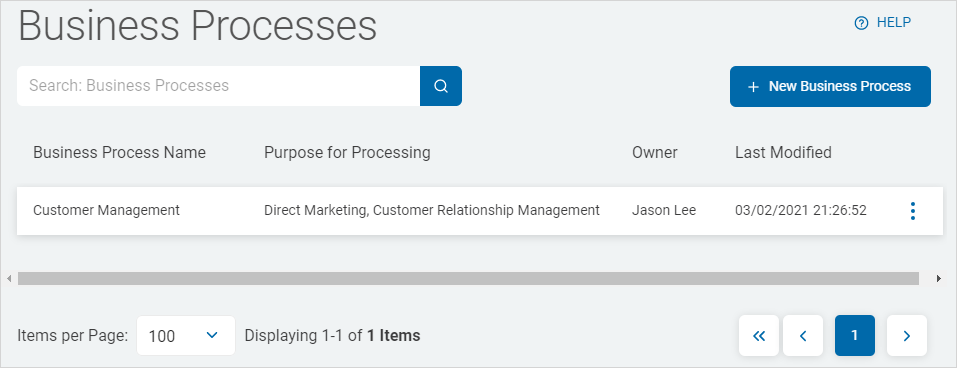
The Business Processes page is a registry within Data Asset Inventory. It provides a structured catalogue of the organizational business processes that interact with or govern the handling of sensitive data.
Each entry records the following information:
- Business Process Name — A descriptive label for the process (for example, Corporate file archive, E-Mail Corporate Fair Use Policy, User Registration).
- Purpose for Processing — The stated reason data is handled under that process (for example, internal business analysis, Support, training, and sales, Customer applications).
- Owner — The individual accountable for the process (for example, Jane Doe, John Doe, Bill Williams, Bob Roberts).
- Last Modified — An audit timestamp showing when the record was last updated.
New entries can be added via the + New Business Process button, and existing records can be managed via the contextual menu (⋮) on each row.
Who uses it?
The page is accessed under Data Asset Inventory and is scoped to the Client Admin / Administrator role.
Primary users are as follows:
- Privacy & Compliance Officers — Map data processing activities to organizational processes for regulatory compliance (for example, GDPR Article 30 Records of Processing Activities)
- Data Governance Teams — Deed a canonical register of how and why sensitive data is processed across the organization.
- Client Administrators — Create, update, and maintain the registry as business processes evolve.
- Auditors — Review the register to validate that all data-handling activities are properly documented and owned.
What value does it provide?
Regulatory compliance - directly supports GDPR, CCPA, and similar privacy frameworks that require a formal record of processing activities (RoPA), with named owners and stated purposes
- Data accountability — Each process has a designated Owner, establishing clear lines of responsibility for how sensitive data is used.
- Audit trail — The Last Modified timestamp ensures there is a traceable history of when process definitions were reviewed or updated.
- Contextualises data assets — Links data assets (managed elsewhere in the Data Asset Inventory) to the business context in which they are processed, enabling more meaningful data classification.
- Searchable registry — The search bar allows quick lookup across potentially large numbers of processes, supporting day-to-day governance operations.
- Governance scalability — The paginated, tabular structure supports growing inventories without losing oversight, with configurable items-per-page display.
Summary
In summary, the Business Processes page is the organizational data processing register — it bridges raw data asset management with the business context and legal basis for processing, making it a foundational element of any privacy compliance program.
How to Access and View Your Business Processes
Use the following steps to acces and view your business processes:
- From the left side nagivation menu, select Data Asset Inventory > Business Processes.
- The Business Processes page opens.
- Business Processes are displayed in a table sorted by the following categories:
- Business Process Name
- Purpose for Processing
- Owner
- Last Modified
- More options
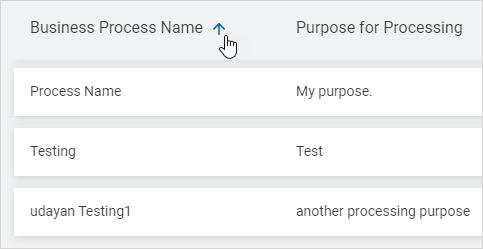
- Click a column in the table to sort ascending.
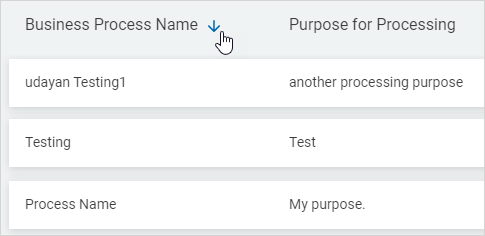
- Click the column in the table again to sort descending.