
Tag Examples
What are Tags Used for?
- Organization - Tags are used in Spirion Sensitive Data Platform to organize your Targets and/or Agents (Agents can also act as Targets).
- Tags typically group Agents/Targets by operating system, Spirion Agent version, Department, Target Type such as OneDrive, Exchange, etc.
- Functions - Tags provide guides for very important functions such as troubleshooting and maintenance.
- In a typical organization, various Agents are configured to scan on a daily, weekly, or monthly basis.
- A conditional Tag that shows you all Agents that have not performed a scan in over a week or month can quickly show you all Agents which have failed to scan their intended data sources.
- The source (Target) that is not being scanned has had days or weeks to accumulate potentially large amounts of highly sensitive data: data which cannot receive remedation actions as it is invisible to the Spirion console.
- This data is considered deeply at-risk.
Tag Types
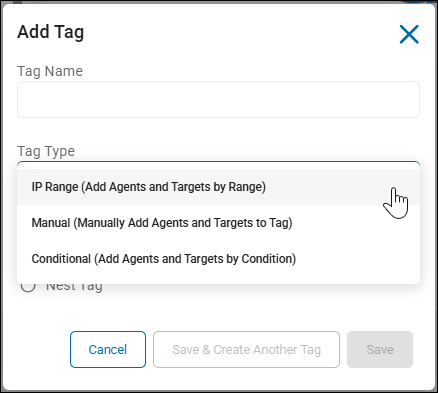
Recall, you can capture Agents/Targets into your Tag in different ways, as follows:
- IP Range - Add Agents and Targets by IP range.
- Seldom used
- Manual - Add Agents and Targets, manually, yourself.
- Commonly used
- Conditional - Add Agents and Targets by condition. In this type, an Agent/Target must satisfy the conditions of the Tag, set by you, to be a member of the Tag group.
- Commonly used
- Note: Conditional tags cannot be nested
- Note: Conditional Tags do not update instantly. When you save the Tag the conditions are evaluated and the applicable endpoints are assigned. A background job runs every hour to re-evaluate and make adjustments as necessary. For example, you create a conditional Tag filtered for v13 Agents. When the Tag is saved, it shows 2 endpoints. Shortly after the Tag is saved, a new v13 Agent registers with the console. It may take up to an hour before the new Agent appears in the Tag.
Common Tags and Their Purpose
Typically, Tags organize your Agents by categories, actions, specific Targets, specific Tag names, etc.
Endpoint Platform Conditional Tags - Operating System
archTIS recommends you use "Endpoint Platform" conditional Tags. These are commonly used in organizations and have proven to be very effective.
Endpoint platforms include:
- Windows
- Mac
- Linux
Benefits of using Enpoint Platform Conditional Tags
- Grouping Agents by endpoint platform (Operating System) enables users to focus on Agents which share the same upgrade, security, and monitoring requirements
- For example, macOS Agents may be scheduled for IT updates and will appear offline for a day, but no longer
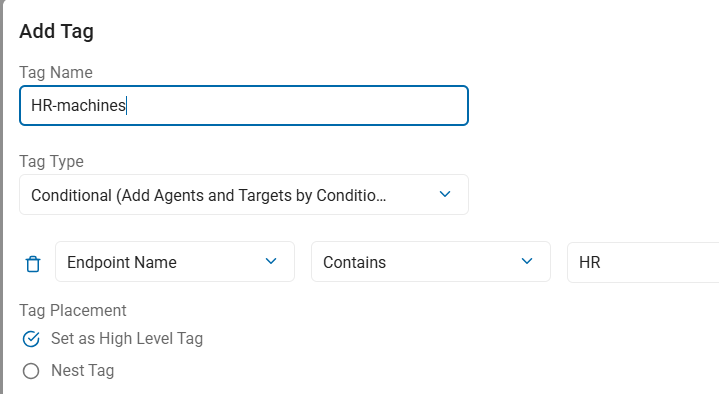
Endpoint Name Conditional Tags - Org Department
archTIS recommends you use "Endpoint Name" conditional Tags. These are commonly used in organizations and have proven to be very effective.
- Typically used when the start of the machine name or hostname begins with the department letters/term
- Examples: "HR" - Human Resources, "Fin" - Finance, etc.
Benefits of using Enpoint Name Conditional Tags
- You can use the machine or hostname to extract department codes (or other identifying metadata) to Tag by department.
- You can capture multiple Agents/Targets using a Conditional type Tag when the department terms such as "-HR-", "-Fin-", "-Legal-", etc, are contained within the host name or machine name
- Examples: HR-MARKMACHINE1, MARKMACHINE1-HR, MARK-HR-MACHINE1
- Grouping Agents by Department enables users to focus on a specific subset of Agents and their results, which may be high-risk sensitive data matches
Search Date/Time Conditional Tags
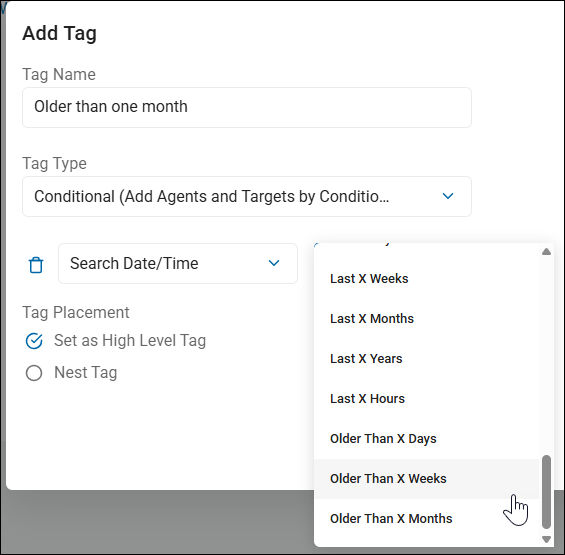
archTIS strongly recommends you use "Search Date/Time" conditional Tags. These are commonly used in organizations to track the date and time of Agent scans and have proven very effective.
This conditional tag let's you pose the question: "Show me Agents that last completed a scan over a day/week/month ago"
Search Date/Time conditional Tags include:
- Older than Last X Weeks
- Older than Last X Months
- Last Week
- Last X Hours
- Last X Months
Benefits of using Search Date/Time Conditional Tags
- Grouping Agents by scan date/time enables users to focus on Agents that have completed or failed scanning on a fixed iteration - 1 week, 1 month, older than 1 week, older than 1 month, etc.
- This enables users to spot failing Agents and troubleshoot any problems quickly
- Time intervals are selected from the drop-down menu in the "Add Tag" pop-up window when you create your Tag.
Agent (Endpoint) Version Conditional Tags
archTIS recommends you use Endpoint version conditional Tags. These are commonly used in organizations and have proven very effective for managing Agents by version and planning/performing upgrades.
Endpoint Version conditional Tags include:
- Endpoint Version - The version of the Agent, which can be general - version 12, 13, etc., or specific - version 13.4, 12.6.4, 12.6.5.1
- Operator - Use the operator "Contains" to include Agents by version, or the operator "Does Not Contain" to exclude Agents by version
Example
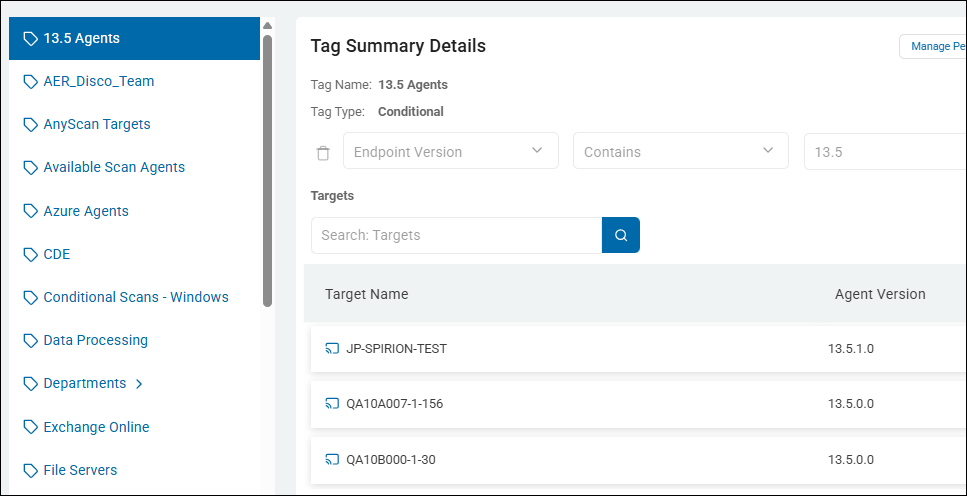
- To group Agents by version, such as v13.5 (Windows) or v12.6.5 (Mac/Linux/Legacy) create a Tag which uses the following logic
- Logic:
- Tag Type: Conditional
- Action Type: Endpoint Version
- Operator: Contains
- Value: 13.5
To see a visual, see the screenshot below
Benefits of using Endpoint Version Conditional Tags
- Grouping Agents by version enables the user to see which machines (laptops, workstations, servers) are or are not running the latest Spirion Agent
- Pre-v13.6 Agents cannot perform specific functions such as Global Ignore or use the updated queueing system PostgreSQL (and pgBouncer).
- Pre-v13.4 Agents cannot perform specific functions, such as Differential Scanning.
- Pre-v13.5 Agents cannot peform Differential Scanning on Gmail Targets.
- Pre-v13.5 Agents cannot peform Differential Scanning on Gmail Targets.
Endpoint Name Conditional Tags - Targets
archTIS recommends you use Endpoint Name conditional Tags to focus on Targets. This Tag is commonly used in organizations and have proven very effective at organizing Targets and Targets by type.
- Target types include: Cloud sources, File Servers, Databases, etc.
Examples
- Potential Targets vary by environment but can include: Azure, OneDrive, SharePoint, Exchange Online, Gmail, SQL, Oracle, Snowflake, Informix, etc.
Exchange Target
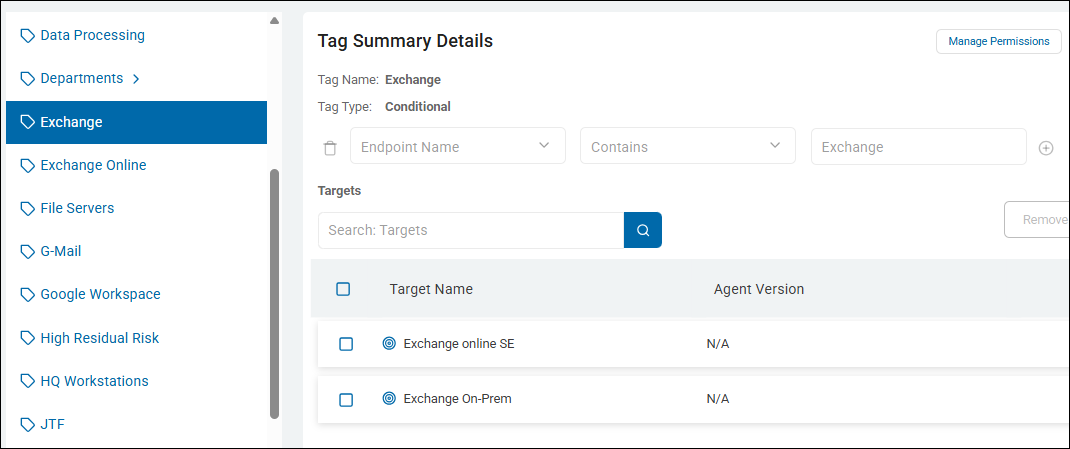
- To create a Tag to help you examine your Exchange Targets, both on-premise and online, create a tag which uses the following logic
- Logic:
- Tag Type: Conditional (optionally, use Manual, but this requires adding each Exchange Target manually)
- Action Type: Endpoint Name
- Operator: Contains
- Value: "Exchange"
File Server Targets (Target by Type)
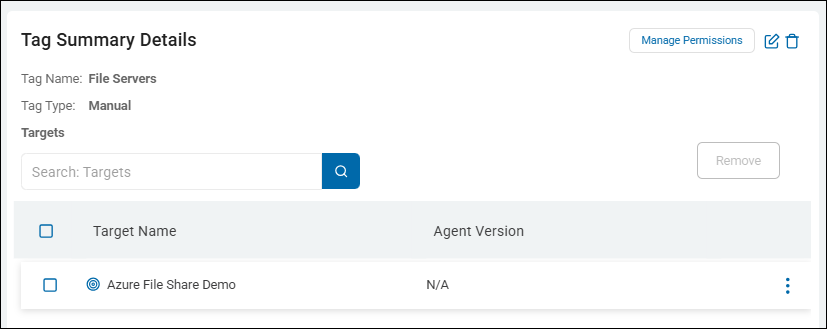
- To create a Tag to help you examine your File Server Targets, create a tag which uses the following logic
- Logic:
- Tag Name: File Servers
- Tag Type: Manual
- Manual Tag types require you to manually add endpoints (Targets or Agents) to the Tag
- Action Type: Endpoint Name
Benefits of using Endpoint Name Tags for Targets
- Grouping Agents by Target or Target type enables you to focus on Agents from the viewpoint of the source being scanned - SQL database, Exchange endpoints, etc.
- For example, You may routinely discover exposed sensitive data on your Exchange mail servers and instruct your Exchange Agents to scan them daily or weekly instead of monthly.
- You may add Agents or build custom reports to collect more information about the number and kind of sensitive data matches
Use the Tag examples in this topic to help you create your own custom Tags, or else create the Tags listed here to give your platform a starting collection of useful Tags.
Legacy/Mac/Linux Agents, Windows v13+, Tags, and Target Icons used in Spirion Sensitive Data Platform
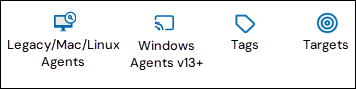
Tags by Endpoint Platform Example: macOS Machines (Laptops, Workstations)
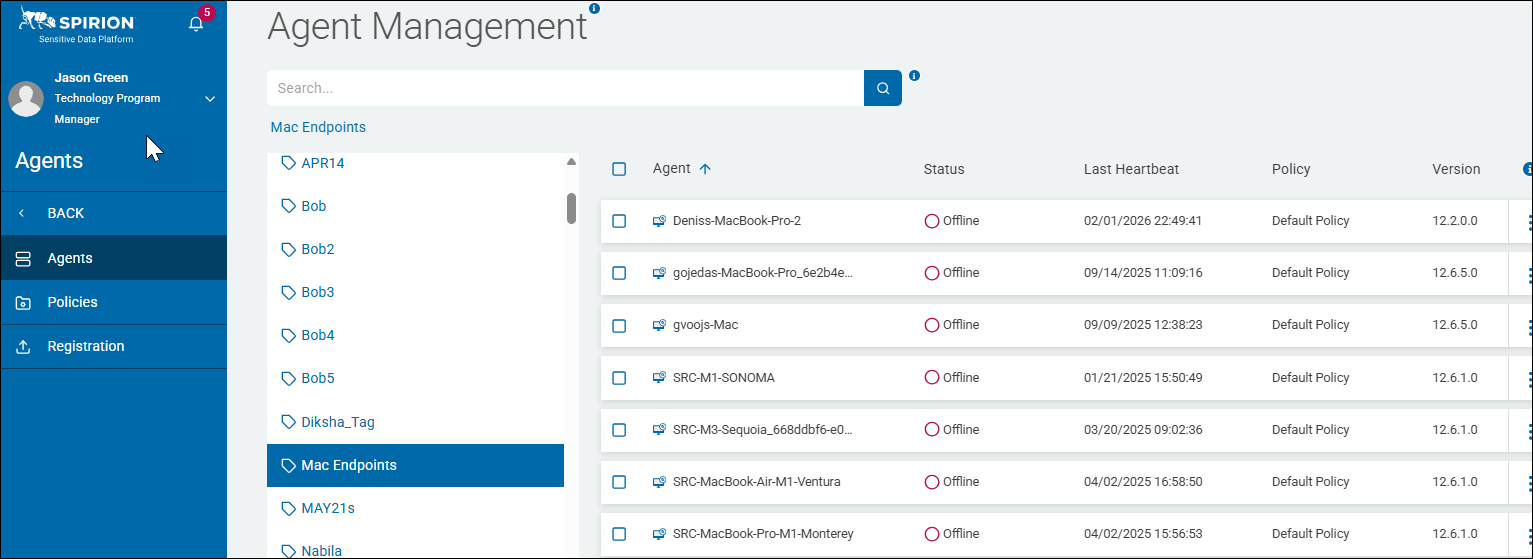
This Tag collects all of the Spirion Agents installed on Mac endpoint platforms (macOS laptops or workstations) in your environment.
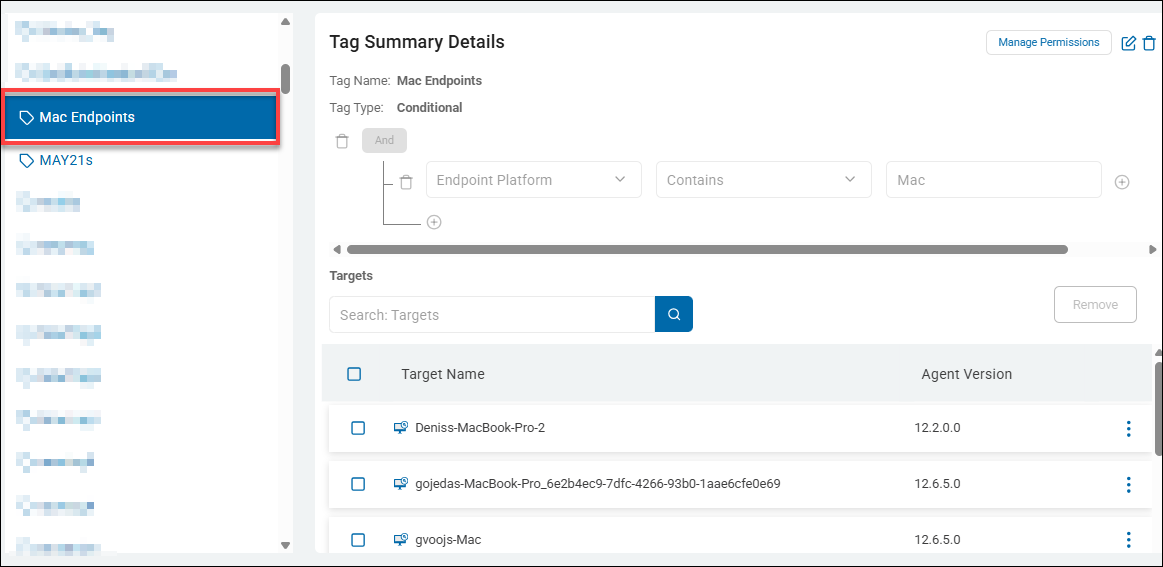
- Tag Name: Mac Endpoints
- Tag Type: Conditional
- Logic:
- Action Type: Endpoint Platform
- Operator: Contains
- Value: "Mac"
- In the screenshot below the Targets captured by this conditional tag include multiple Agents on Mac machines, indicated by the Legacy/Mac/Linux Agent icon.
- Agent Management page: All Agents/Targets captured by this Tag, "Mac Endpoints," are shown on the Agent Management page.
- These Agents satisfy the Tag's condition of being macOS Endpoint Platforms
- Critical information such as Status, Last Heartbeat, Policy, and Agent version
Tags by Endpoint Name Example: Departments (HR, IT, Sales, Accounting)
This Tag collects all of the Spirion Agents installed on machines labeled as a specific department in your environment.
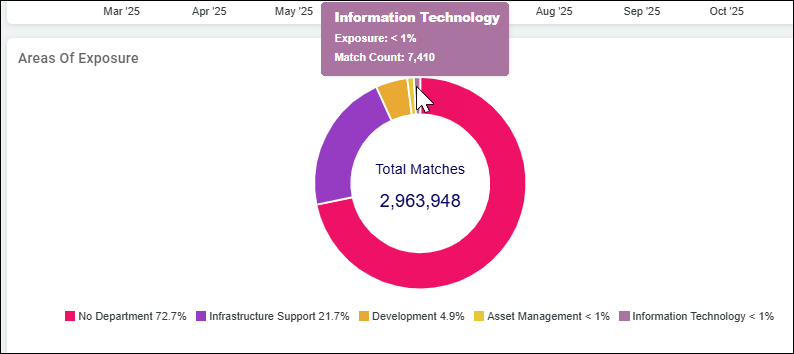
The SPIglass dashboard contains a tile which displays the amount of sensitive data matches across machines in different departments in your organization.
SPIglass Dashboard - Areas of Exposure
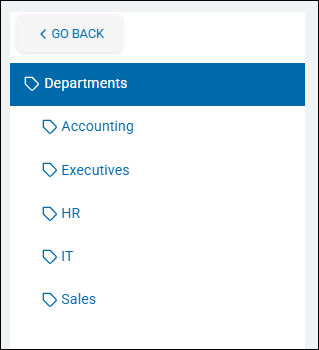
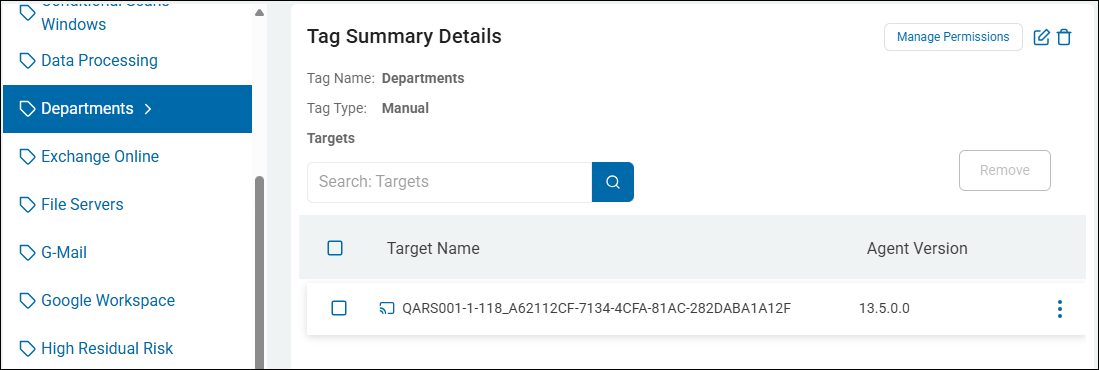
- Tag Name: Department names such as "HR" or "IT." Note that you can nest child tags within parent tags as shown below (Manual tag types only):
- Tag Type: Manual or Conditional
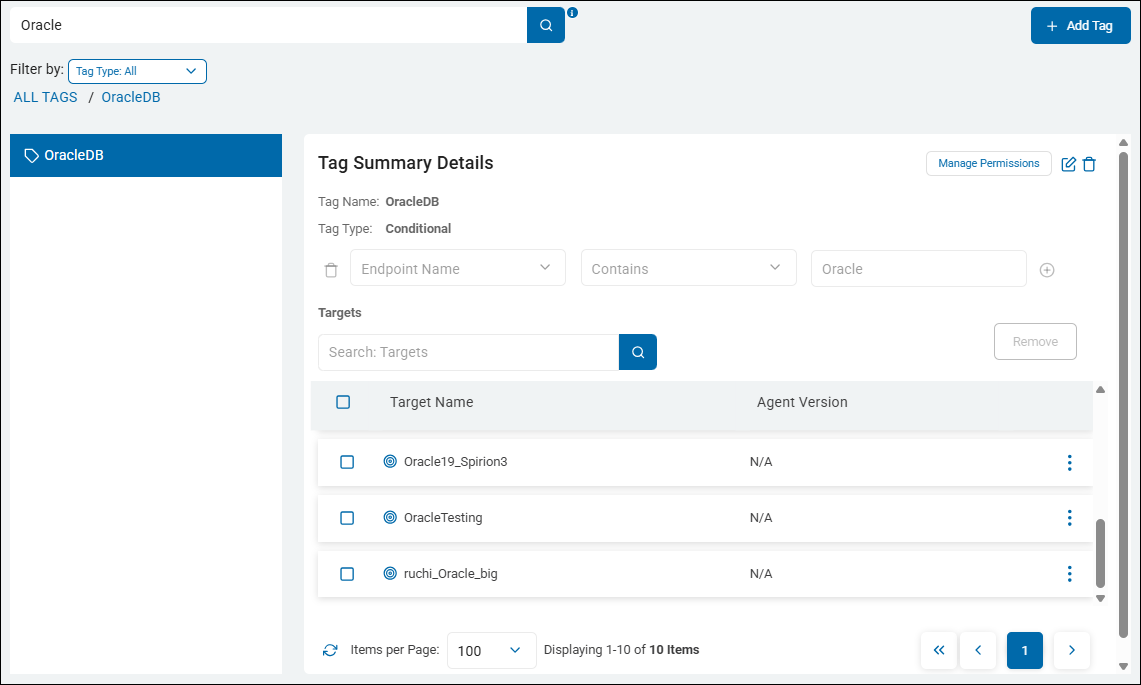
Tags by Endpoint Name Example:Oracle Database
This Tag collects all of the Oracle databases (Targets) installed on the different servers, workstations, or laptops in your environment.
- Tag Name: OracleDB
- Tag Type: Conditional
- Logic:
- Action Type: Endpoint Name
- Operator: Contains
- Value: "Oracle"
- In the example below the Targets captured by this manual tag include an Oracle database ("OracleTesting" Target) and an Oracle database server (Oracle19c).
- A similar Tag could be set up for SQL database Targets, or any other configured Target type.
- For instructions about how to add Tags to Targets, see the topic How to Bulk Assign Tags to Targets
Available Conditional Tags, Settings, and Values
The following table details the available settings and options for Conditional Tags.
A single result matches all of the conditions: Selecting this option requires a single result in a search location to match all of the conditions in a definition for the rule to be applied.
A group of results match all of the conditions: Selecting this option requires a group of results in a search location to match all of the conditions in a definition for the rule to be applied. Additionally, when the filter is set to Quantity, Action, or Data Types; you can create horizontal AND groups. Within a horizontal AND group all conditions must be met by a single result to be considered a match. *This does not apply to endpoint-specific filters such as Endpoint Versionor Endpoint Platform.
ACL: Ace Type
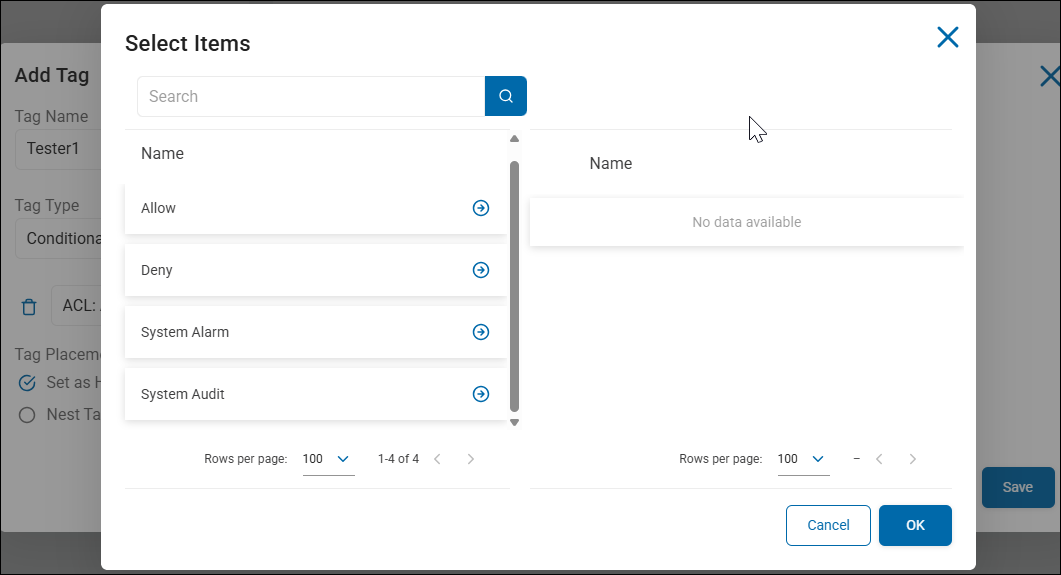
A Conditional Tag that uses "ACL: Ace Type" (Access Control Entry Type) as a filter is used to distinguish between permissions that are explicitly Allowed versus those that are explicitly Denied.
What it does
In the Windows security model, an ACL is made up of individual "Entries" (ACEs). Each entry tells the system whether to grant or block access. This filter enables you to see if a user has access because they were "Allowed" or if they are being specifically "Denied."
- Condition: ACL: Ace Type Equals
Access Allowed - Action: The system applies your defined Tag Name (for example,
ACL: PERMISSION_GRANTED) to those endpoints.
Why would you use this?
This is a "Logic Verification" filter. It is most commonly used to filter out "noise" or to verify that "Deny" rules are actually working.
- Filtering for Actual Access (The most common use):
- Condition:
ACL: Ace TypeEqualsAccess Allowed. - Business Logic: When you are looking for data exposure, you only care about people who are Allowed to see the data. By filtering for "Access Allowed," you ensure your report doesn't accidentally include people who are listed in the ACL but are actually "Denied" access.
- Condition:
- Verifying "Deny" Policies (Compliance Auditing):
- Condition:
ACL: Ace TypeEqualsAccess Denied. - Business Logic: If your corporate policy states that the "Contractors" group must be explicitly Denied access to the "Payroll" folder, you can use this filter to find all machines where that "Deny" rule is successfully in place. This is great for proving compliance to auditors.
- Condition:
- Troubleshooting "Hidden" Access:
- In Windows, a Deny always overrides an Allow. If a user complains they cannot see a file even though they are in the "Finance" group, you can use this filter to see if there is an explicit "Access Denied" entry for their specific username that is blocking them.
Common Ace Type Values:
These are the standard technical strings used by the Windows operating system:
Access Allowed: The trustee is granted the permissions listed.Access Denied: The trustee is specifically blocked from the permissions listed.System Audit: (Rare) Used for logging attempts to access an object.System Alarm: (Rare) Used for generating system alarms.
Example: "Confirmed Exposure Only"
- Tag Name:
AUDIT: VERIFIED_ALLOW_ACCESS - Filter:
ACL: TrusteeContainsEveryoneANDACL: Ace TypeEqualsAccess Allowed - Business Value: This rule is more accurate than just filtering for "Everyone." It ensures that you are looking only at machines where "Everyone" is actually allowed to touch the data, rather than machines where "Everyone" might be listed but is actually "Denied."
Example: "AUDIT: Confirmed Data Exposure"
A practical ACL: Ace Type example is used for "Risk Validation." In the Windows security model, a user or group can be listed in a file's permissions in two ways: they are either Allowed to see it or explicitly Denied.
Without this filter, your reports might show "Everyone" has access, when in reality, there is a "Deny" rule in place that is actually protecting the data.
This rule ensures that you are only flagging machines where sensitive data is actually accessible. It filters out "Deny" entries so your security team doesn't waste time investigating files that are already being blocked.
- Tag Name:
AUDIT: VERIFIED_EXPOSURE - Tag Type:
Conditional - Filter Logic:
Row | Field | Operator | Value |
|---|---|---|---|
1 | ACL: Trustee | Contains |
|
AND 2 | ACL: Ace Type | Equals |
|
Why this rule is valuable in a real environment:
- Eliminating False Positives:
- Sometimes an IT admin adds the "Everyone" group to a folder but set the type to "Access Denied" as a quick way to lock it down. If you filter only by
Trustee: Everyone, Spirion flags that file as a risk. By addingAce Type: Access Allowed, you ensure you see only the files that are truly open.
- Sometimes an IT admin adds the "Everyone" group to a folder but set the type to "Access Denied" as a quick way to lock it down. If you filter only by
- Compliance Accuracy:
- When reporting to an auditor, you want to be 100% certain. If you tell an auditor "100 machines have public SSNs," but 50 of them have "Deny" rules, your report is inaccurate. This filter provides the "Verified" list.
- Verifying "Kill-Switch" Permissions:
- If your company has a policy to explicitly Deny the "Terminated_Users" group from all sensitive shares, you can create a tag where
Trustee: Terminated_UsersANDAce Type: Access Denied. This enables you to prove that your security controls are active and working across the environment.
- If your company has a policy to explicitly Deny the "Terminated_Users" group from all sensitive shares, you can create a tag where
The Two Values You Need to Know
Access Allowed: Use this for Risk Hunting. It finds the "Green Lights" where data is leaking out.Access Denied: Use this for Policy Verification. It finds the "Red Lights" that you put there on purpose to stop people.
Summary of Logic
This rule says: "I only want to see the machines where the permission is a 'Yes' (Allowed), not a 'No' (Denied)."
Tip: In Windows, a Deny entry always overrides an Allow entry. If a user is in the "Finance" group (Allowed) but also in the "Contractors" group (Denied), they will be blocked. Using the Ace Type filter helps you untangle these complex permission scenarios so you can see the final reality of who can actually read the data.
Summary of ACL: ACE Type Logic
This filter says: "Tell me if this permission is a Green Light (Allowed) or a Red Light (Denied)."
Tip: 99% of the time, you will use "Access Allowed." If you don't specify the Ace Type, your results might include "Access Denied" entries, which can lead to "False Positives" where it looks like data is exposed, but it is actually being blocked by a Deny rule. Always pair this with ACL: Trustee for the most accurate risk reporting.
ACL: Authorization
On the Tag Management page, a Conditional Tag that uses "ACL: Authorization" as a filter is used to group endpoints based on the type of permission (for example, Read, Write, Full Control) granted to users on files containing sensitive data.
While the "Trustee" filter tells you who has access, the Authorization filter tells you what they can do with that data.
- Note: ACLs are viewable in the playbook executor for results.
What it does
This filter looks at the specific rights assigned in the file's Access Control List. It enables you to distinguish between someone who can merely "see" a file and someone who has the power to "change" or "delete" it.
- Condition: ACL: Authorization Contains
Full Control - Action: The system applies your defined Tag Name (e.g.,
RISK: DATA_DESTRUCTION_EXPOSURE) to those endpoints.
Why would you use this?
This is a "Severity-Based Risk" filter. It helps you identify the most dangerous types of data exposure.
- Identifying Ransomware/Destruction Risk:
- Condition:
ACL: AuthorizationContainsFull ControlorModify. - Business Logic: If a broad group (like "Everyone") has "Full Control" over sensitive data, a single compromised account could delete or encrypt (ransomware) all of that data. This is a much higher priority than a "Read Only" exposure.
- Condition:
- Detecting Unauthorized Data Manipulation:
- Condition:
ACL: AuthorizationContainsWrite. - Business Logic: If sensitive financial records are "Writeable" by non-finance users, there is a risk of fraud or data tampering. You can use this tag to flag machines where data integrity is at risk.
- Condition:
- Refining "Least Privilege" Audits:
- You might allow a group to have
Readaccess for business reasons, but you want to be alerted immediately if they are grantedChangeorTake Ownershiprights.
- You might allow a group to have
Common Authorization Values
These values pull directly from Windows/NTFS permission sets. Common strings you will filter for include:
Full Control: The user can do anything, including changing permissions and taking ownership.Modify: The user can read, write, and delete the file.Read & Execute: The user can see the data and run the file (if it's a program).Write: The user can change the contents of the file.Read: The user can only view the contents.
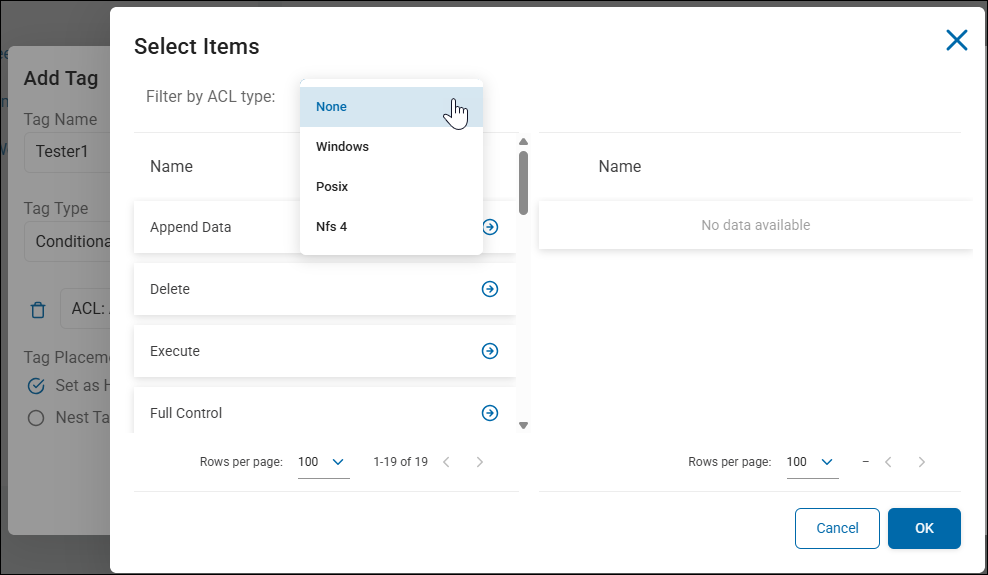
Filter by ACL type to view specific options
- None
- Windows: Append Data, Delete, Execute, Full Control, Generic Execute, Generic Read, Generic Write, No Access, Read Acl, Read Attributes, Read Control, Read Data, Read Extended Attributes, Synchronize, Take Ownership, Write Acl, Write Attributes, Write Data, Write Extended Attributes
- Posix: Full Control, Generic Execute, Generic Read, Generic Write, No Access
- Nfs 4: Append Data, Delete, Execute, Full Control, Generic Execute, Generic Read, Generic Write, No Access, Read Acl, Read Attributes, Read Control, Read Data, Read Extended Attributes, Synchronize, Take Ownership, Write Acl, Write Attributes, Write Data, Write Extended Attributes
- Note: ACLs are viewable in the playbook executor for results.
Example: "The Ransomware Target List"
- Tag Name:
CRITICAL: HIGH_MODIFICATION_RISK - Filter:
ACL: TrusteeContainsEveryoneANDACL: AuthorizationContainsFull Control - Business Value: This identifies the "Worst Case Scenario." It finds sensitive data that anyone can find, anyone can read, and anyone can delete or encrypt. This list should be the #1 priority for any security team.
Example: "CRITICAL: Ransomware & Data Destruction Risk"
A practical ACL: Authorization example is used to identify "High-Impact Risk." While knowing who has access is important, knowing what they can do (for example, delete, edit, or encrypt) determines the severity of a potential security incident.
In this scenario, we are looking for the "Worst Case Scenario": sensitive data that is not only visible to a broad group but can also be deleted or modified by them. This is the primary target for ransomware or disgruntled employees.
- Tag Name:
CRITICAL: DATA_DESTRUCTION_RISK - Tag Type:
Conditional - Filter Logic:
Row | Field | Operator | Value |
|---|---|---|---|
1 | ACL: Trustee | Contains |
|
AND 2 | ACL: Authorization | Contains |
|
OR 3 | ACL: Authorization | Contains |
|
Why this rule is valuable in a real environment:
- Ransomware Preparedness:
- Ransomware spreads by finding files that the current user has "Write" or "Modify" access to. If a standard user account is compromised and that user has "Full Control" over a folder full of PII (Personally Identifiable Information), the ransomware can encrypt all of it. This tag flags those "easy targets" for IT to lock down.
- Preventing Data Tampering:
- If you are storing sensitive financial logs or audit trails, those files should be "Read Only." If Spirion detects that a broad group has "Write" authorization, it means someone could alter the records to hide fraudulent activity.
- Prioritizing "The Big Fix":
- A security team might have 5,000 "Read" exposures but only 50 "Full Control" exposures. By using this filter, you can ignore the "noise" and ensure your engineers spend their first hour of the day fixing the 50 files that are at risk of being deleted.
Common Authorization Value List:
When typing values into the "Value" box, use these standard NTFS permission strings:
Full Control: Can read, write, delete, and change permissions. (Highest Risk)Modify: Can read, write, and delete. (High Risk)Write: Can change the content of the file. (Medium-High Risk)Read: Can only view the content. (Lower Risk)
Summary of Logic:
This rule says: "Find the places where sensitive data is vulnerable to being destroyed or changed, not just seen."
Tip: If you are seeing results where the Authorization is "Special," it usually means the permissions are more granular (like "Delete Child" or "Write Attributes"). In those cases, it is safer to treat "Special" as a High Risk until you can manually verify the specific permissions on the machine.
Summary of ACL: Authorization Logic
This filter says: "Show me assets where sensitive data is at risk of being changed or deleted, not just viewed."
Tip: Just like the Trustee filter, this requires the "Collect ACL Information" setting to be enabled in your Search (Scan) Policy. Without that data collection, the Authorization field will be empty in the console. When building these tags, "Full Control" and "Modify" are the two most important values to watch for.
ACL: Trustee
On the Tag Management page, a Conditional Tag that uses "ACL: Trustee" as a filter is used to group endpoints based on the users or groups that have permissions (Access Control List entries) to the files where sensitive data was discovered.
- Note: ACLs are viewable in the playbook executor for results.
What it does
This filter looks at the "Trustee" (the user, group, or service account) that has been granted access to a file. It enables you to identify assets where specific high-risk groups (like "Everyone" or "Guest") or specific individuals have access to sensitive information.
- Condition: ACL: Trustee Contains
Everyone - Action: The system applies your defined Tag Name (for example,
RISK: PUBLIC_ACCESS_DETECTED) to those endpoints.
Why would you use this?
This is a "Permission-Based Risk" filter. It helps you move beyond just finding sensitive data and starts helping you find over-exposed sensitive data.
- Identifying "Public" Sensitive Data:
- Condition:
ACL: TrusteeContainsEveryoneORAnonymous. - Business Logic: If a file containing Social Security Numbers is accessible by "Everyone," it is a massive compliance failure. Tagging these machines enables you to prioritize them for immediate classification and remediation.
- Condition:
- Detecting Terminated or High-Risk Users:
- Condition:
ACL: TrusteeContains[Username]. - Business Logic: If an employee is under investigation or has given notice, you can use this filter to find every machine where they have permissions on sensitive files.
- Condition:
- Verifying "Least Privilege" Policies:
- Condition:
ACL: TrusteeDoes Not ContainFinance_Admins. - Business Logic: If you have a folder that should only be accessible by Finance, but Spirion finds sensitive data there and the Trustee list includes "Marketing_Users," this Tag will flag that machine as a policy violation.
- Condition:
- Identifying Orphaned SID/Accounts:
- Sometimes, files have permissions for users that no longer exist in Active Directory (often appearing as a long SID string). You can use this filter to find machines with "stale" permissions that need to be cleaned up.
Example: "The Open Share Watchlist"
- Tag Name:
CRITICAL: OVEREXPOSED_DATA - Filter:
ACL: TrusteeContainsEveryoneANDUnprotected QuantityGreater Than0 - Business Value: This is one of the most powerful security tags you can create. It doesn't just say "we found data"; it says "we found data that anyone on the network can read." This enables your security team to focus on the most dangerous exposures first.
Example: "RISK: Publicly Accessible Sensitive Data"
A practical ACL: Trustee example is used for "Exposure Risk Management." This is one of the most critical filters for a Security Auditor because it identifies sensitive data that is over-exposed to unauthorized groups or the general public.
In a secure environment, sensitive data should be restricted to specific users. If Spirion finds a file containing Credit Card numbers and the "Trustee" (the person/group with permission) is "Everyone," you have a major compliance gap.
- Tag Name:
RISK: OVEREXPOSED_SENSITIVE_DATA - Tag Type:
Conditional - Filter Logic:
Row | Field | Operator | Value |
|---|---|---|---|
1 | ACL: Trustee | Contains |
|
OR 2 | ACL: Trustee | Contains |
|
OR 3 | ACL: Trustee | Contains |
|
Why this rule is valuable in a real environment:
- Prioritizing Remediation:
- If you have 1,000 files with sensitive data, you cannot fix them all at once. However, a file accessible by "Everyone" is a much higher risk than a file accessible only by the "Finance_Admin." This Tag enables you to find and fix the "Public" leaks first.
- Identifying "Open Shares":
- Users often create network folders and set permissions to "Everyone" so they can easily share files with colleagues. If they accidentally drop a spreadsheet of customer data into that folder, this Tag immediately flags the machine hosting that folder.
- Compliance Auditing (PCI/GDPR):
- Auditors often ask, "How do you ensure that only authorized personnel have access to PII?" This tag provides the proof. You can show the auditor a list of all machines where "Everyone" has access to sensitive data and demonstrate that you are actively remediating those specific instances.
Advanced "AND" Version (The "Executive Data" View)
You can use this to ensure that sensitive data belonging to Executives isn't being accessed by IT Generalists or other unauthorized groups.
Row | Field | Operator | Value |
|---|---|---|---|
1 | ACL: Trustee | Contains |
|
AND 2 | Endpoint Name | Contains |
|
- Tag Name:
VIOLATION: EXEC_DATA_EXPOSED - The Result: This identifies an Executive's laptop where sensitive data is stored in a way that any "Domain User" could potentially read it. This is a high-priority security finding.
Summary of Logic
This rule says: "Find any machine where sensitive data is 'unlocked' for groups that shouldn't have access."
Tip: To make this work, your Search Policy must have the "Collect ACL Information" setting enabled. If the agent doesn't "scrape" the permissions during the scan, the Console won't have any Trustee data to filter against. Also, because different OS languages might use different terms (e.g., "Todos" in Spanish instead of "Everyone"), check your local environment's common group names.
What about the ACL: Trustee value list?
The ACL: Trustee field does not have a fixed "drop-down" list because it pulls directly from the Active Directory (AD) or Local Security Accounts of the machines being scanned.
However, there are several Standard Trustees that exist in almost every Windows environment. When building your Conditional Tags, these are the values you will most commonly use:
1. The "High Risk" (Public) Trustees
Use these to find data that is "unlocked" for the entire company or even guests.
Everyone(The most common value for over-exposed data)Authenticated Users(Anyone with a valid login to your domain)GuestorGuests(Unauthenticated or temporary access)ANONYMOUS LOGON(Access without any credentials)
2. Standard Windows System Trustees
These are built-in accounts used by the Operating System. Seeing these is usually normal.
SYSTEM(The OS itself)LocalSystemNETWORK SERVICEAdministrators(The local admin group)
3. Common Active Directory Group Patterns
In a real environment, you use your own company's group naming conventions. Examples include the following:
Domain Users(Every employee in the company)Domain AdminsFinance_DeptHR_UsersIT_Staff
4. Individual User Trustees
If a specific person has explicit permission on a file (rather than through a group), the value is their Username or Display Name.
JSmithjsmith@yourcompany.comJohn Smith
5. Orphaned SIDs (The "Ghost" Trustee)
If a user or group was deleted from Active Directory but their permissions were never removed from the file, you see a Security Identifier (SID) string.
S-1-5-21-3623811015-3361044348-30300820-1013- Tip: If you see these, it’s a sign of "Stale Permissions" that should be cleaned up by the IT team.
How to find your specific values:
If you aren't sure what values to use for your company, follow these steps:
- Go to the Results or Spyglass page in the Spirion Console.
- Find a file that has been discovered.
- Look at the Permissions or ACL tab for that file.
- The names listed there are the exact strings you should copy and paste into your ACL: Trustee filter.
Tip: Always use the "Contains" operator. Because different machines might report the name as Everyone, DOMAIN\Everyone, or Built-in\Everyone, using "Contains: Everyone" ensures you catch all variations.
Summary of ACL: Trustee Logic
This filter says: "Show me assets where sensitive files are accessible by this specific person or group."
Tip: This filter relies on the Agent's ability to read the file system's ACLs. Ensure your search policy has "Include ACL Information" enabled; otherwise, this filter will not have any data to evaluate. Also, remember that "Trustee" names can vary based on your domain (for example, DOMAIN\Everyone vs Everyone), so using the "Contains" operator is highly recommended.
Client Activity State
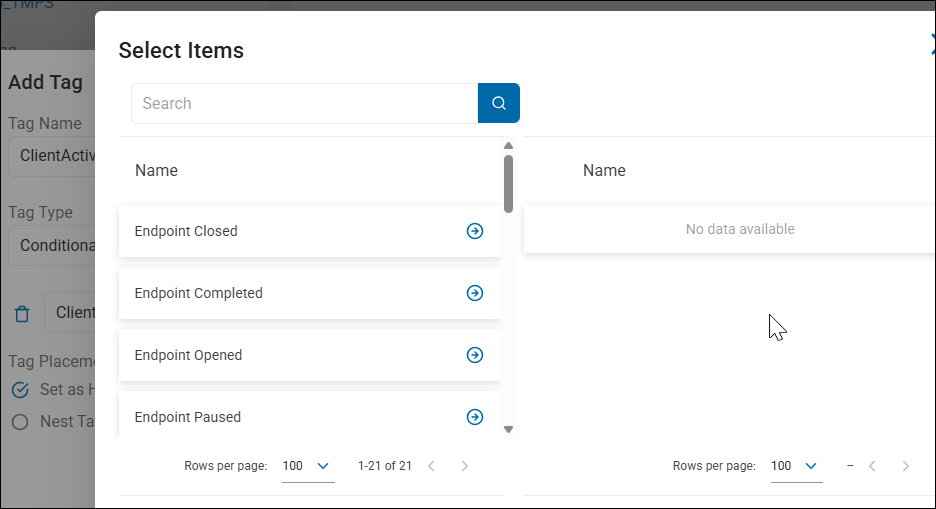
A Conditional Tag that uses "Client Activity State" as a filter is used to group endpoints based on their current operational status—specifically whether they are actively working, waiting for instructions, or in an error state.
What it does
This filter tracks the "Real-Time" status of the Agent. While "Last Poll Time" tells you if the Agent is alive, the Client Activity State tells you what the Agent is doing (or why it isn't doing anything).
The most common states you will filter for are:
- Idle: The Agent is online and waiting for a scheduled task.
- Searching: The Agent is currently executing a scan.
- Remediating: The Agent is currently shredding, scrubbing, or moving files.
- Busy: The Agent is performing internal maintenance or processing a large result set.
- Error: The Agent has encountered a functional failure.
Why would you use this?
This is an Operational Monitoring filter used to track the progress of large-scale security initiatives.
- Monitoring a Global Scan:
- Condition: Client Activity State Equals
Searching. - Tag Name:
MONITOR: CURRENTLY_SCANNING. - Business Value: This enables you to see exactly how many machines are currently under load. If you see 5,000 machines "Searching" at once and your network is slowing down, you know you need to adjust your policy throttling.
- Condition: Client Activity State Equals
- Identifying "Stuck" or Failing Agents:
- Condition: Client Activity State Equals
Error. - Tag Name:
HEALTH: AGENT_ERROR_STATE. - Business Value: This creates an immediate "To-Do" list for the Spirion Admin. Machines in an error state are not protecting data. You can use this Tag to target these machines for a "Restart Service" command or a "Gather Data" task.
- Condition: Client Activity State Equals
- Verifying Remediation Campaigns:
- Condition: Client Activity State Equals
Remediating. - Tag Name:
STATUS: ACTIVE_CLEANUP. - Business Value: If you just sent out a "Delete all Social Security Numbers" command, you can use this Tag to watch the progress as machines move from "Idle" to "Remediating" and back to "Idle."
- Condition: Client Activity State Equals
- Capacity Planning:
- If you see a high number of machines in a
Busystate for a long time, it may indicate that the Postgres shipper_queue on those Agents is backed up, or the machine's hardware is struggling to process the amount of sensitive data found.
- If you see a high number of machines in a
Example: "The Health Dashboard"
- Tag Name:
ATTENTION: AGENTS IN ERROR - Filter:
Client Activity StateEqualsError - Business Value: This is a "Red Flag" Tag. Any machine that appears here is a gap in your security posture. By grouping them, you can quickly see if they share a common Endpoint Platform or Endpoint Version, helping you identify if a specific OS update broke the Spirion Agent.
Example: "MONITOR: Active Scanning Progress"
A practical Client Activity State example is used for "Real-Time Deployment Monitoring." This is especially useful when you have just pushed out a major "Search & Remediate" task and you want to see exactly how many machines are actively working versus how many have finished or failed.
Imagine you have launched a company-wide scan to find "Cleartext Passwords." You want a quick way to see which machines are currently under load so you can monitor the impact on your network and helpdesk.
- Tag Name:
STATUS: CURRENTLY_SCANNING - Tag Type:
Conditional - Filter Logic:
Row | Field | Operator | Value |
|---|---|---|---|
1 | Client Activity State | Equals |
|
Why this rule is valuable in a real environment:
- Performance Visibility:
- If you see 2,000 machines in the
Searchingstate and your helpdesk starts receiving calls about "slow computers," you can immediately identify the affected machines. You can then use this tag to "Pause" or "Stop" the tasks globally to relieve the pressure.
- If you see 2,000 machines in the
- Verifying Policy Delivery:
- After you click "Run Now" on a policy, you expect to see machines move from
IdletoSearching. If you have 5,000 targets but only 10 show up with this tag, you know there is a Policy Delivery issue or the agents aren't polling frequently enough to receive the command.
- After you click "Run Now" on a policy, you expect to see machines move from
- Identifying "Long-Running" Scans:
- If a machine stays in the
Searchingstate for 48 hours straight, it is likely "stuck" on a massive compressed file or a network share. By filtering for this state, you can find these "outliers" and investigate why that specific scan is taking so long.
- If a machine stays in the
Advanced "Health Check" Version (The "Broken Agent" View):
This is the most common use for this filter among Spirion Administrators to find agents that need manual intervention.
Row | Field | Operator | Value |
|---|---|---|---|
1 | Client Activity State | Equals |
|
- Tag Name:
HEALTH: AGENT_FAILURE - The Result: This identifies any machine where the Spirion service has encountered a critical fault. These machines are not scanning and are not protected. This tag acts as a "To-Do" list for your security engineers to go in and restart services or reinstall the agent.
Summary of Logic:
This rule says: "Show me the machines that are busy working right now so I can track our project's progress."
Tip: Because Client Activity State changes as soon as a task finishes, the number of machines in this tag will fluctuate constantly. It is a "Live" view of your environment's activity. If you want to see who finished a scan, you should use the "Last Search Date/Time" filter instead.
Summary of Client Activity State Logic
This filter says: "Show me assets based on what they are doing right now (or if they have crashed)."
Tip: Client Activity State is "volatile," meaning it changes frequently. This filter is best used for Dashboarding and Real-time Troubleshooting rather than long-term categorization. If you want to find machines that frequently error, you would look at the "Last Search Result" or "Search History" instead.
Endpoint GUID
On the Tag Management page, a Conditional Tag that uses "Endpoint GUID" (Globally Unique Identifier) as a filter is used to target a specific, individual agent installation with absolute precision.
What it does
The GUID is a unique 36-character alphanumeric string (for example, 550e8400-e29b-41d4-a716-446655440000) generated by the Spirion Agent when it is first installed. Unlike a computer name (which can be changed) or an IP address (which rotates), the GUID never changes for the life of that specific agent installation.
- Condition: Endpoint GUID Equals
[Specific-GUID-String] - Action: The system applies your defined Tag Name (for example,
DEBUG: JASON_TEST_LAPTOP) to that one specific instance.
Why would you use this?
This is a "Surgical" filter. You rarely use it for broad groups; instead, it is used for troubleshooting, testing, and forensic isolation.
- Isolating a "Problem Child" for Debugging:
- If a specific machine is failing its scans or causing a
shipper_queuebottleneck, you can tag it by its GUID. You then assign a "Debug Policy" (with verbose logging enabled) to only that Tag. This ensures you get the logs you need without slowing down the rest of the company with heavy logging.
- If a specific machine is failing its scans or causing a
- Testing New Policies Safely:
- Before rolling out a new "Shred" or "Redact" policy to 10,000 machines, you should test it on one or two "Canary" machines. By tagging those machines by their Endpoint GUID, you can be 100% certain that the experimental policy won't accidentally "leak" out to other machines that might have similar names.
- Handling Duplicate Hostnames:
- If your environment has two machines named
WORKSTATION-01(perhaps from a company merger or different domains), the GUID is the only way to tell them apart in the database. Filtering by GUID enables you to apply different rules to each one.
- If your environment has two machines named
- Forensic Hold:
- If a specific machine is under investigation for a data breach, you can tag it by its GUID as
FORENSIC_HOLD. This ensures that even if the user renames the computer to try and "hide" it in the console, the tag (and any restrictive policies attached to it) will stay stuck to that Agent.
- If a specific machine is under investigation for a data breach, you can tag it by its GUID as
Example: "The Canary Test Machine"
- Tag Name:
TEST: PILOT_NODE_01 - Filter:
Endpoint GUIDEqualsa1b2c3d4-e5f6-g7h8-i9j0-k1l2m3n4o5p6 - Business Value: This creates a "Safe Zone." You can assign your most aggressive or experimental search configurations to this Tag, knowing with mathematical certainty that only this specific hardware instance will execute those tasks.
Example: "DEBUG: Support Investigation"
A practical Endpoint GUID example is used for "Surgical Troubleshooting and Pilot Testing." Because a GUID is a unique, permanent ID for a specific Agent installation, this filter is the only way to ensure a policy or Tag hits a single specific machine and no others.
Imagine a scenario where a specific server in your environment is having trouble "shipping" its results to the console. As an admin, you want to enable Verbose Logging to see what's happening in the shipper_queue, but you don't want to enable heavy logging on every other server because it would fill up their disk space.
- Tag Name:
DEBUG: TICKET_12345 - Tag Type:
Conditional - Filter Logic:
Row | Field | Operator | Value |
|---|---|---|---|
1 | Endpoint GUID | Equals |
|
Why this is a "Real" GUID Example:
- Absolute Precision: Even if your company has 50 servers named
DATA-SRV-01across different branch offices, only one of them has the GUIDf47ac10b-58cc-4372-a567-0e02b2c3d479. This filter eliminates any chance of "Targeting the wrong machine." - Immunity to Changes: If the system administrator renames the server to
DATA-SRV-OLDduring your investigation, the GUID remains the same. The Tag stays attached to the agent, and your debug policy continues to work. - Safe Pilot Testing: If you are testing a new "Remediation Playbook" that automatically deletes files, you would use a GUID filter to apply it to your own test machine first. This prevents a typo in your policy from accidentally deleting files on a production executive's laptop.
How to find the GUID for this example
To use this filter, you first need to get the GUID from the console:
- Go to Endpoint Management.
- Click on the specific Endpoint Name.
- In the Details tab, look for the field labeled "Endpoint GUID".
- Copy that long string (e.g.,
f47ac10b...) and paste it into your Tag filter.
Summary of Logic
This rule says: "I don't care what this machine is named or where it is; I only want to target this specific software instance."
Tip: When you are finished with your investigation or test, remember to delete the tag. Since GUIDs are unique to a single installation, a GUID-based tag is "disposable" and shouldn't be kept in your Tag Management list long-term unless it's for a permanent "Canary" test machine.
Summary of Endpoint GUID Logic
This filter says: "Show me exactly this one specific installation, regardless of its name, IP, or user."
Tip: You can find an Agent's GUID by looking at the Endpoint Details in the console or by checking the local registry/plist on the machine itself. Because GUIDs are long and complex, always copy and paste the value—never try to enter it manually!
Endpoint Name
A Conditional Tag that uses "Endpoint Name" as a filter is used to group assets (laptops, workstations, servers, etc.) based on their hostname or computer name (for example, LAPTOP-JSMITH, NYC-FILE-SRV01, or MAC-12345).
What it does
This filter looks at the name the computer reports to the network. Since most organizations use a naming convention (standardized prefixes or suffixes) to identify the department, location, or function of a machine, this is the most common way to organize endpoints into logical groups.
- Condition: Endpoint Name Starts With
HR- - Action: The system applies your defined Tag Name (for example,
DEPT: HUMAN_RESOURCES) to those endpoints.
Why would you use this?
This is the "Bread and Butter" of endpoint organization. It enables you to automate your workflow based on your company's existing IT standards.
- Departmental Grouping:
- If your IT team names computers based on department (for example,
FIN-for Finance,MKT-for Marketing), you can automatically tag them. This enables you to assign a "Finance Policy" that looks for Credit Card numbers specifically to theFIN-machines.
- If your IT team names computers based on department (for example,
- Geographic Location:
- If names include site codes (for example,
LON-for London,SFO-for San Francisco), you can tag machines by region. This is helpful for GDPR or CCPA compliance, where data residency and regional privacy laws might require different scanning frequencies.
- If names include site codes (for example,
- Identifying Server Roles:
- Condition: Endpoint Name Contains
-SQL-or-DB-. - Tag Name:
ROLE: DATABASE_SERVERS. - Result: You can now target these machines with a policy specifically designed to scan database files or backups, which you wouldn't want to run on a standard laptop.
- Condition: Endpoint Name Contains
- Excluding Test/Lab Machines:
- Condition: Endpoint Name Contains
TESTorLAB. - Action: You can tag these to exclude them from your official compliance reports so that "dummy" test data doesn't skew your company's actual risk score.
- Condition: Endpoint Name Contains
Example: "The Executive Protection Group"
- Tag Name:
VIP: EXECUTIVE_LAPTOPS - Filter:
Endpoint NameContains-EXEC- - Business Value: Executives often handle the most sensitive company secrets. By tagging these machines, you can ensure they are scanned more frequently (for example, daily instead of weekly) and that any findings on these machines trigger an immediate alert to the security team.
Example: "DEPT: Finance & Accounting"
A practical Endpoint Name example is used to leverage your organization's naming conventions to automatically group assets by their function or department. This is the most common way to organize a large fleet of machines without manual effort.
Most IT departments use a prefix to identify which department a computer belongs to. In this example, we will assume the Finance department uses the prefix FIN- for all their workstations (for example, FIN-JSMITH, FIN-LAPTOP-04).
- Tag Name:
DEPT: FINANCE - Tag Type:
Conditional - Filter Logic:
Row | Field | Operator | Value |
|---|---|---|---|
1 | Endpoint Name | Starts With |
|
Why this rule is valuable in a real environment:
- Targeted Policy Assignment:
- The Finance department is much more likely to handle Credit Card Numbers (PCI) and Bank Account Details than the Creative or Engineering teams. By tagging these machines as
DEPT: FINANCE, you can assign them a specific "Finance Search Policy" that looks for those high-value data types every day, while other departments might only scan once a week.
- The Finance department is much more likely to handle Credit Card Numbers (PCI) and Bank Account Details than the Creative or Engineering teams. By tagging these machines as
- Automated Onboarding:
- When a new employee starts in Finance and IT names their computer
FIN-NEWUSER, the Spirion Agent will check in for the first time, the console will see the name, and automatically apply the tag. The machine immediately inherits the correct scanning policy without the involvement of an admin.
- When a new employee starts in Finance and IT names their computer
- Risk Reporting by Business Unit:
- When the CISO asks, "Which department has the most unprotected sensitive data?", you can run a report filtered by the
DEPT: FINANCEtag. This enables you to hold specific department heads accountable for their team's data hygiene.
- When the CISO asks, "Which department has the most unprotected sensitive data?", you can run a report filtered by the
Advanced "OR" Version (Multi-Site Grouping):
If your organization has multiple offices and uses site codes in the name, you can group an entire region together.
Row | Field | Operator | Value |
|---|---|---|---|
1 | Endpoint Name | Starts With |
|
OR 2 | Endpoint Name | Starts With |
|
OR 3 | Endpoint Name | Starts With |
|
- Tag Name:
REGION: GLOBAL_OFFICES - The Result: This Tag will catch
NYC-SQL-01,LON-LAPTOP-5, andSFO-DESKTOP-22. You can then use this Tag to ensure all office-based machines are following the same global security standard.
Summary of Logic
This rule says: "If the computer's name follows our standard naming pattern, put it in the correct bucket automatically."
Tip: Always use "Starts With" or "Contains" rather than "Equals." This ensures that as your fleet grows, the tag continues to work for every new machine that follows the naming convention.
Summary of Endpoint Name Logic
This filter says: "Show me assets based on what the computer is named in our network inventory."
Tip: When using this filter, the "Contains" or "Starts With" operators are much more powerful than "Equals." Unless you are targeting one specific machine, using a partial string allows the tag to automatically "catch" new machines as they are joined to the domain and the Spirion Agent is installed.
Endpoint Platform
A Conditional Tag that uses "Endpoint Platform" as a filter is used to group assets based on the specific operating system and architecture reported by the Agent.
While it is very similar to "Platform Type," Endpoint Platform is often more granular, providing the specific OS name and version details (for example, "Windows 10," "Windows Server 2019," or "macOS 12.6").
What it does
This filter looks at the detailed OS string sent by the Agent during its poll. It enables you to distinguish between consumer-grade workstations and enterprise-grade servers, or between different generations of an operating system.
- Condition: Endpoint Platform Contains
Server - Action: The system applies your defined Tag Name (e.g.,
INFRA: ALL_SERVERS) to those endpoints.
Why would you use this?
This is a "Contextual" filter used to apply different security standards based on the role of the machine.
- Distinguishing Servers from Workstations:
- Condition: Endpoint Platform Contains
Server. - Business Logic: Servers often contain massive amounts of data and stay online 24/7. You might want to tag them so you can assign a "Deep Scan" policy that runs at 2:00 AM.
- Condition: Endpoint Platform Does Not Contain
Server. - Business Logic: These are likely laptops/desktops. You might assign them a "Throttled" policy that only runs when the user is idle.
- Condition: Endpoint Platform Contains
- OS Lifecycle Management:
- Condition: Endpoint Platform Contains
Windows 7orWindows 8. - Tag Name:
RISK: LEGACY_OS. - Business Logic: Older operating systems are more vulnerable to exploits. Finding sensitive data on an unpatched, legacy OS is a much higher risk than finding it on a modern, patched OS.
- Condition: Endpoint Platform Contains
- Granular Mac/Linux Targeting:
- While "Platform Type" might just say "Macintosh," Endpoint Platform can tell you if it's
macOS 13 (Ventura)vsmacOS 14 (Sonoma). This is helpful if a specific version of the OS requires different permissions (like Full Disk Access) for the Spirion agent to function correctly.
- While "Platform Type" might just say "Macintosh," Endpoint Platform can tell you if it's
- Architecture-Specific Troubleshooting:
- If you are seeing a specific error on
Windows 11machines but notWindows 10, you can use this filter to isolate the affected group and run a "Gather Data" task to collect logs for Spirion Support.
- If you are seeing a specific error on
Example Rule: "Server-Class Data Protection"
- Tag Name:
POLICY: SERVER_STANDARD - Filter:
Endpoint PlatformContainsServer - Business Value: This automatically groups all Windows and Linux servers. You can then use this tag as the "Target" for a policy that searches high-capacity drives (D:, E:, F🙂 which are rarely found on standard laptops.
Summary of Logic
This filter says: "Show me assets based on the specific name and version of the Operating System they are running."
Tip: Because the "Endpoint Platform" string can vary slightly between agent versions, it is almost always better to use the "Contains" operator. For example, searching for Contains: Windows 10 is safer than Equals: Microsoft Windows 10 Pro, as the latter might miss machines running the "Enterprise" or "Home" editions.
Endpoint Version
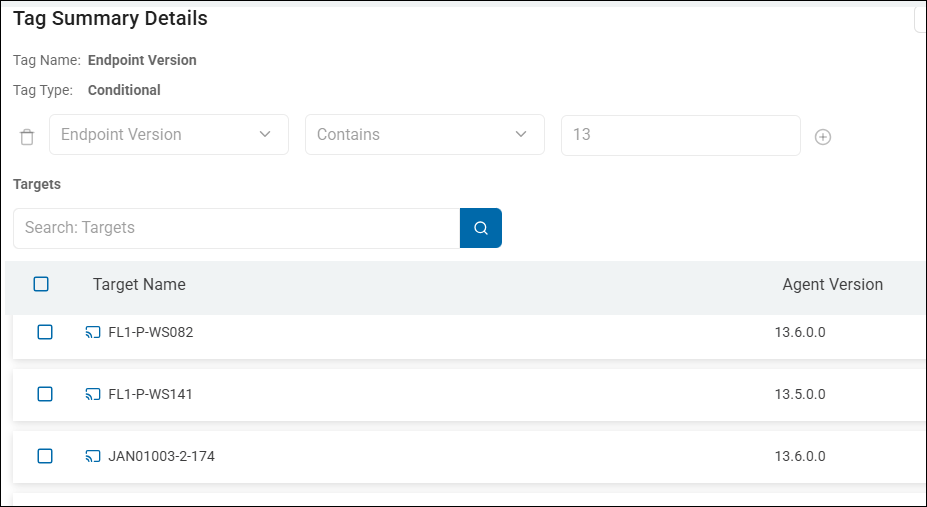
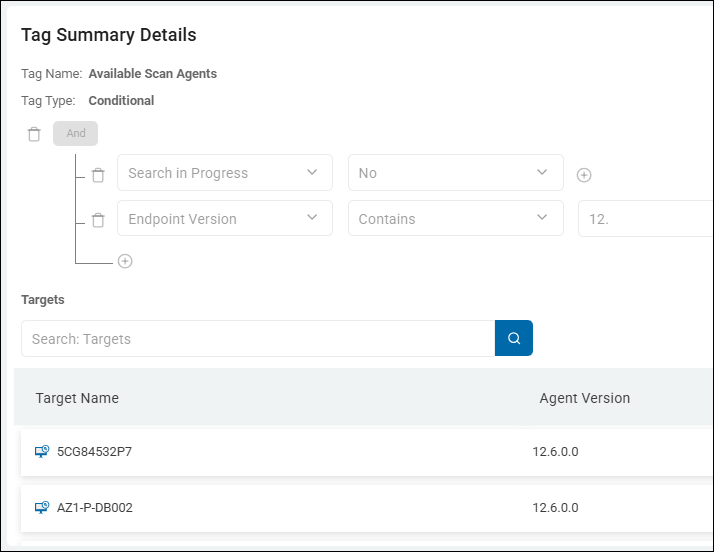
A Conditional Tag that uses "Endpoint Version" as a filter is used to group endpoints based on the specific version of the Spirion Agent software currently installed on the machine.
Endpoint Version v13.x Example
Endpoint Version combined with Search In Progress Example
What it does
This filter identifies the build number of the Agent (for example, 12.1.5 or 13.0.2). It enables you to track your progress during software upgrades and identify machines that are running outdated or unsupported versions of the product.
- Condition: Endpoint Version Does Not Contain
13. - Action: The system applies your defined Tag Name (for example,
UPDATE: LEGACY_V12_AGENTS) to those endpoints.
Why would you use this?
This is a "Lifecycle Management" filter used to ensure your fleet is up-to-date and secure.
- Tracking Upgrade Progress:
- When you release a new version of the Spirion Agent, you can create a tag for the new version (for example,
VERSION: 13.1_DEPLOYED). - As machines upgrade and check in, they will automatically move into this Tag. You can watch the "Targets" count for this Tag grow as your deployment succeeds.
- When you release a new version of the Spirion Agent, you can create a tag for the new version (for example,
- Identifying Vulnerable/Outdated Agents:
- If a specific older version of the agent has a known bug or is missing a key feature (like a new SearchAPI capability), you can Tag those machines specifically to prioritize them for an immediate update.
- Example:
Endpoint VersionStarts With11.-> Tag:CRITICAL: UNSUPPORTED_VERSION.
- Architectural Troubleshooting:
- As an SDP Admin, you know that newer versions of the Windows Agent have optimized Postgres queueing logic. If you see performance issues, you can use this filter to see if the problems are isolated to machines running an older build.
- Feature Compatibility:
- Some newer Data Types or remediation actions only work on the latest Agent versions. By tagging machines by version, you can ensure you target only "compatible" machines with your most advanced search policies.
Example Rule: "The Upgrade Watchlist"
- Tag Name:
NEEDS UPDATE: BELOW V13 - Filter:
Endpoint VersionDoes Not Start With13. - Business Value: This provides a real-time "To-Do" list for your desktop engineering team. Any machine with this tag is running an older architecture and needs to be targeted by your software distribution tool (like SCCM or Jamf) for an upgrade.
Summary of Logic
This filter says: "Show me assets based on the software version number reported by the agent during its last check-in."
Tip: When using this filter, it is often best to use the "Contains" or "Starts With" operators rather than "Equals." This is because minor build numbers (like 13.0.1.45) can change frequently, but you usually only care about the major or minor version (like 13.0).
Last Poll Time
A Conditional Tag that uses "Last Poll Time" as a filter is used to group endpoints based on how recently the Agent communicated (checked in) with the console.
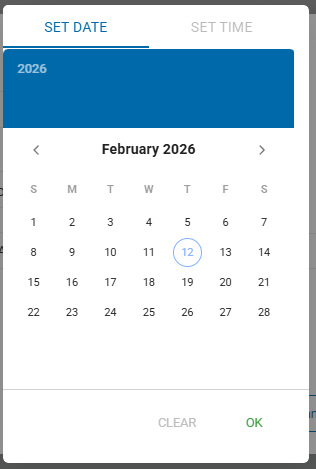
What it does
This filter tracks the "heartbeat" of the Agent. Every time an Agent "polls" the console to check for new policies or to report its status, the Last Poll Time is updated. This filter enables you to identify machines that are currently active versus those that have gone "dark."
- Condition: Last Poll Time Older Than
30 Days - Action: The system applies your defined Tag Name (for example,
STATUS: STALE_AGENT) to those endpoints.
Why would you use this?
This is the primary filter for Console Hygiene and Deployment Health.
- Identifying "Ghost" Assets:
- In any large organization, machines are retired, wiped, or lost. If a machine hasn't polled in 60 or 90 days, it is likely no longer in service. Tagging these as
DECOMMISSIONED?enables you to clean up your license count by deleting them from the console.
- In any large organization, machines are retired, wiped, or lost. If a machine hasn't polled in 60 or 90 days, it is likely no longer in service. Tagging these as
- Troubleshooting Communication Issues:
- If you know a specific department is supposed to be online, but their machines show a Last Poll Time of
Older Than 7 Days, you know there is a network issue, a blocked port, or the Spirion Agent service has been disabled on those machines.
- If you know a specific department is supposed to be online, but their machines show a Last Poll Time of
- Verifying Policy Compliance:
- If you have a policy that requires machines to scan weekly, but the Last Poll Time is 14 days ago, you know for a fact that the machine hasn't received any new instructions or reported any new risks in 2 weeks.
- Differentiating from "Search Date/Time":
- Last Poll Time: Tells you if the Agent is alive and talking.
- Search Date/Time: Tells you if the Agent is actually working (scanning).
- A machine can poll every hour (alive) but not have scanned for a month (not working). Using both filters together helps you pinpoint exactly where a process is breaking down.
Example Rule: "The Abandoned Agent"
- Tag Name:
HEALTH: OFFLINE > 14 DAYS - Filter:
Last Poll TimeOlder Than14 Days - Business Value: This creates an "Action List" for your IT support team. These are machines that are still "Active" in your license count but haven't checked in for 2 weeks. They need to be investigated to see if the agent was uninstalled or if the machine is sitting in a drawer.
Example: "HYGIENE: Stale Agents (>30 Days)"
A common and highly effective Last Poll Time example is used for "Console Hygiene and License Recovery." This rule identifies "Ghost Agents"—machines that are still taking up a license in your console but haven't communicated with the server in a long time.
This rule flags machines that have likely been decommissioned, wiped, or are sitting in a drawer. It enables you to identify assets that are no longer providing security value so you can remove them and reclaim their licenses.
- Tag Name:
HYGIENE: STALE (>30 DAYS) - Tag Type:
Conditional - Filter Logic:
Row | Field | Operator | Value |
|---|---|---|---|
1 | Last Poll Time | Older Than |
|
Why this rule is valuable in a real environment:
- License Management:
- Spirion licenses are typically per-endpoint. If a machine hasn't polled in 30 days, it’s likely gone. By tagging these machines, you can easily select them all and "Delete" them from the console, instantly freeing up those licenses for new employees.
- Identifying "Broken" Agents:
- If a machine is known to be "Active" (for example, the user is still logging into email) but the Last Poll Time is 30 days ago, you know the Spirion Agent service is broken, uninstalled, or blocked by a firewall. This Tag creates a "Repair List" for your IT helpdesk.
- Audit Accuracy:
- When you run a report for your CISO, you don't want to include 500 "dead" machines that haven't checked in for six months. Using this Tag enables you to exclude stale machines from your compliance reports, giving you a much more accurate "Risk Score" for your actual active fleet.
Advanced "AND" Version (The "Critical Failure" View):
You can combine Last Poll Time with Unprotected Quantity to find machines that are "High Risk" but have gone "Dark."
Row | Field | Operator | Value |
|---|---|---|---|
1 | Last Poll Time | Older Than |
|
AND 2 | Unprotected Quantity | Greater Than |
|
- Tag Name:
CRITICAL: DARK & AT RISK - The Result: This identifies a machine that we know has sensitive data on it, but it hasn't checked in for 2 weeks. This is a major security gap—we can't remediate the data or verify its status because the agent isn't talking to us.
Summary of Logic
This rule says: "Find the machines that have stopped talking to the console so we can decide if they are 'dead' or 'broken'."
Tip: In the Endpoint Management screen, you can filter by this tag and then use the "Bulk Action" menu to delete these endpoints. This is the fastest way to keep your Spirion environment clean and your license counts accurate.
Summary of Last Poll Time Logic
This filter says: "Show me assets based on when they last spoke to the console."
Tip: When using Older Than, the value is typically entered in days. If you are doing a "Health Check" during a migration or upgrade, use a short window (for example, Older Than 1 Day) to see which machines failed to check back in after the update.
MAC Address
A Conditional Tag that uses "MAC Address" as a filter is used to group or identify specific endpoints based on their unique hardware network identifier.
- MAC address is a unique identifier composed of 12 hexadecimal digits.
- The most common format is 6 pairs of digits separated by either of the following:
- Colons - 00:1A:2B:3C:4D:5E
- Hyphens - 00-1A-2B-3C-4D-5E
What it does
This filter targets the physical network interface card (NIC) of the machine. Unlike an IP address, which can change every time a user moves from the office to a home network (DHCP), the MAC Address is "burned into" the hardware and remains constant.
- Condition: MAC Address Contains
00:50:56(A common prefix for VMware virtual machines). - Action: The system applies your defined Tag Name (for example,
INFRA: VIRTUAL_MACHINE) to those endpoints.
Why would you use this?
This is a "Precision" filter used for hardware-level organization and troubleshooting.
- Identifying Hardware Manufacturers (OUI):
- The first 6 characters of a MAC address (the OUI) identify the manufacturer. You can use this to group devices by brand.
- Example:
00:0C:29or00:50:56are VMware.00:17:F2is Apple. - You can create a tag
HARDWARE: APPLE_DEVICEby filtering for MAC addresses starting with Apple's OUI.
- Handling Duplicate Names:
- In large environments, you might have two laptops named "LAPTOP-01" (perhaps from different domains or departments). The MAC Address filter allows you to create a specific tag for just one of those machines to track it individually without confusing it with the other.
- Tracking "Ghost" Assets in the Console:
- If you see multiple entries in your Endpoint Management list that look like the same machine, you can check their MAC addresses. If they share the same MAC address, you know it's the same physical hardware that has checked in under different names or IP addresses.
- Network Segmenting (Legacy):
- If your organization uses specific hardware for specific tasks (for example, all "Secure Lab" computers use a specific brand of high-speed fiber NIC), you can tag them based on that NIC's MAC prefix.
Example: "Virtual Infrastructure Grouping"
- Tag Name:
TYPE: VIRTUAL_SERVER - Filter:
MAC AddressStarts With00:50:56 - Business Value: This automatically tags all your VMware virtual servers. This is helpful because virtual servers often have different performance profiles than physical hardware. You might want to assign them a "Throttled" search policy so they don't overwhelm the host's CPU.
A practical MAC Address example is used for "Hardware-Level Infrastructure Tagging." This is particularly useful for identifying Virtual Machines (VMs) or specific Hardware Manufacturers across your environment, regardless of their current IP address or computer name.
Example: "INFRA: VMware Virtual Servers"
In many environments, Virtual Machines (VMs) have different performance requirements than physical laptops. You might want to tag all VMs so you can assign them a "Throttled" search policy that doesn't "stun" the host server's CPU.
- Tag Name:
INFRA: VMWARE VIRTUAL ASSETS - Tag Type:
Conditional - Filter Logic:
Row | Field | Operator | Value |
|---|---|---|---|
1 | MAC Address | Starts With |
|
OR 2 | MAC Address | Starts With |
|
Why this is a "Real" MAC Address Example
- The OUI (Organizationally Unique Identifier): The first six characters of a MAC address are assigned to specific manufacturers.
00:50:56and00:0C:29are the standard prefixes for VMware. By filtering for these, you are identifying the hardware "DNA" of the machine. - Persistence: If a server is moved from one VLAN to another, its IP address will change, but its MAC Address stays the same. This tag ensures the machine stays in the "Virtual Assets" group no matter where it moves in the data center.
- Policy Optimization: Once this tag is applied, you can target these machines with a policy that uses Lower CPU Priority. This prevents a "boot storm" or "scan storm" where 50 VMs on the same physical host all try to scan at 100% CPU at the same time.
The Result in the Console
- Server A (Physical Dell Server): NOT TAGGED. (MAC starts with
14:18:77—Dell's OUI). - Server B (VMware Virtual Machine): TAGGED. (MAC starts with
00:50:56). - Laptop C (MacBook Pro): NOT TAGGED. (MAC starts with
AC:87:A3—Apple's OUI).
Business Value
This enables the IT Infrastructure team to maintain a "clean" inventory. They can quickly see exactly how many Spirion agents are running on virtual infrastructure versus physical hardware. It also helps in License Management, as virtual machines are often spun up and down more frequently than physical assets.
Tip: You can also use this to find Apple/Mac devices if your "Platform Type" data is inconsistent. Just use the Apple OUI (for example, Starts With: 00:17:F2) to identify the hardware directly.
Summary of MAC Address Logic
This filter says: "Show me assets that have a specific Physical Hardware ID, regardless of what their name or IP address is today."
Tip: MAC addresses in the Spirion console are typically stored in the format XX:XX:XX:XX:XX:XX. When using the Contains or Starts With operator, ensure you include the colons if you are looking for a specific segment, or just the alphanumeric characters if you are looking for a general pattern.
Match Quantity
A Conditional Tag that uses "Match Quantity" as a filter is used to group endpoints based on the total number of sensitive data findings discovered on that machine, regardless of whether those findings have been remediated (shredded/redacted) or not.
What it does
This filter looks at the gross total of matches. It is a "Volume" metric that tells you how much sensitive data Spirion has ever found on that endpoint during its most recent successful scans.
- Condition: Match Quantity Greater Than
5000 - Action: The system applies your defined Tag Name (e.g.,
VOLUME: MASSIVE DATASET) to that endpoint.
Why would you use this?
While "Unprotected Quantity" tells you about current risk, Match Quantity tells you about the historical footprint and the "heaviness" of the data on that machine.
- Identifying "Data Hoarders":
- Some users or servers naturally accumulate massive amounts of data (for example, a legacy file server). Even if you have "Protected" (encrypted or redacted) most of it, the Match Quantity remains high, letting you know that this machine is a major "Data Hub" for the organization.
- Capacity Planning:
- If an endpoint has a Match Quantity of 1,000,000, you know that any future scans or "Gather Data" tasks on that machine will take significantly longer and consume more database space than a machine with a Match Quantity of 10.
- Verifying "Clean" Machines:
- Condition: Match Quantity Equals
0. - Tag Name:
AUDIT: PRISTINE ASSET. - Result: This identifies machines that have been scanned and were found to be completely "clean" of any sensitive data types defined in your policy.
- Condition: Match Quantity Equals
- Distinguishing from "Unprotected Quantity":
- If a machine has Match Quantity: 1000 and Unprotected Quantity: 0, it means Spirion found 1,000 items, but they have all been secured.
- If you filtered only by "Unprotected," this machine would disappear from your radar. By filtering by Match Quantity, you can still keep an eye on it as a "High-Traffic" area.
Example: "High-Volume Data Source"
- Tag Name:
DATA_HUB: >10k MATCHES - Filter:
Match Quantity>10000 - Business Value: This flags machines that are "Target Rich Environments." Even if the data is currently protected, these are the machines you want to prioritize for advanced security controls (like DLP or stricter access logging) because they contain the highest density of sensitive information.
Example: "ARCHIVE: High-Density Repository"
A real-world Match Quantity example is used to identify "High-Density Data Repositories." This rule helps you find machines that act as "data magnets"—places where sensitive information naturally accumulates in large volumes, even if that data is currently being managed or protected.
This rule identifies any asset that has crossed a massive threshold of total discovery. It doesn't care if the data is "Unprotected" or "Remediated"; it only cares about the total footprint.
- Tag Name:
ARCHIVE: HIGH-DENSITY (>50k) - Tag Type:
Conditional - Filter Logic:
- Field:
Match Quantity - Operator:
Greater Than - Value:
50000
- Field:
- High Level Tag:
Checked
Why this rule is valuable in a real environment:
- Identifying "Shadow" File Servers:
- Sometimes a regular workstation (like one in the Accounting or HR department) starts showing a Match Quantity of 50,000+. This is a red flag that the user has likely created an unauthorized "departmental share" on their local drive, turning their laptop into a makeshift file server.
- Database & Performance Planning:
- As a Spirion SME, you know that every match discovered must be "shipped" back to the console via the
shipper_queue. A machine with 50,000+ matches puts a much higher load on the Ingress and Postgres services. Tagging these machines allows you to schedule their scans for "Off-Peak" hours so they don't slow down the rest of the environment.
- As a Spirion SME, you know that every match discovered must be "shipped" back to the console via the
- The "Clean Slate" Audit:
- Conversely, you can use Match Quantity = 0 to find your "Gold Standard" machines. If a machine has been scanned 10 times and the Match Quantity is still 0, you can confidently tag it as
COMPLIANCE: CLEAN BASELINE.
- Conversely, you can use Match Quantity = 0 to find your "Gold Standard" machines. If a machine has been scanned 10 times and the Match Quantity is still 0, you can confidently tag it as
Advanced "AND" Version (The "Managed Risk" View):
You can combine Match Quantity with Unprotected Quantity to find machines that have a lot of data, but where your security team has successfully "won the battle" by protecting it all.
Row | Field | Operator | Value |
|---|---|---|---|
1 | Match Quantity | Greater Than |
|
AND 2 | Unprotected Quantity | Equals |
|
- Tag Name:
SUCCESS: FULLY REMEDIATED HUB - The Result: This identifies a machine that used to be a huge risk (10,000+ items) but is now 100% clean. This is a great "Success Metric" to show leadership: "We found 10,000 risks on this server and we have successfully neutralized every single one."
Summary of Rule Logic:
This rule says: "Find the machines that have the heaviest load of sensitive data, regardless of its current security status."
Tip: If you see a machine where Match Quantity is very high but Unprotected Quantity is low, it means your Playbooks or manual remediation efforts are working perfectly. If both numbers are high, you have a "Critical Exposure" that needs immediate attention.
Summary of Match Quantity Logic
This filter says: "Show me assets based on the total volume of sensitive items discovered, including both secured and unsecured data."
Tip: If you are trying to measure current risk, use Unprotected Quantity. If you are trying to measure total discovery effort or data density, use Match Quantity.
Number of Searches
A Conditional Tag that uses "Number of Searches" as a filter is used to group endpoints based on their historical scan activity.
What it does
This filter tracks the cumulative count of successful searches an agent has completed since it was first registered in the console. It enables you to identify assets based on how "active" or "experienced" they are within your Spirion environment.
- Condition: Number of Searches Equals
0 - Action: The system applies your defined Tag Name (e.g.,
NEW_AGENT: NEVER_SCANNED) to any endpoint that has checked in but has not yet finished its first task.
Why would you use this?
This is an operational health filter. It helps you find gaps in your deployment or identify "stagnant" assets.
- Identifying Deployment Gaps:
- Condition: Number of Searches = 0.
- Tag Name:
ACTION_REQUIRED: NO_BASELINE. - Result: This flags machines where the agent is installed, but for some reason (policy error, user cancellation, or power-off), it has never successfully completed a scan.
- Identifying "Stale" or "Inactive" Assets:
- Condition: Number of Searches < 5 (combined with an "Agent Age" or "Last Check-in" filter).
- Result: This helps you find machines that were provisioned months ago but have only ever scanned a few times, suggesting they are rarely used or the agent is being frequently disabled.
- Verifying Policy Delivery:
- If you just pushed a new "Weekly Scan" policy to 1,000 machines, you can use this filter to see whose count is increasing. If a group of machines stays at "Number of Searches: 12" for three weeks, you know they aren't executing the new weekly task.
- Testing and QA:
- When testing a new search configuration, you can use this to find "Fresh" machines (Searches = 0) to ensure you are getting a clean baseline result without any historical "noise."
Example: "The First-Timer Alert"
- Tag Name:
STATUS: INITIAL_SCAN_PENDING - Filter:
Number of Searches=0 - Business Value: This is your "To-Do" list. In a perfectly managed environment, this Tag should be empty. If it has 50 machines in it, you have 50 machines that are currently providing zero visibility into your data risk.
Example: "Operational Gap: Never Scanned"
A concrete example of the Number of Searches filter is used to identify "Dark Assets"—machines that have the Spirion Agent installed and are communicating with the console, but have never actually performed a scan.
This rule is a critical health check for any Spirion administrator. It identifies endpoints that are "online" but are providing zero risk visibility because they haven't completed a single search.
- Tag Name:
HEALTH: NEVER SCANNED - Tag Type:
Conditional - Filter Logic:
- Field:
Number of Searches - Operator:
Equals(or=) - Value:
0
- Field:
- High Level Tag:
Checked(to make it visible on the main dashboard)
Why this rule is valuable in a real environment
- Identifying "Ghost" Installs:
- Often, an IT team will "mass-deploy" the Spirion agent via SCCM or Jamf. The agents check in (so they appear in your list), but if no policy was assigned to that group, they will sit at
0searches indefinitely. This tag flags those machines so you can assign them a policy.
- Often, an IT team will "mass-deploy" the Spirion agent via SCCM or Jamf. The agents check in (so they appear in your list), but if no policy was assigned to that group, they will sit at
- Troubleshooting "Stuck" Agents:
- If a machine has been in the console for 30 days but still has
0searches, it likely has a local issue (for example, thejob_queueis blocked, the service doesn't have permissions to the drive, or the user keeps cancelling the scan).
- If a machine has been in the console for 30 days but still has
- Audit Readiness:
- During an audit, you might be asked: "Are you scanning 100% of your laptops?" If you have 50 machines with the
HEALTH: NEVER SCANNEDtag, you can proactively address them before the auditor finds them.
- During an audit, you might be asked: "Are you scanning 100% of your laptops?" If you have 50 machines with the
Advanced "AND" Version (The "Stagnant" Agent)
You can make this even more powerful by combining it with the age of the agent. This filters out machines that were just installed today and focuses on the ones that have been broken for a while.
Row | Field | Operator | Value |
|---|---|---|---|
1 | Number of Searches | Equals |
|
AND 2 | Created Date | Older Than |
|
The Result: This Tag appears only on machines that have been in your system for over a week but still haven't managed to finish a single scan. This is a "Red Flag" for your support team to investigate.
Summary of Logic
This rule says: "Find the machines that are talking to us, but aren't actually doing any work yet."
Tip: Once you've identified these machines, you can use the "Bulk Action" feature in the Endpoint Management view to force a "Search Now" command specifically to the machines carrying this tag.
Summary of Number of Searches Logic
This filter says: "Show me assets based on how many times they have successfully executed a search policy."
Tip: Be careful—this count is cumulative. It does not reset when you change policies. If you want to see if a machine has scanned recently, you should use the Search Date/Time filter instead. Use Number of Searches specifically to find machines that are "Brand New" (0) or "Highly Active" (High Number).
Platform Type
On the Tag Management page, a Conditional Tag that uses "Platform Type" as a filter is used to group endpoints based on their operating system or target environment.
What it does
This filter identifies the underlying technology of the endpoint. It enables you to separate your fleet into logical groups based on whether they are Windows machines, Macs, Linux servers, or cloud-based Targets.
- Condition: Platform Type Contains
Windows - Action: The system applies your defined Tag Name (for example,
OS: WINDOWS_FLEET) to all matching endpoints.
Why would you use this?
This is a fundamental "Structural" filter used to organize your console and target specific policies or reports.
- OS-Specific Policy Targeting:
- Windows agents and Mac/Linux agents often require different search configurations (for example, different file paths or registry vs. plist settings).
- You can create a Tag for
PLATFORM: MACand then use that tag as the "Target" for your Mac-specific search policies.
- Troubleshooting and Health Monitoring:
- If you notice a spike in "Failed Scans," you can filter by Platform Type to see if the issue is isolated to a specific OS (for example, "Are only our Linux servers failing?").
- Architecture-Aware Reporting:
- As a Spirion SME, you know that Windows agents use the Postgres-based queueing model (
job_queue/shipper_queue), while Mac/Linux agents use a direct policy-to-execution workflow with SQLite. - Using this filter helps you group assets so you can monitor them according to their specific architectural behavior.
- As a Spirion SME, you know that Windows agents use the Postgres-based queueing model (
- Cloud vs. On-Prem Separation:
- You can use this to distinguish between physical endpoints (Laptops/Desktops) and cloud-based Targets (like OneDrive or SharePoint) if they are represented as endpoints in your console.
Common Platform Values
When you click the ellipsis picker for this filter, you will typically see options such as the following:
- Windows
- Macintosh (or macOS)
- Linux
- Cloud (for certain SaaS/Cloud connectors)
Summary of Logic
This filter says: "Show me all assets that are running on a specific Operating System or Environment Type."
Tip: Always create high-level Tags for your major platforms (Windows, Mac, Linux) first. These become the "building blocks" for almost every other advanced rule or report you will build in the future.
Policies
A Conditional Tag that uses "Policies" as a filter is used to group endpoints based on the Search Policies that have been assigned to them.
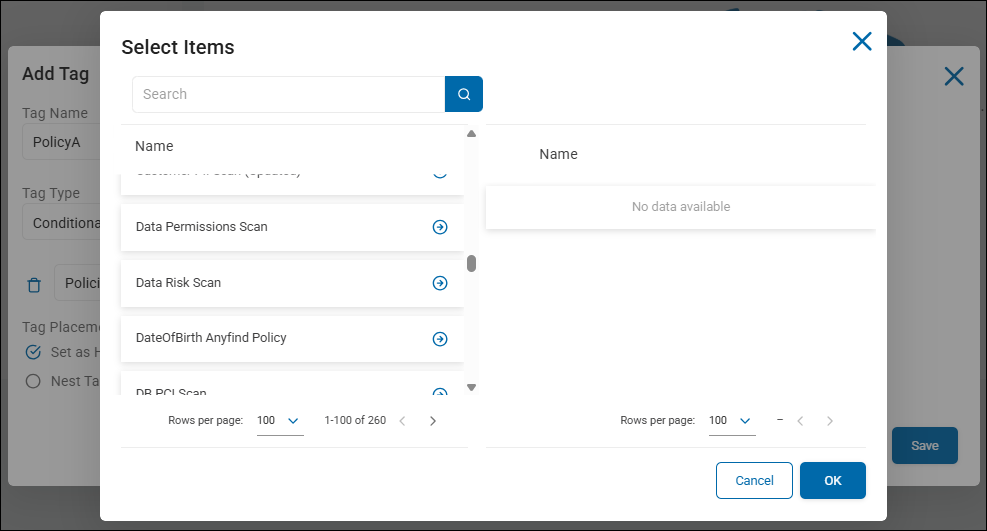
What it does
This filter looks at the configuration of your Agents to see which specific policies (sets of search rules, data types, and locations) they are currently carrying. It enables you to organize your environment based on the type of work the Agents are assigned to do.
- Condition: Policies Contains
PCI_Compliance_Policy - Action: The system applies your defined Tag Name (e.g.,
PCI_SCOPE_ASSETS) to any endpoint that has that specific policy assigned.
Why would you use this?
This is primarily used for governance and scope management. It helps you verify that your security policies are being applied to the correct machines.
- Verifying Compliance Scope:
- If you have a policy specifically for "HIPAA Data," you can create a tag called
HIPAA_MANAGED_DEVICES. - By looking at this Tag, you can quickly see if any machines are missing the policy that should have it, or if machines have it that shouldn't.
- If you have a policy specifically for "HIPAA Data," you can create a tag called
- Simplifying Reporting:
- Instead of running a report on "Policy A, Policy B, and Policy C," you can create a single High-Level Tag called
FINANCIAL_AUDIT_GROUPthat includes any endpoint containing any of those three policies.
- Instead of running a report on "Policy A, Policy B, and Policy C," you can create a single High-Level Tag called
- Identifying "Unmanaged" or "Default" Agents:
- Condition: Policies Does Not Contain
Corporate_Standard_Search. - Tag Name:
POLICY_EXCEPTION_REQUIRED. - Result: This flags any Agent that is running a non-standard or "rogue" configuration, enabling you to bring them back into compliance.
- Condition: Policies Does Not Contain
- Cross-Referencing with Results:
- You can combine this with other filters. For example: "Show me endpoints that have the 'Executive Search Policy' AND have an 'Unprotected Quantity > 0'." This highlights high-risk findings specifically within your most sensitive policy group.
How it works in the UI
When you select "Policies" as the filter, you typically click an ellipsis (...) to open a picker window. This window lists all the policies currently defined in your Spirion console. You check the boxes for the policies you want to include in the rule.
Can Policies filter multiple policies?
Yes, the Policies filter can absolutely handle multiple policies. In the Spirion Tag Management interface, this is handled through a multi-select picker.
How it works in the UI
- Select "Policies" from the first dropdown.
- Select "Contains" (or "Does Not Contain") as your operator.
- Click the Ellipsis (...) in the value field. This opens a "Select Items" window that lists every policy currently defined in your console.
- Check multiple boxes: You can check as many policies as you need.
The Logic (OR Logic)
When you select multiple policies in that single filter line, the system uses OR logic.
- Example: If you select
PCI_Policy,HIPAA_Policy, andGDPR_Policy, the tag will be applied to an endpoint if it has any one of those policies assigned to it.
Example Use Case: "Regulatory Scope" Tag
If you want to create a single dashboard view for all "High-Compliance" machines, you would create one tag:
- Tag Name:
COMPLIANCE_SCOPE_TOTAL - Filter: Policies Contains
[PCI_Policy, HIPAA_Policy, SOX_Policy] - Result: Any machine that is being scanned for PCI, HIPAA, OR SOX will show up under this one master tag.
Advanced Tip: Combining with AND Logic
If you need to find endpoints that have two specific policies at the same time (e.g., they must have both the Workstation_Standard AND the Executive_Addon), you would add two separate filter lines:
- Line 1: Policies Contains
Workstation_Standard - Line 2: Policies Contains
Executive_Addon - Because these are on separate lines in the Tag Management UI, the system treats them as an AND condition.
Use the ellipsis picker to select multiple policies for "Any of these" (OR) logic, or use multiple filter lines to require "All of these" (AND) logic.
Example: "Executive Compliance Group"
A concrete example of a Policies filter is used to identify and group "Executive Assets" to ensure they are being scanned with a more rigorous set of rules than the rest of the company.
In this scenario, your organization has two special policies:
- One for the "C-Suite"
- One for "Legal/Finance"
You want a single Tag to track all these high-priority machines.
- Tag Name:
SCOPE: EXECUTIVE & LEGAL - Tag Type:
Conditional - Filter Logic:
- Field:
Policies - Operator:
Contains - Value:
[Executive_Deep_Scan, Legal_Retention_Policy](Selected via the ellipsis picker)
- Field:
- High Level Tag:
Checked
Why this rule is valuable
- Scope Validation: You can quickly look at the Data Asset Inventory and filter by this tag. If you see a laptop belonging to the "Chief Financial Officer" that doesn't have this tag, you immediately know they are missing the required security policies.
- Targeted Reporting: When the Board of Directors asks for a risk report, you don't have to manually pick out names. You simply run a report where Tag Contains
SCOPE: EXECUTIVE & LEGAL. This ensures the report only includes the most sensitive assets. - Dynamic Updates: If you create a new policy next month called
Board_Member_Policy, you simply edit this tag and add the new policy to the list. Every endpoint with that new policy will automatically get the tag without you having to touch each machine record. - Exception Handling: You can create a "Negative" version of this rule to find gaps:
- Filter: Policies Does Not Contain
Corporate_Standard. - Tag Name:
UNMANAGED_CONFIG. - Result: This flags any machine that is "off the grid" and not running your standard corporate search rules.
- Filter: Policies Does Not Contain
Summary of Logic: This rule says: "Find every endpoint that has been assigned either the Executive policy or the Legal policy and group them together for easy monitoring."
Tip: This is the best way to manage "Policy Drift." By tagging machines based on their assigned policies, you can easily spot if a group of machines was accidentally moved into a "Default" or "Testing" group during a console migration or update.
Example Rule: "High-Risk Legacy Workstations"
This rule identifies machines that are dangerous because they are running an outdated Agent AND they have active sensitive data on them.
- Tag Name:
CRITICAL: VULNERABLE & EXPOSED - Tag Type:
Conditional - Filter Logic (Row 1):
- Field:
Endpoint Version - Operator:
Does Not Contain - Value:
13.(This finds all old v11 or v12 agents)
- Field:
- AND (Row 2):
- Field:
Unprotected Quantity - Operator:
Greater Than - Value:
0(This ensures the machine actually has a risk)
- Field:
How this behaves differently than OR logic:
Logic Type | Requirement | Result |
|---|---|---|
OR Logic | Match any row. | A machine with v11 agent (but 0 results) WOULD be tagged. |
AND Logic | Match every row. | A machine with v11 agent (but 0 results) WOULD NOT be tagged. |
Why use AND logic for this?
If you used OR logic, your list would be cluttered with machines that are just "old" but clean, or machines that are "risky" but already on the latest version. By using AND logic, you create a "Laser-Focused" list of your absolute highest priority targets for remediation.
Another Common AND Example: "Specific Policy Audit"
If you want to verify that a specific department is actually running their assigned scan:
- Row 1:
Endpoint NameContainsFIN-(Finance Dept laptops) - AND Row 2:
PoliciesDoes Not ContainFinance_Deep_Scan - Tag Name:
AUDIT: MISSING DEPT POLICY - Result: This tags only those Finance laptops that are missing their specific required policy. It ignores Marketing laptops and it ignores Finance laptops that are already correctly configured.
Tip: When building AND rules, always start with the most "inclusive" filter (like Endpoint Name) and then "narrow it down" with the more specific filters (like Version or Quantity). This makes the "Targets" preview at the bottom of the page easier to verify.
Summary: The "Policies" filter enables you to create organizational groups based on Agent configuration. It answers the question: "Which of my assets are currently tasked with searching for [X] type of data?"
Protected Quantity
A Conditional Tag that uses "Protected Quantity" as a filter is used to identify endpoints based on the volume of sensitive data that has been successfully remediated or secured. "Protected" sensitive data matches have at least one of the following actions applied to them:
- Quarantine, Redact, Shred, Permissions/Restrict Access
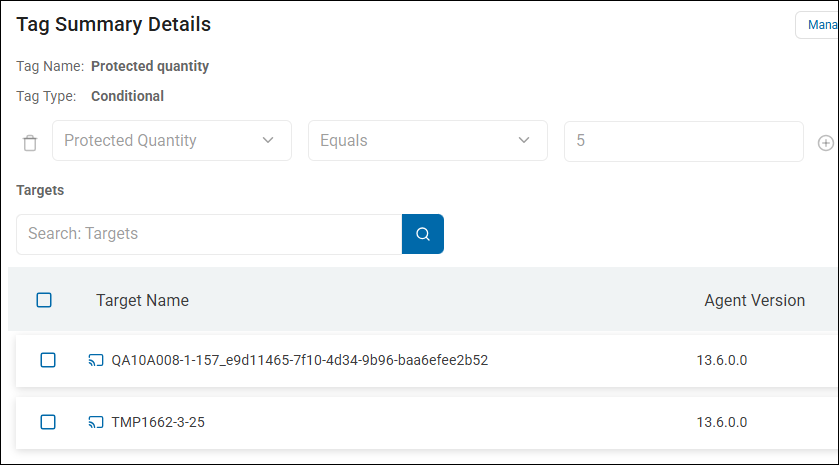
What it does
This filter tracks the count of sensitive matches that have had a "Protection" action applied to them (such as Shred, Redact, or Encrypt). It enables you to group assets based on how much data has been "saved" or "secured" by your security team.
- Condition: Protected Quantity > 100
- Action: The system applies your defined Tag Name (for example,
REMEDIATION_SUCCESS) to any endpoint where at least 100 sensitive items have been protected.
Why would you use this?
This is a success metric filter. While "Unprotected Quantity" shows you the risk, "Protected Quantity" shows you the value of your security program.
- Gamification and Recognition:
- Condition: Protected Quantity > 500.
- Tag Name:
SECURITY_CHAMPION. - Result: You can identify users or departments that are actively cleaning up their data. This can be used for internal rewards or to highlight "good behavior" in security reports.
- Verifying Automated Playbooks:
- If you have an automated Playbook that shreds old SSNs, you can use this Tag to verify it's working. If an endpoint has a high
Protected Quantity, you know the Playbook is successfully finding and destroying data.
- If you have an automated Playbook that shreds old SSNs, you can use this Tag to verify it's working. If an endpoint has a high
- ROI Reporting for Leadership:
- Condition: Protected Quantity > 0.
- Tag Name:
ACTIVE_REMEDIATION_ZONE. - Result: This creates a group of all assets where Spirion has actively prevented a potential data breach. You can report to leadership: "We have successfully protected data on 450 endpoints this month."
- Distinguishing "Clean" from "Cleaned":
- An endpoint with 0 unprotected items might have always been clean.
- An endpoint with 0 unprotected items but 1,000 Protected items was once very risky but has been successfully remediated. This Tag helps you tell that story.
Example: High-Impact Remedation
A concrete example of a Protected Quantity rule is used to track the effectiveness of a "Data Cleanup Campaign" (for example, a project to shred all old credit card numbers).
This rule identifies endpoints where a significant amount of sensitive data has been successfully secured, proving that the security team (or an automated playbook) has significantly reduced the organization's risk.
- Tag Name:
REMEDIATION: HIGH IMPACT (>1000) - Tag Type:
Conditional - Filter Logic:
- Field:
Protected Quantity - Operator:
Greater Than(or>) - Value:
1000
- Field:
- High Level Tag:
Checked
How this rule behaves in your environment:
- The Scenario: An employee has a folder full of old spreadsheets containing 1,200 Social Security Numbers.
- The Action: The employee (or a Spirion Playbook) runs a Shred or Redact action on those files.
- The Update: The next time the Agent reports to the console, the
Unprotected Quantityfor that machine will drop, and theProtected Quantitywill increase by 1,200. - The Result: The system sees the
Protected Quantityis now over 1,000 and automatically attaches theREMEDIATION: HIGH IMPACTtag.
Why this is valuable for a Spirion Admin:
- ROI Reporting: You can go to your Executive Dashboard and show a chart of this tag. It proves to leadership: "On these 50 machines, we didn't just find data; we successfully destroyed or secured over 1,000 sensitive items per machine."
- Identifying "Power Users": If this tag is applied to specific user workstations, it identifies employees who are actively participating in your data privacy program.
- Verifying Playbooks: If you recently deployed an automated "Auto-Shred" playbook, this tag acts as a success counter. If the number of endpoints with this tag is growing, your automation is working.
Comparison with "Unprotected Quantity":
Filter Type | What it tells you | Business Value |
|---|---|---|
Unprotected Quantity | "We have 5,000 SSNs at risk." | Risk Assessment (The "Bad" news) |
Protected Quantity | "We have secured 5,000 SSNs." | Value/Success (The "Good" news) |
Tip: Combine this with a Search Date/Time filter (for example, Protected Quantity > 100 AND Search Date/Time > [Start of Quarter]) to create a "Quarterly Cleanup Leaderboard" for different departments.
Summary of Logic
This filter says: "Show me the assets where we have taken action to secure sensitive data."
Tip: Use this filter in the Sensitive Data Heatmap to change the color of bubbles to Green. This provides a visual "Safe Zone" on your map, showing where your remediation efforts are most effective.
The AND logic example is used when an endpoint must meet multiple specific criteria simultaneously to receive the Tag. In the Spirion Tag Management UI, you create AND logic by clicking the + (plus) button to add a separate row for each condition.
Example: "High-Risk Legacy Workstations"
This rule identifies machines that are dangerous because they are running an outdated Agent AND they have active sensitive data on them.
- Tag Name:
CRITICAL: VULNERABLE & EXPOSED - Tag Type:
Conditional - Filter Logic (Row 1):
- Field:
Endpoint Version - Operator:
Does Not Contain - Value:
13.(This finds all old v11 or v12 agents)
- Field:
- AND (Row 2):
- Field:
Unprotected Quantity - Operator:
Greater Than - Value:
0(This ensures the machine actually has a risk)
- Field:
How this behaves differently than OR logic
Logic Type | Requirement | Result |
|---|---|---|
OR Logic | Match any row. | A machine with v11 agent (but 0 results) WOULD be tagged. |
AND Logic | Match every row. | A machine with v11 agent (but 0 results) WOULD NOT be tagged. |
Why use AND logic for this?
If you used OR logic, your list would be cluttered with machines that are just "old" but clean, or machines that are "risky" but already on the latest version. By using AND logic, you create a "Laser-Focused" list of your absolute highest priority targets for remediation.
Another Common AND Example: "Specific Policy Audit"
If you want to verify that a specific department is actually running their assigned scan:
- Row 1:
Endpoint NameContainsFIN-(Finance Dept laptops) - AND Row 2:
PoliciesDoes Not ContainFinance_Deep_Scan - Tag Name:
AUDIT: MISSING DEPT POLICY - Result: This only Tags Finance laptops that are missing their specific required policy. It ignores Marketing laptops and it ignores Finance laptops that are already correctly configured.
Tip: When building AND rules, always start with the most "inclusive" filter (like Endpoint Name) and then "narrow it down" with the more specific filters (like Version or Quantity). This makes the "Targets" preview at the bottom of the page easier to verify.
Search Date/Time
A Conditional Tag that uses "Search Date/Time" as a filter is used to identify endpoints based on when they last completed a scan.
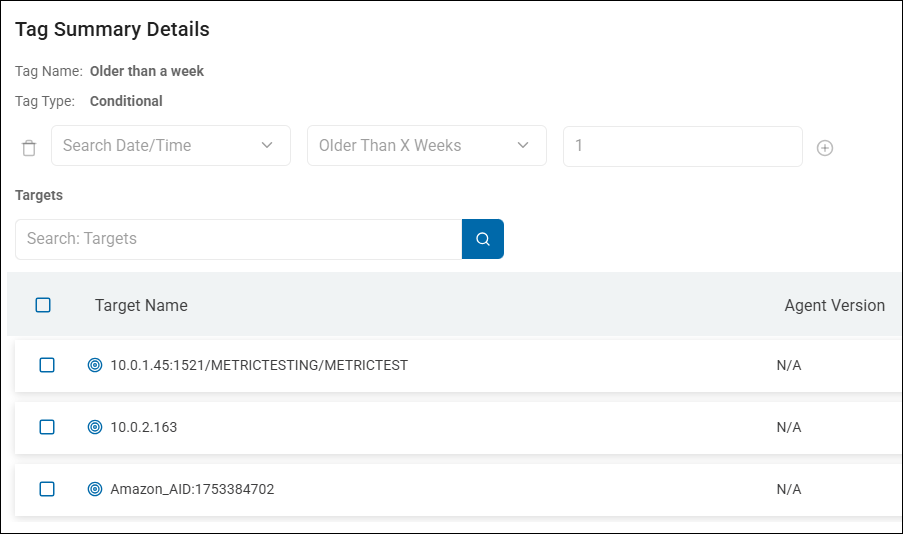
What it does
This filter looks at the timestamp of the most recent search result received from an agent. It allows you to automatically categorize endpoints based on their "freshness" or "staleness."
- Condition: Search Date/Time < [Date] (or "Older Than X Days")
- Action: The system applies your defined Tag Name (for example,
STALE_AGENT) to any endpoint that hasn't reported a scan result within that timeframe.
Practical Examples
- Identifying "Dark" Assets:
- Condition: Search Date/Time Older Than 30 Days.
- Tag Name:
OFFLINE_OR_UNMANAGED. - Result: This flags machines that may have been decommissioned, have a broken Agent service, or are simply not being scanned according to policy.
- Compliance Reporting (Audit Readiness):
- Condition: Search Date/Time Within Last 7 Days.
- Tag Name:
AUDIT_READY. - Result: You can quickly generate a report of all endpoints that have a "fresh" scan, proving to auditors that your sensitive data discovery is current.
- Post-Incident Validation:
- Condition: Search Date/Time After [Date of Security Incident].
- Tag Name:
POST_INCIDENT_CLEAN. - Result: After a malware outbreak or data leak, you can tag endpoints that have successfully completed a new scan after the cleanup, ensuring no residual sensitive data was left behind.
Example: Post-Remediation Validation
Another powerful way to use the Search Date/Time filter is to validate that a specific security project or "Clean-up" event was successful.
Imagine your organization had a major data leak or a "toxic" file share discovered on May 1st, 2024. You ordered all employees to run a shred/delete action. You now need a Tag that proves which machines are "Clean" based on a scan that happened after the cleanup.
- Tag Name:
PROJECT: MAY CLEANUP VERIFIED - Tag Type:
Conditional - Filter Logic:
- Field 1:
Search Date/Time - Operator:
Newer Than(or>) - Value:
2024-05-01 - AND
- Field 2:
Unprotected quantity - Operator:
= - Value:
0
- Field 1:
- High Level Tag:
Checked
Why this rule is effective
- Proof of Freshness: It ignores any "Clean" results from April. Even if a machine was clean in April, it doesn't count because the "toxic" event happened in May. The machine must have scanned after the cleanup date to get this tag.
- Proof of Remediation: By adding the
Unprotected quantity = 0condition, you are ensuring the tag applies only if the scan actually found no exposed sensitive data. - The "Gap" Report: You can now look at your Data Asset Inventory and filter for endpoints that DO NOT have this Tag. This gives you an immediate "To-Do" list of machines that either haven't scanned yet or still have sensitive data on them.
- Executive Reporting: You can put a widget on the Executive Dashboard showing a pie chart of
VERIFIEDvs.NOT VERIFIED. As the "Newer Than" scans roll in, the "Verified" slice of the pie will grow automatically.
Summary of Logic
This rule says: "Show me every machine that has successfully scanned since the cleanup started and currently has zero unprotected sensitive items."
Tip: This is the best way to handle "Audit Cycles." At the start of a new quarter, simply update the date in this rule to the first day of the quarter, and the Tag will reset for the entire Agent fleet, forcing everyone to "earn" their green status again.
Example: New Hire or Newly Provisioned
A third practical example for the Search Date/Time filter is managing "New Hire" or "Newly Provisioned" assets to ensure they receive their baseline scan within their first week of service.
"New Asset Baseline Check"
This rule identifies new computers that have been added to the Spirion console but have not yet completed their first full "Baseline" scan.
- Tag Name:
ONBOARDING: PENDING BASELINE - Tag Type:
Conditional - Filter Logic:
- Field 1:
Endpoint Version - Operator:
Contains - Value:
13.(or whatever your current standard version is) - AND
- Field 2:
Search Date/Time - Operator:
Is Empty(orOlder Than 365 Daysif "Empty" isn't an option in your UI version)
- Field 1:
- High Level Tag:
Checked
Why this rule is effective
- Visibility of "Dark" Onboarding: When IT installs the Spirion agent on a new laptop, the endpoint appears in the console immediately, but it hasn't scanned anything yet. This Tag flags those "empty" assets so they don't get lost in the crowd.
- Automated Enforcement: You can pair this Tag with a Scheduled Task. Set the task to run a "Full Discovery Scan" and target the Tag
ONBOARDING: PENDING BASELINE. - The Result: As soon as a new laptop is turned on and checks in, it receives the Tag. The next time the scheduled task runs, it sees the Tag and forces the scan.
- Automatic Success Tracking: Once that first scan completes, the
Search Date/Timeis no longer empty. The condition is broken, the Tag is automatically removed, and the asset moves into your "Managed Agent" fleet. - SLA Monitoring: If you see assets with this Tag that are more than 48 hours old, it indicates an onboarding failure (for example, the laptop is sitting in a box, or the Agent is blocked by a local firewall).
Summary of Logic
This rule says: "Find every active Agent that has never successfully reported a scan result to the console."
Tip: This is a "Burn-down" Tag. In a healthy environment, the count for this Tag should always be near zero. If it spikes, it means your deployment team is moving faster than your scanning policy, or there is a communication issue between new Agents and the Ingress server.
"Search Date/Time" Tag versus "Search In Progress" Tag
While "Search In Progress" tells you what is happening now, "Search Date/Time" tells you what happened last.
- If an Agent is currently scanning, its "Search Date/Time" will still reflect the previous completed scan until the current one finishes and ships its results to the console.
Summary: The "Search Date/Time" filter is a hygiene and compliance tool. It enables you to group endpoints by their last known activity date, making it easy to spot gaps in your scanning coverage.
Search in Progress
A Conditional Tag that uses "Search In Progress" as a filter is an operational status tag.
What it does
This filter tracks the real-time activity state of the Spirion agent on an endpoint. It allows you to automatically group and identify assets that are currently in the middle of a scanning operation.
- Condition: Search In Progress =
Yes - Action: The system applies your defined Tag Name (for example,
ACTIVE_SCANNING) to any endpoint that is currently executing a search task.
What is this Filter used for?
This is primarily used for operational visibility and performance monitoring rather than risk assessment.
- Monitoring Scan Windows: You can create a "High Level Tag" called
Currently Scanning. By looking at the Sensitive Data Heatmap or Data Asset Inventory, you can see exactly how many agents are active at any given moment. - Troubleshooting "Stuck" Agents: If an endpoint has the
ACTIVE_SCANNINGTag for an unusually long time (for example, 48 hours), it is a visual indicator that the Agent might be hung or scanning a massive compressed file. - Resource Management: You can use this Tag to identify which machines are under load. For example, you might choose to delay a software update or a secondary maintenance task if an endpoint is already tagged as having a search in progress.
- Dashboard Reporting: It helps answer the question: "How much of my environment is being actively protected right now?"
How it differs from other filters
Unlike "Unprotected quantity" (which looks at results) or "Tags" (which looks at metadata), "Search In Progress" looks at the live process state of the agent service. Once the scan completes, the condition becomes False, and the tag is automatically removed from the endpoint.
Combined with other filters
The "Search In Progress" filter is often combined with other filters using AND logic. For example, "Endpoint Version."
The Logic Breakdown
The Tag, named "Available Scan Agents," is configured to find endpoints that meet both of these criteria simultaneously:
- Search in Progress = "No": The Agent is currently idle and not performing a scan.
- Endpoint Version Contains "13.": The Agent is running a version of Spirion starting with 13 (for example, v13.5.0.0 as seen in the Target list).
Search In Progress combined with Endpoint Version
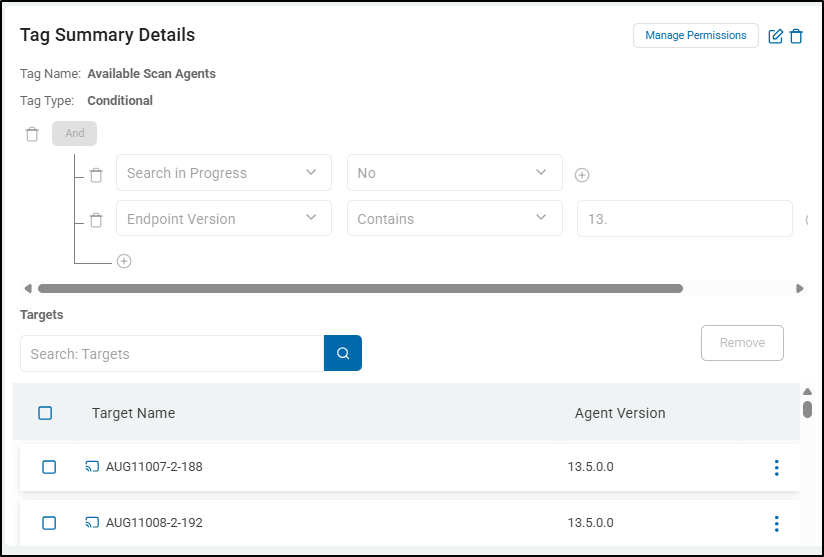
Search In Progress Combined Filters Example
The image above uses logic to identify and reveal idle v13.x Agents. As shown in the "Targets" section at the bottom, it has successfully identified endpoints like AUG11007-2-188 which are running version 13.5.0.0 and are currently not scanning any endpoints.
Tip: If an Agent in this list starts a scan, it automatically loses this Tag. If an Agent is upgraded to version 14, it also loses this tag. This makes it a perfectly dynamic "To-Do" list for administrators.
What this achieves
This specific combination is used for Change Management and Scan Scheduling. It identifies a "Ready Pool" of Agents.
- Identifying Upgrade Candidates: If you are planning to upgrade your fleet to version 14, this Tag shows you exactly which version 13 Agents are currently "safe" to upgrade because they aren't in the middle of a critical scan.
- Targeting New Scans: If you want to launch a new high-priority search, you can target this tag. This ensures you are sending the command only to Agents that are idle (won't cause a queue conflict) and on a modern version (v13+) that supports the latest search features.
- Operational Health Check: It filters out legacy/Mac/Linux Agents (v11 or v12) and Agents that are currently busy, giving you a clean list of "Available" v13.x Agents.
Summary: The "Search In Progress" filter creates a dynamic, temporary tag that identifies endpoints currently running a scan. It is a powerful tool for real-time operational oversight of your Spirion deployment.
Tags
When you select "Tags" as a filter in a Conditional Tag rule, you are performing a multi-select lookup of existing tags in the system.
What it does
This filter enables you to select one or more specific, existing Tags from a list. If an endpoint or Target is already a member of any of the Tags selected in the value field, it is automatically added to your new tag, called, for instance, "MyTag".
How it differs from "Tag Name"
While they look similar, they function differently in the UI:
- "Tag Name" (Text Search): This is a string-based search. You enter text (like "PCI"), and the system looks for any Tag that has those letters in its name. It is useful for "wildcard" matching (for example, catching
PCI_Servers,PCI_Laptops, andPCI_Cloudall at once). - "Tags" (Object Selection): This is an explicit selection. The value field contains a placeholder (
Endpoint Version, Full Log...) and an ellipsis (...). Clicking the ellipsis opens a picker window where select the exact Tags you want to include.
Why use the "Tags" filter?
This is the preferred method when you want to be precise and avoid accidental matches.
Example Scenario:
You have two tags: Finance_Team and Finance_Archive.
- If you use Tag Name Contains
Finance, both groups get pulled into your new tag. - If you use the Tags filter, you can click the ellipsis and select only
Finance_Team, ensuring the archive data is excluded.
Available Operators
- Contains
- Does Not Contain
- Is Empty
- Is Not Empty
Summary of the Image Logic
- New Tag: You are creating a tag called "MyTag".
- Condition: You are telling the system: "Look at the list of tags I've selected in this box."
- Action: If an endpoint is already in any of those selected Tags, label it as "MyTag" as well.
- Placement: Because "Set as High Level Tag" is checked, this "MyTag" Tag appears at the top level of your dashboard hierarchy, effectively acting as a "Master Group" for the specific Tags you selected.
Tag Name
When "Tag Name" is used as a filter within a Conditional Tag rule, it is performing a Tag-on-Tag (or "Nested Logic") operation.
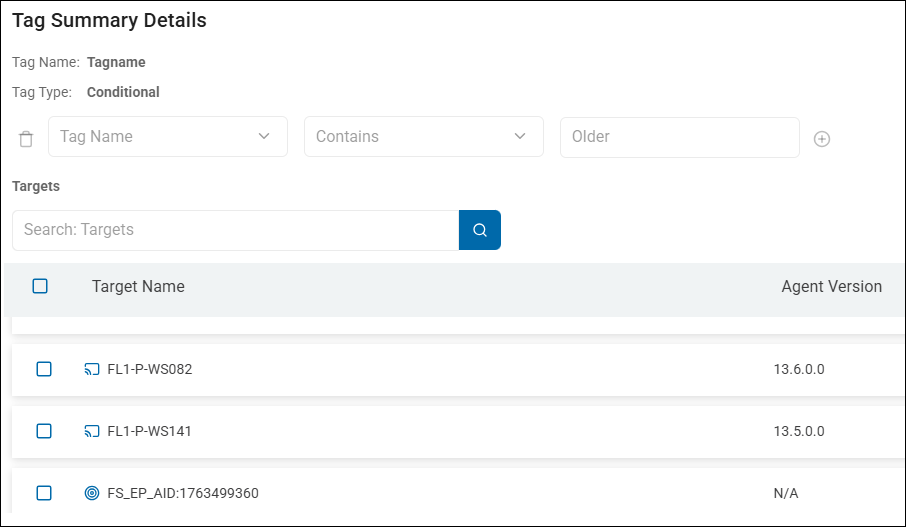
What it does
In this specific context, the rule is looking at the existing tags already assigned to an endpoint or Target. If an endpoint already has a Tag that matches your criteria, it will automatically receive the new tag you are currently creating.
How to read the rule
- The Goal: You are creating a new tag named "CCPA".
- The Condition: The system will look at all endpoints and check: "Does this endpoint already have a Tag Name that Contains [Value]?"
- The Result: If the answer is Yes, the endpoint will now also be tagged with "CCPA".
Why would you use this? (Practical Examples)
This is a powerful way to create Aggregate Tags or Hierarchical Groups without manually re-selecting every endpoint.
- Creating a "Master" Compliance Tag:
- Condition:
- Tag Name Contains
PCI
OR - Tag Name Contains
HIPAA
- Tag Name Contains
- New Tag Name:
AUDIT_SCOPE. - Result: Any endpoint that was already tagged for PCI or HIPAA is now automatically grouped under a single "Audit Scope" Tag for easier reporting.
- Regional Consolidation:
- Condition:
- Tag Name Contains
London
OR - Tag Name Contains
Paris
- Tag Name Contains
- New Tag Name:
EUROPE_OFFICES. - Result: You can manage all European endpoints as one group, even if they were originally tagged by individual city.
- Promoting Tags to "High Level":
- As seen in your image, you have "Set as High Level Tag" checked. You might use this rule to find several "low-level" or "nested" Tags and "promote" their endpoints to a major high-level category for the Executive Dashboard.
Available Operators
- Equals
- Does Not Equal
- Contains
- Does Not Contain
- Begins With
- Does Not Begin With
- Ends With
- Does Not End With
- Is Empty
- Is Not Empty
Value Input
Specify the value to be used to qualify the data.
For example, if you created a rule as follows:
- Select Tag Name from the list of filters
- Select "Contains" from the list of operators
- Enter the term "Older"
Then all Agents/Targets (endpoints) captured by tags with the term "Older" in the tag name are returned. Such Tags could include:
- Older than a week
- Older than a month
- Older than a day
Summary
When "Tag Name" appears in the dropdown of a conditional rule, it means "Look at the tags this asset already has." It enables you to build new groups based on existing organizational logic rather than searching for raw data like IP addresses or filenames.
Unprotected Quantity
In Spirion Tag Management, a conditional Tag with the action of "Unprotected quantity" is used to define a threshold for sensitive data that has not yet been remediated (for example, encrypted, redacted, or deleted).
Note that the following actions, performed on sensitive data, are not considered remediation actions:
- No Action Taken
- MIP
- Classified
What it does
This action enables you to apply a Tag to an endpoint or data set based on the volume of sensitive matches that are currently in an "unprotected" state.
- Risk Identification: It is primarily used to flag high-risk areas where sensitive data is "sitting in the clear."
- Threshold-Based Tagging: You can configure the Tag to apply only if the number of unprotected matches exceeds a specific number (for example, "Tag as 'High Risk' if Unprotected quantity > 100").
- Dashboard Integration: These Tags often feed into the Sensitive Data Footprint or SPIglass Dashboard widgets, which visualize the ratio of protected vs. unprotected data across your environment.
Operational Context
In the Spirion ecosystem, "Unprotected" refers to any sensitive data match where a "Strong" remediation action (like Shred, Quarantine, or Encrypt) has not been successfully executed and recorded in the results database.
By using the "Unprotected quantity" action in Tag Management, administrators can automate the categorization of assets based on their current remediation debt.
Available operators
- Equals
- Does Not Equal
- Greater Than or Equals
- Greater Than
- Less Than or Equals
- Less Than
- Is Empty
- Is Not Empty
Value Input
Specify the value to be used to qualify the data.
For example, if you created a rule with the following:
- Select Total Matches from the list of filters
- Select Equals (=) from the list of operators
- Enter a value of 10
Then only those locations with 10 total matches would match this rule.
Summary
The "Unprotected quantity" action applies a tag based on the count of sensitive findings that have not been remediated, helping security teams prioritize endpoints with the highest volume of exposed data.
Unprotected Quantity Examples
In Spirion Tag Management the "Unprotected quantity" action is typically used to create "Risk Tiers" or "Compliance Alerts" based on the volume of exposed sensitive data.
Here are 4 practical examples of how you would configure and use these conditional tags:
1. The "Critical Exposure" Tier
This is the most common use case for security operations teams to identify "toxic" endpoints.
- Condition: Unprotected quantity > 1,000
- Tag Name:
RISK: CRITICAL EXPOSURE - Result: Any endpoint where a scan finds more than 1,000 sensitive matches (SSNs, Credit Cards, etc.) that haven't been encrypted or deleted is automatically tagged. This Tag can then trigger a high-priority Playbook to notify the user's manager or initiate an automated quarantine.
2. The "Clean Desk" Compliance Check
Used by compliance officers to ensure employees aren't keeping small amounts of sensitive data in local files.
- Condition: Unprotected quantity > 0
- Tag Name:
STATUS: NON-COMPLIANT - Result: This creates a binary "Pass/Fail" state. If even a single unprotected sensitive item is found, the endpoint is tagged as non-compliant. This is useful for generating a "Wall of Shame" report or a list of users who need additional security training.
3. "Remediation Debt" Tracking
Used to identify endpoints where scans are running, but no one is taking action on the results.
- Condition: Unprotected quantity > 500
- Tag Name:
ACTION REQUIRED: STALE DATA - Result: This helps distinguish between an endpoint that is "Active" (being scanned) and one that is "Managed" (results are being handled). If the unprotected quantity stays high over multiple scan cycles, it indicates that the data owner is ignoring the findings.
4. Prioritizing "Gather Data" for Support
Used by Support or IT when troubleshooting why an agent is slow or failing.
- Condition: Unprotected quantity > 10,000
- Tag Name:
PERF: LARGE RESULT SET - Result: Large volumes of unprotected data can slow down the "Result Shipping" process to the console. By tagging these endpoints, a Support Engineer can immediately see that the Agent is struggling with a massive ingestion load rather than a network connectivity issue.
How these look in the Dashboard
Once these tags are applied using the "Unprotected quantity" action, you can use them in the Sensitive Data Heatmap:
- Size of Bubble: Can be set to represent the Total Matches.
- Color of Bubble: Can be set to represent the Unprotected Tag (for example, Red for
CRITICAL EXPOSURE, Green forCOMPLIANT).
Summary: These examples show how "Unprotected quantity" transforms raw match counts into actionable business intelligence, allowing you to group endpoints by risk level rather than just looking at a list of individual files.